
Whether you're trying to stop an ex from bombing your phone or a pesky telemarketer from trying to contact you about your car's extended warranty, you have options. Your iPhone comes ready with ways to block unwanted calls, and you can also use third-party apps, like Nomorobo.
Let's walk through the steps to block calls on your iPhone.
How to block a number from calling, messaging, and FaceTiming
You can block a phone number or contact from calling, messaging, or FaceTiming you, right from your iPhone's Phone app. The easiest way to do this starts on the info page for any number in your call logs or contacts and taking action from there. No matter which avenue you choose, you will be blocking the number from reaching you through all three services.
How to block an unwanted caller via the Phone app
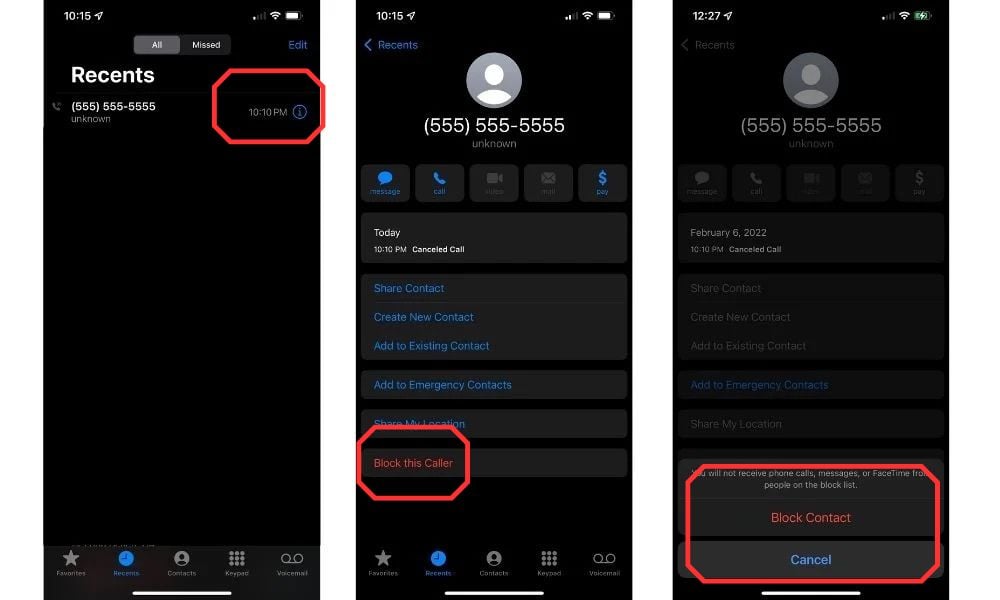
Take these steps to get to the info page for a contact or number on the Phone app so you can block the number:
- Open the Phone app.
- Select Favorites, Recents, or Voicemail.
- Press the "Info" icon (a circle with an "i" ⓘ) next to the phone number or contact name.
- Scroll down to "Block Number" on the next screen.
- Follow the prompt to confirm the block.
How to block phone numbers via the Messages app
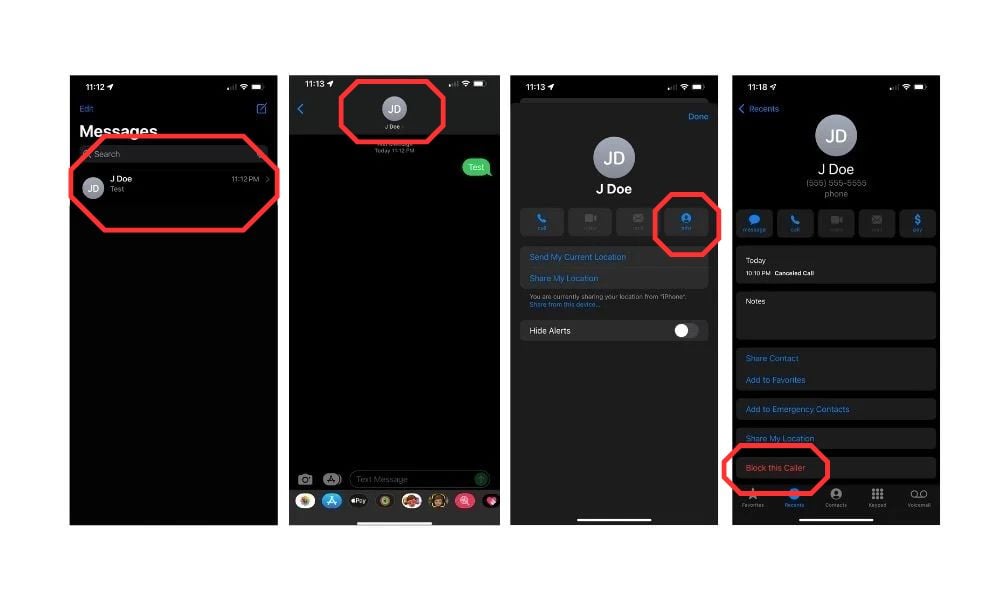
How to block numbers from the Messages app:
- Tap the Messages app.
- Open the text message thread with the contact/number you want to block.
- Press on the name/number at the top of the conversation page.
- Select "Info."
- Scroll down and select "Block Caller."
- Follow the prompt to confirm the block.
How to block a phone number via FaceTime
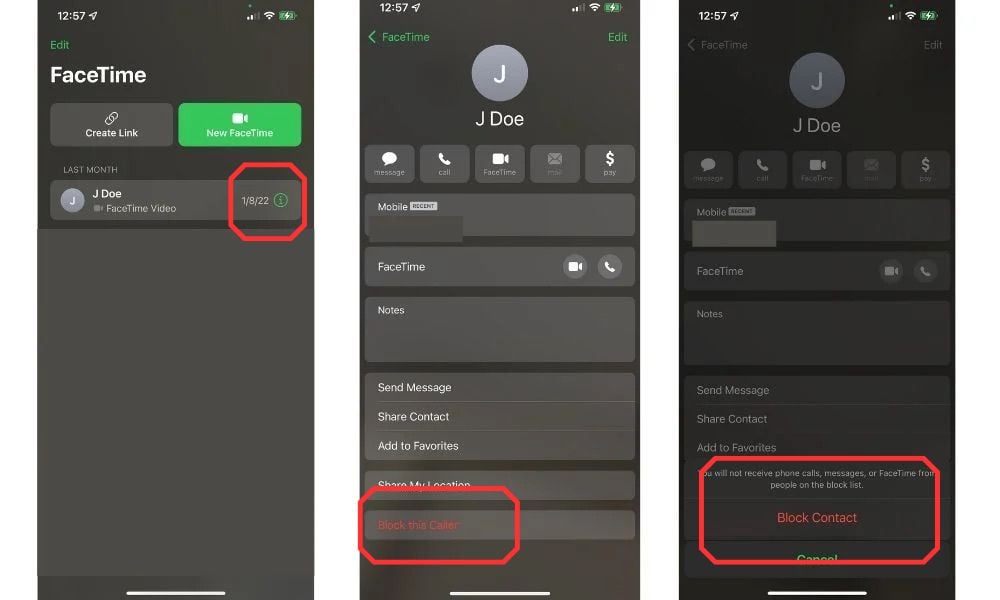
How to block numbers via the FaceTime app:
- Open the FaceTime app.
- Find a recent FaceTime call with the person you want to block.
- Tap on the "Info" icon (green circle with an "i" ⓘ).
- Scroll down and select "Block Caller."
- Follow the prompt to confirm the block.
Manage blocked numbers on iPhone
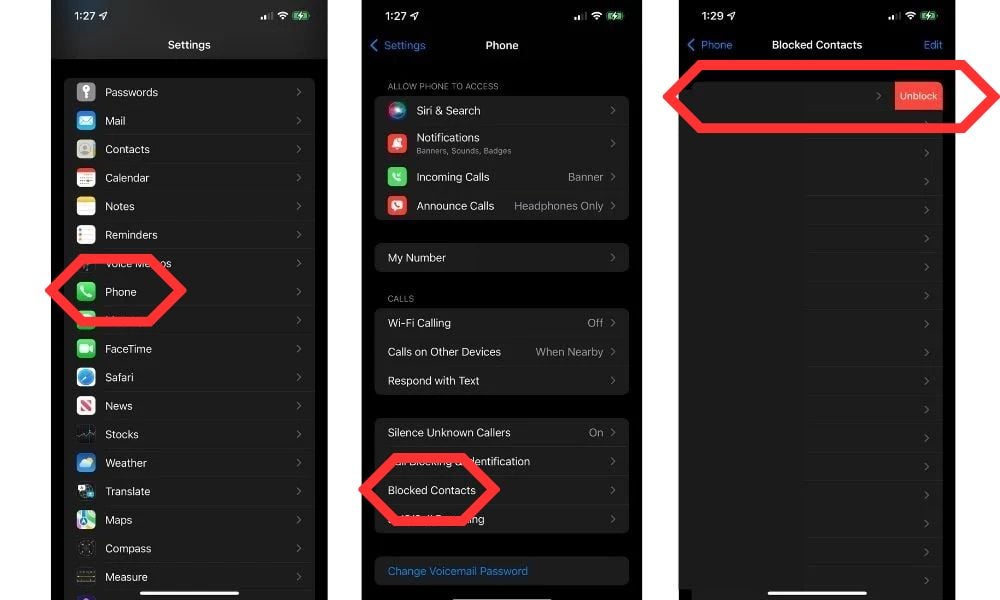
You can manage blocked numbers through the Settings app on your phone:
- Open the Settings app.
- Choose "Phone."
- Select "Blocked Contacts."
At this point, you will see a list of all the numbers and contacts you have blocked. Swipe left over any number to unblock it.
How to silence unknown callers on an iPhone
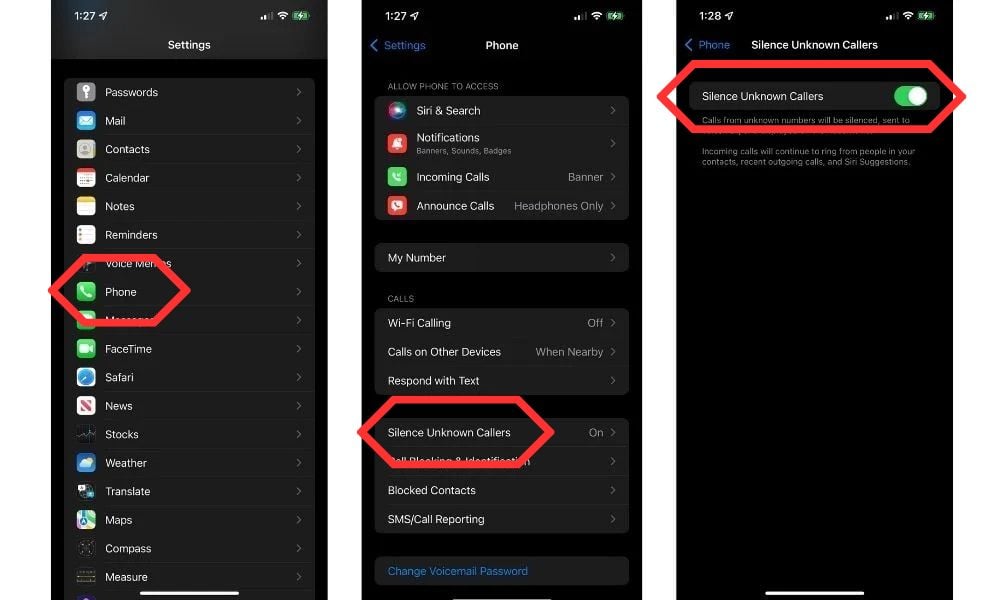
If you're tired of answering unknown callers, the iPhone gives you a way to ignore them altogether. You can't block the numbers individually (can't block a number you don't know), but you can prevent unknown callers from making your iPhone ring. To silence them, take these steps:
- Open the Settings app and choose "Phone."
- Select "Silence Unknown Callers."
- Toggle "Silence Unknown Callers" to the On position.
How to silence spam callers on iPhone
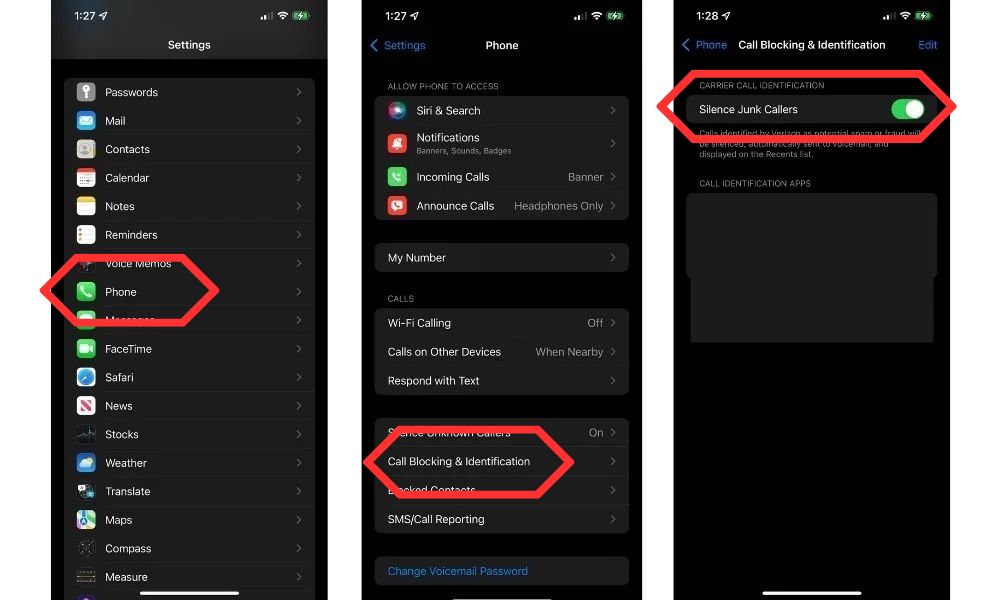
You can also silence known spam callers from reaching you, depending on your carrier. To set up this feature, take these steps:
- Open the Settings app and choose “Phone.”
- Select "Call Blocking & Identification."
- Toggle "Silence Junk Callers" on.
Don't forget the Do Not Call Registry
Want to stop certain telemarketers from calling you? Remember to add your phone number to the National Do Not Call Registry to automatically avoid calls from any marketers using call lists without explicit permission to contact you. You can register your number at the Do Not Call Registry website to reduce the calls you receive.
Spam and robocall blocking apps
In addition to the built-in spam blocking on the iPhone, you can use one of the several spam and robocall blocking iOS apps available on the App Store. These apps can block known spam callers and warn you of potential spam callers, reducing your risk of interacting with them. Neither your native software nor third-party apps can block 100% of spam calls, but they can help lower how man you receive.
Some popular spam and robocall blocking apps include the following:
Change your phone number and save on your phone bill
If you still get too many unwanted calls after taking several steps to block them, you may want to change your phone number. Just don’t forget to let all the people you want to stay in contact with know. Changing your phone number makes a great time to swap carriers to get a better plan that costs less.
If you want to save money and don't need a ton of data on your phone plan, we recommend US Mobile's 2GB By the Gig plan. It comes with unlimited calling and texting, and you can choose your coverage based on which network you live in—Verizon's, AT&T's, or T-Mobile's.
If you're more on the data-heavy side, check out the Visible+ plan from Visible. You'll get unlimited premium data and hotspot data all for under $40/month.
Here is a list of some more of the most popular plans among our readers:
|
US Mobile

2GB By the Gig Plan
$10.00/mo
Taxes and fees included
|
|
Visible

$30 Visible+ Plan
$30.00/mo
Taxes & Fees included
|
Of course, if changing numbers feels like a bit of a hassle, you can still switch carriers while keeping your number. Plus, if you’re in the market for a new phone, you might be able to snag a cheap iPhone deal.
Frequently asked questions
Does *67 still work on an iPhone?
Yes, *67 still works on an iPhone. If you don't want the recipient of your call to see your number on their caller ID, you can dial *67 before the recipient's phone number. The recipient will see you as either "unknown caller" or "blocked caller."
Angelo Ilumba
Senior Writer

Thousands of cell phone plans unpacked. All the facts. No surprises.





.png?w=280&h=280&usm=20&usmrad=0.8&fit=crop "The Best Cheap Phone Plans for 2026: We Tested Them All to Help You Save")


