
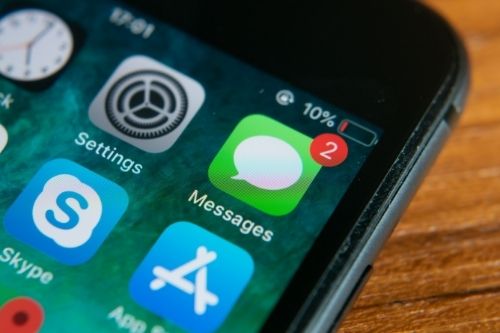
Are all of your text messages appearing in green bubbles instead of blue? It likely means iMessage isn’t working on your iPhone.
Some obvious reasons iMessage isn't working may be that your cell connection is poor or you don't have enough data—but what if you're in a great coverage area and have an unlimited data plan?
When iMessage suddenly stops working on your iPhone or iPad, there are several fixes you can try, including rebooting the iMessage app, signing in and out of your Apple ID, updating your iOS, and resetting your iPhone.
Here are eight quick fixes for your broken iMessage.
1. Check Apple's system status
If you're iMessage isn't working it might be that iMessage isn't running at all. There could be a problem with the iMessage server. You can check the status of iMessage (and other Apple services) at Apple's support page. If you see that iMessage is down, your only real recourse is to wait for Apple to address the issue. Fortunately, you should still be able to text your friends and family via standard SMS.
Quick tip: It might be your contact's iMessage not working, not yours
Your iMessage might not be broken at all—it could be an issue with your contact's iPhone instead. To find out, send an iMessage to several other contacts that also have an iPhone. If iMessage is only not working with just one of your contacts, then it’s likely an issue with their iMessage. Conversely, if it isn’t working with all of your messages, it’s more likely a problem on your end.
If your iMessage won't work with just one person, verify that they're registered with iMessage and have it turned on in their Settings. Have them try this same iMessage troubleshooting step with other contacts to confirm whether their iMessage is broken.
2. Turn off and restart iMessage
If Apple's support page doesn't indicate a bigger issue, rebooting iMessage is a great first step to take when fixing your iMessage. This will usually fix the issue if there aren't underlying problems. Here’s how to do it:
- Tap Settings
- Select Messages
- Toggle off iMessage.
- Turn your iPhone off
- Turn your device back on
- Return to Settings
- Click Messages
- Toggle on iMessage
This iMessage fix takes only a few minutes and tends to be fairly successful.
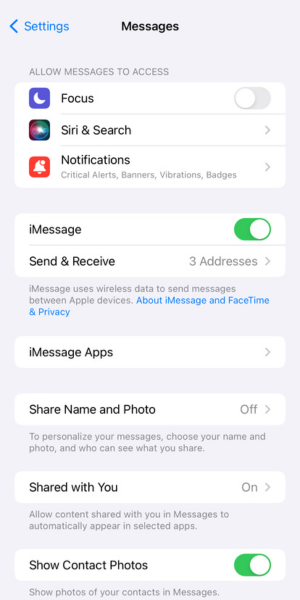
3. Ensure iMessage is on and set up
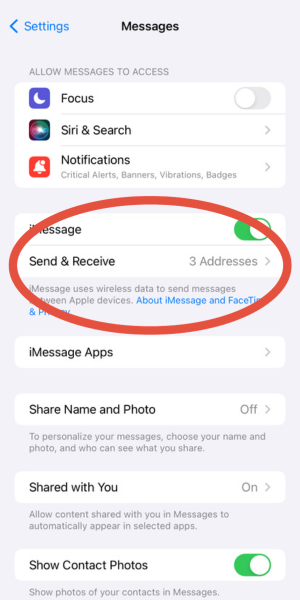
Sometimes the fix is as simple as making sure iMessage is set up correctly. While setting up iMessage is something you would have done straight out of the box, it's possible that step was skipped. Here’s how to check:
- Tap Settings
- Select Messages
- Tap Send & Receive
You will see a list of email addresses and phone numbers that can send and receive iMessages on your iPhone. Under the heading, “Start New Conversations From,” make sure to select your phone number to activate iMessage for your number.
If this doesn’t work, don’t worry—there are more fixes you can try.
4. Sign out of Apple ID, then sign back in
In order to sign out of and sign back into your Apple ID account, take the following steps:
- Tap Settings
- Select Messages
- Select Send & Receive
- Select your Apple ID
- Choose Sign Out
- Go back to Settings
- Tap on Sign in to your [device]
- Use your Apple ID and password to sign in
Once you’re signed back in, try sending an iMessage to another Apple user. If the message comes up blue, then iMessage is working again.
5. Check your Wi-Fi & cellular connection
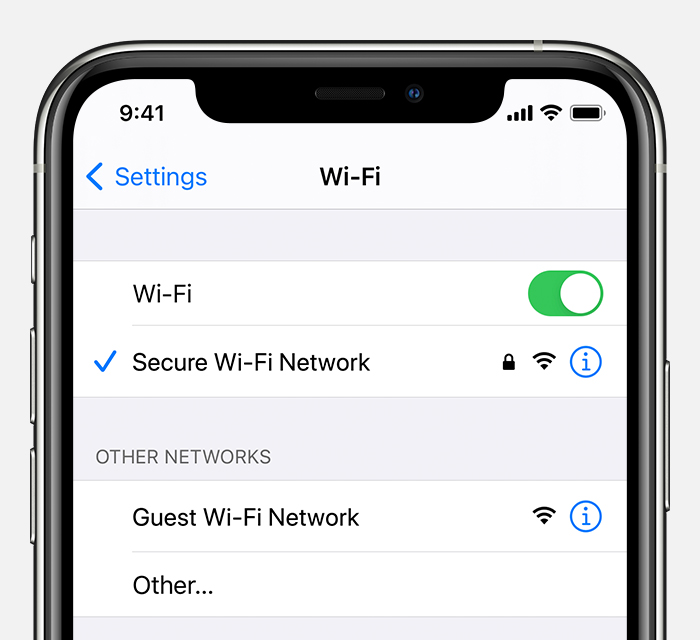
To use iMessage, your Apple device needs to be connected to cellular data or WiFi. To check your WiFi connection, go to your Settings. From there, you’ll want to follow these steps:
- Click WiFi and make sure it is turned on.
- Check that you're connected to the appropriate WiFi network.
You can also check the strength of the signal by seeing how many bars you have. If your signal is weak, your iMessages may not work. If you are somewhere where WiFi is not available, you’ll need to make sure your cellular data is turned on. Follow these steps:
- Tap Settings
- Click Cellular
- Make sure cellular data is turned on
6. Update your iOS software
Your iMessage may not be working because your iPhone's operating system (iOS) is outdated. To check whether you've updated your iOS, go to your Settings, then click General, then Software Update.
If your iPhone or iPad is up to date, you will see a message that says this. Otherwise, you can take this time to follow the steps and update your iOS or iPadOS.
7. Reset your network settings
If your iMessage still isn't functioning, you can try resetting your iPhone’s network settings back to factory default. Be forewarned: resetting your network settings will erase all saved WiFi networks from your iPhone, so make sure you have your WiFi password(s) saved somewhere.
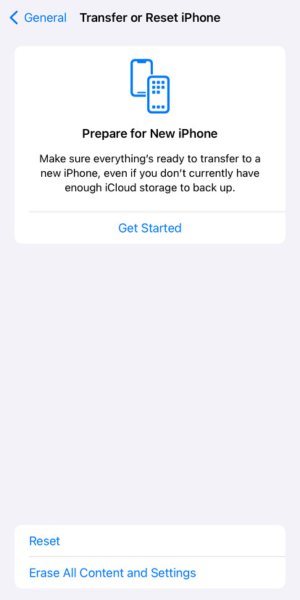
To try this, go to your Settings then follow these steps:
- Tap General.
- Scroll down and select Transfer or Reset iPhone.
- Select Reset Network Settings.
8. Contact Apple support
If you’ve tried all of these troubleshooting tips and your iMessage is still not working, you may want to try contacting Apple Support for help. You can do so by phone, or you can download the Apple Support app and use it to talk to an expert or make a reservation with the Genius Bar.
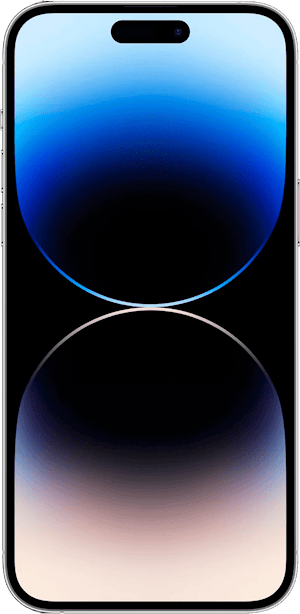
If your phone is quite a few generations old, it may not be able to support the most recent iOS updates, which may affect how iMessage performs. It might be time to upgrade to a newer model. Despite not being the latest iPhone on the market, we consistently recommend the iPhone 14 Pro Max for its perfect combination of sleek design, powerhouse photography system, excellent processor, and cheaper price.
iPhone 14 Pro Max 128GB

| Description | |
|---|---|
| Screen Size | 6.7" |
| Available On | 8 Plans from 1 carrier |
| Available From |

|
| Priced From | $10 per month + $1,099 upfront |
| View Full Details |
 Apple's 2022 model featuring new 48MP main camera along with 3 more 12MP cameras, new Dynamic Island technology, Always-On display, customizable lock screen, improved battery life, and access to emergency services via satellite
What is iMessage?
Apple first introduced iMessage to iPhones and other Apple devices in 2011 with iOS 5. It functions exclusively on Apple devices like iPhones, iPads, Macbooks, and Apple watches. iMessage is different from text messaging (SMS and MMS) in that it uses data to send messages as opposed to texts included on your cell phone plan. A major advantage of iMessage is that you can write messages longer than the standard 160-character limit of text messages, as well as send photos and videos larger than the data limit of an MMS message. Want to chat with iPhone friends but using an Android? Here's how to use iMessage on Android.
Lauren Hannula
Managing Editor

Thousands of cell phone plans unpacked. All the facts. No surprises.





.png?w=280&h=280&usm=20&usmrad=0.8&fit=crop "The Best Cheap Phone Plans for 2026: We Tested Them All to Help You Save")


