

Autoplay on Facebook videos isn’t just annoying—it also drains your mobile data. On average, standard-definition videos on Facebook use about 2.6MB per minute, with HD videos consuming around 7MB per minute and 4K videos eating up a hefty 20MB per minute. These can add up pretty quickly if you're binge-scrolling without being connected to Wi-Fi.
Whether you're concerned about data usage or simply don't want videos to play automatically when you scroll the Facebook app, here's how to stop auto-video play on Facebook.
How do you disable Autoplay for Facebook videos?
You can disable Autoplay for videos on Facebook both via the Facebook app and from your browser.
Turn off Autoplay on iPhone and Android
Turning off Autoplay on Facebook is the same for both the iPhone and Android apps. To set your Facebook app Autoplay settings to your preferences:
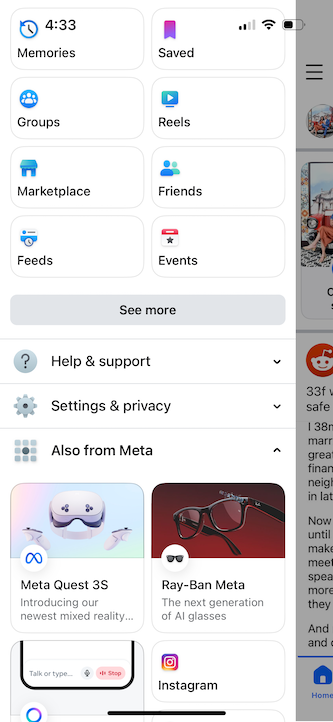
- Open the Facebook app and tap the hamburger icon (three horizontal lines) to open your shortcuts and settings.
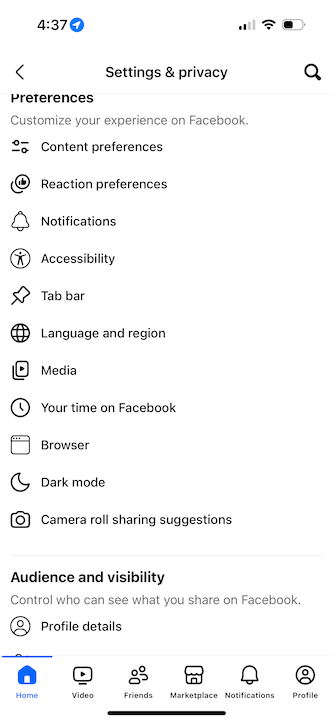
- Under Settings & privacy, tap Settings.
- Tap Media and scroll to Autoplay.
- Choose your preferred Facebook video settings:
- To turn off Autoplay completely, tap Never Autoplay Videos.
- To save on data while allowing AutoPlay on Wi-Fi, tap Autoplay on Wi-Fi Only.
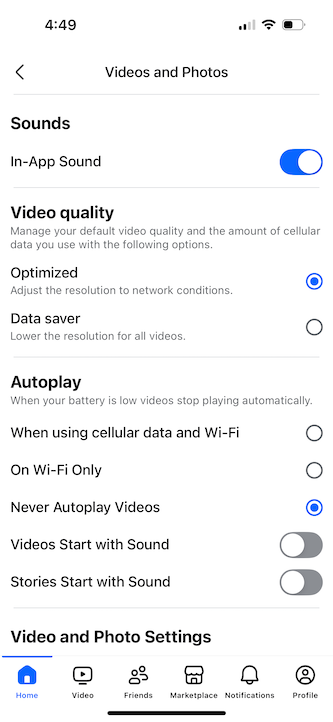
Image: Lauren Hannula | WhistleOut
Turn off Autoplay on desktop (Chrome, Safari, Firefox)
You can disable autoplay on desktop, too. Here’s how.
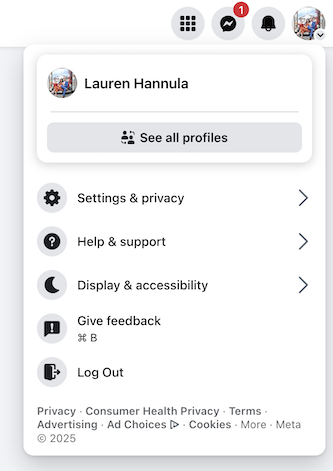
- On Facebook, click your profile picture.
- Click Settings & privacy > Settings.
- Scroll to and click Media in the left-hand menu.
- Toggle Autoplay animations to “off.”
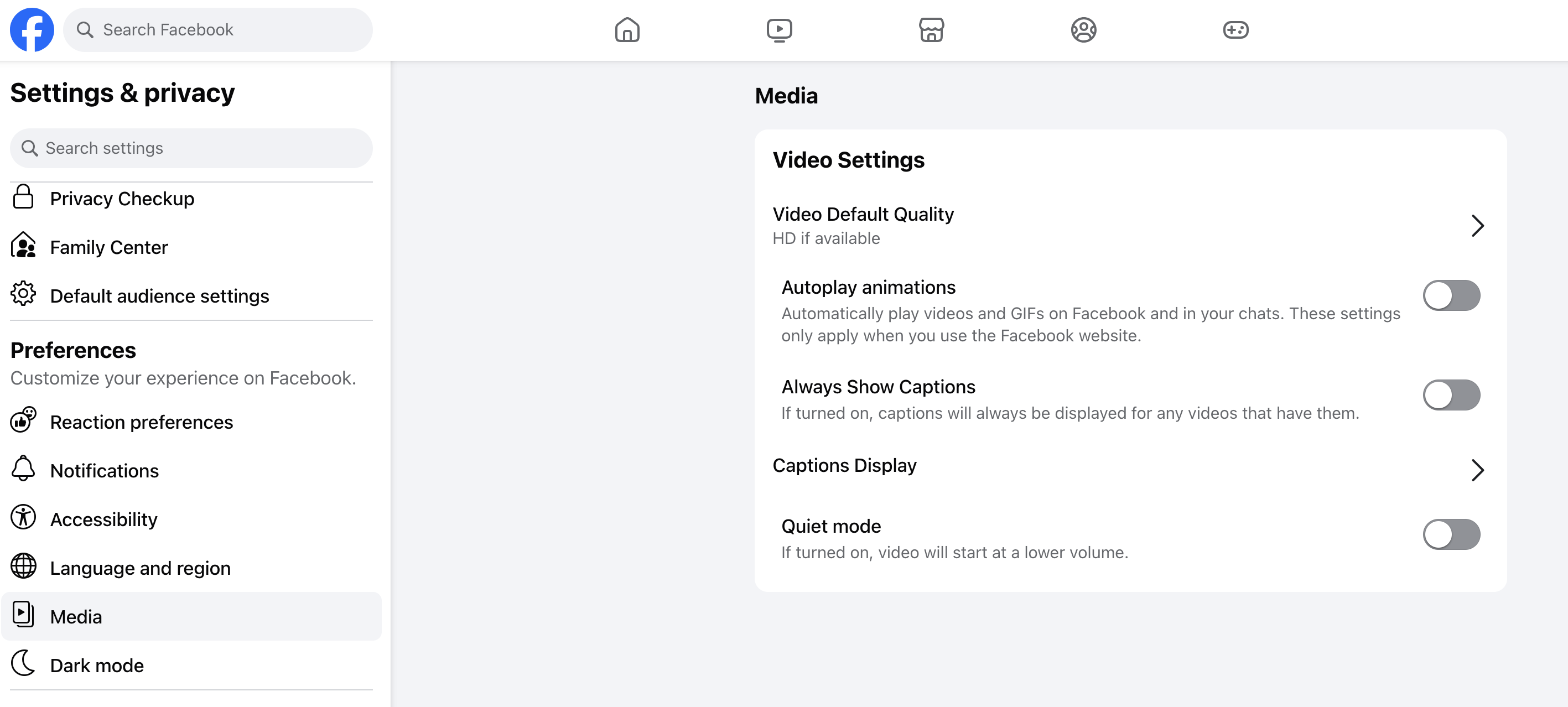
These steps are also the same to turn off Autoplay on Facebook Mobile, which is the desktop version of the site that renders in a mobile browser (like Safari).
How to turn off sound on Facebook videos
Maybe you're fine with videos auto-playing, as long as they're on silent.
To stop Facebook videos playing with sound automatically, in the Facebook app, go to Menu > Settings & Privacy > Settings > Preferences > Media > Autoplay > Reels start with sound > Toggle "Off."
What are other ways to save mobile data on Facebook?
Unless you’re connected to Wi-Fi, your phone must use data to access the internet and Facebook. But there are other ways to save mobile data while using the Facebook app beyond disabling Autoplay on Facebook videos.
Enable Data Saver mode
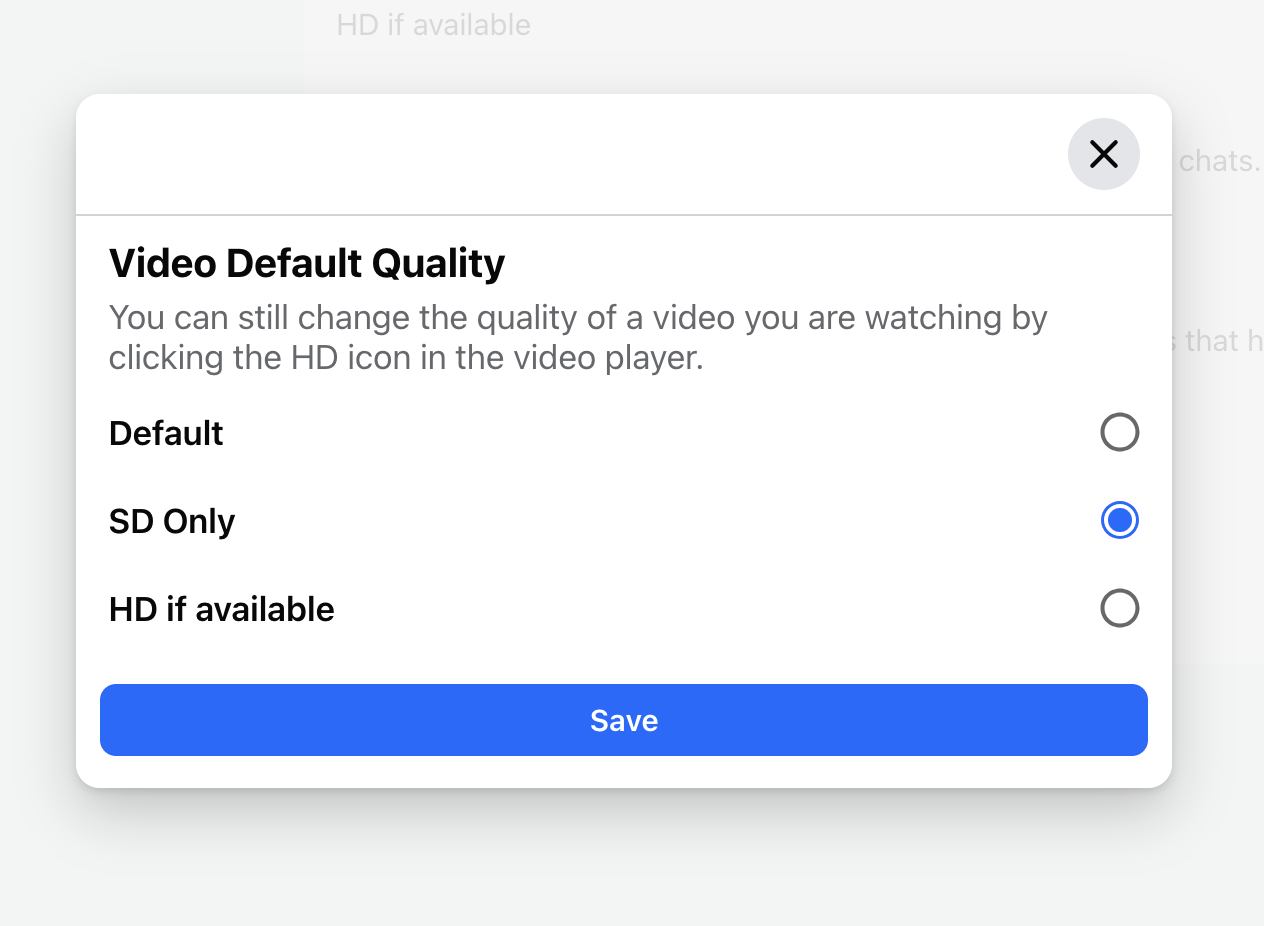
Facebook has a Data Saver setting for all videos, which limits the resolution at which they play. You can enable Facebook’s data saver mode in the same “Media” menu where you turned off Autoplay.
- On the Facebook app, under Video Quality, tap Data saver.
- On the desktop site, under Video Default Quality, choose SD Only.

Try Facebook Lite
If you have an Android phone (sorry, Apple fans), you can access a stripped-down version of the Facebook app called Facebook Lite. Rather than being a setting or mode within the standard Facebook app, it's an entirely separate app you’ll need to download.
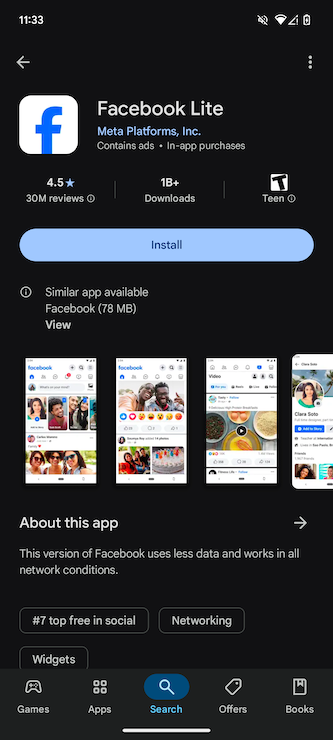
Image: Max McCaskill | WhistleOut
Facebook Lite is very similar to the standard Facebook app, but it includes fewer features, and videos and images are served in a lower resolution. You’ll still have a Timeline for status updates, photo albums for sharing pictures and videos, as well as access to events, business pages, and Facebook Marketplace.
It’s also a great option if you have an older Android device that can’t support newer, updated versions of the Facebook app.
Limit background data
Social apps like Facebook are notorious for wasting mobile data when they're open in your phone's background. You can save data on the Facebook app by limiting the amount of data that Facebook can use in the background when you're not actually using the app.
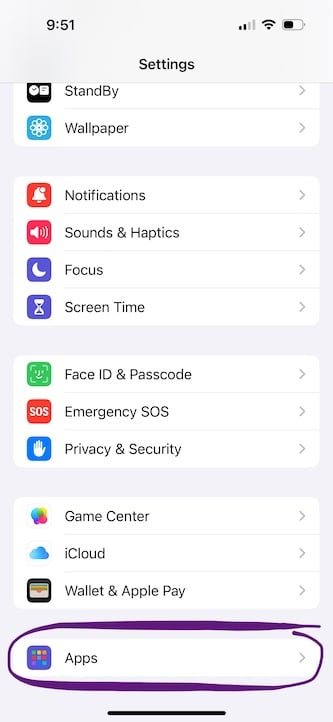
The process varies slightly depending on whether you're using iOS or Android. To limit Facebook background data on iOS:
- Open the Settings app and scroll down to Apps.
- Select Facebook.
- Toggle Background App Refresh to the "off" position.
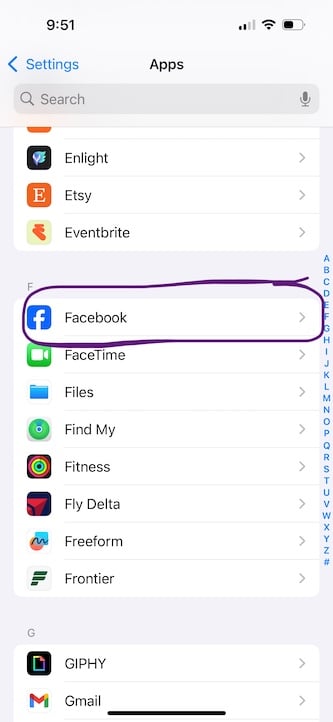
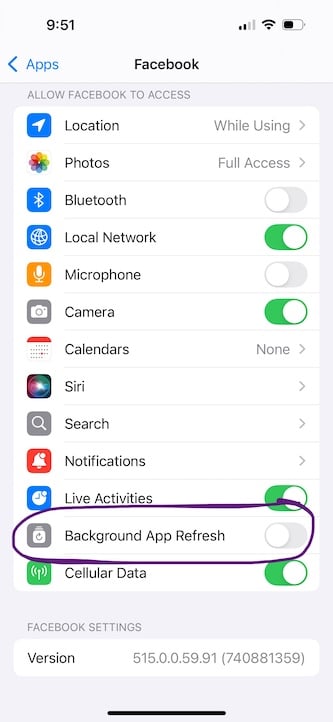
For Android phones, keep in mind that different Android devices have slightly different settings. The steps below are specific to a Google Pixel phone, but should be generally applicable to other Android devices.
To limit Facebook background data on an Android:
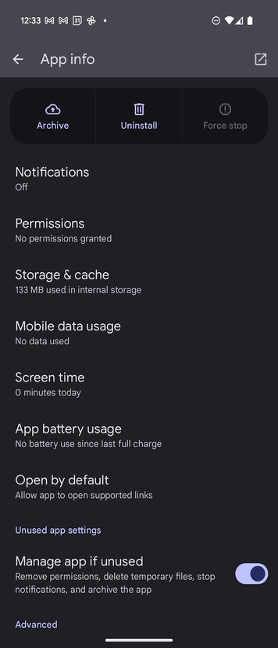
- Open the Settings app and tap Apps.
- Under All Apps, scroll down to Facebook and tap on it.
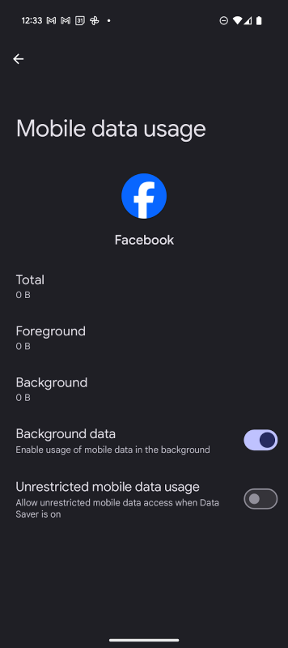
- Tap Mobile data usage.
- Toggle Background Data to “off.”
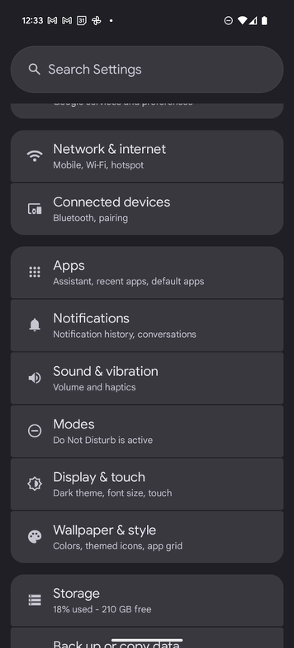
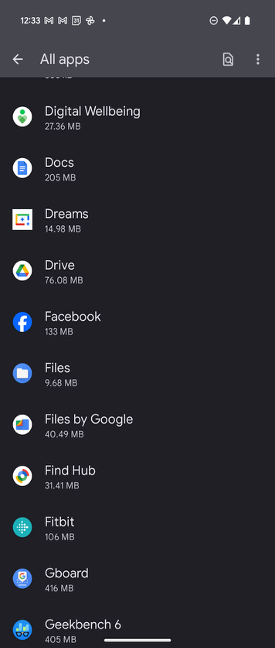
The best phone plans for social media and streaming
Looking for a phone plan that doesn’t necessarily require you limit how much data you’re using? An unlimited data plan might be worth considering, especially since many of our favorite unlimited plans are under $50 per month. Two standout options are US Mobile’s Unlimited Premium plan and Visible’s Visible+ plan.
The US Mobile Unlimited Premium plan is a versatile and high-value option. Starting at $35 per month, it includes unlimited data and at least 100GB of “premium” data high-speed data before any chance of a slowdown, with the AT&T-backed Dark Star network plan delivering completely unlimited premium data. You’ll also get 50-100GB of hotspot data and 10-20GB of international roaming data for your travel needs.
US Mobile leverages all three major U.S. networks, with the AT&T-backed plan offering the cheapest price and highest thresholds as outlined above. But even with the lower data allowances and slightly higher price ($44/month), the Verizon- and T-Mobile-supported plans are extremely competitive. Read more about US Mobile’s overall performance when we tested and reviewed the unlimited plan.
|
Visible

$30 Visible+ Plan
$30.00/mo
Taxes & Fees included
|
Backed by Verizon’s 4G and 5G networks, Visible’s mid-tier Visible+ plan comes at $35 per month. It offers completely unlimited premium data on Verizon’s fastest 5G Ultra-wideband network (which is slightly better than the Verizon version of the US Mobile plan), as well as unlimited hotspot access at 10Mbps. You’ll get unlimited talk/text to and from Mexico and Canada, along with unlimited roaming in those countries. We think Visible+ offers some of the best bang for your buck on the market, and found it to be speedy and reliable in our firsthand testing.
Facebook autoplay: FAQs
Why does Facebook autoplay videos?
Facebook autoplays videos to keep you, their user, engaged on their website longer.
Can I set Facebook to only autoplay on Wi-Fi?
Yes, you can set Facebook to only autoplay videos on Wi-Fi. In the "Autoplay" section of the Media Preferences menu, select "On Wi-Fi only."
Does disabling autoplay on Facebook affect Reels?
Yes, disabling autoplay on Facebook will also disable Reels from autoplaying. All videos on Facebook are now Reels.
Why are Facebook videos playing as I scroll?
Facebook videos are playing as you scroll because they are set to autoplay by default to keep you engaged on the website longer.
Lauren Hannula
Managing Editor

Thousands of cell phone plans unpacked. All the facts. No surprises.

Related Articles


Related Topics
Operating Systems ExplainersPopular Topics
Featured App Reviews iOS News Coverage Device Reviews Device Explainers Carrier Explainers App Roundups T-Mobile


Free iPhone 18 Pro, up to $1,200 off, with a trade-in in any condition or a line switch on Experience Beyond





.png?w=280&h=280&usm=20&usmrad=0.8&fit=crop "The Best Cheap Phone Plans for 2026: We Tested Them All to Help You Save")


