
Having a Wi-Fi network password is essential for security, but it can be a real pain to remember when someone asks for access. Luckily, sharing your Wi-Fi password right from your phone is convenient and easy, no matter what brand of device you own.
iPhones can share passwords with other Apple devices by using Bluetooth, while Android phones rely on a scannable QR code. To share from an iPhone to an Android, you’ll need a third-party app.
Choose your device for specific steps about Wi-Fi password sharing:
Sharing Wi-Fi passwords between iPhones
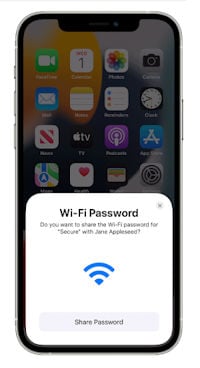
Apple has spent years developing integration features across all of its products, including iPhones, iPads, and Macs. These features make it incredibly easy to transfer information to surrounding Apple devices through Bluetooth. A great example is AirDrop—the ability to share photos and files with people close to you. You can also share your Wi-Fi password with this same feature.
Before you share your Wi-Fi password through Bluetooth, you need to:
- Enable Bluetooth on both iPhones.
- Make sure Wi-Fi is enabled on both devices.
- Save the recipient’s Apple ID in your Contacts app.
To share your Wi-Fi password to another Apple device:
- Open Settings on the device you want to connect.
- Tap Wi-Fi and select the network you want to join.
- On your phone, tap Share Password and Done.
Your other device or iPhone should be given access to the Wi-Fi network. This method also works for other Apple products like iPads and Macs. Your iPhone also saves every Wi-Fi password you've ever used, making it easy to find and share passwords from networks you aren't even currently connected to.
If the Share Password prompt doesn’t come up, you may need to perform a software update for your iOS or reset the network settings.Share a Wi-Fi password from an iPhone to an Android
The integration between Apple products does not extend to Android devices. That means there’s no way to share a Wi-Fi password from an iPhone to an Android over Bluetooth. Instead, you’ll need to use Apple's native Passwords app or Shortcuts app.
Sharing your Wi-Fi password with the Passwords app
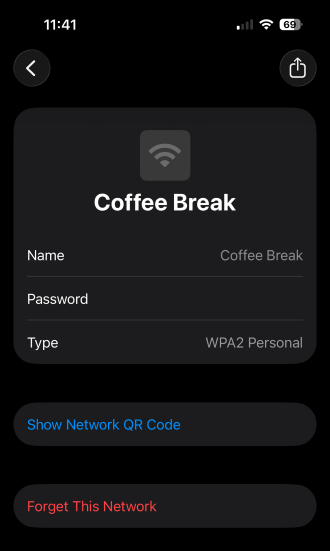
Image: Max McCaskill | WhistleOut
The Passwords app allows you to share these Wi-Fi passwords as a simple QR code, so it also works with Android devices. This is an iPhone feature that many people don't know about. All anyone has to do to access your network is scan the QR code with their camera.
The Passwords app is Apple's native password manager that was originally released as a security feature in iOS 18. While it's best known for storing passwords and monitoring them for data breaches, it also saves every Wi-Fi password you enter into your iPhone.
To share your Wi-Fi password through the Passwords app:
- Open the Passwords app.
- Select the Wi-Fi category.
- Select the Wi-Fi network you want to share.
- Press Show Network QR Code.
Sharing your Wi-Fi password with the Shortcuts app
Shortcuts also allows you to share your Wi-Fi and its password through a unique QR code. It’s free to use and you probably already have it on your iPhone since it comes pre-installed with the latest iOS updates.
The Passwords app method is much faster for the same result, but if you use a different password manager and deleted Passwords off your phone, this is the only option.
Before you can share your Wi-Fi via QR code, you’ll have to set up the shortcut itself. Follow these steps to create a QR code to share your Wi-Fi from an iPhone to an Android:
- Open Shortcuts.
- Tap Starter Shortcuts under your gallery.
- Scroll down and tap Make QR code.
- Tap Add Shortcut.
- Go to Shortcuts located in the bottom bar and tap your Make QR Code shortcut.
- Select your new QR code shortcut and tap Set up a wireless network.
- Enter your Wi-Fi network name and password in the following prompts.
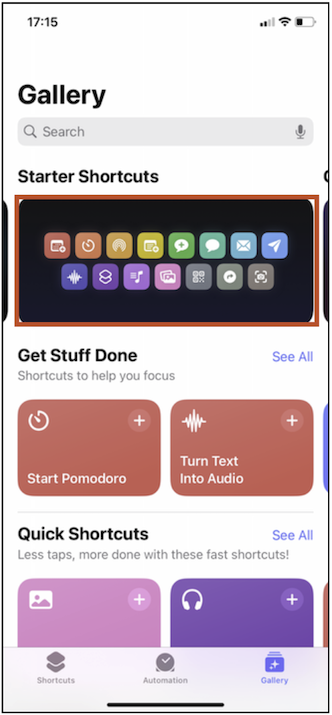
Image: Jessica Santero | WhistleOut
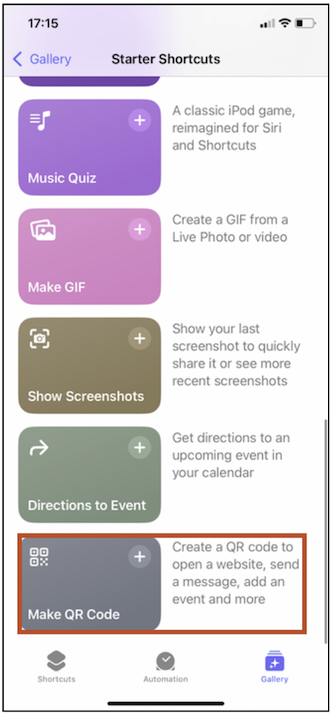
Image: Jessica Santero | WhistleOut
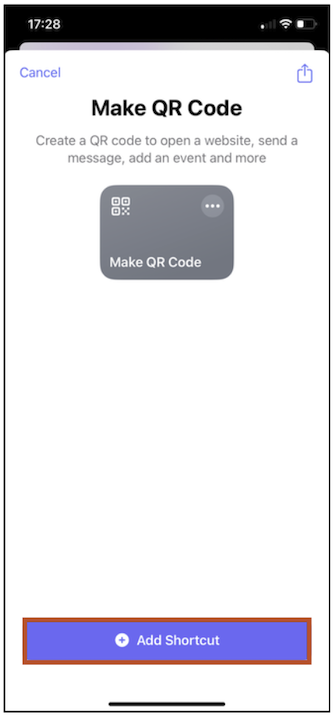
Image: Jessica Santero | WhistleOut

Image: Jessica Santero | WhistleOut
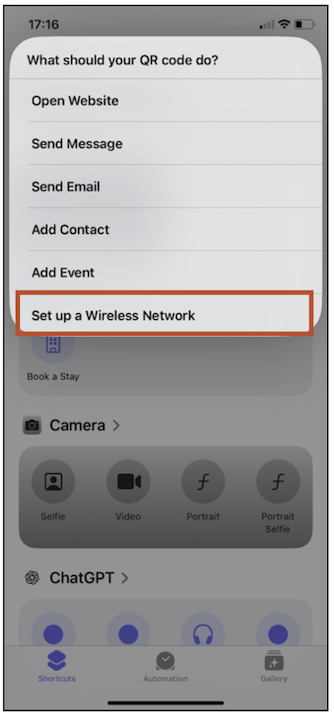
Image: Jessica Santero | WhistleOut
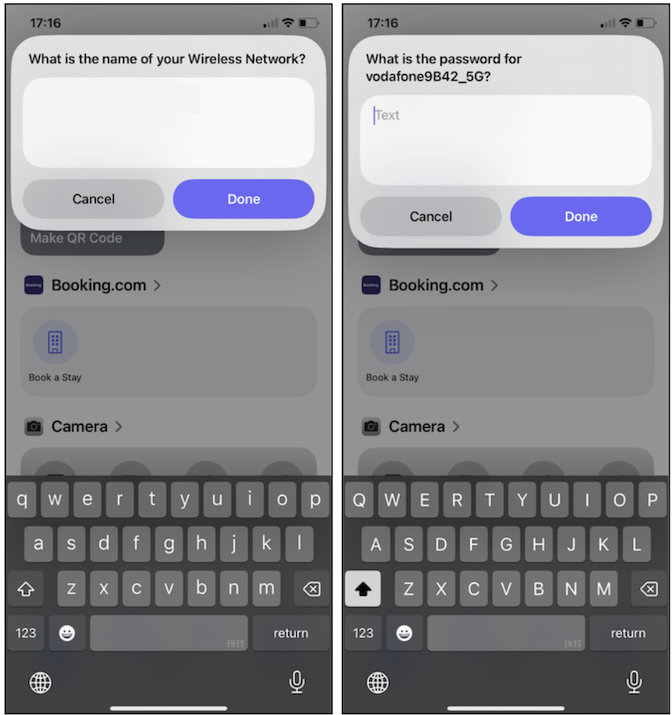
Image: Jessica Santero | WhistleOut
To share your Wi-Fi password in the future, all you have to do is open Shortcuts and tap your QR code.
If you don’t want to save your Wi-Fi password in an app, you can always share your Wi-Fi password the old-fashioned way—reading it out loud to the recipient.
How to share a Wi-Fi password from an Android
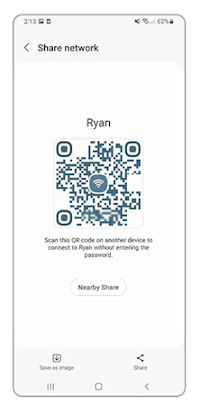
Android users have a much easier time sharing Wi-Fi passwords with Quick Share. There is no limit to the kinds of devices they can share with because Android Wi-Fi password sharing is done via a QR code, rather than Bluetooth. You don’t have to download any kind of app for Androids; this feature is built into the phone, whether it’s a Samsung or Google device.
Your phone must be connected to the Wi-Fi network you want to share for this method to work.
To share your Wi-Fi password from an Android:
- Go to Settings.
- Tap on Network & internet or Connections.
- Tap the Cog icon on the Wi-Fi you want to share.
- Press Share or the QR code icon.
- Scan the QR Code with the phone that wants access to your network.
This method allows your Android to share your Wi-Fi password with any device, including iPhones.
Why is Wi-Fi sharing not working?
If your Wi-Fi sharing prompt isn’t appearing or you just can get your phone to share your Wi-Fi password, follow these tips:
- Restart both devices, and try to share the password again.
- Make sure you have the latest software, whether it's an iOS update or Android version.
- Enable Bluetooth and Wi-Fi on both devices.
- Save the email or Apple ID of the person you’re sharing with into your contacts.
If your trouble persists after trying these tips, check out our ultimate iPhone guide or troubleshooting Android guide. And if all else fails, have the other person enter your password in their phone manually.
Need a better data plan?
If you find yourself constantly asking your friends for access to their Wi-Fi networks because you’ve run out of data, it might be time for a new data plan. Smartphones are incredibly data-intensive and it’s easy to run out if your plan doesn’t give you enough. Luckily, you can find plenty of unlimited data plans out there.
The Big Three carriers (AT&T, Verizon, and T-Mobile) offer the best unlimited data plans. They have widespread coverage on 4G LTE and 5G networks, offer the fastest data speeds, and include some pretty great perks. Hooking up to one of these plans will ensure you never run out of data again.
Check out the most popular options below:
|
#1
|
Verizon

Simplicity Plan
$30.00/mo
+ Taxes & Fees. Price includes AutoPay & Bring a Number discount
|
|
#2
|
Verizon
Unlimited Welcome
$65.00/mo
+ Taxes & Fees. Price includes AutoPay & Paperless discount.
+ $40 Upfront
|
|
#3
|
T-Mobile

Experience Beyond 2.0
$100.00/mo
with Auto-Pay + Taxes and fees
|
|
#4
|
T-Mobile
Essentials Saver 2.0
$50.00/mo
with Auto-Pay - Taxes & Fees NOT included
|
|
#5
|
Verizon
Unlimited Ultimate
$95.00/mo
+ Taxes & Fees. Price includes AutoPay & Paperless discount.
+ $40 Upfront
|
The drawback to the offerings from the Big Three is that they are also some of the most expensive options out there. Smaller carriers on the same networks offer unlimited plans at a more palatable price.
These small carriers are called Mobile Virtual Network Operators (MVNOs), and they offer cheap access to the larger carriers’ networks. One of our favorite MVNOs is Visible since it offers budget-friendly plan options for unlimited data. Visible runs on Verizon’s network, which offers the largest 4G LTE coverage area of any carrier and incredibly fast 5G speeds.
- The base Visible plan costs just $25/month and includes unlimited data and an unlimited mobile hotspot.
- The Visible+ plan costs $35/month and also includes unlimited data and an unlimited mobile hotspot at 10Mbps speeds.
- Visible’s top-tier Visible+ Pro plan is priced at just $45/month with an even faster hotspot (15Mbps) and international perks.
|
#1
|
Visible

$25 Visible Plan
$25.00/mo
Taxes & Fees included
|
|
#2
|
Visible
$30 Visible+ Plan
$30.00/mo
Taxes & Fees included
|
|
#3
|
Visible
$40 Visible+ Pro Plan
$40.00/mo
Taxes & Fees included
|
|
#4
|
Visible
$275 Visible Annual Plan
$275.00
Regular rate at $300/year<br>Taxes & Fees included
|
|
#5
|
Visible
$375 Visible+ Annual Plan
$375.00
Regular rate at $420/year<br>Taxes & Fees included
|
|
#6
|
Visible
$450 Visible+ Pro Annual Plan
$450.00
Regular rate at $540/year<br>Taxes & Fees included
|
The drawback to most MVNOs is that it’s possible your speeds can slow from deprioritization or even be throttled in extreme cases.
There are plenty of other MVNOs out there if Visible doesn’t make sense for your needs.
Check out some of the other most popular MVNO unlimited plans below:
|
#1
|
Mint Mobile

Unlimited Data Plan
$10.00/mo
$60 for 6 months of service
|
|
#2
|
US Mobile

Unlimited Starter Plan
$10.00/mo
|
|
#3
|
Spectrum Mobile®

Unlimited Plus
$40.00/mo
+ $20 Upfront
|
|
#4
|
Spectrum Mobile®
Unlimited
$30.00/mo
+ $20 Upfront
|
|
#5
|
Cricket

Supreme Unlimited Plan
$55.00/mo
with AutoPay; $60 for the first month.
+ $9.99 Upfront
|
How to share your Wi-Fi password: FAQs
Can iPhones share Wi-Fi passwords with Androids?
Yes, but they must use a third-party app. iPhone users can’t share Wi-Fi passwords with Androids through Bluetooth.
Can I share a Wi-Fi password from my phone if I’m not connected?
No, you must have an active Wi-Fi connection with the network to share the password. This includes saved networks in your settings.
Why won’t my iPhone prompt me to share the Wi-Fi password?
If your iPhone isn’t sharing your Wi-Fi password even after the prompt, double check that your phone’s configuration is set correctly. Make sure both your Wi-Fi and Bluetooth are activated, both devices are in close proximity and running the latest iOS for iPhones or updates for Android phones.
How do I create a Wi-Fi QR code on my Android?
You can create a Wi-Fi QR code on your Android device by following these steps:- Open Settings.
- Tap Connections and then Wi-Fi.
- Tap the settings icon (gear symbol) next to your Wi-Fi network.
- Tap QR code at the bottom of your screen.
Can I share a Wi-Fi password without showing it?
Yes, you can share a Wi-Fi password without showing or revealing it. The easiest way is by generating a QR code if you have an Android device, or by using your iPhone to share your Wi-Fi password.
Max McCaskill
Sr. Staff Writer

Thousands of cell phone plans unpacked. All the facts. No surprises.





.png?w=280&h=280&usm=20&usmrad=0.8&fit=crop "The Best Cheap Phone Plans for 2026: We Tested Them All to Help You Save")


