
Apple’s iOS 18 update offers some important improvements to the iPhone's privacy and security features.
One of the biggest new developments is the Passwords app. It’s connected to your iCloud Keychain to manage passwords across Apple devices and includes warnings if your passwords are compromised. The iPhone Home Screen also has the new ability to lock and hide sensitive apps from prying eyes. Finally, there are new privacy settings that allow you to limit sharing your contact lists with apps.
These built-in iPhone features are great because they protect your device and don't require a third-party app. Read on for the most important new iOS 18 security features and learn how to download the new operating system to your device.
Passwords app
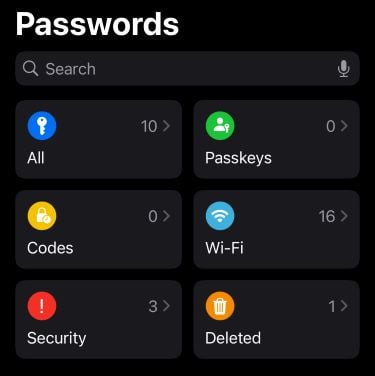
Image: Max McCaskill
The Passwords app connects to your iCloud Keychain to manage all of your passwords across devices. Whenever you allow Apple to save or create a password, it is stored in this app.
The app saves passwords for virtually everything, including your on-device apps, website login credentials, Wi-Fi networks, and iCloud Passkeys. Plus, it offers security information that keeps your passwords safe: you’ll receive warnings if you’ve used the same password multiple times or if your information is found in a data breach.
When I first used the Passwords app, I discovered one of my old email accounts from college had been compromised in a leak. I hadn’t thought of that account in years, so it was nice to get the heads-up from Apple that one of my old accounts was vulnerable. I was then able to use the app to log in and eventually delete the account, preventing personal information from being exposed.
Lock and hide apps
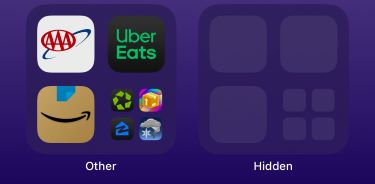
Image: Max McCaskill
iOS 18 allows users to lock and hide apps, providing users with additional security and privacy. The locking feature prevents phone snoopers from accessing your apps. The hide feature goes a step further and prevents anyone from even seeing what apps are on your phone.
Locking an app allows you to use your Face ID to lock virtually any app on your phone. This feature already exists for some apps, like banking apps. Now, you can also use your Face ID to lock apps that may not require a sign-in every time you use them, like social media or dating apps.
For even more privacy, you can also hide apps on your Home Screen. Doing so will lock the app and move it to the Hidden folder, which can be found at the bottom of your App Library. You can’t see or access the apps inside that folder without using your Face ID, preventing someone else’s prying eyes from breaking into the folder. You should note, however, that once an app is hidden it no longer receives background updates and can’t alert you with notifications. We recommend only hiding apps you frequently check so you will still receive notifications and updates.
How to lock and hide apps with iOS 18
Locking and hiding apps with iOS 18 is easy. You’ll follow the same basic steps for both processes.
To lock and hide an app:
- Press and hold the app until the app editing menu appears.
- Select Require Face ID. The lock or hide app options menu will appear.
- If locking the app, press Require Face ID and return to the Home Screen. If hiding the app, press Hide and Require Face ID.
- Read the warnings and press Hide App to lock the app and move it into the Hidden folder.
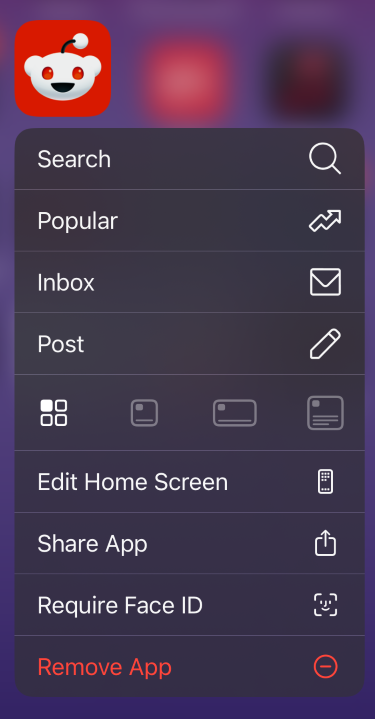
Image: Max McCaskill
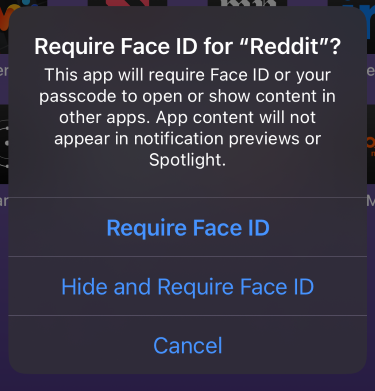
Image: Max McCaskill
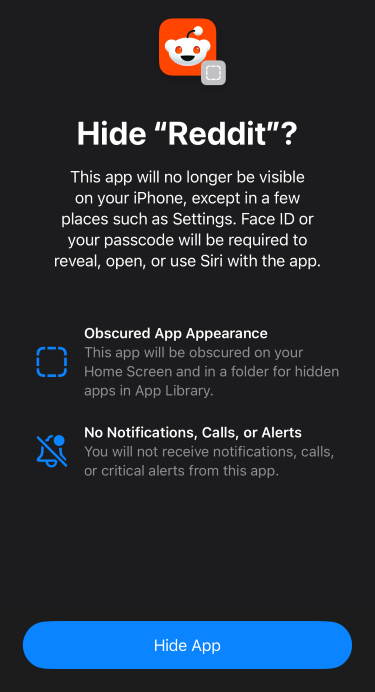
Image: Max McCaskill
Contact Access
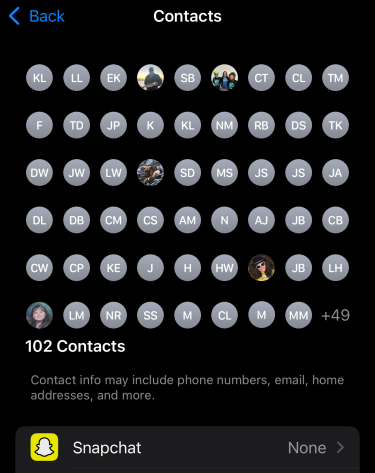
Image: Max McCaskill
Contact Access allows you to control the specific contacts an app can use.
Social media and messaging apps usually request access to your contacts to find friends, but that’s not always desirable. Maybe you’d like to make an anonymous account. Maybe you want to keep your work and friend contacts on separate profiles. iOS 18 solves this problem with Contact Access, a new option found in your iPhone’s privacy settings.
If you don’t want certain contacts to know you’re on an app, you can use Contact Access to prevent them from seeing you. You’ll have the option to set up the feature whenever a new app requests to use your contacts list and can always adjust it later.
How to update to iOS 18
You need to update your iPhone to iOS 18 to access these new privacy and security features. iOS 18 is available on all the most popular recent models including the iPhone 16 series. Apple made iOS 18 available on any device that was running iOS 17, so you can also get it on older models stretching back to the iPhone X series that was released in 2017.
Here’s how to upgrade to iOS 18 if you’re ready to upgrade:
- Head to Settings.
- Tap General.
- Tap Software Update.
- Choose Download and Install to obtain the most recent software release for your iOS device.
What is the most current iOS?
Apple is always releasing a new version of iOS. Sometimes these are big updates with new features, like iOS 18 with its new features and apps. Other times iOS updates are small tweaks and security fixes.
Check out our guide on the most recent version of iOS to keep your device up to date.
Max McCaskill
Sr. Staff Writer

Thousands of cell phone plans unpacked. All the facts. No surprises.





.png?w=280&h=280&usm=20&usmrad=0.8&fit=crop "The Best Cheap Phone Plans for 2026: We Tested Them All to Help You Save")


