
Image: Max McCaskill
- 1. Identify plants, animals, and landmarks in the Photos app
- 2. Have Siri read your screen out loud
- 3. Schedule a text to send later
- 4. Copy or translate text with your camera
- 5. Decode laundry care symbols and your car's dashboard warnings
- 6. Lock, hide, and password-protect individual apps
- 7. Set time limits on specific apps to reduce your screen time
- 8. Share your Wi-Fi password via QR code
- 9. Automatically transcribe voice recordings
- 10. Record phone calls without a separate app
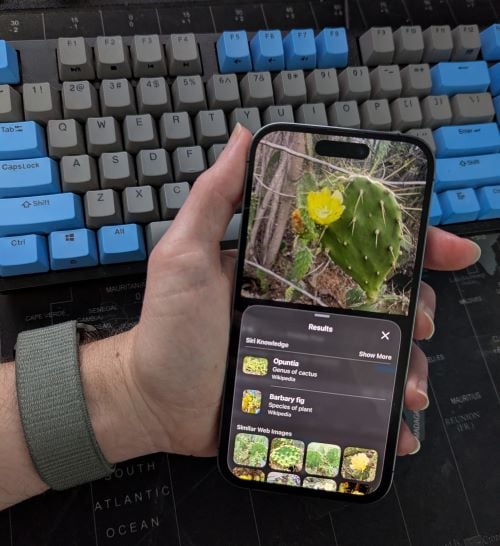
Apple adds new iOS features constantly, but many of them manage to fly under the radar. Your iPhone is probably more capable than you realize, with free tools you've had for months or years and never tried.
Many of these features do the same tasks as popular apps. While we love a good app here at WhistleOut, we still think it's great to use the features already built into your phone. This helps you to save storage space, keep your data private, and avoid expensive recurring subscription fees.
Some of these iOS features are genuinely useful on a regular basis, while others are just good to know about. All of them are buried deep enough that most people have no idea they exist.
1. Identify plants, animals, and landmarks in the Photos app
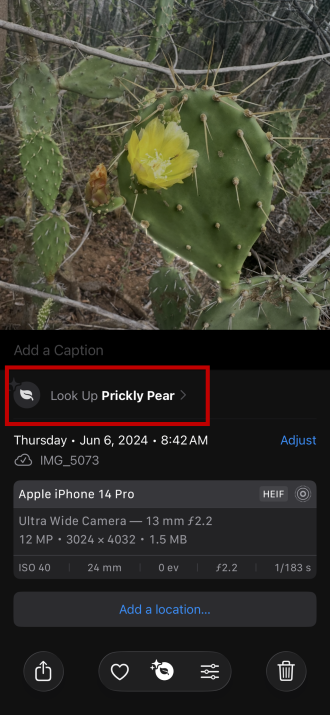
Image: Max McCaskill
Your iPhone's Photos app can identify plants, animals, and locations within your pictures using a tool called Visual Look Up. It's great if you snap a picture of a bird you don't know, or are wondering what kind of tree just brushed up against your leg.
To identify plants, animals, and landmarks with the Photos app:
- Take a photo of the plant, animal, or landmark.
- Open the Photos app.
- Select the photo.
- Tap the info button at the bottom of the screen.
- Tap the "Look up" option that appears in the photo details.
This trick also works on existing photos, not just ones you've just taken. Even better, it's fairly accurate and can help you quickly identify plants and animals without needing a separate app like iNaturalist.
2. Have Siri read your screen out loud
This is a great accessibility feature for when your hands are full or you need to multitask. Siri can read things like emails, news articles, books, and more with the Speak Screen feature, leaving your hands free to do other things instead of scrolling.
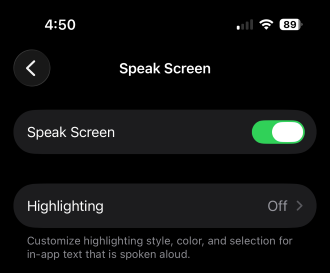
Image: Max McCaskill
To have Siri read your screen out loud:
- Go to Settings
- Tap Accessibility
- Tap Read & Speak
- Enable Speak Screen
- Swipe down from the top of the screen with two fingers to start reading
You can also enable Speak Selection, which lets you highlight specific text and tap "Speak" to hear just that portion.
3. Schedule a text to send later
You can schedule iMessages to be sent at a specific time directly in the Messages app using the Send Later feature. There's no need to give a third-party app access to your messages or set up a complicated Shortcuts procedure.
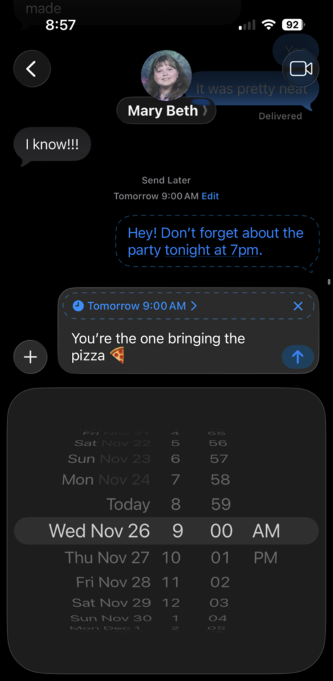
Image: Max McCaskill
To schedule a text message on iPhone:
- Open the Messages app and go to your conversation.
- Compose your message.
- Press and hold the send button.
- Select Send Later and choose your delivery time.
To be clear, to schedule a text this way, both you and the recipient need to be on Apple devices. If you're sending a message to an Android user, you'll need to do it the old-fashioned way or on a different messaging app.
4. Copy or translate text with your camera
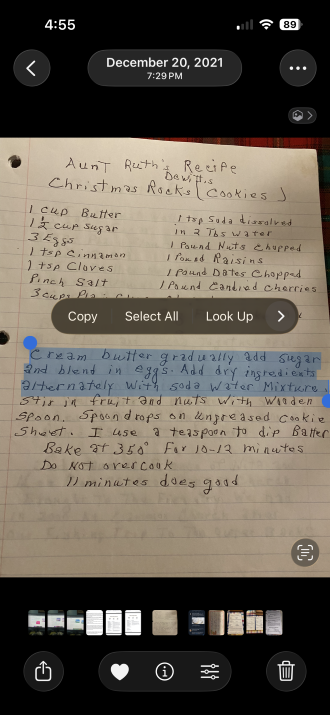
Image: Max McCaskill
You can point your iPhone at any printed text—such as menus, street signs, or recipes—and have it copy, search, or translate the text with a feature called Live Text. This makes it easy to learn more information about things you read or translate writing without using the Translate app.
To copy or translate text with your iPhone camera:
- Open the Camera app and point the screen at the text.
- Tap the text select button in the bottom right corner of the screen.
- Tap and hold the text you want to investigate.
- Choose to copy, search, translate, or share the text.
You can also do this with text in photos you've already taken. This is perfect for things like quickly digitizing handwritten recipes or copying phone numbers.
To copy or translate text in your old photos:
- Open the Photos app.
- Select the photo with text.
- Tap and hold the text you want to investigate.
- Choose to copy, search, translate, or share the text.
The feature works best with clear, well-lit printed text. Handwriting can be a bit more difficult for the system to recognize, and stylized fonts may also trip it up.
Pro tip: You can also search for specific text in images in your Photos app. For example, if you take a photo of a recipe, you can search for the name of the dish or specific ingredients to find it quickly instead of manually scrolling through all your photos.
5. Decode laundry care symbols and your car's dashboard warnings
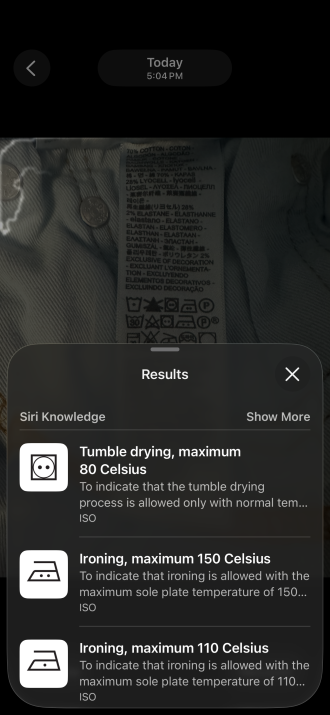
Image: Max McCaskill
Your iPhone's identification feature isn't limited to the natural world. It can also identify specific symbols, like the care instructions found on laundry tags or the warning lights on your car's dashboard.
To identify symbols with your iPhone:
- Open the Photos app.
- Take a photo of the laundry tag or symbol.
- Hold your finger on the symbol and select Look Up.
Simply snapping a quick photo is much easier than trying to describe the symbol to Google.
6. Lock, hide, and password-protect individual apps
If you don't want people snooping through your iPhone, you can lock specific apps behind Face ID or a passcode, or even hide them from your home screen entirely.

Image: Max McCaskill
Both features were originally added in iOS 18 as part of a major release of privacy and security tools.
To lock or hide an app on your iPhone:
- Press and hold any app on your home screen until the editing menu appears.
- Tap Require Face ID.
- Choose Require Face ID to lock it, or Hide and Require Face ID to remove it from your home screen entirely.
Hidden apps move to a secure folder in the App Library and won't appear in searches. However, remember that hidden apps don't receive notifications or the same background refreshes that regular apps do. That also means temporarily sticking an app in the Hidden folder is a quick way to disable notifications for things like sports apps without digging in your settings.
7. Set time limits on specific apps to reduce your screen time
If certain apps keep eating up all your free time, your iPhone can cut them off for you. There's no need to pay for a third-party screen time app that requires control over your device.
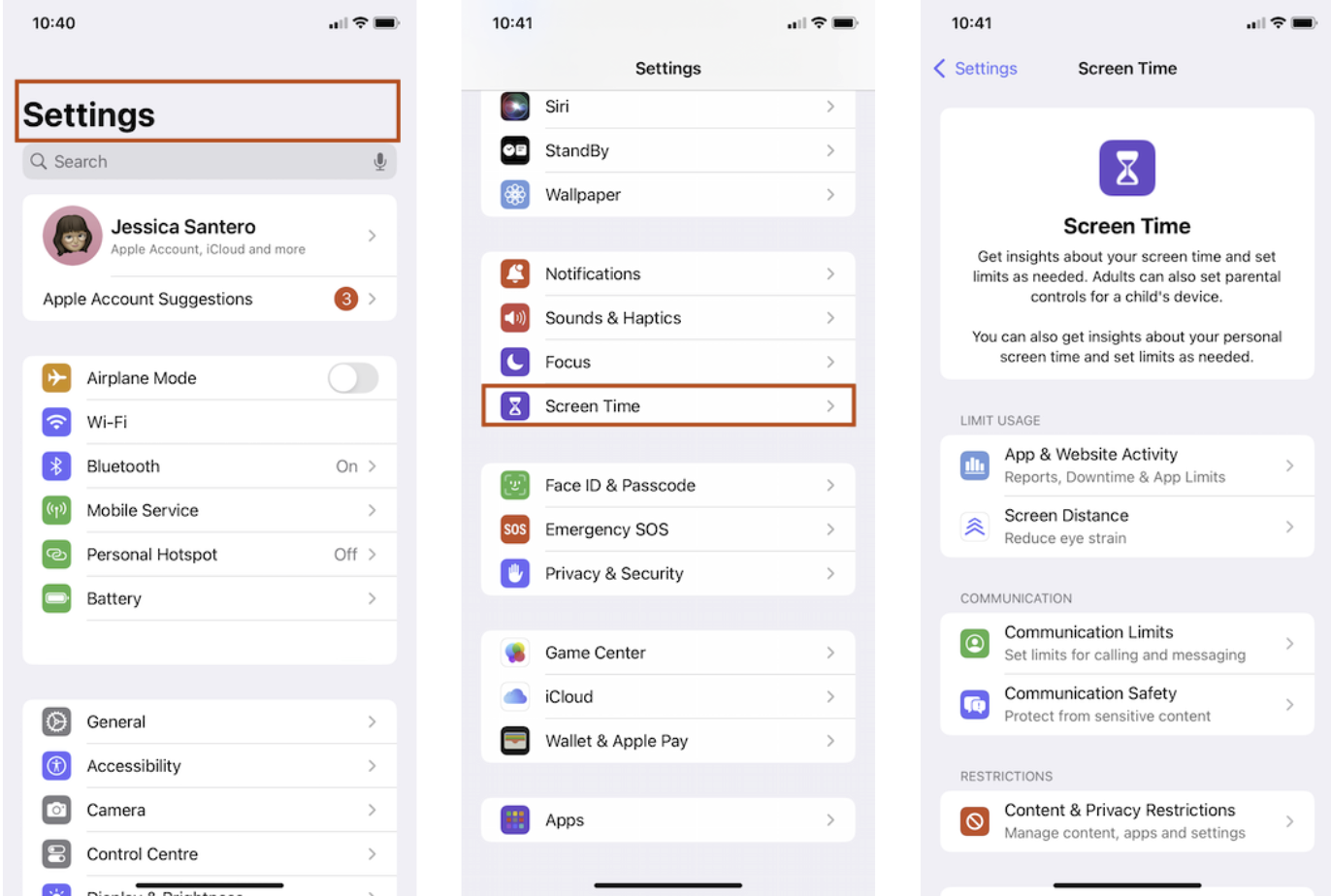
Image: Jessica Santero
The Screen Time tab in the Settings app lets you set daily limits for individual apps or categories.
Here's how to set up screen time limits on your iPhone:
- Go to Settings
- Select Screen Time.
- Tap App Limits.
- Tap Add Limit.
- Select your apps and set your daily time allowance.
Once you hit your limit, the app locks until midnight or until you tap "Ignore Limit." It does require more self-restraint than third-party apps that often put more roadblocks before letting you override your limit. That said, if you're the kind of person who can respect the rules they set for themselves, it's a great feature to use.
8. Share your Wi-Fi password via QR code
Have a visitor who wants access to your Wi-Fi? Your iPhone can share Wi-Fi passwords by generating a QR code that anyone—including people with Androids—can scan to connect automatically.
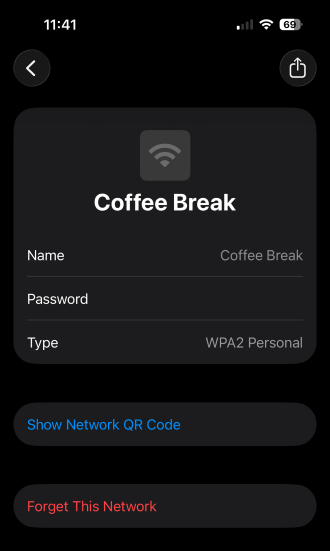
Image: Max McCaskill
To share your Wi-Fi password with a QR code:
- Open the Passwords app.
- Tap the Wi-Fi category.
- Select the network you want to share.
- Tap Show Network QR Code.
All anyone has to do is scan your screen with their camera to connect instantly.
9. Automatically transcribe voice recordings
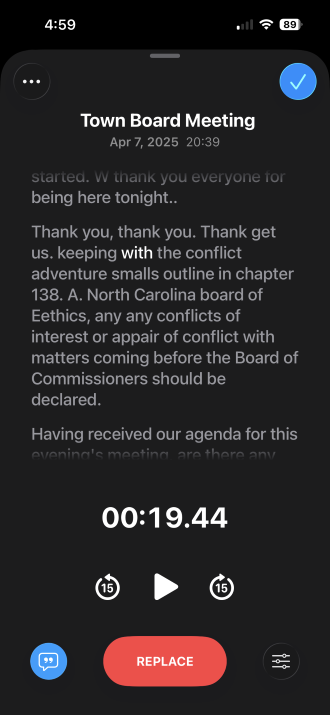
Image: Max McCaskill
The Voice Memos app will transcribe recordings automatically for free. There's no subscription or third-party service required. This is perfect for making personal notes, writing songs, recording meetings, or interviewing people.
To automatically transcribe voice recordings using the Voice Memos app:
- Open the Voice Memos app
- Make a recording.
- Tap the recording when finished.
- Tap the transcription option (chat bubble with quotation mark) to view the text.
Your iPhone processes the transcription on-device, so it stays private and doesn't need a Wi-Fi connection.
10. Record phone calls without a separate app
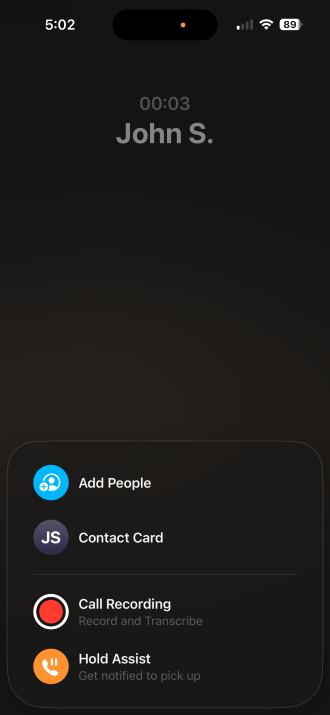
Image: Max McCaskill
Your iPhone can also record calls natively in the Phone app. It's a great feature for things like interviews, business calls, or even just brainstorming ideas with a team without writing them down.
To record your calls in the Phone app:
- Start or answer a call in the Phone app.
- Tap the Record button.
- Both parties hear a brief announcement that the recording has begun.
When the call ends, the recording and transcription are automatically saved in the Notes app.
Once again, remember that both parties are notified when you begin recording. Laws on this topic vary significantly by state, so Apple built the feature to meet most regulations. That said, it's still a good idea to ask for permission before recording, even with the notification in place.
Max McCaskill
Sr. Staff Writer

Thousands of cell phone plans unpacked. All the facts. No surprises.





.png?w=280&h=280&usm=20&usmrad=0.8&fit=crop "The Best Cheap Phone Plans for 2026: We Tested Them All to Help You Save")


