
Point your iPhone camera at a menu, recipe, street sign, or anything else with printed text on it, and you can copy that text instantly, no typing, transcribing, or photographing required. The feature is called Live Text, and it's one of several hidden iPhone features you may not know about.
Live Text has been built into the iPhone since iOS 15, but Apple has steadily improved it over the past several iOS releases, adding new features like live translations or the ability to look up the text online. You can use it to copy a phone number off a poster, grab an ingredient list from a printed recipe, or pull a tracking number off a shipping label. Anywhere there's text in the real world, your iPhone can interact with it.
How to copy text with your iPhone camera
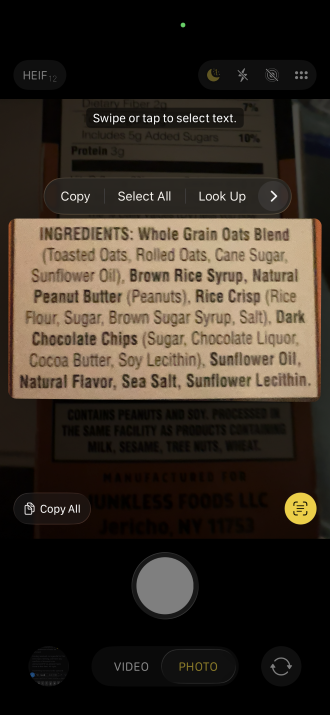
Image: Max McCaskill
Live Text works directly inside the Camera app. While taking a photo of the text may give you a later reference point, it's not necessary to get Live Text to work.
To copy text with your iPhone camera:
- Open the Camera app and point it at any printed text.
- Tap the Live Text button in the bottom right corner of the screen (it looks like lines of text inside a box).
- Tap and hold the text you want to select.
- Drag the handles to adjust your selection.
- Choose to copy, search, translate, or share the text.
It works best with clear, well-lit printed text. Stylized fonts, poor lighting, and handwriting may trip it up, depending on how legible it is.
How to copy text from photos you've already taken
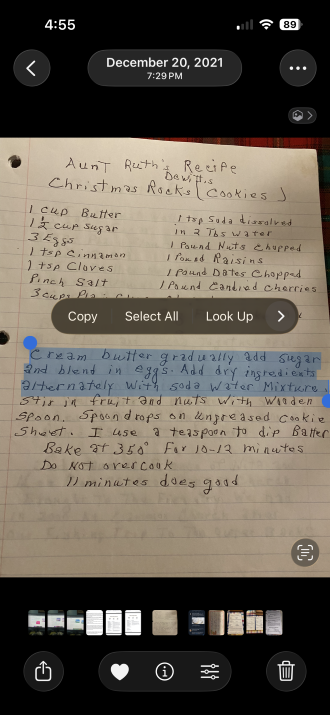
Image: Max McCaskill
Live Text isn't limited to your live camera. It also works on photos already sitting in your library. This is useful for things like digitizing a handwritten recipe someone sent you, copying a phone number from a screenshot, or pulling an address out of a photo of a flyer.
To copy text from a photo in your Photos app:
- Open the Photos app and select any photo with text in it.
- Tap and hold directly on the text in the photo.
- Drag the handles to select what you need.
- Choose to copy, search, translate, or share.
How to search for text inside your photos
Finally, your iPhone doesn't just copy text from individual photos. It also indexes all the text in your entire photo library, making it searchable. If you've ever photographed a business card, whiteboard, receipt, or handwritten note, you simply need to use a few words from the text or describe what you're looking for, and your iPhone will automatically find it for you.
To search for text in your Photos app:
- Open the Photos app.
- Tap the Search button at the bottom.
- Type any word or phrase (name, an ingredient, an address, etc.).
- Your iPhone will surface every photo in your library that contains that text.
iPhone Live Text: FAQ
What is iPhone Live Text?
iPhone Live Text is a built-in feature that recognizes and interacts with text in your camera view and in photos saved to your library. It lets you copy, search, translate, or share any printed text without typing it manually.
Does iPhone Live Text work on handwriting?
iPhone Live Text can recognize some handwriting, but results can vary depending on legibility. Neat, clearly written text has a reasonable chance of being recognized accurately. Messy or stylized handwriting may produce errors or no result at all.
Can iPhone Live Text translate text?
Yes, iPhone Live Text can translate text directly from your camera view or from photos in your library. After selecting text with Live Text, choose the Translate option from the menu. Your iPhone handles the translation on-device for supported languages, with no internet connection required for basic translations.
Which iPhones support Live Text?
Live Text is available on iPhone XS and later, running iOS 15 or newer. Make sure your device is running the latest version of iOS to ensure you have access to the most current Live Text capabilities, including live translation and text search.
Max McCaskill
Sr. Staff Writer

Thousands of cell phone plans unpacked. All the facts. No surprises.





.png?w=280&h=280&usm=20&usmrad=0.8&fit=crop "The Best Cheap Phone Plans for 2026: We Tested Them All to Help You Save")


