
Image: Max McCaskill
It’s not always a great time to send a text. Maybe it’s too late at night, or you’re in the middle of something more important and don’t have time for an extended conversation. In these situations, your iPhone’s built-in text scheduling feature is a lifesaver.
You can easily schedule texts for later in the Messages app on your iPhone. When texting an Android device—or if you have an older iPhone that doesn’t run the newest iOS—you can also use the Shortcuts app in a pinch.
Read on to learn how to schedule a text on your iPhone. We’ll also help you edit or cancel the messages if you need to, and help you understand if it’s time to upgrade your phone.
How to schedule a text on an iPhone
If you need to schedule a text on your iPhone, the easiest method is located directly in the Messages app.
You can pick any time and date you want, meaning you can schedule messages for important dates like birthdays weeks in advance. Your recipient will never know if a message was scheduled in advance.
How to send a scheduled text on iPhone:
- Open the Messages app.
- Go to your conversation.
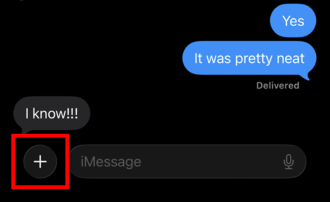
- Tap the + button.
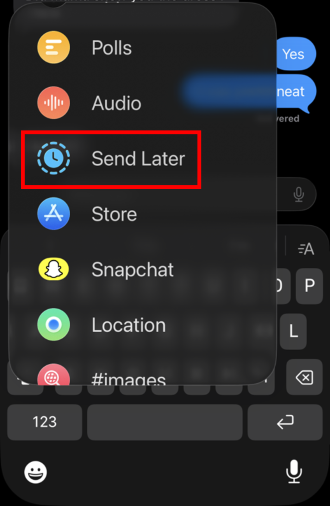
- Select Send Later.
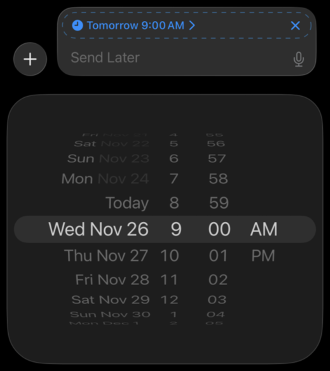
- Select your date and time.
- Type your message and press the light blue send button.
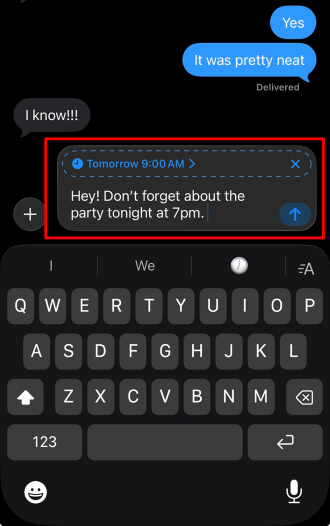
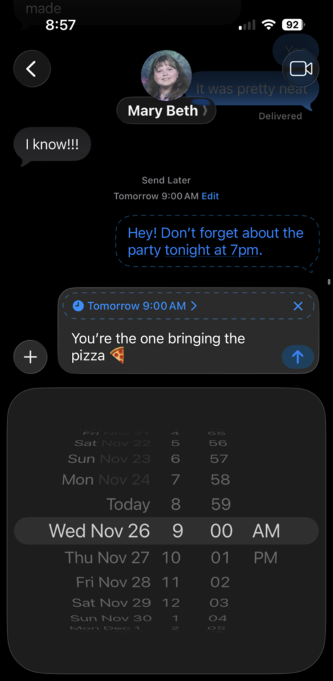
You can tell if your delayed text message was successfully scheduled if the resulting message’s bubble is gray and the text is dark blue.
Can you send iPhone scheduled texts to Android phones?
Yes, but you must use the Shortcuts app. The Send Later feature is exclusive to iMessage, meaning it can’t send messages to Android. It can only send messages to other Apple devices like iPhones, iPads, and Macs.
Personally, I found the Shortcuts process extremely complicated. Instead, we recommend checking out our list of the best messaging apps for alternatives when interacting with your Android friends.
How to reschedule the send time of a message
If you realize a previously scheduled message needs to go out at a different time, you are allowed to change it until the message is actually sent.
To reschedule a message:
- Tap Edit next to the scheduled time above the message.
- Press Edit Time.
- Adjust to the new desired time.
- Tap outside the window to complete the change.
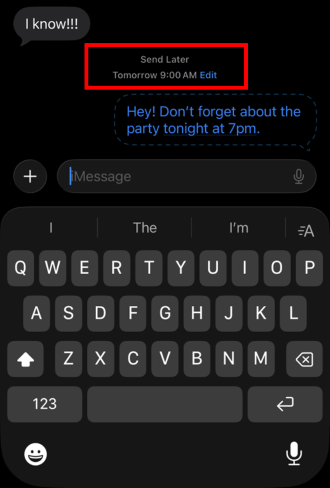
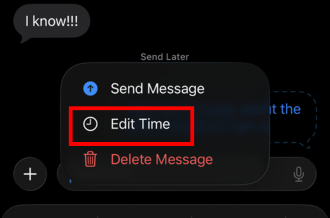
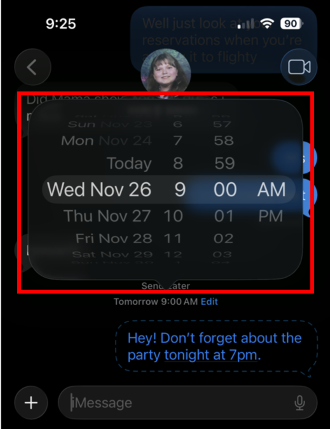
Note: If you don’t see your previously scheduled messages when you open the conversation, you may need to scroll down. Other messages you send will always appear above the scheduled ones, pushing them under your keyboard.
How to edit a scheduled message
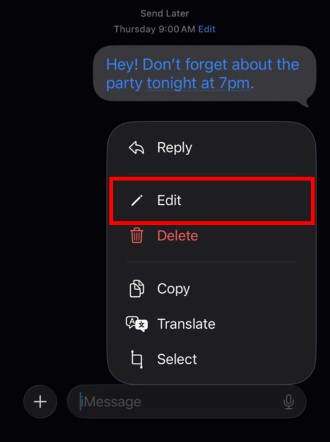
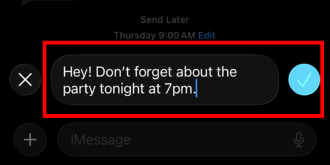
If you want to edit the content of your scheduled message, the process is similar to editing a message after it’s been sent.
To edit a scheduled message:
- Press and hold the message.
- Select Edit from the options.
- Retype your message and press the blue check button.
How to delete a scheduled message
If you decide you no longer need to send a scheduled message, it’s easy to delete it.
To delete a schedule message:
- Tap Edit next to the scheduled time above the message.
- Press Delete Message.
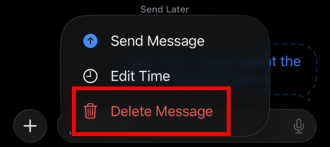
Note that there’s no “are you sure” warning when deleting a scheduled message. Once you hit delete message, it’s immediately gone.
How to use the Shortcuts app to schedule a message
If you need to text an Android or have an older iPhone that won’t run the newest iOS, you’ll need to use the Shortcuts app. Truthfully, the process is complicated, and I have accidentally sent texts too soon when using it.
You may also need to delete the Shortcut after your message is sent. Otherwise, it may repeat the message according to your settings indefinitely.
To schedule a text using the Shortcuts app:
- Open the Shortcuts app.
- Select Automation.
- Create a New Automation.
- Select Time of Day.
- Select when you want your message to be sent.
- Select Monthly and pick a date.
- Tap Next.
- Select Send Message.
- Type your message after “Send.”
- Add your Recipients.
- Press the check button.
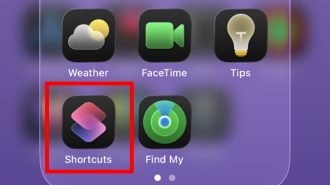
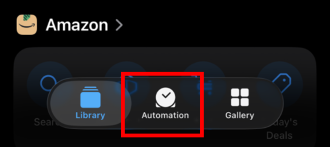
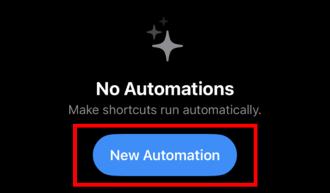
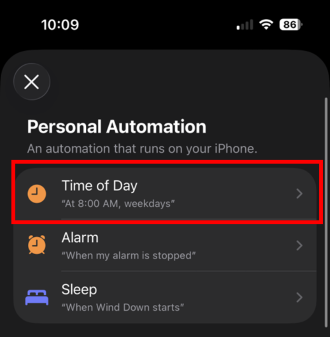
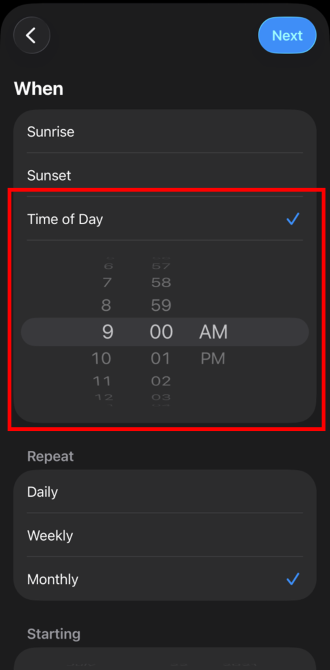
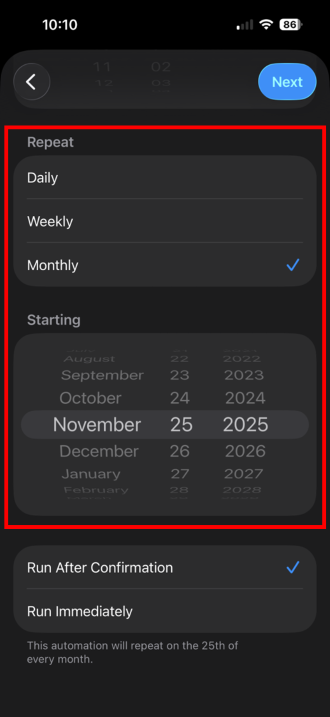
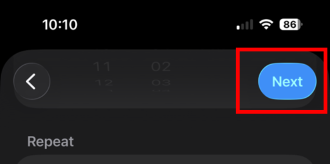
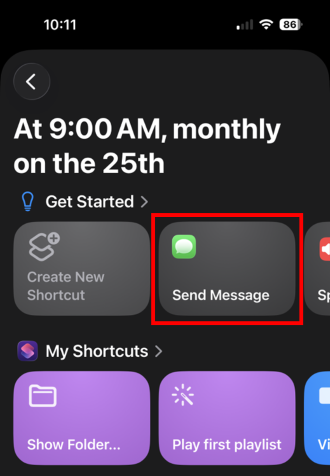
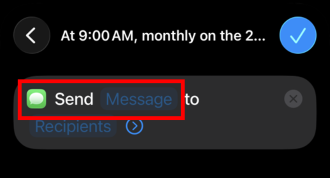
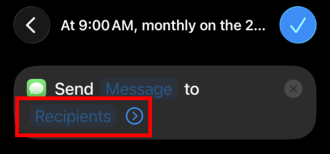
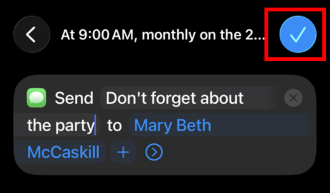
Your automated message will now appear with your other Shortcuts.
Ready for an upgrade? Here are the best iPhones
Your iPhone must be running at least iOS 18 to schedule texts using the Send Later feature. If your phone can’t run iOS 18, you should upgrade immediately. Apple has already released operating systems after iOS 18, so your system is extremely outdated and susceptible to security threats.
While the iPhone 17 is the best iPhone available right now, you can also upgrade to an older device like the iPhone 16 or iPhone 15 if you’re on a budget. These phones still offer excellent capabilities, the newest iOS, and can be over $100 cheaper than the iPhone 17.
Upgrade to the iPhone 17 for the newest features
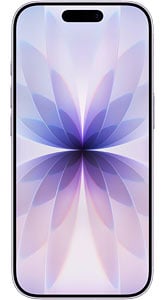
- Display: 6.3"
- Cameras: Rear-48MP, 48MP; Front-18MP
- Built for Apple Intelligence
The iPhone 17 is Apple’s newest device, with pricing starting at $799 for a 256GB model. With two new 48MP cameras and a new Center Stage selfie camera, it offers one of the most updated camera systems Apple has put out in years.
It also comes with the new A19 processor, the most powerful chip Apple has ever put in a base-model iPhone. It helps the phone run incredibly smoothly and powers all of the newest Apple Intelligence AI features, like Live Translate.
As one of Apple’s newest phones, it’s available with multiple trade-in and switching deals from major carriers. Check out our top iPhone deals or select your favorite carrier below:
Scheduling a text on an iPhone: FAQs
Max McCaskill
Sr. Staff Writer

Thousands of cell phone plans unpacked. All the facts. No surprises.





.png?w=280&h=280&usm=20&usmrad=0.8&fit=crop "The Best Cheap Phone Plans for 2026: We Tested Them All to Help You Save")


