

Image: Max McCaskill
If you're cooking, driving, working out, or just doing anything where looking at your phone isn't an option, your iPhone can read the screen for you. Hidden iPhone features like Speak Screen and Speak Selection make it easy to use your phone hands-free and unlock new ways to use your device.
Once Speak Screen is enabled, your iPhone can read things like emails, articles, web pages, books, and notes out loud, without you having to touch it.
We'll walk you through how to turn Speak Screen on and how using it can make your life easier.
How to turn on Speak Screen on iPhone
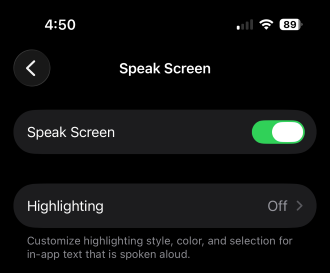
Image: Max McCaskill
Speak Screen is a feature that automatically reads any text showing on your iPhone's screen. It's enabled in the Accessibility settings of your iPhone, which is probably why most people never stumble across it.
To enable Speak Screen on your iPhone:
- Go to Settings
- Tap Accessibility
- Select Read & Speak
- Tap Speak Screen
- Toggle on Speak Screen
Once it's enabled, you activate it by swiping down from the top of the screen with two fingers. A small playback bar will appear, and your iPhone will start reading from the top of whatever is on your screen. You can adjust the reading speed, pause, skip forward, or stop at any time from that bar.
If you use the feature frequently, you can also set the playback bar to permanently stay on your screen.
Does Speak Screen work on every app?
Speak Screen works on most apps, but there are limitations. It works well in native Apple apps, like Safari, Mail, Notes, Books, and most reading apps. Third-party apps—particularly ones with custom interfaces or heavy video content—may not work as well.
If Speak Screen activates but goes quiet immediately, the app may be blocking it. In those cases, try copying the text into Notes and reading it from there instead.
How to use Speak Selection to read specific parts of your screen
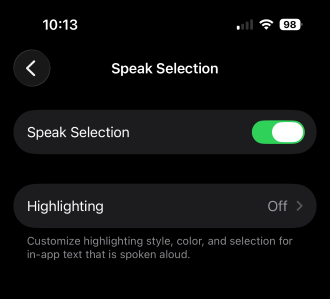
Image: Max McCaskill
If you only want a specific paragraph or passage read aloud, Speak Selection is the better tool. It's in the same settings menu and works independently of Speak Screen. You can even enable both at the same time.
To enable Speak Selection:
- Go to Settings
- Tap Accessibility
- Select Read & Speak
- Tap Spoken Content
- Toggle on Speak Selection
With Speak Selection turned on, highlight any text on your screen, and a Speak button will appear alongside the usual Copy and Cut options. Once you tap it, your iPhone will read just that portion.
It's useful for things like proofreading your own writing, or when you want to hear one section of an article without committing to the whole thing.
iPhone Speak Screen: FAQ
What is the iPhone Speak Screen feature?
Speak Screen is an accessibility feature built into iOS that reads your screen aloud using your iPhone's text-to-speech engine. It works across most native Apple apps, including Safari, Mail, and Notes.
How do I get my iPhone to read a webpage out loud?
To get your iPhone to read a webpage out loud, you must enable Speak Screen. Once turned on, open the webpage in Safari, then swipe down from the top of the screen with two fingers. Your iPhone will start reading from the top of the page.
Does iPhone Speak Screen work in any language?
Speak Screen doesn't support every language. However, it supports dozens of the most popular languages around the world, including English, Spanish, French, German, Chinese, Japanese, and more. Make sure your iPhone is running the latest version of iOS for the best voice quality and broadest language support.
Max McCaskill
Sr. Staff Writer

Thousands of cell phone plans unpacked. All the facts. No surprises.

Related Articles


Related Topics
iOS FeaturedPopular Topics
Featured App Reviews iOS News Coverage Device Reviews Device Explainers Carrier Explainers App Roundups T-Mobile


Free iPhone 18 Pro, up to $1,200 off, with a trade-in in any condition or a line switch on Experience Beyond





.png?w=280&h=280&usm=20&usmrad=0.8&fit=crop "The Best Cheap Phone Plans for 2026: We Tested Them All to Help You Save")


