
The Voice Memos app has been on iPhone for years, but most people simply treat it as a basic voice recorder. What most people are missing is that Voice Memos has a built-in transcription feature, turning a simple recorder into an instant note maker. It's perfect for things like quick personal notes, brainstorming, or recording lectures and meetings that would simply take too much time to type in the regular Notes app.
It's one of several hidden iPhone features that most people never find, and for anyone who regularly sits through meetings, interviews, or lectures, it's a really useful tool.
How to transcribe a voice memo on iPhone
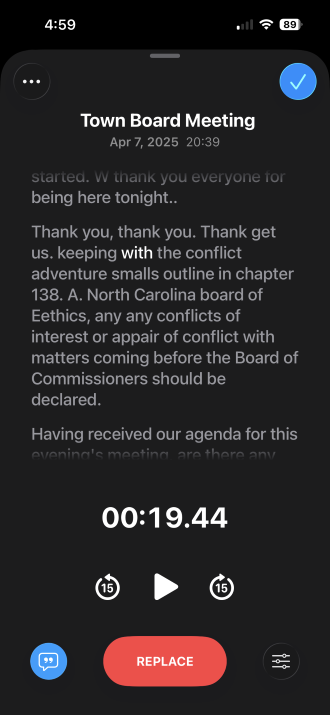
Image: Max McCaskill
To transcribe a voice memo on an iPhone, you simply have to record something. The process happens automatically inside the Voice Memos app, and it works on recordings you've already made just as well as new ones.
To transcribe a voice memo on your iPhone:
- Open the Voice Memos app.
- Make a recording, or select an existing one.
- Tap the recording to open the full view.
- Tap the transcription button (it looks like a chat bubble with a quotation mark).
- Your iPhone will process the audio and display the full transcription.
The transcription is processed on-device, which means it stays private and doesn't require a Wi-Fi or cellular connection. That said, for longer recordings, it may take a few moments for your iPhone to create the transcription.
The Voice Memos transcription feature is useful for tasks like:
- Meetings: Transcribe and search for action items or decisions without replaying an hour of audio.
- Interviews: Find specific quotes quickly without manual note-taking during the conversation.
- Lectures: Record and transcribe so you can focus on listening instead of writing.
- Personal notes: Dictate ideas out loud and turn them into readable text instantly.
How to search your Voice Memo transcriptions
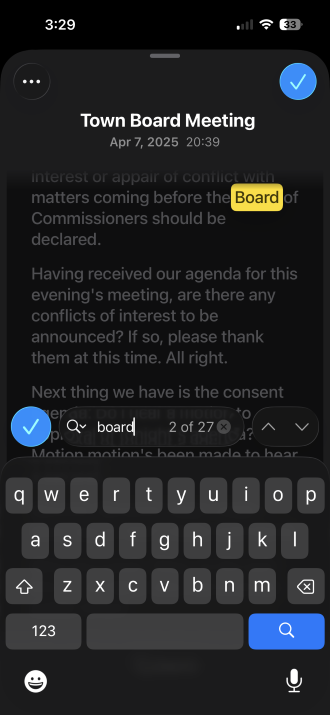
Image: Max McCaskill
Once a recording is transcribed, it becomes fully searchable. You can tap into any transcription and use the search function to find specific words or phrases without scrubbing through the audio manually. This is extremely helpful for long recordings like meetings or interviews, allowing you to save a significant amount of time.
To search your Voice Memo transcriptions:
- Open the Voice Memos app.
- Tap the recording you want to search to open the full view.
- Tap the transcription button to open the transcription.
- Tap the search icon and type any word or phrase (you may need to scroll down slightly to make the search icon appear).
- Your iPhone will jump to every instance in the text.
Your iPhone can also transcribe your phone calls
Need to record a phone call? Your iPhone can do that too with its built-in call recorder. When the feature is enabled, a full transcription is saved automatically alongside the audio in the Notes app.
iPhone Voice Memos transcription FAQs
Does iPhone Voice Memos transcription work without internet?
Yes, iPhone Voice Memos transcription works without an internet connection. Apple processes the transcription on-device, which means it works offline and your audio is never sent to an external server. This makes it a good option for recording sensitive conversations where privacy matters.
How accurate is iPhone Voice Memos transcription?
iPhone Voice Memos transcription is reasonably accurate for clear, well-recorded speech in a quiet environment. Accuracy drops with heavy background noise, strong accents, multiple overlapping speakers, or technical jargon that the system doesn't recognize. It's reliable enough for capturing the substance of a conversation, but you'll likely need to clean up the text before using it in a formal document.
Which iPhones support Voice Memos transcription?
Voice Memos transcription requires an iPhone 12 or later running a recent version of iOS. Make sure your device has the latest version of iOS to ensure it runs the feature properly.
Can iPhone Voice Memos transcribe multiple speakers?
iPhone's Voice Memos transcription will process all audio it hears, but it does not currently distinguish between multiple speakers. All voices appear as a single block of text without labeling who said what. If you need speaker identification, dedicated third-party transcription apps offer that as a feature, though most require a subscription for full access.
Max McCaskill
Sr. Staff Writer

Thousands of cell phone plans unpacked. All the facts. No surprises.

Related Articles


Related Topics
iOS FeaturedPopular Topics
Featured App Reviews iOS News Coverage Device Reviews Device Explainers Carrier Explainers App Roundups T-Mobile


Free iPhone 18 Pro, up to $1,200 off, with a trade-in in any condition or a line switch on Experience Beyond





.png?w=280&h=280&usm=20&usmrad=0.8&fit=crop "The Best Cheap Phone Plans for 2026: We Tested Them All to Help You Save")


