
Most people don't realize that a small button sitting at the bottom of every photo quietly unlocks one of the most useful identification tools on the phone. It can identify almost anything found in your photos, from plants and animals to locations and symbols.
You may know the info button found under each photo pulls up your photo's metadata, but it also surfaces the Visual Look Up feature: Apple's built-in visual search tool. It's one of several hidden iPhone features most people never find, and once you know it's there, you'll use it more than you'd expect.
We'll show you how to use Apple's Look Up tool to get the most out of your iPhone.
What the iPhone info button actually does
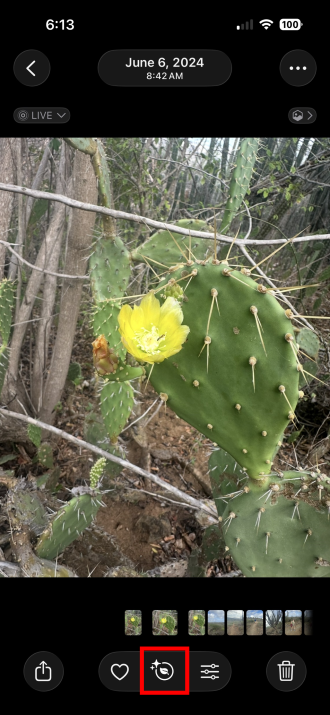
Image: Max McCaskill
When looking in the Photos app, the info button under all your pictures opens the image's metadata. This includes things like the image's date, time, location, and camera settings. However, for certain images, it also shows the Visual Look Up feature, which analyzes your photo's content and returns a match.
This works on photos you've just taken and ones already sitting in your camera roll.
Visual Look Up can identify:
- Plants and flowers: Could be the name of something growing in your yard or plants you see on a hike
- Animals and insects: Helps you identify specific species of animals like birds, bugs, dogs, cats, and more
- Landmarks and points of interest: Includes famous landmarks, buildings, monuments, and other recognizable locations
- Art: Famous paintings and sculptures from around the world
- Common symbols: Can help you understand things like laundry-care instructions or warning lights on your car's dashboard
It's powered by Apple's on-device intelligence, which means results are fast, and it can show you additional webpages if you want more information.
How to identify plants, animals, and landmarks with your iPhone
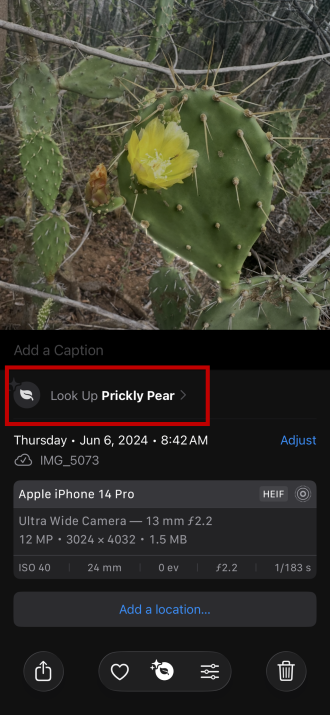
Image: Max McCaskill
To identify plants, animals, and landmarks with your Photos app:
- Open the Photos app.
- Select any photo.
- Tap the info button at the bottom of the screen (it may be shaped like a leaf, animal, or pin).
- Tap the Look Up option that appears in the photo details.
If Look Up recognizes something in the image, it'll display a label and a link to learn more via a web search. It works on photos taken years ago just as well as ones you just snapped.
Will iPhone Look Up always identify a plant or animal correctly?
No, iPhone's Look Up feature won't always work correctly. It works best with clear, well-lit subjects. A sharp photo of a common sunflower will get you a fast, accurate result. A blurry shot of a bird halfway up a tree may not work as well.
It can also struggle with less common species that aren't well-represented in its database. If you're trying to ID a rare orchid or an obscure insect, the results may be hit or miss. For serious plant or wildlife identification, apps like iNaturalist may be more accurate. For everyday curiosity, Look Up is good enough and far more convenient.
iPhone Visual Look Up can also decode laundry tags and dashboard warning lights
This is the use case that surprises people most. The same Look Up feature that identifies a cactus can also tell you what that cryptic symbol on your shirt's care tag actually means, or what warning light just lit up on your dashboard.

Image: Max McCaskill
To identify a symbol with Visua Look Up:
- Open the Photos app.
- Take a photo of the laundry tag, warning light, or symbol.
- Tap the info button.
- Select Look Up.
This process is much faster than trying to describe a symbol to a search engine and hoping the results make sense.
Can the iPhone Look Up feature identify any symbol?
Your iPhone can identify most symbols, especially those that are standard across industries. International laundry care icons and common automotive warning lights are well within this range.
Where it runs into trouble is with proprietary or non-standard symbols. An unusual icon on imported clothing or a warning light unique to a less common or vintage vehicle may not return a match. If Look Up comes up empty, a Google image search is your next best move.
iPhone Look Up feature FAQs
What is the iPhone Look Up feature in Photos?
The iPhone Look Up feature is a built-in visual search tool in the Photos app. It uses Apple's on-device intelligence to identify objects in your photos. It can recognize plants, animals, landmarks, artwork, and well-known symbols like laundry care tags.
Does the iPhone Look Up feature work without internet?
Look Up processes images on-device, so it works without a Wi-Fi or cellular connection for basic identification. However, if you want more information, it requires internet for an additional web search.
What can the iPhone Look Up feature identify?
The iPhone Look Up feature can identify plants, flowers, animals, insects, birds, landmarks, works of art, and common symbols. The symbols can include things like laundry care tags and automotive warning lights.
Which iPhones support the Look Up feature in Photos?
The most advanced version of Visual Look Up is available on all iPhones running iOS 18 or a newer operating system. Check out our current iOS guide to see what the most recent version of iOS is and what devices can run it.
Max McCaskill
Sr. Staff Writer

Thousands of cell phone plans unpacked. All the facts. No surprises.

Related Articles


Related Topics
iOS FeaturedPopular Topics
Featured App Reviews iOS News Coverage Device Reviews Device Explainers Carrier Explainers App Roundups T-Mobile


Free iPhone 18 Pro, up to $1,200 off, with a trade-in in any condition or a line switch on Experience Beyond





.png?w=280&h=280&usm=20&usmrad=0.8&fit=crop "The Best Cheap Phone Plans for 2026: We Tested Them All to Help You Save")


