If you find yourself mindlessly scrolling through your iPhone more than you'd like, Apple’s Screen Time feature can help you (or your child) break the habit. This built-in iPhone tool tracks exactly how much time you spend on your device, reveals which apps demand the most attention, and even lets you set daily limits to curb overuse. But fret not, you can always turn off or modify your limits if you can’t quit cold turkey. Or if you need something stronger, check out the best apps to limit your screen time.
Here’s everything you need to know about setting up Screen Time on your iPhone.
How do you set up Screen Time limits on an iPhone?
You can enable Screen Time on iPhone by following these steps:
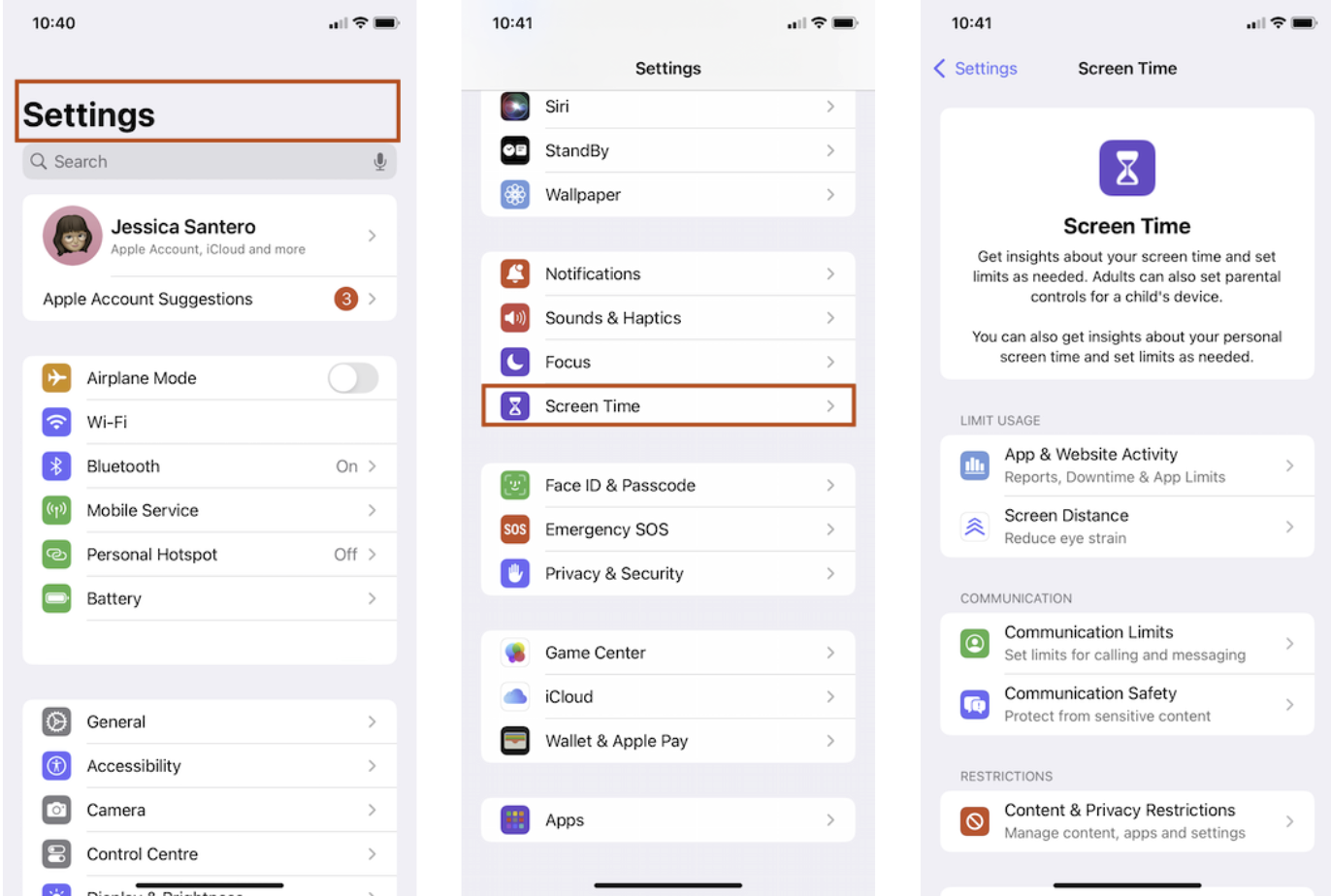
Under your phone’s settings, locate and tap Screen Time.
Screen Time is located under your iPhone’s settings.
Image: Jessica Santero
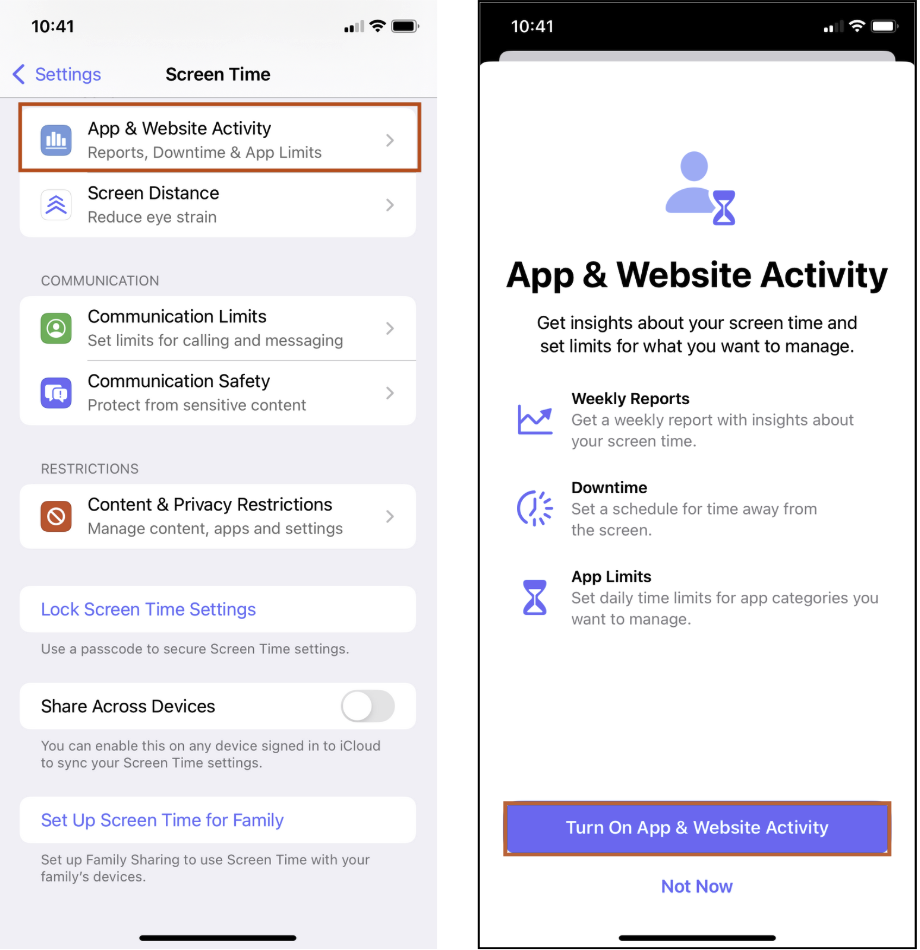
Tap App & Website Activity.
Select Turn on Apps & Website Activity.
Set up screen-free times with App & Website Activity.
Image: Jessica Santero
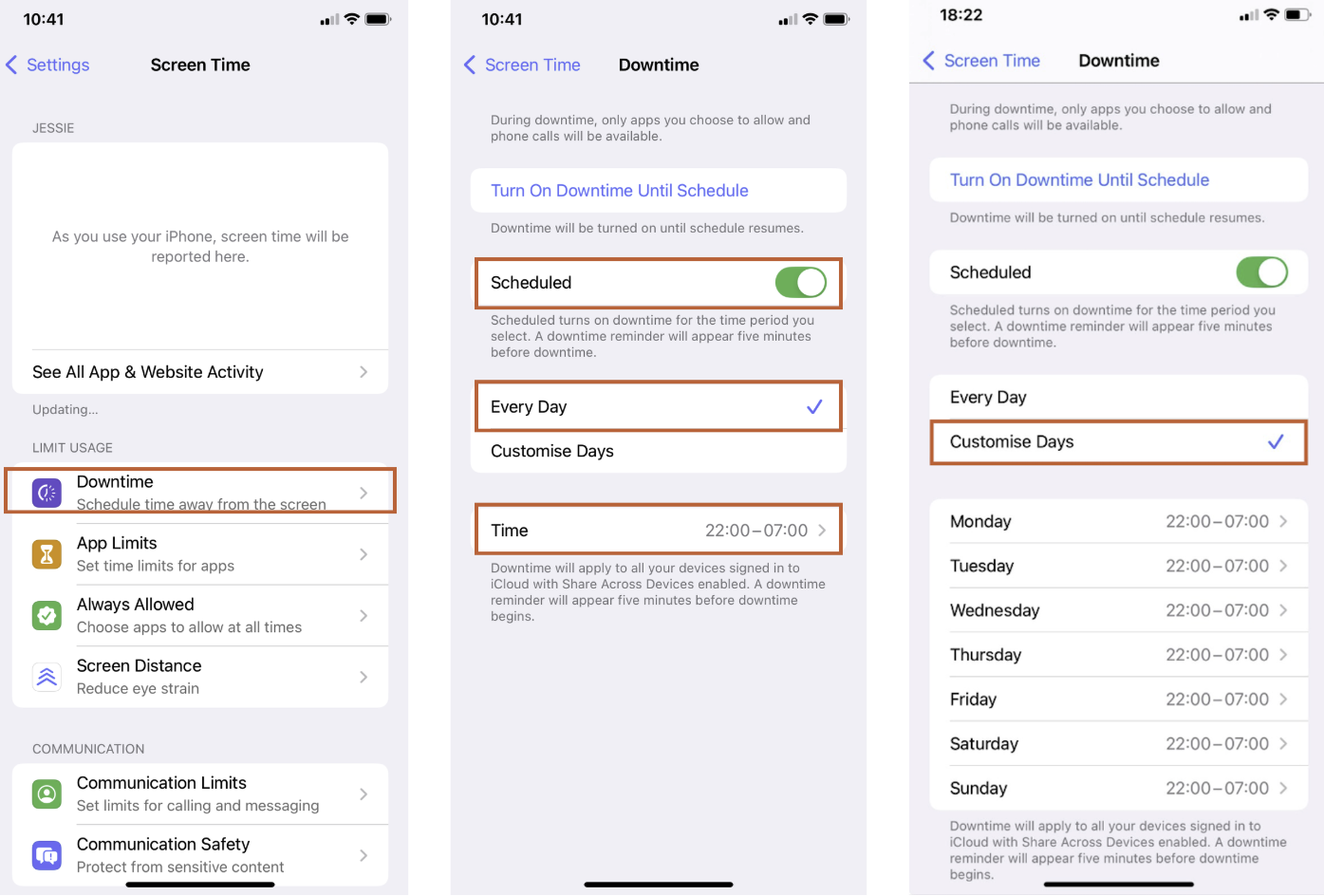
Tap Downtime.
Toggle on Scheduled if you don’t want to instantly turn on Downtime by tapping Turn on Downtime Until Schedule.
Tap Every Day to set daily screen-free time periods, or tap Customise Days to designate different screen-free time frames throughout the week.
Customise Downtime to restrict phone usage.
Image: Jessica Santero
Once you’ve input the times you want to disconnect digitally, your phone will automatically set the limits. When your phone’s curfew comes around, it will give you one reminder, then deactivate all of your designated apps or activities.
Your designated apps shut off when in Downtime.
Image: Jessica Santero
You can always tap ignore after reaching your limit to gain more time if you really need it. Otherwise, you can modify your screen time settings or disable Screen Time altogether if you find it isn’t helping manage your phone usage.
Set limits and save
Screen Time can do more than free up your time—it can actually trim your phone bill, too. By reducing unnecessary usage of data-heavy apps like video and social media platforms, you won’t burn through your data allowance as quickly. After analyzing your real screen-time habits, you may find you use much less data than expected. If that’s the case, opt for a cheaper plan with less data and start saving.
Can you lock your Screen Time limits with a passcode?
If you don’t trust yourself to respect the time limits on your phone, or want to make sure someone using your phone can’t extend screen time (for example, a child playing a game), add a secure passcode.
Set an iPhone Screen Time passcode in two steps:
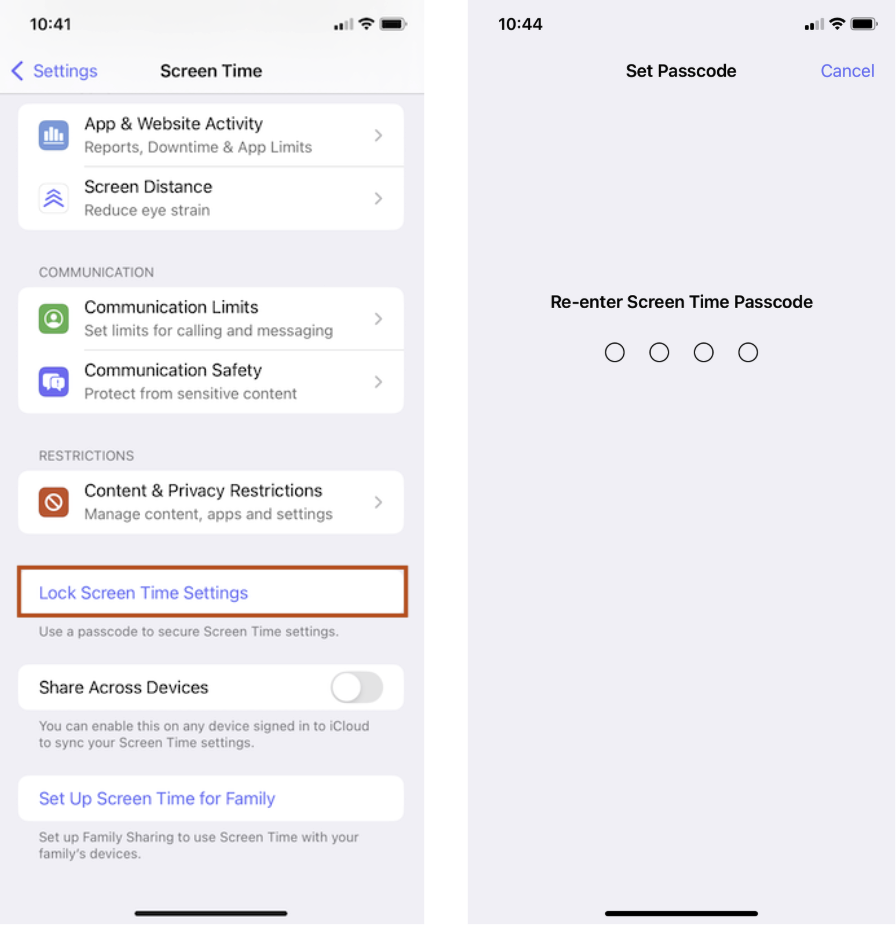
Under Screen Time, tap Lock Screen Time Settings.
Enter and re-enter a four-number passcode.
Add a passcode to lock your screen-time limits.
Image: Jessica Santero
You can also set a recovery measure by adding your Apple ID email and password in case you forget your Screen Time passcode.
If you find that Apple's built-in features are simply too easy to ignore, you can also consider buying third-party physical locking products like the Brick or Autonomous Key. These devices take over your iPhone's Screen Time features and implement a tap requirement to unlock problematic apps. If you want to open the apps, you have to use a specific key in the real world to unlock them.
Limit certain apps and websites
Apple's Screen Time feature allows you to restrict individual apps, helping you manage your time more effectively. Ultimately, you’ll create a more intentional relationship with your device, instead of accidentally tapping Instagram through muscle memory every time you unlock your phone. Rather than imposing broad limitations like in Focus Mode, this targeted approach helps address specific digital habits while maintaining access to essential functions like calls and messages.
Set up specific restrictions to limit app use under Screen Time in four steps:
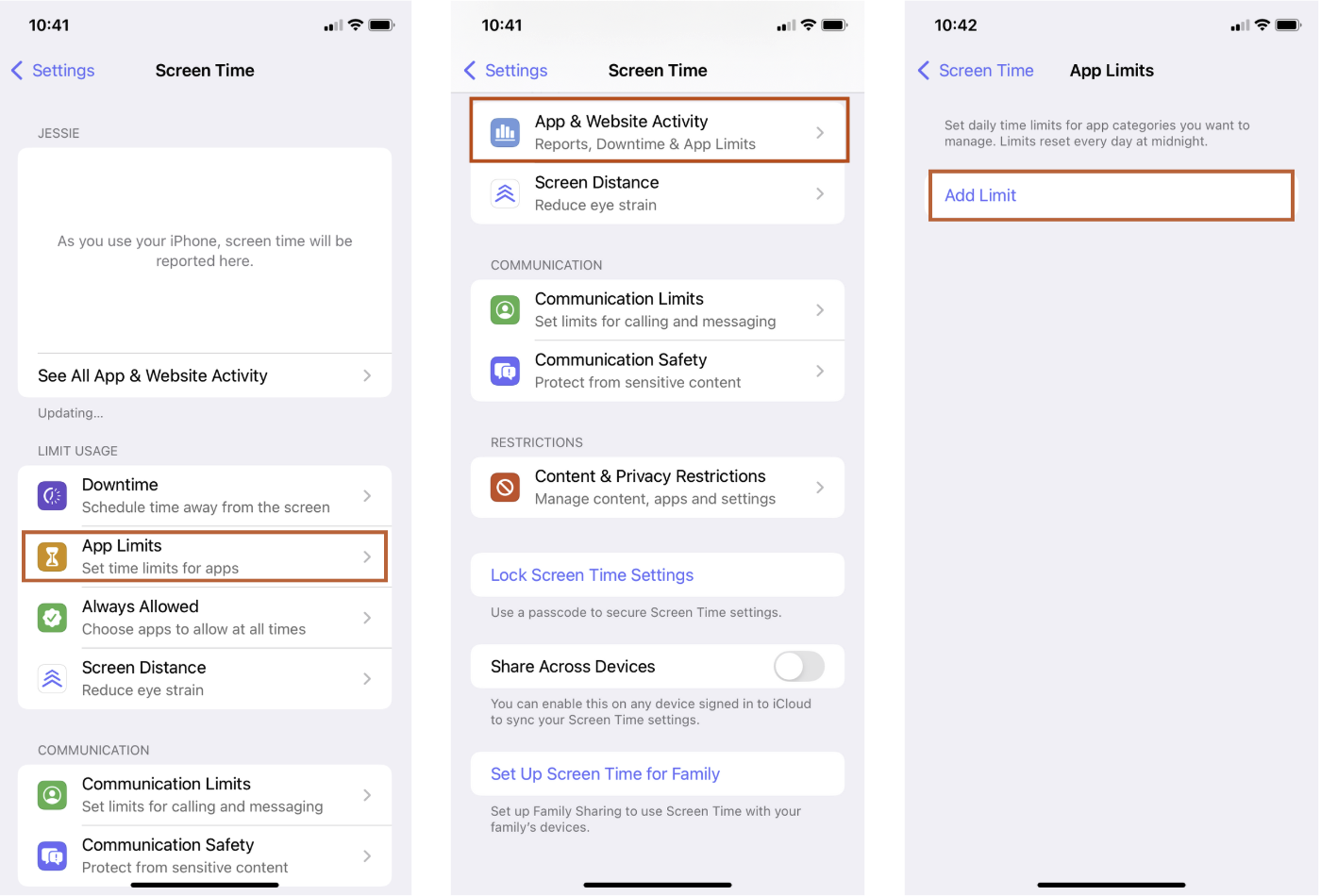
Once you’ve opened your phone’s Settings and tapped Screen Time, select App & Website Activity.
Enter App Limits and tap Add Limit.
Add App Limits to your Screen Time.
Image: Jessica Santero
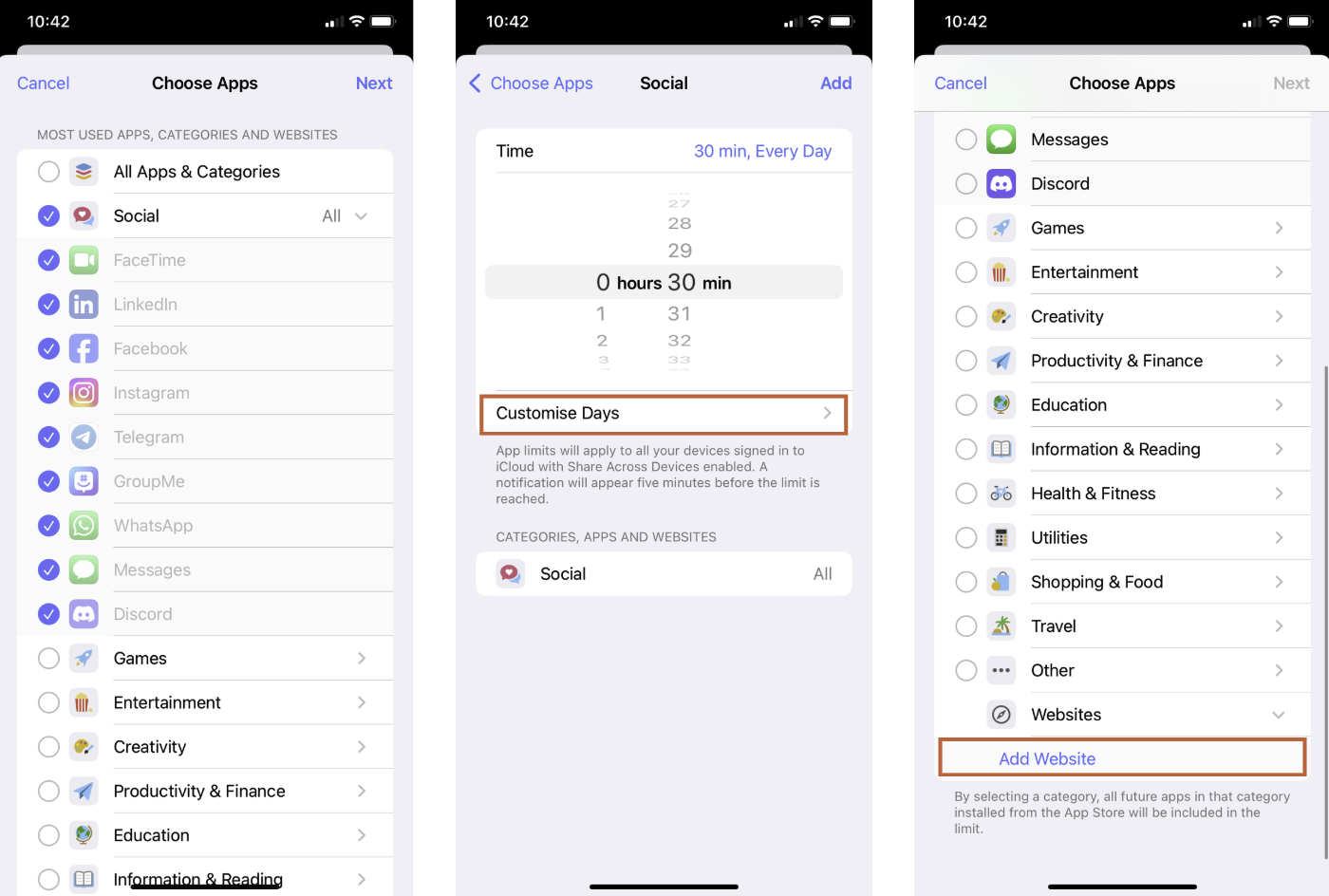
After selecting the apps you want to limit, set the time limit for each.
Type in restrictions to websites by tapping Add Website.
Block certain apps with your personalized time limits.
Image: Jessica Santero
You can also set up Communication Limits to help you control your texting addiction or prevent a distracting call. Communication limits restrict who can call you when, so only your deemed emergency contacts can reach you at odd hours.
Here’s how to set up communication limits on your iPhone:
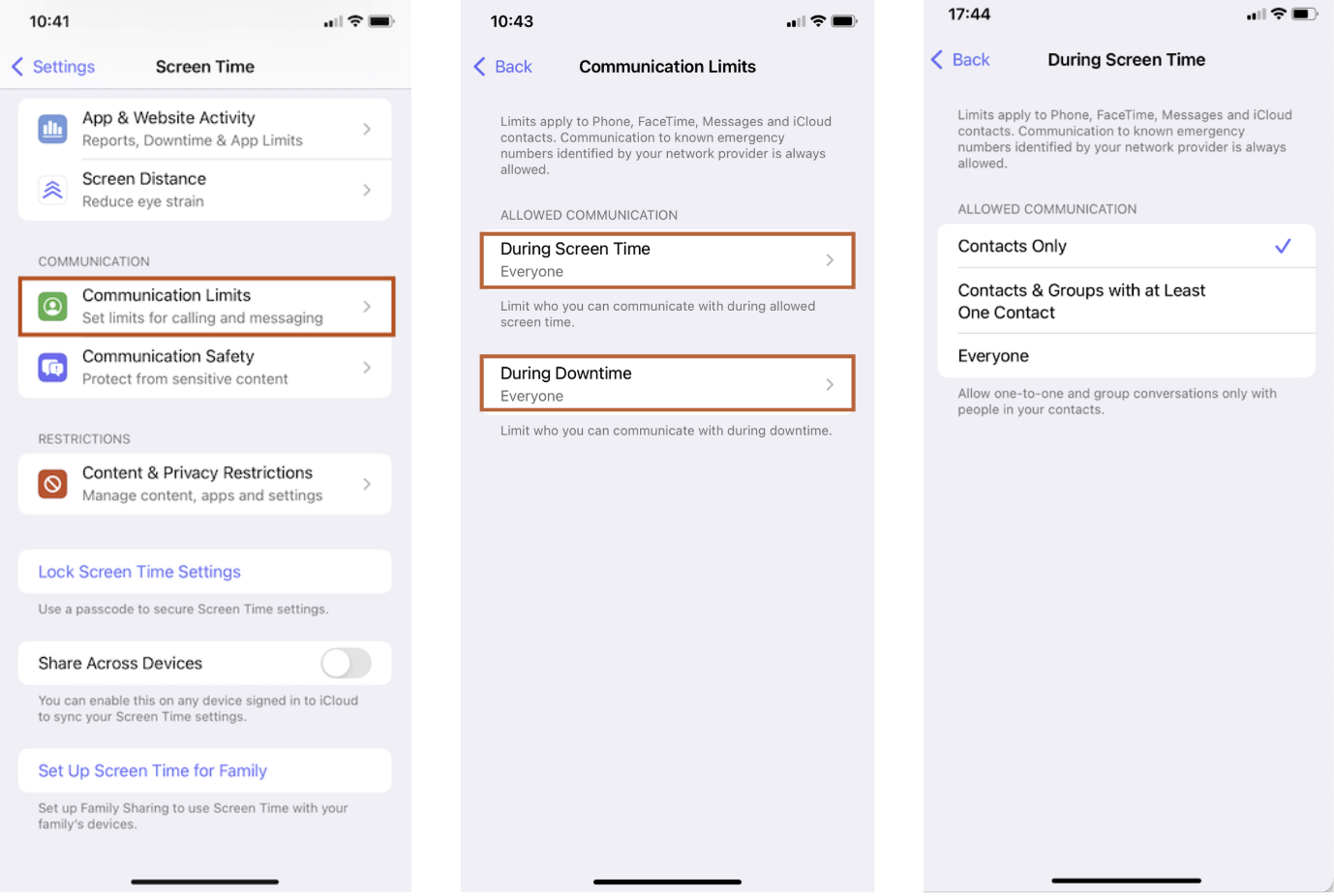
Under Screen Time, tap Communication Limits.
Either:
Tap During Screen Time to select which of your contacts can reach you at any time; or
Tap During Downtime to limit who can contact you during your scheduled screen-free time.
Choose who can and can’t contact you during Downtime.
Image: Jessica Santero
What is iPhone Screen Time?
Apple first introduced Screen Time in 2018 with iOS 12 as part of its growing focus on digital well-being, and has continued to update through successive iOS versions. This built-in feature helps users better understand and manage their screen time for themselves and their families. It tracks time spent in apps, counts how often you pick up your device, and records notification activity.
Why should you use Screen Time?
Screen Time offers practical tools to help establish healthier digital habits. Users can set time limits for specific apps or categories, schedule device-free periods through Downtime hours, and implement parental controls for children's devices, or across all household Apple devices. Plus, you’ll reduce clutter on your homescreen since you won’t need to use any apps to limit your screen time anymore.
Increasing screen time is a growing issue in the U.S., with the average American spending 6.9 hours on their phone every day. Whether you want to limit late-night social media binges, reduce gaming sessions, or just be more mindful of your phone habits, Screen Time lets you set boundaries.
View your iPhone activity
Screen Time helps you understand your total screen time and how you interact with your phone via Screen Time Reports. This feature tracks the time spent on your phone and reports your screen habits back to you. Used intentionally, it can help you take back control of any digital overwhelm by imposing restrictions and boundaries.
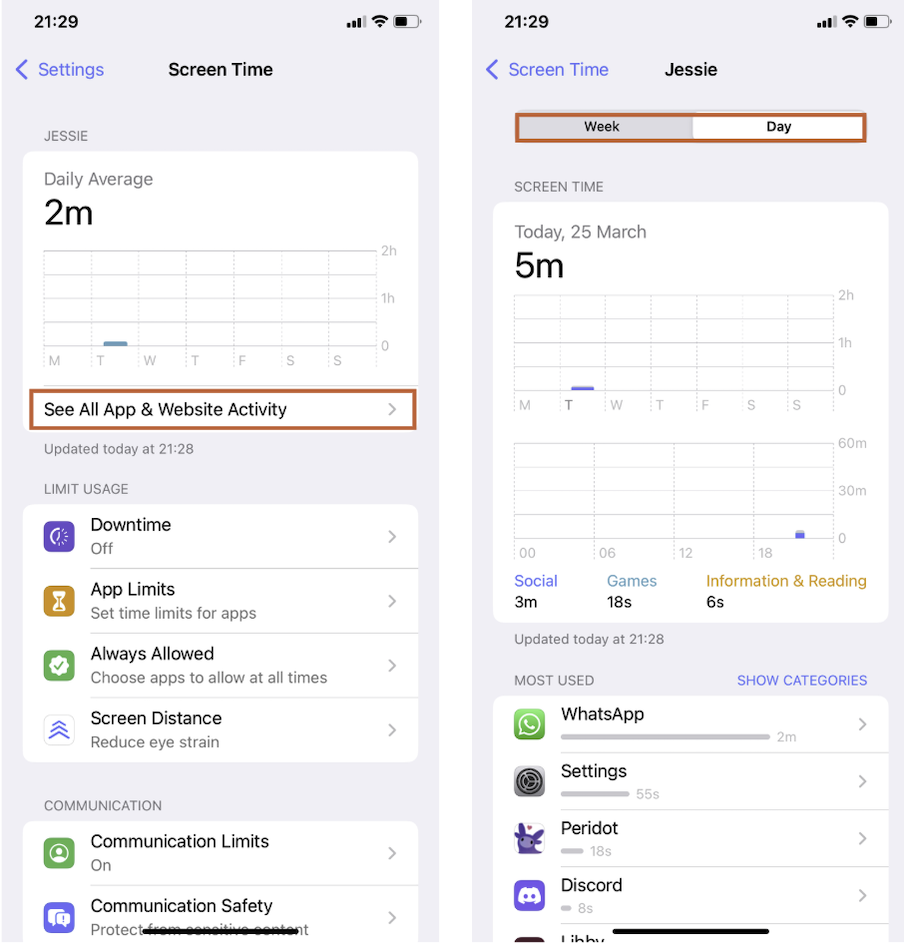
My personal Screen Time Report analysis.
Image: Jessica Santero
Screen Time will show your daily average of time spent on your phone, along with your most used apps and most visited websites. Dig deeper into your usage to see patterns over the week or a single day, as well as a breakdown of app usage by category, like social, games, or communication.
How do you set up Screen Time limits for a child on an iPhone?
Screen Time also offers parental control on all Apple devices in your household (iPads, iPhones, and Macs included). Your settings of choice can sync usage data across all Apple devices connected to the same iCloud account, giving a comprehensive view of your whole family’s digital activity. That way, you can set up Apple screen-time limits, restrict certain apps, and set communication guidelines for everyone—even for your youngest.
You can set up Screen Time directly on your child’s iPhone, if they have one; or you can set up a child account from your device with screen time limits enabled.
To set up Screen Time directly on your child’s iPhone for the first time, follow the same steps as outlined above, but tap This is My Child’s iPhone when you turn on Screen Time.
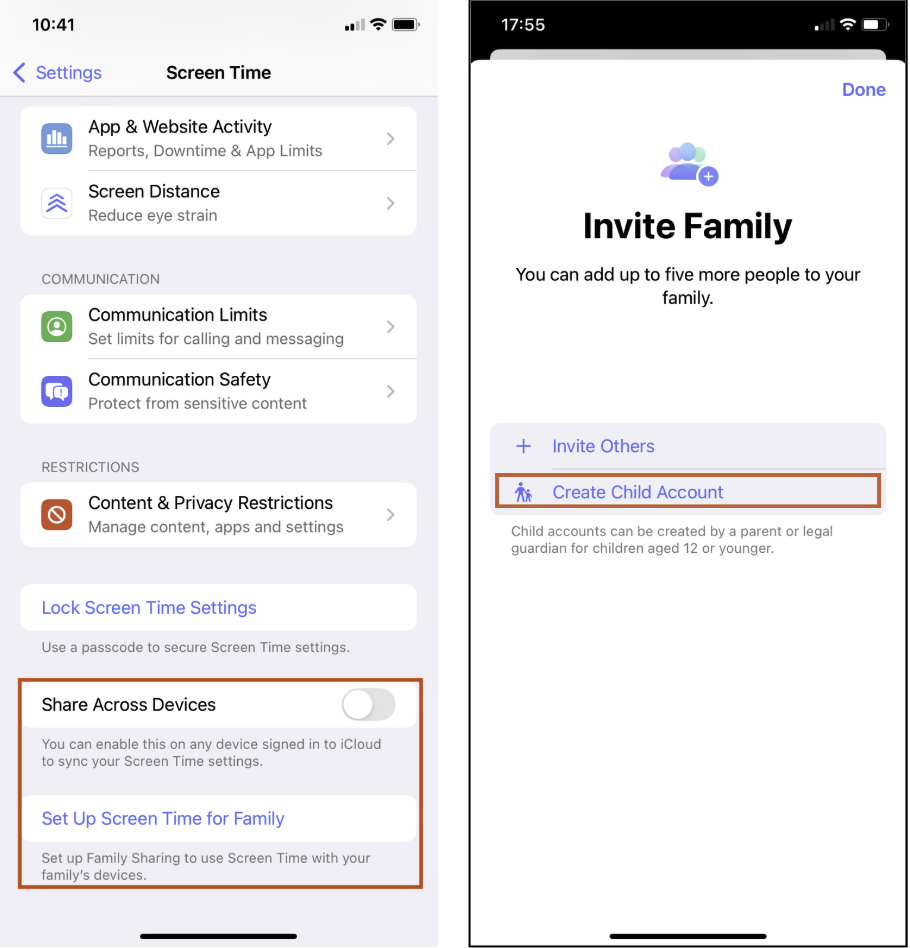
To set up Screen Time for your child from your own phone using a Family account, following these steps:
Go to your phone’s Settings and tap Screen Time.
Tap Set up Screen Time for Family, where you’ll be asked to invite family members.
Choose Create a Child Account.
Set Screen Time limits on your child’s account.
Image: Jessica Santero
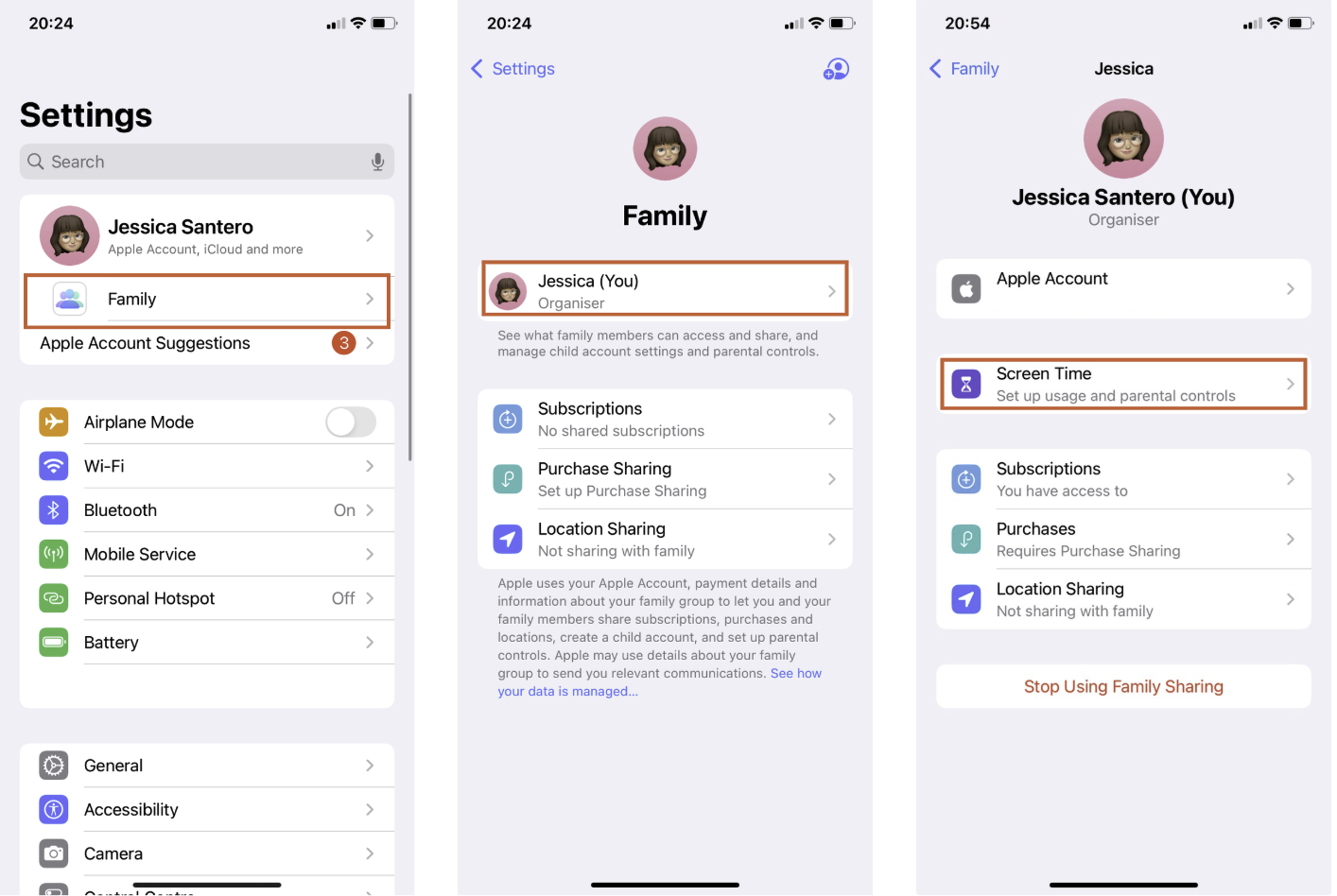
Go back to your Settings homescreen and tap the new Family category below your Apple ID.
Select the profile you want to set parental controls for.
Tap Screen Time.
Add parental restrictions to the family profile you choose.
Image: Jessica Santero
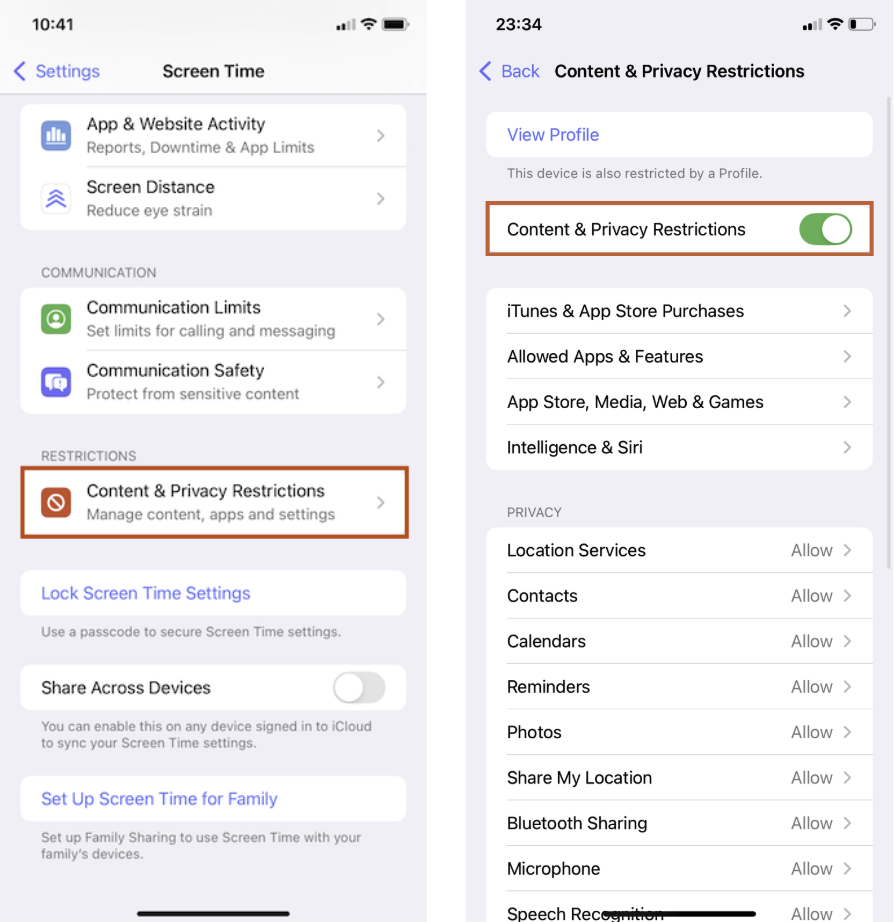
After adding time limits and app restrictions following the steps above, tap Contents & Privacy Restrictions.
Restrict content, privacy, and permitted settings changes.
Image: Jessica Santero
Apple’s Screen Time lets parents enforce age-based content restrictions on their child’s iPhone. Under Content & Privacy Restrictions, you can block mature apps, movies, TV shows, books, and music by age rating. It also filters explicit content in Apple Music, restricts adult websites, and limits Safari to approved-only sites. Parents can even disable social media friending in games, require approval for app downloads, and lock privacy settings to keep kids safe when online.
Looking for a dumbphone instead?
Smartphones are great, but for some parents, they just want a phone that they can use to call and text their kids. If you are interested in giving your kids a phone that can only be used for texting and phone calls, take a look at our guide to the best dumbphones in 2026.
Consider putting your kid on a low-data plan
Screen Time limits are a great first line of defense, but any parent of a determined teenager knows they have their weaknesses. Passcodes get figured out, and a particularly motivated kid can find a workaround.
If you want a more airtight solution, or just a complementary layer that doesn't depend on your child's cooperation, putting them on a low or no-data plan is worth considering.
The difference is where the limit lives. Screen Time limits are set on the device, which means they can technically be negotiated with. A data cap lives at the network level. When the data runs out, it runs out, and there's no workaround to change that.
For younger kids, a By the Gig plan can work well. You control how much data gets loaded onto the line, and when it's gone, it's gone. For older kids who genuinely need some connectivity for maps and messaging, a low-cap plan keeps them reachable without opening the floodgates.
Used together, the two approaches cover different angles: Screen time limits manage which apps your child can access, and the data plan manages how much fuel those apps have to run on.
Pro tip:
Most carriers let you mix and match plans per line on a family plan. That means you can keep your own unlimited line while putting your kid on something lighter, all on the same account.
If you're ready to pair your Screen time limits with a data cap, here are some low-data plans worth considering for your child's line.
Available on 3 Major 5G Nationwide networks in select areas and compatible devices
10GB mobile hotspot data
whistleOut Exclusive:Get this plan for only $10 for 6 months OR $45 for 3 months ($15/mo.) with new number activation OR $5 off per month for 6 mo. (up to 3 lines) OR 30 Days FREE Trial
Screen Time allows you to restrict app usage, schedule screen-free Downtime, and set age-appropriate filters on your child’s iPhone. You can add further limits to control App store and iTunes purchases, and restrict explicit videos, movies, fand apps.
What happens when my iPhone’s Screen Time limit is reached?
When your iPhone reaches the Screen Time limit, it will pause the feature and notify you that you reached your limit. Your phone will ask if you want to ignore your limit, otherwise your phone will also dim your restricted-app icons.
How is my child bypassing Apple’s Screen Time limits?
Stop your child bypassing the Screen Time limits by adding a lock passcode in two simple steps:
Under Screen Time, tap Lock Screen Time Settings.
Enter and re-enter a four-number passcode.
Jessica Santero
Staff Writer
Jessica is a Staff Writer for WhistleOut and the site’s resident app expert. Her coverage frequently includes hands-on comparisons of popular app categories, such as translation, navigation, and dating apps, to evaluate how they perform in real-world mobile use.
Our editorial guides stem from our expertise, not any brand's influence. We independently test plans and apps, review providers, and break down topics so you can make the best choice with confidence.
Sharing data with carriers when searching for plans
WhistleOut’s internet coverage check requires that we verify serviceability at your address with carriers. When you click to purchase, we only pass verified addresses to a carrier and your address is loaded into the carrier’s shopping cart so that you can easily complete the purchase.
As part of California Consumer Privacy Act (CCPA) you are able to select that we do not sell this data to the carrier - this will also prevent us from validating your coverage with a carrier and setting up the address with the carrier if you choose to purchase.
Do not sell my data (address)
WhistleOut uses anonymous cookies to improve user experience on the site. Please review our privacy policy for more information.













.png?w=280&h=280&usm=20&usmrad=0.8&fit=crop "The Best Cheap Phone Plans for 2026: We Tested Them All to Help You Save")


