

You can AirDrop photos from your iPhone with a few simple taps. However, you may need some initial setup beforehand.
Apple made it really simple to share your photos across multiple devices, including your iPhone, iPad, and Mac. After all, what good are the great pictures you take on the iPhone’s superior cameras if you can’t share them?
Keep reading to learn how you can AirDrop photos from your iPhone.
How to turn on AirDrop
Follow these steps to switch on AirDrop:
- Open Settings.
- Tap on General.
- Select AirDrop.
- Choose from the following options:
- Receiving Off
- Contact Only
- Everyone
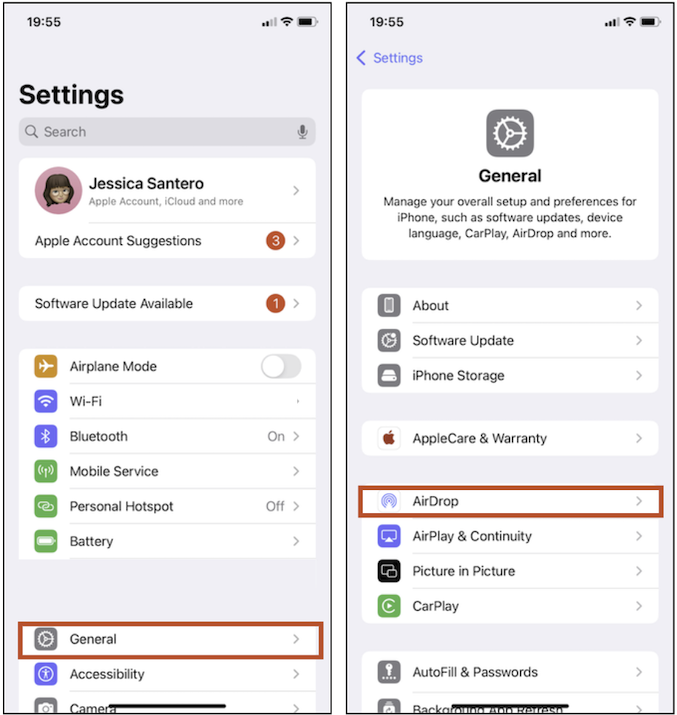
Images: Jessica Santero | WhistleOut
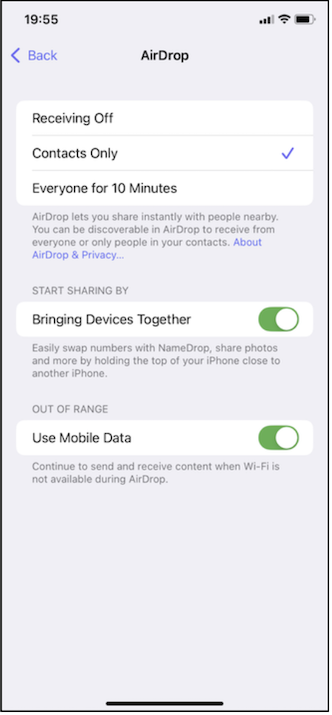
Image: Jessica Santero | WhistleOut
Before you can AirDrop a picture to another device, make sure that your device and the recipient’s device have Bluetooth and Wi-Fi enabled. If you don’t have both of these settings enabled, you won’t be able to AirDrop images or files.
If your intended recipient has AirDrop set to receive from contacts only, they will need to have your Apple ID or phone number in their Contacts. Otherwise, your recipient can set AirDrop to receive from everyone. You’ll see the person you’re sending to’s device name appear on your AirDrop search screen.
How to turn off AirDrop
To turn off your iPhone’s AirDrop, you can follow the same steps as above, but make sure to select Receiving Off under your AirDrop settings.
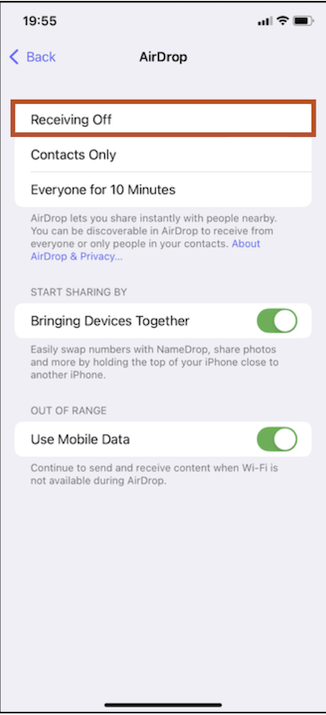
Image: Jessica Santero | WhistleOut
How to AirDrop your photos
Once you’ve activated AirDrop, and have your recipient close by, you can start sending photos to them.
But, how close do you have to be to AirDrop? Apple recommends being less than 30 feet away from someone when you use AirDrop. In other words, try to be in the same room as the device you’re AirDropping images to for the best results.
To send an image via AirDrop, follow these steps:
- Open Photos on your iPhone.
- Select the photo you want to share.
- Tap the share icon.
- (Optional) On the following screen, you can swipe left or right to select additional photos you’d like to share.
- Select AirDrop.
- Choose your recipient.

Images: Angelo Ilumba | WhistleOut
AirDropping images from Mac to iPhone
Sending pictures from your Mac to your iPhone can be done in three steps:
- Open the picture you want to AirDrop. You might have your picture stored in Photos, under downloads, or even saved to your desktop. Double click and open your image.
- Click the share icon located in your options bar.
- Click on the recipient once your Mac finds the device you want to send files to.
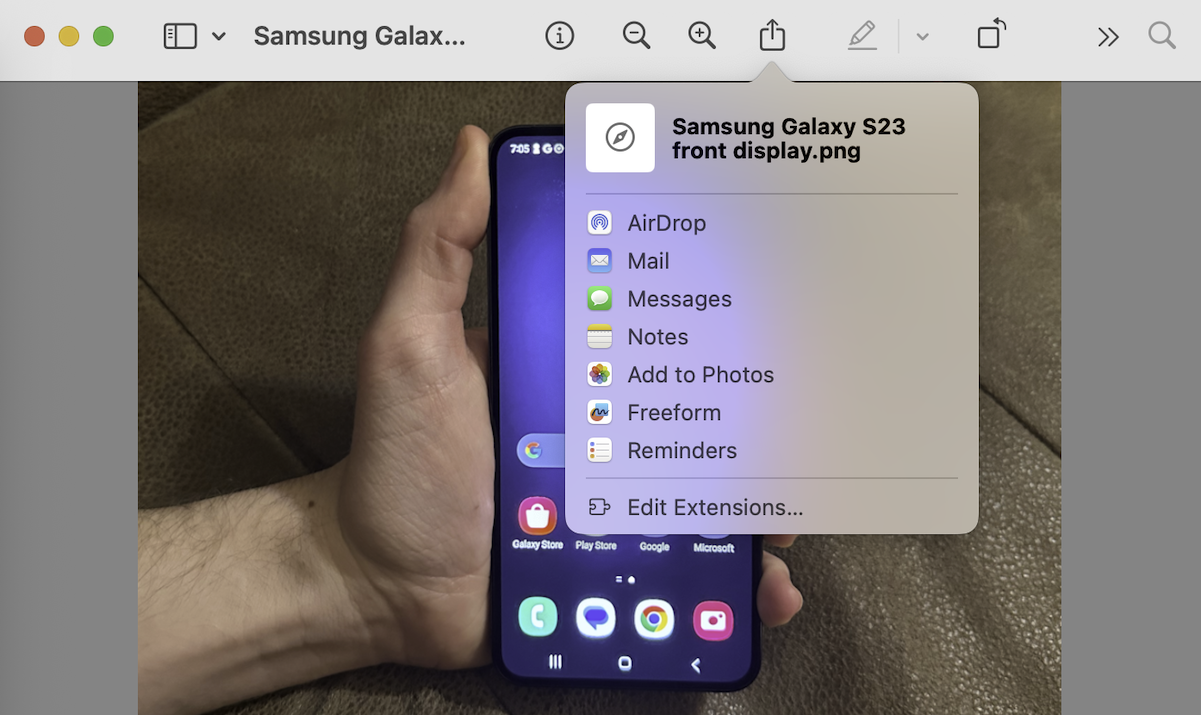
Image: Jessica Santero | WhistleOut

Image: Jessica Santero | WhistleOut
How do you send files through AirDrop?
Photos aren’t the only file you can AirDrop. You can also send documents, videos, locations, websites, and even passwords. If you have a new iPhone, you’ll need to set up your Apple ID and before you can AirDrop.
Once you set up your phone you can send any file through AirDrop with these steps:
- Open the file you want to share. If it’s a photo or video, you’ll open Photos, or if it’s a document, you’ll probably have it saved under Files.
- Tap the share icon in the bottom bar.
- Tap AirDrop. Select your recipient once your phone finds their device.
If you can’t send your file via AirDrop, check out these tips to make sure everything is configured correctly.
Accepting AirDrops
When a device receives an AirDrop, a notification will pop up, letting the receiver know that a file is available. Oftentimes a preview image of the AirDrop will appear along with the option to accept or decline.
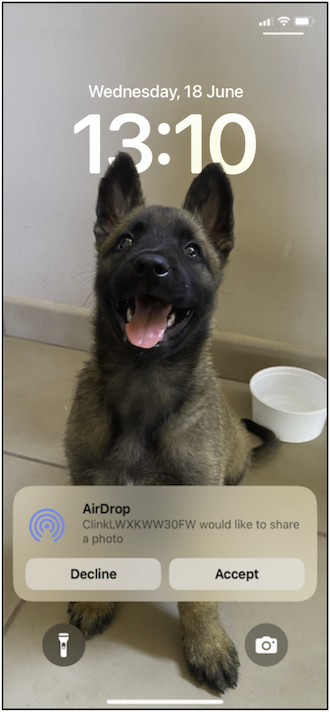
Image: Jessica Santero | WhistleOut
Once you tap Accept, the image will instantly download and your photos app will open to show you the shared files. If you want to look for the shared images later on, just remember they are organized in your gallery by date. That means the images you just received will be at the very bottom—since they are the most recent.
Why can’t my iPhone AirDrop photos?
You may see an AirDrop Failed notification while trying to share photos for several reasons.
Follow these tips to get AirDrop working correctly:
- Check that both Wi-Fi and Bluetooth are enabled. AirDrop needs both to work properly and won’t correctly send images without them. While you’re checking your Wi-Fi, look and see that Airplane Mode is turned off as well.
- Make sure AirDrop isn’t set to Receiving Off under your iPhone’s AirDrop settings. By selecting Receiving Off, your AirDrop is turned off. So make sure you turn AirDrop back on. Choose Contacts Only or Everyone for 10 Minutes instead.
- Get closer to your recipient. Both devices need to be within 30 feet of each other.
- Make room in your storage. If your iPhone doesn’t have enough storage space for any more images, you won’t be able to get AirDrops.
- Restart both devices once you’ve tried all of the other steps listed.
If you're still having issues AirDropping your photos, we've highlighted more tips in our AirDrop troubleshooting guide.
Share pictures with the latest iPhone
If you want to take the best pictures to share from your phone, look no further than the iPhone. With each new generation, Apple keeps improving the iPhone’s camera systems. These phones arguably have the best cameras on any smartphone available. You’ll be able to snap pics that you can’t wait to AirDrop to all your friends.
Visit our guide to the best iPhone deals to see how you can get a huge discount on the latest iPhone. Check out the best unlimited data plans to really enhance the power of the iPhone in your pocket anytime, anywhere:
|
#1
|
Visible

$25 Visible Plan
$25.00/mo
Taxes & Fees included
|
|
#2
|
Mint Mobile

Unlimited Data Plan
$10.00/mo
$60 for 6 months of service
|
|
#3
|
US Mobile

Unlimited Starter Plan
$10.00/mo
|
|
#4
|
Spectrum Mobile®

Unlimited
$30.00/mo
+ $20 Upfront
|
|
#5
|
Cricket

Supreme Unlimited Plan
$55.00/mo
with AutoPay; $60 for the first month.
+ $9.99 Upfront
|
How to AirDrop photos from my iPhone: FAQs
Where do AirDrop photos go?
AirDrop photos are saved in your iPhone’s photo library within your Photos app. You can usually find them under Recently Added.
How many pictures can you AirDrop at once?
There’s no technical limit on the number of pictures you can AirDrop at once, but sending more than 100 images in a single transfer can cause problems like slow transfer speeds, failed AirDrop transfers, and storage shortages on the receiving device. For large batches, it’s often smoother to send photos in smaller groups.
How do you turn AirDrop off?
You can turn AirDrop off by opening Settings, tapping General, tapping AirDrop, and selecting Receiving Off. You can also swipe down from the top-right corner of your iPhone and tap the AirDrop icon to switch it off from the Control Center.
Can you AirDrop your contact to someone?
You can AirDrop your contact to someone in just a few taps. Open your Contacts app, tap your contact card (usually located at the very top), tap the share icon, select AirDrop, and then choose the device you want to share it with. If you run into trouble, our troubleshooting tips can help you confirm your iPhone is configured properly.
How do you change your AirDrop name?
You can change your AirDrop name by opening Settings, tapping General, tapping About, then tapping Name and typing in a custom name for your device. That new name is what other people will see when you AirDrop to them.
Angelo Ilumba
Senior Writer

Thousands of cell phone plans unpacked. All the facts. No surprises.





.png?w=280&h=280&usm=20&usmrad=0.8&fit=crop "The Best Cheap Phone Plans for 2026: We Tested Them All to Help You Save")


