
AirDrop lets you wirelessly share files between Apple iOS devices like iPhone or iPads and macOS gadgets such as Macbook Pros. It relies on Bluetooth to establish connections betwen devices so you can use point-to-point Wi-Fi for fast, secure file transfers, like sharing pet pictures.
If your AirDrop isn't working, it may be because your device is incompatible, your Wi-Fi or Bluetooth isn't enabled, or your sharing settings are incorrect.
Apple fans, when AirDrop isn't working, it can seriously hinder your ability to quickly share funny dog videos with your friends. Let's walk through the top reasons why your AirDrop isn't working and some quick ways to fix AirDrop.
How to fix AirDrop when it's not working
Sometimes AirDrop doesn't work, which can be quite frustrating. Fortunately, there are several ways to remedy the issue. If you're scratching your head wondering, "Why isn't my AirDrop finding anyone?" or "How do I get AirDrop to work?" we've got you covered. Here's what to do when your AirDrop isn't working:
- Check Your Device Compatibility
- Check Your Wireless Connections
- Disable Personal Hotspot
- Check Your AirDrop Receiving Settings
- Make Sure You're Both Signed Into iCloud
- Restart Your iOS Devices or Your Macbook
- Update Your iOS or MacOS
- Reset Your Network Settings
- Do a Hard Reset of Your iPhone or Mac
- Get in Touch with Apple
- Upgrade Your iPhone
Check your device compatibility
Some older Macs and iPhones simply might not be able to use AirDrop, as they weren't built to support the functionality. A Mac must be a 2012 model or later (with the exception of the 2012 Mac Pro) and use OS X Yosemite or later. An iOS device (i.e. an iPhone, iPad, or iPod touch) must support iOS 7 or later.
Make sure both devices meet the above requirements. If not, it might be time to consider a newer model that's compatible with AirDrop.
Check your Wi-Fi and Bluetooth connection
AirDrop requires that both Wi-Fi and Bluetooth are enabled on each device and that they're within about 30 feet of each other to detect a signal. If your airdrop isn't working, first ensure that both Bluetooth and Wi-Fi are turned on for both your device and the phone to which you’re trying to AirDrop. Then move closer together to see if that fixes your AirDrop woes. Is AirDrop frozen? Stay within range during the entire time a transfer is taking place to avoid issues.
Toggling your Bluetooth and Wi-Fi connections off and on is also a quick way to try to solve a mysterious AirDrop issue. This performs a quick refresh of your connections and clears any cached bugs that might be hindering your signal.
Disable personal hotspot
If you’re using an iPhone or an iPad with cellular, make sure that they have Personal Hotspot turned off. Since AirDrop uses Wi-Fi and Bluetooth to transfer data between devices for nearby sharing, you have to turn off Personal Hotspot so that those connections are available for your iPhone or iPad to use for AirDrop. Don’t worry; your devices don’t need to actually be connected to the internet to send or receive files via AirDrop. They simply need to be able to access the Wi-Fi and Bluetooth functionality to transmit.
To disable Personal Hotspot on your iPhone or iPad with cellular:
- Go to your Settings app.
- Select Personal Hotspot.
- Tap the slider to disable “Allow Others to Join.”
Check your AirDrop receiving settings

By default, your AirDrop setup will be set to receive files from "Contacts Only." If you're having trouble receiving an AirDrop file, check to see if the sender is in your contacts list. If not, you can either add them, or you can change your settings to expand your AirDrop recipients to anyone nearby.
If you're using an iPhone, iPad, or iPod touch:
- Go to your Settings app.
- Select General > AirDrop.
- Change your discoverability setting to “Everyone.”
Troubleshooting AirDrop settings on iPhone and iOS devices
If “Receiving Off” is selected in the recipient’s AirDrop settings, and you’re unable to change it, check the Screen Time settings of the iOS device:
- Under Settings, choose "Screen Time."
- Select "Content & Privacy Restrictions," then "Allowed Apps."
- Make sure AirDrop is allowed.

If you're on a Mac:
- Open Finder.
- Click “Go” in the top menu and select “AirDrop” from the dropdown.
- In the AirDrop window, check the “Allow me to be discovered by” setting.
- Select “Everyone.”
Be aware that by selecting “Everyone,” even strangers will be able to see your device and attempt to send files to you. If you don't want to receive unsolicited Space Sloth photos from passersby, make sure to change your AirDrop receiving settings back to “Contacts Only” or “Receiving Off.”
Troubleshooting AirDrop settings on macOS
If AirDrop failed on your Mac desktop or Macbook, check that your computer’s firewall settings aren’t blocking it from working. This is a less common AirDrop problem, but it can be fixed very easily:
- Click the Apple icon to open the menu.
- Click “System Preferences” and select “Security & Privacy.”
- Click the “Firewall” tab, and then the lock icon.
- Enter your admin username and password to edit your settings.
- Click on “Firewall Options” and make sure that the firewall option for “Block all incoming connections” is deselected.
Make sure you're both signed into iCloud
If you or the person you want to AirDrop with have your discoverability set to “Contacts Only” rather than “Everyone,” you’ll both also need to be signed into iCloud. (You'll each also need save one another's contact info using either the phone number or email address associated with your respective iCloud accounts.)
To make sure your iPhone is signed into iCloud, open the Settings app and tap your name at the top of the menu that appears. Then you can scroll down to see a list of devices you’re signed into, and you can tap each of them for more information about the device.
To see if your Mac is signed into your iCloud account, click the Apple menu icon on the top left of your screen, then go to System Preferences and click Apple ID for a list of devices.
How do I find my AirDrop files?
Where do AirDrop files go once you've received them? It depends on the device.
On an iPhone or any other iOS device, you can find AirDrop files in the app that best corresponds with the file type. For example, if a friend sends you a web link, once you accept the AirDrop, that link will open in your default browser app like Safari or Chrome. If someone sends you a photo, it will open in the Photos app and be saved there for you to find later.
On a Mac, AirDrop files are saved to the Downloads folder.
Restart your iOS devices or your Macbook
Try turning your iPhone, iPad, or Macbook off and back on again. Simply restarting may seem like an unimaginative piece of advice, but you hear this classic troubleshooting tip so often because it’s effective at solving issues where the cause of the problem is unclear. Doing a soft reset of your device can also solve countless software problems, including ones that might be preventing AirDrop from working properly.
Update your iOS or macOS version
Whether you’re using a mobile device or a Mac computer, sometimes the issue is an out-of-date operating system on one of the devices. Check if there are any iOS or MacOS updates available for your device.
On an iPhone or other iOS device, go to Settings > General > Software Update to grab the latest iOS update if it's available. On a Mac, open System Preferences and click “Software Update” to get the latest version of MacOS.
Reset your network settings
If your device isn’t connecting with other devices properly, it might be causing your AirDrop transfer issues. Try resetting your network settings to fix AirDrop. This is an easy thing to do, but it means that you’ll have to reconnect all of your other Bluetooth or Wi-Fi-connected devices again from scratch.
To reset the network settings on your iOS device:
- Go to Settings > General > Reset.
- Scroll down and tap “Reset Network Settings.”
- Enter your passcode, then confirm.
Then you should check your Bluetooth connection and Wi-Fi network again.
Do a hard reset of your iPhone or Mac
In order to rule out any possibility of a software issue causing AirDrop not to work, you can do a hard reset of your device. This means erasing your data and then restoring your device to factory settings. Of course, you’ll want to make sure you’ve backed up all of your data first, so that you don’t lose any of your important notes, contacts, photos, or other files.
Once you’ve got a clean slate to work with, you can recover a backup of your files. If it still isn’t working at that point, you can then try doing a hard reset again, but restore to factory settings without recovering your data. If even that doesn’t work, you’ve very likely got a hardware problem on your hands, and you should turn to Apple for a fix or think about upgrading to a newer device.
To back up your iPhone with iCloud:
- Open the Settings app and tap your name.
- Select “iCloud” and then “iCloud Backup.”
- Turn on iCloud Backup and then tap “Back Up Now.”
To return your iPhone to factory settings:
- Go to Settings > General > Reset.
- Tap “Erase All Content and Settings.” (Warning: This will remove all of your device’s data, so you should make sure you’ve backed up your iPhone first!)
- Your iPhone will restart and give you the choice to restore from a backup by following the instructions on the screen or to set up your iPhone as new by restoring it with the factory settings.
The process is similar if you have a Mac. You can create a backup with Time Machine, use Disk Utility to erase your Mac, and then restore your Mac from the backup. Because the steps are far too detailed to list here, we’ve linked to the relevant Apple Support content for you to follow.
Get in touch with Apple
After trying all of the above steps, if AirDrop still isn’t working, your final resort is to get in touch with Apple. Since they make both the hardware and operating system of Apple devices, they’re in a great position to help solve the issue.
The best way to contact Apple is by going to their Support page and starting a live chat session or providing your phone number for them to call you. Let their support team know what you’ve done to try to solve the problem so far, so they can make relevant suggestions for what to try next and get to the bottom of the issue quickly.
Upgrade your iPhone
If your current phone isn’t compatible with AirDrop, or you’ve been having issues getting it to work, it may be time to upgrade to a shiny new one so you can AirDrop to your heart’s content. After all, iPhone 15, 14, or even 13 AirDrop issues are going to happen far more rarely than with models that are several years old. Plus, you don’t have to pay an arm and a leg for a new iPhone! There are plenty of iPhone deals from carriers big and small that can help you save a pretty penny on a newer, AirDrop-compatible device.
Ready to pick out your new iPhone? Check out the latest and greatest models:
iPhone 16 128GB
- 6.1 inch display
- Rear Cameras: 48MP, 12MP
- Front Camera: 12MP

iPhone 18 Pro 256GB
- 6.3 inch display
- Rear Cameras: 48MP, 48MP, 48MP
- Front Camera: 18MP

iPhone 18 Pro Max 256GB
- 6.9 inch display
- Rear Cameras: 48MP, 48MP, 48MP
- Front Camera: 18MP

iPhone 18 Pro 512GB
- 6.3 inch display
- Rear Cameras: 48MP, 48MP, 48MP
- Front Camera: 18MP

iPhone 18 Pro Max 512GB
- 6.9 inch display
- Rear Cameras: 48MP, 48MP, 48MP
- Front Camera: 18MP

iPhone 18 Pro 1TB
- 6.3 inch display
- Rear Cameras: 48MP, 48MP, 48MP
- Front Camera: 18MP

iPhone 18 Pro Max 1TB
- 6.9 inch display
- Rear Cameras: 48MP, 48MP, 48MP
- Front Camera: 18MP

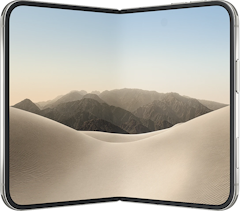
iPhone Duo 256GB
- 7.6 inch display
- Rear Cameras: 48MP, 48MP
- Front Camera: 12MP
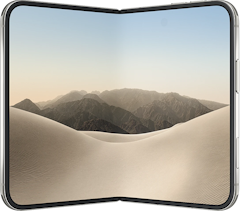
iPhone Duo 512GB
- 7.6 inch display
- Rear Cameras: 48MP, 48MP
- Front Camera: 12MP
iPhone 18 Pro 2TB
- 6.3 inch display
- Rear Cameras: 48MP, 48MP, 48MP
- Front Camera: 18MP


AirDrop Not Working: FAQs
What is AirDrop?
AirDrop is a feature that allows nearby Apple devices to send content and files to each other wirelessly. It works by connecting devices using Bluetooth and peer-to-peer Wi-Fi network technology. AirDrop doesn't require an internet connection, so it's a great way to save data when sharing files on the go.
Which devices does AirDrop work on?
AirDrop not working with your older Mac, iPhone, or iPad? For the AirDrop feature to work, both the sending and receiving devices need to be compatible with the feature.
AirDrop is compatible with any iPhone, iPad, or iPod touch that uses iOS 7 or newer, and any Mac model from 2012 or newer that uses OS X Yosemite or newer (except for the 2012 Mac Pro). AirDrop only works with Apple devices and is not available for any Android or Windows devices.
Can you share photos from AirDrop?
Yes! You can use AirDrop to share pictures, videos, links, documents, and other types of content.
Can you share contacts via AirDrop?
Yes! You can use AirDrop to share contacts. When you open a contact on your iPhone, just tap "Share Contact" and select AirDrop to share the contact card.
How do I send files using AirDrop?
On your iPhone, iPad, or iPod touch
- Open an app and find a piece of content that you'd like to share. If this is a photo or video located in your Photos app, tap "Select" to choose your favorites, then tap the "Share" icon. If you're in a different app, find the "Share" button or icon depending on the app.
- Then, tap the AirDrop icon to see which devices are available for you to share files via AirDrop with.
- You'll see their names and a profile image if they are in your contacts. If you have an iPhone 11 or later, you can even point your device directly at another iPhone 11 or a newer model, and your phone will automatically recognize which device you're trying to send a file to.
On a Mac device
- Open Finder and hold down the control button while clicking the file that you want to send via AirDrop. Click "Share" and select "AirDrop."
- Alternatively, within Finder you can also drag and drop files onto "AirDrop" in the left sidebar to share them.
- You can also select a file and click the button with the sharing icon at the top of the window toward the left side and then select "AirDrop."
How do I receive files using AirDrop?
When someone else attempts to send you something via AirDrop, you'll receive a notification on your device with the sender's name and a preview of the content. You'll also see a choice to either "Accept" or "Decline." If you accept the AirDrop file transfer, it'll automatically open in the appropriate app; for example, photos would show up in the Photos app and map links would open in the Maps app. If you decline the AirDrop file, your device won't accept it and no apps will open.
You can also share things with yourself across your own devices over AirDrop. The AirDrop transfer happens automatically, and you won't be prompted to accept or decline the content as long as you're signed into both devices using the same Apple ID.
Where are AirDrop settings on my iPhone and other Apple devices?
You can find the AirDrop settings on your iPhone or other iOS device by going to Settings > General > AirDrop. On your Mac, you can access the AirDrop settings by opening up Finder, clicking "Go" in the menu at the top of the screen, then "AirDrop."
How can you change AirDrop settings?
You can change your AirDrop settings back and forth easily in order to choose who sees your AirDrop depending on your preferred level of privacy. AirDrop settings options are similar for all Apple devices that have AirDrop.
On an iPhone or iPad, AirDrop settings include:
- "Receiving Off"—This lets you block AirDrop entirely
- "Contacts Only"—You'll only receive AirDrop files from those you've listed in your device contacts.
- "Everyone"—Anyone can find and send you content via AirDrop.
On a Mac, the wording is very slightly different, but the options are fundamentally the same—you can choose to be discoverable by "No One," "Contacts Only," or "Everyone."
The "Contacts Only" AirDrop option offers a good balance between privacy and functionality, but it has some specific requirements to work seamlessly. Each device must be signed into its respective iCloud account and either the phone number or email address associated with the sender's Apple ID has to be saved in your Contacts app.
How do I block AirDrop with Screen Time?
We could all use a break from our screens, and Apple makes it a bit easier to unplug with the Screen Time feature on iOS. If you don't want to be distracted by receiving AirDrop files during certain times, or you want to prevent your kids from using AirDrop when they should be doing their homework, you can use Screen Time to block the feature.
If you want to use Screen Time to block AirDrop, you can do so by going to Settings > Screen Time > Privacy Restrictions > Allowed Apps, and then deselecting AirDrop. Once this is done, you won't be able to use the feature on your AirDrop devices during times when Screen Time is enabled. And, if you want to keep kids from turning the feature back on, you can set a passcode under Settings > Screen Time > Use Screen Time Passcode.
Brittany McGhee
Staff Writer

Thousands of cell phone plans unpacked. All the facts. No surprises.





.png?w=280&h=280&usm=20&usmrad=0.8&fit=crop "The Best Cheap Phone Plans for 2026: We Tested Them All to Help You Save")


