
Your iPhone can download documents, pictures, and other types of files just like a computer. However, if you don’t frequently use this feature, you may not know how to access your downloaded files or prevent them from taking up space in your device’s memory.
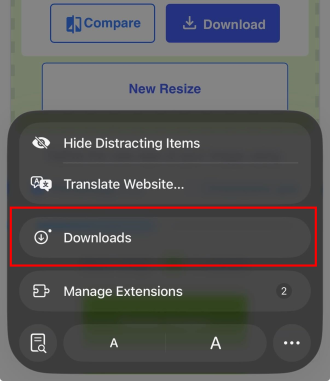
You can access your downloads on an iPhone by opening the Files app and going to the downloads folder. If you just downloaded a file from your Safari browser, you can also press the Downloads button to quickly see it without changing apps.
Read on to learn how to find downloads on your iPhone and our best tips for organizing your downloads folder.
How to view downloads on an iPhone
Downloaded files live in the Files app on your iPhone. To access them:
- Open the Files app.
- Tap On My iPhone.
- Open the Downloads folder.
- Select your file.
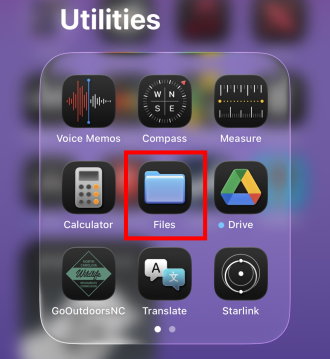
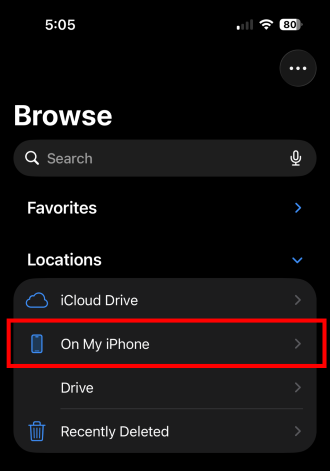
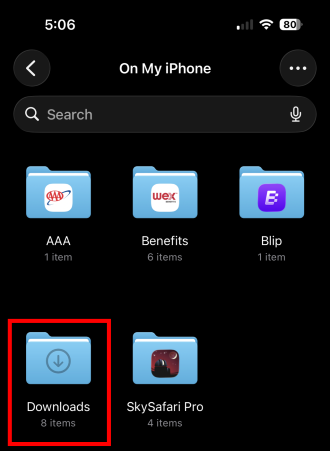
Note that your iCloud account (if enabled) also has a downloads folder in the Files app that’s connected to your other Apple devices, such as iPads and Macs. Downloads to your iPhone may not automatically be shared with this file, so make sure you begin your search in the On My iPhone section of the Files app.
I can’t find the iPhone Files app. Where is it?
If you can’t find the Files app on your iPhone, you may have accidentally removed it from your homescreen. Simply pull straight down on your screen and type “Files” in the Spotlight Search. It will appear in the top results if the app is on your phone.
If you discover you completely deleted the Files app from your device, you’ll need to redownload it from the App Store.
How to see downloads in Safari
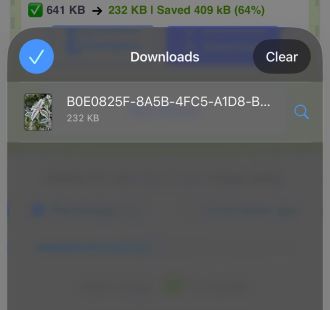
If you recently downloaded a file from Safari, you can view it without leaving the browser app.
To see your recent downloads in Safari:
- Tap the Downloads button inside the search field.
- View your recently downloaded files.
iPhone downloads tips and tricks
Downloading a lot of files to your iPhone can quickly take up storage space and cause your Files app to become disorganized. Here are some of the best ways you can cut down on the clutter.
1. Delete downloaded files after using them
Make sure to delete any old downloaded files on your iPhone if you no longer need them. Your iPhone won’t automatically delete them unless you enable that feature in your Settings. Otherwise, the files will accumulate, take up storage space, and even transfer with your backups when you upgrade or change devices.
2. Utilize cloud storage to save space on your iPhone
If you pay for a cloud storage service—like iCloud—you can easily move downloaded files off your device and into the cloud. This will help you save storage space on your iPhone and organize your files, and you can access them from other devices.
3. Use folders to organize the Files app
Your iPhone can download all of the most common file types, including images, PDFs, Microsoft Office Documents, music files, zip files, wallpapers, and eBooks. Storing them all in your downloads folder will quickly lead to clutter. Create new folders to store specific types of files or organize them for projects. Follow our iPhone file management guide for more instructions on creating folders.
4. Save iPhone downloads in another location
Wondering how to change your download location in iOS? If you know you’re downloading multiple files for a specific project, you can save time by simply saving them in the correct folder from the beginning. Within your Safari settings, you’ll find the option to change the location where your iPhone saves downloaded files. Just remember to change it back to the downloads folder once you’re finished.
Accessing iPhone downloads: FAQs
Does the iPhone have a downloads folder?
Yes, the iPhone downloads folder is located inside the Files app.
Why don't my downloads show up in the Files app?
If your downloads aren't showing up in your Files app, you may have changed the save location. Go to the Safari settings in the Settings app and make sure the download save location is set to the correct place.
How do I find a file if I forgot the name?
If you forgot the name of a file on your iPhone, use the Spotlight Search feature to search for terms that may be in the file. That feature can search within all the files saved to your phone. If it's a newer file, you can also filter your Files app to show recent downloads on your iPhone.
Where are the iPhone download settings?
The iPhone download settings are located in the Safari section of the Settings app.
Where are iPhone scans saved?
If you scan documents with your iPhone, the resulting images are usually saved to the Notes app or a specific file in your Files app, depending on your settings.
Max McCaskill
Sr. Staff Writer

Thousands of cell phone plans unpacked. All the facts. No surprises.





.png?w=280&h=280&usm=20&usmrad=0.8&fit=crop "The Best Cheap Phone Plans for 2026: We Tested Them All to Help You Save")


