
You can easily scan documents using the camera on an iPhone or iPad. While a standalone printer scanner provides high-quality digitization capabilities, you're probably armed with a mobile device most of the time. Plus, using a mobile device scanner app means you don't need to go out and buy a standalone scanner to take up space on your desktop.
You can use your iPhone or iPad to easily scan and digitally sign important documents. Document scanning was added with iOS 11 in 2017, so generally any iPhone or iPad can use the feature as long as its camera works.
Let's run through how to scan documents with an iPhone or iPad and start backing up your life.
Scan documents on an iPhone or iPad
Scanning documents on an iPhone or iPad is fairly straightforward. Unlike on Android phones, you don’t need a third-party app: instead, you can use Apple's Notes app, which also serves as a PDF scanner. It utilizes your iPhone camera to snap photos of physical documents and pictures for digital backups.
- Lay your document(s) on a flat surface in a well-lit area.
- Fire up the Notes app and select an existing note or create a new note.
- Hit the camera icon and tap Scan Documents.

- Hold your iPhone or iPad over the documents you want to capture. You'll see a yellow box pop up that starts searching for a document.
- Follow the on-screen prompts to align your document within the yellow frame, and your iOS device should begin scanning automatically. If not, you can always tap the shutter button to scan manually.
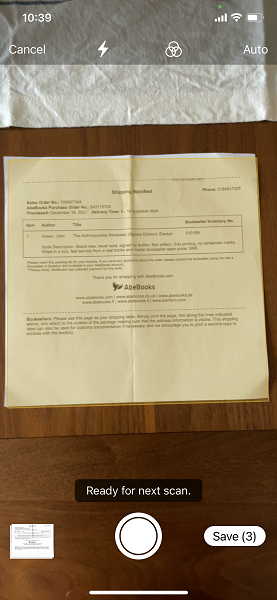
- Press Done once you’ve taken all of the images you need.
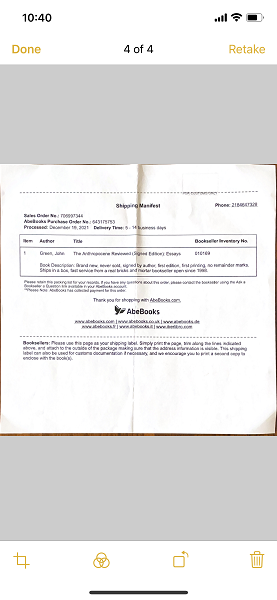
- Hit Save when you're finished.
You can scan multiple pages at a time, and thumbnails of each successive page appear in the screen's bottom-left corner.
The Files app can scan as well

While the Notes app might be a more familiar approach to scanning, you can also use your Files app to do the same thing. The Files app can not only scan documents but sort, tag, and edit them as well. Plus, it's the home of your iPhone's downloaded files. All this makes it one of the most versatile (and underrated) native Apple apps. To take advantage of all the Files app has to offer (including scanning and signing documents) check out our Files app guide.
Document scanning settings for the iOS Notes app
With the iPhone and iPad Notes app, you can select various scanning settings. Head to Notes > Create a new note (or open an existing note) > Camera icon > Scan documents. From there, you'll see the options Cancel, a flash icon, a series of three overlapping circles, and Auto. Hit the circles icon.
Now, pick your preferred color options:
- Color: By default, the Notes app document scanner saves documents in color. This option works well for text or pictures.
- Grayscale: Select grayscale to save images in different shades of gray. We recommend grayscale for documents with pictures that you don’t need in color, such as text and images mixed on a page.
- Black and white: Save documents in all black and white. Use black and white for converting paper documents to PDF files without color, best for text-only pieces.
- Photo: For digitizing color photos with your iPhone or iPad's camera. We think this is the best Notes app setting.
Additionally, you can toggle between auto and manual capture modes. Automatic scanning searches for documents that, once properly aligned, get saved. With manual mode, you'll need to hit the shutter button to initiate a scan. For more iOS fun, find out how to FaceTime with Android friends.
Sign documents on an iPhone or iPad
One of the best parts about scanning your documents with an iPhone or iPad is you can also use the Notes app to digitally sign them. This feature works well for documents that need to be signed and emailed to someone.
To sign your documents using an iPhone:
- Open Notes app and select your document.

- Tap the Markup button.
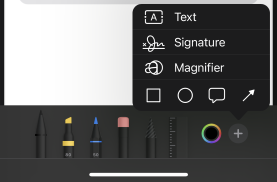
- Tap the + button then select "Signature."
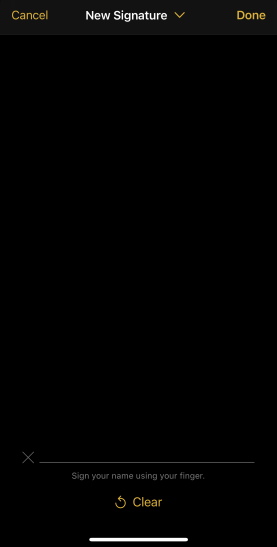
- Create your signature using your finger or a stylus.

- Resize your signature to fit the document.
From there, you can share your scanned and signed document through iMessage or your email. You should note that this method works for basic documents, but it's not a substitute if you need a notarized signature or witnesses.
Why use your iPhone to scan things?
Whether you're saving important documents or digitizing old Polaroids, using your Apple device for scanning is extremely cost-effective. It uses a phone you already have and you won't have to purchase a standalone scanner to take up space and collect dust in your home office.
Most iPhones cameras also capture a lot of detail, so your documents can be easily read. Plus, phone scanning works well for oddly-sized papers or pictures that don’t fit on a traditional scanner.
Although my home office features four 3D printers (it's a long story), I lack a traditional printer/scanner machine. If you're like me, you'll rely on a phone for scanning purposes, and the iPhone's scanning ability to handle this task does not disappoint. Once you've scanned images, you can even set pics as your iPhone background.
Best iPhones for document scanning
Since scanning with an Apple iPhone depends on your handset, the image quality will only be as good as your camera. Therefore, we suggest using a recent iPhone. Our favorite iPhone cameras hail from the iPhone 15 series. The iPhone 15 is the sweet spot for most folks, while the 15 Pro and 15 Pro Max boast the best cameras of any iOS device. Alternatively, opting for a last-gen—but still spectacular—iPhone 14 series or even 13 lineup can save you a bit of cash. While they may not offer the newest photo features, they still take incredible images.
iPhone 16 128GB
- 6.1 inch display
- Rear Cameras: 48MP, 12MP
- Front Camera: 12MP
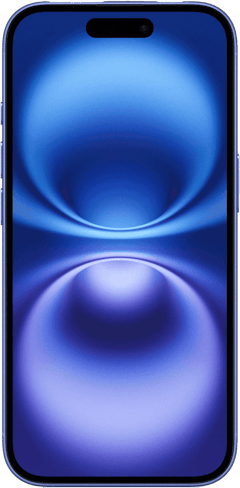
iPhone 18 Pro 256GB
- 6.3 inch display
- Rear Cameras: 48MP, 48MP, 48MP
- Front Camera: 18MP

iPhone 18 Pro Max 256GB
- 6.9 inch display
- Rear Cameras: 48MP, 48MP, 48MP
- Front Camera: 18MP

iPhone 18 Pro 512GB
- 6.3 inch display
- Rear Cameras: 48MP, 48MP, 48MP
- Front Camera: 18MP

iPhone 18 Pro Max 512GB
- 6.9 inch display
- Rear Cameras: 48MP, 48MP, 48MP
- Front Camera: 18MP


Best iPad plans for connected devices
Scanning docs with an iPad? You'll want a mobile internet plan. All major carriers—Verizon, T-Mobile, and AT&T—feature tablet plans. An unlimited data plan lets you stream Netflix, game out on Google Stadia, or upload scanned documents to your iCloud Drive or Google Drive. However, if you plan to stay connected to Wi-Fi most of the time, a limited data plan should work just fine.
A cheaper option is to simply get a phone plan that includes mobile hotspot data. Then you can simply connect your tablet to the hotspot anywhere without having to pay for a separate tablet data plan. Almost all unlimited plans include at least some hotspot data, so you've got plenty of options. There are also limited data plans that let you use some of your monthly data allotment as hotspot data. Check out our guide on the best mobile hotspot plans or choose from our top picks below:
Best mobile hotspot plans: Our recommendations
| Carrier | Plan | Mobile hotspot data allowance |
Price |
|---|---|---|---|
 |
AT&T Unlimited Premium PL | 60GB | $85.99/month |
 |
Verizon Unlimited Plus | 100GB (add-on) | $90/month |
 |
T-Mobile Experience More | 60GB | $85/month |
 |
Visible $25 plan | Unlimited (capped at 5Mbps) | $25/month |
 |
US Mobile Unlimited Premium | 50GB | $44/month |
 |
Google Fi Unlimited Premium | 50GB | $65/month |
 |
Cricket Wireless Supreme Unlimited | 50GB | $55/month |
iOS document scanning: FAQs
Does my iPhone or iPad have a document scanner?
Yes! The iPhone Notes app for iOS is a document scanner that works with the iPhone and iPad without needing a third-party app.
How do I scan a document with my iPhone or iPad?
To scan a document on an iOS device, simply open up the Apple Notes app and find an ideal spot to snap pics of your document(s). Then, fire up the Notes app and follow the prompts to align the document margins with the yellow box on your iPhone’s screen. You can capture several pages at once for multi-page docs. Tap "Done" when scanning is complete, and then hit "Save."
Does my iPhone scan documents into a PDF?
Yes! The Notes app lets you save paper documents, photos, and more as PDFs.
Can iPhone scan documents without an app?
No, you must use the Notes app to scan documents. That said, the Notes app is a native feature of iPhones, meaning it comes standard with every device. You don't have to download any third-party apps or pay for the service.
Can you sign documents on an iPhone?
Yes, you can sign documents on an iPhone using the Notes app. After you have scanned a document, the signature option is available in the "Markup" section of the app.
Moe Long
Senior Writer

Thousands of cell phone plans unpacked. All the facts. No surprises.





.png?w=280&h=280&usm=20&usmrad=0.8&fit=crop "The Best Cheap Phone Plans for 2026: We Tested Them All to Help You Save")


