

Introduced in 2017, the Files app for iOS is a simple way to manage and organize your files in a convenient location on your iPad or iPhone. You can browse, search, and organize documents, photos, videos, and beyond. Plus, you can easily access your files stored locally on your phone or in cloud storage services like iCloud, Google Drive, or Dropbox. Basically, you should have been using this app yesterday.
If you haven’t yet explored all the Files app can do, you’re in the right place. Let’s go through how to save, organize, and share files on your iPhone.
What does the iPhone Files app do?
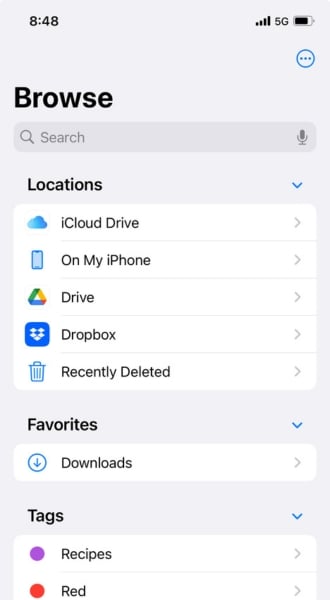
The iPhone Files app is a hub for managing and organizing files on your smartphone. It enables you to create folders, organize files using tags, sync with iCloud Drive, collaborate with people, and more.
You can use the Files app for many different tasks related to management and organization. For example, you can use it to:
- Find and access documents, photos, videos, and other content
- Create folders for housing different projects or file categories
- Move or copy files between different locations
- Share and collaborate on files with others
There are also hidden functions to the Files app that you may not even realize exist. For example, the Files app can help you convert files to other types, scan physical documents to your phone (which you can also do in your Notes app), create PDFs, and even remove backgrounds from static images.
Essentially, Files on iPhone is your one-stop shop for all your organizational needs.
Types of files stored in the Files app
You can store many different types of files in the iPhone Files app, such as:
- Documents like PDFs, Word documents, and spreadsheets
- Photos and videos
- Music files (MP3, etc.)
- eBooks
- Zip files
- Text files like TXT, HTML, and RTF
- Apps and associated data
- Additional downloads
Keep in mind that the Files app doesn’t automatically store your photo library —you’ll need to manually save photos to the app. We suggest using iOS’ native Photos app for all of your photo storage and organization, as it’s specifically optimized for editing, tagging, and sharing photos.
How to find your iPhone Files app
If you have an iPhone 8 or newer, your iPhone comes with the Files app automatically installed. Find the Files app on your homescreen or search if you can't locate it. Simply swipe down anywhere on your unlocked screen to open the search bar, or swipe to the left until you reach your app library. Type in Files and you'll see the blue folder for the app pop up.
Browse your saved files with one simple tap. Within the Files app, you can search for specific files you have saved, browse recent files, locate shared items, or access any files saved in your cloud. It's convenient and easy to use so you never lose track of your important documents.
If you can't find the Files app—maybe you mistook it for a random app you installed and accidentally deleted it—reinstalling it is easy. Here’s how to download the iPhone Files app:
- Head into the App Store app on your iPhone.
- In the search bar, type Files.
- Select Get to download it.
- Once the download is complete, tap Open to launch the app.
The Files app should appear on your Home Screen (or your last Home Screen, if you have multiple). You can leave it on its own or organize it into folders with other organization and productivity apps.
How to save, find, and share files in the Files app
Saving files to your iPhone
Adding files to the iPhone Files app will differ ever so slightly based on the type of file and how it’s set up from the site you’re downloading it from.
If you’ve tapped a standard download file like a PDF or ZIP file, it will typically automatically download to your Files. To find it, open your Files app and head to the Downloads folder.
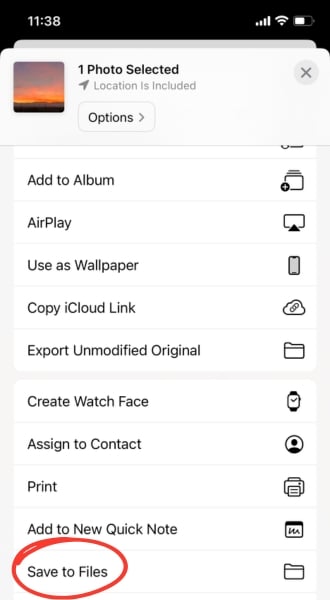
If you’re saving a different file that doesn’t automatically download, like a website or an image, follow these steps to save it to the Files app:
- Tap the file or image you want to save.
- Tap Share (a box with an arrow pointing up).
- In the pop-up menu, scroll down and click Save to Files.
- Select the location in the Files app where you want to save your file (i.e., Desktop, Documents, Scans, etc.).
- Tap Save.

Finding files on your iPhone
If you’re anything like me, you’ve downloaded a file from a site or app to your iPhone, only to have no idea where to find it again. I have news for you: it’s been living in your Files app this entire time (so that’s where all of my knitting patterns have gone!).
Here’s how to find what you’re looking for in your Files app:
- Click the Files app icon on your home screen.
- Tap where you believe your file is stored (e.g. iCloud Drive, Dropbox, etc) and browse that location to find your file.
- If you aren’t sure where the file is, use the search bar at the top of the screen.
Once you see the results, tap the file you were looking for and it will open.
Sharing a file from the iPhone Files app
Need to send that agenda doc to your boss, or that recipe you downloaded to your bestie? Use the Files app to share PDFs, documents, and more right from your iPhone.
- Tap the Files icon on your home screen.
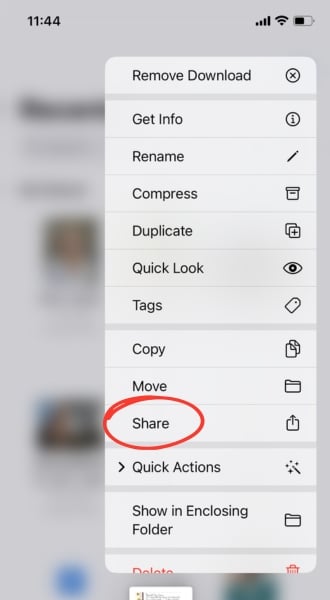
- Find the file that you want to share, then tap and hold it.
- In the pop-up menu, tap Share.
- Choose a sharing method (e.g., Messages, Mail, etc.).
- Select the recipient and tap Send or Share.
Compress large files from your iPhone
Large files take a long time to send and eat up a ton of valuable space on an iPhone’s internal storage drive. Similarly, sending multiple files at a time can be tedious, disorganized, and take up more space than they need to.
To send a smaller version of a file, or to group and send multiple files at the same time:
- Open Files and tap the More button (circle button with three dots) on the top right.
- Select a location such as Recents, iCloud Drive, Shared, etc.
- Tap Select, then choose one or more files.
- Tap More again (bottom right this time!).
- Select Compress.
Collaborating on files stored in iCloud
One of the benefits of the Files app is that you can collaborate with others on files stored in iCloud. (Note: it is best to have the native Pages app downloaded on your device already). Here’s how:
- In the Files app, find the file you want to work on.
- Press and hold it until a pop-up menu appears, or tap the share button in the bottom left corner of your screen.
- Tap Share then choose Collaborate or Send Copy in the small drop down window.
- Adjust your collaboration settings by tapping Only invited people can edit.
- Choose how you prefer to collaborate, such as through an app like Notes or inviting others through Messages.
- Add collaborators by choosing them from your contacts or adding their email addresses.
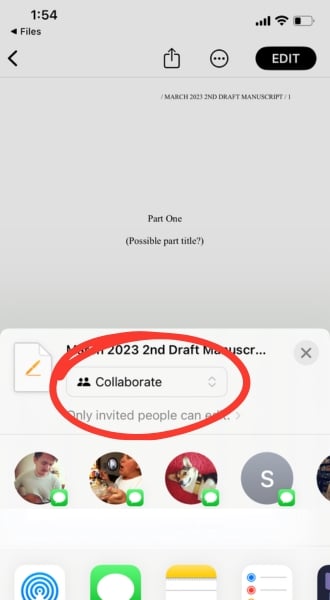
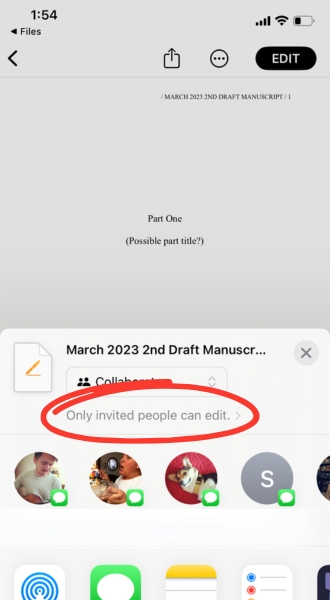
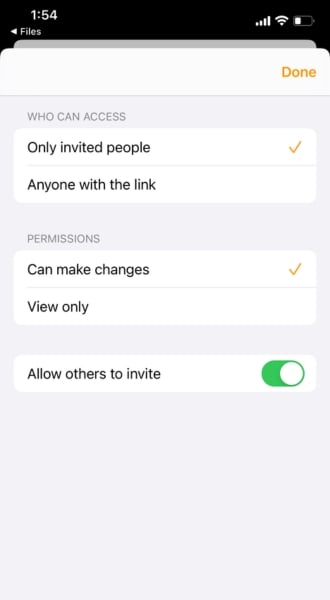
Your collaborators will receive an invitation to access and edit the file through whichever method you’ve chosen above.
How to get the most out of the Files app
The iPhone Files app can be a powerful little organizational tool right at your fingertips if you know how to maximize its potential. Keeping it organized, extending its storage capabilities, and utilizing tags for seamless transitions between third-party apps are all ways that you can make the Files app work for you.
Link your files with an additional storage service
One of the main advantages of the iPhone Files app is that you can access files stored locally on your device as well as in different storage services. The most seamless service is Apple’s own iCloud storage, which comes with 5GB of storage included for free with each iCloud account/Apple ID. Keep in mind, though, that your iCloud storage will also have to accommodate anything else you choose to back up to the Cloud, including your photos, contacts, apps, and more.
If you find that you need more storage space for your iPhone Files, you can purchase additional gigs of iCloud storage, and/or download other cloud storage apps like Dropbox or Google Drive. Whatever option you choose, make sure that the storage service you’re using is downloaded on your iPhone.
Once downloaded, follow these steps:
- Open the Files app.
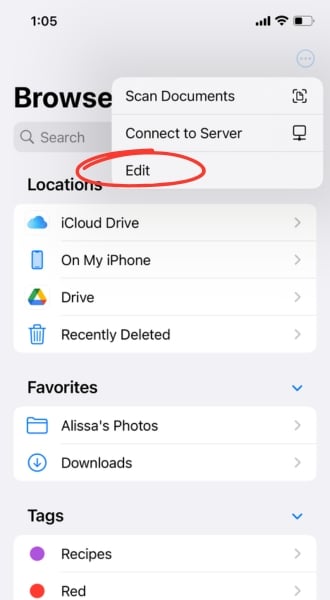
- Tap the More button (three dots inside a circle) in the upper right-hand corner
- Click Edit. This will show all the storage services on your phone.
- Toggle on the services you’d like to use with Files.
- Go back to your Files app. You should now see the storage services on the home screen.

Manipulate your photos and images
The Files app makes it easy to organize, edit, and convert images. While your native Photos app performs most of these functions, it does not cover all of them. Hence, our two cents.
Remove backgrounds from images
Many of us have messed around with the sticker feature in our Photos app. In the Files app, too, you can remove the background from images to cut a silhouette of your subject. You can use these images to create all kinds of personalized regalia—mugs, socks, T-shirts, you name it.
To remove the background from an image, do the following:
- Select the Files app.
- Select a location (Recents, Shared, Favorites, etc.).
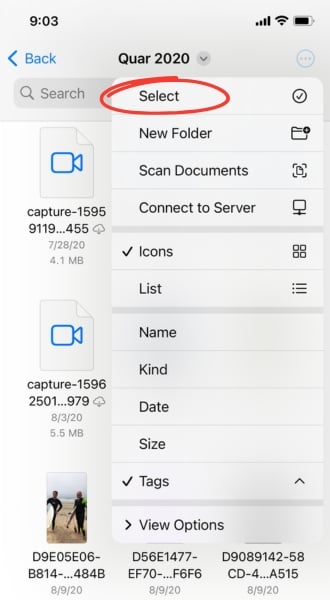
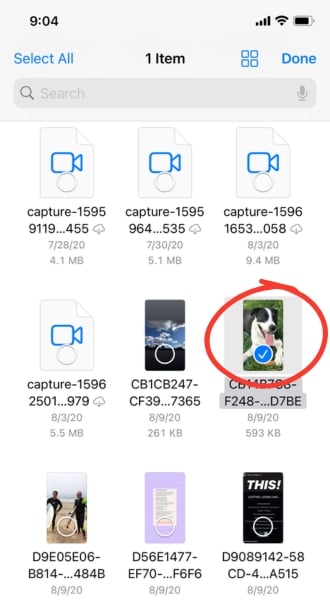
- Tap the More button (circle with three dots) and then tap Select.
- Select the image you wish to edit.
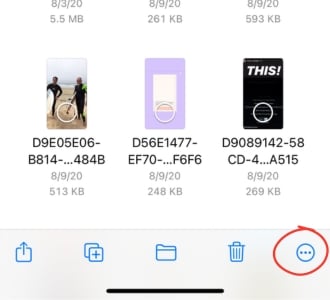
- Tap the More button (it will now be in the bottom right corner of your screen).
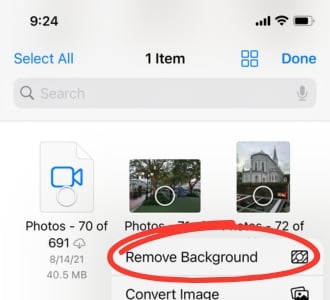
- Select Remove Background.
- Your new image will now appear next to the original.
Convert image types
Different image file types are best for certain functions. For example, PDFs are the recommended format when printing photos, whereas JPEGs are preferred for web pages. You can easily convert your images to meet your needs within the Files app itself. Simply follow these steps.
- Tap into your Files app.
- Choose a location or search for a file.
- Select the More button (three dots inside a circle) and tap Select.
- Tap the image you wish to convert.
- Select the More button in the bottom right of your screen.
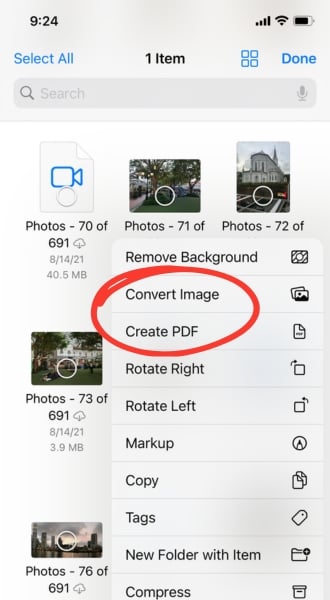
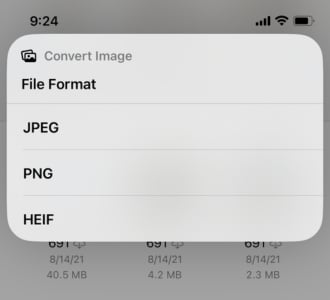
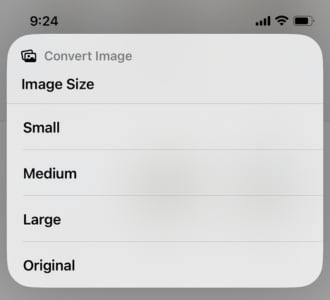
- Choose Convert Image for JPEG, PNG, and HEIF formats or Create PDF for a PDF.
- If you chose Convert Image, pick your preferred File Format and image size.
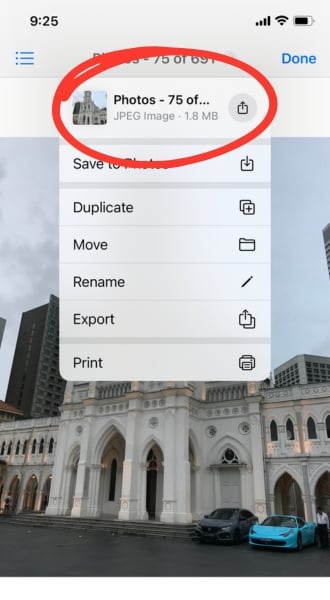
- Find your converted image next to the original image. (If you don’t know which is which, just tap into the image and see the file type in the drop-down menu next to the image name).
Scan documents to store and share
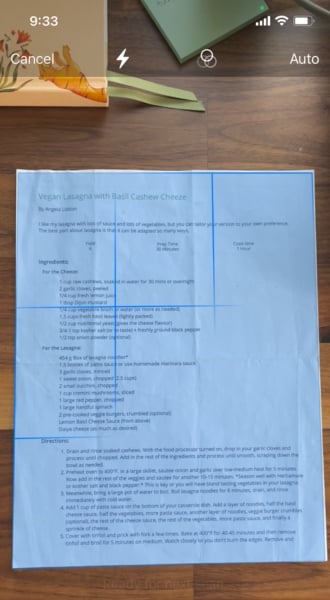
The File app’s scan feature is one of the best iPhone features hands down. Forget dealing with your temperamental printer/scanner (why are they always breaking!) and scan any and all documents you need, whether you’re sharing a recipe with a friend, emailing a signed permission slip your son forgot to take to school, or sharing documents for work, the scanner tool is your best friend. (Note: you can also scan using your Notes app, though instructions vary slightly.)
To use the scan feature:
- Open your Files app.
- Tap the More button (circle in upper right corner).
- Pick Scan Documents.
- Simply position the document in view as instructed. Your phone will capture the image automatically.
Tap Save in the bottom right corner and choose where you want to house your document. (I made a file titled “Scans” to make it easy on myself.)
Editing PDFs
Many people assume they need special PDF editing software to modify PDF files. (I was one of them). PDF files are the universal language of digital documents (so to speak), meaning they can be viewed and shared across various operating systems without specific software required. For this reason, PDF files are often preferred when it comes to shared documents. Knowing how to edit them can simplify the sharing process.
Some of the PDF editing features available through the Files app include rearranging PDF pages, highlighting text, leaving notes, and adding signatures. This can be incredibly convenient when reorganizing multiple scanned pages, or for giving additional instructions on a shared PDF form.
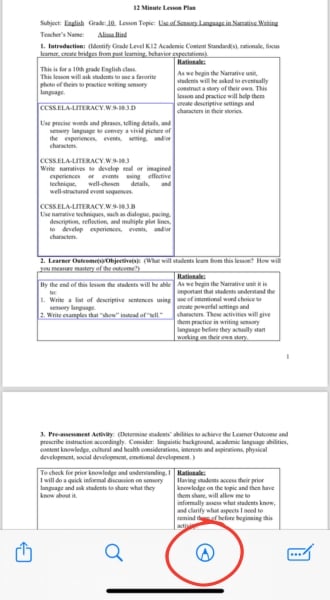
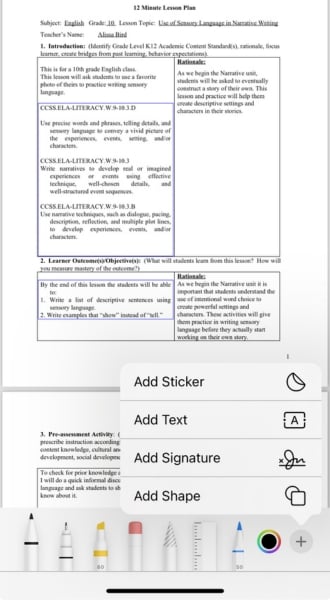
To edit a PDF file open the Files app and select the file you want to edit, then tap the pen point icon for markup tools. From there you can draw, highlight and add text, signatures, shapes, and stickers.
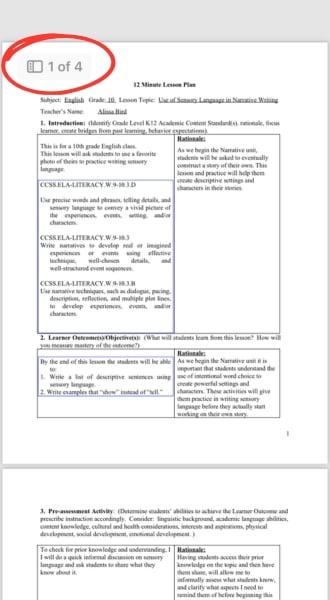
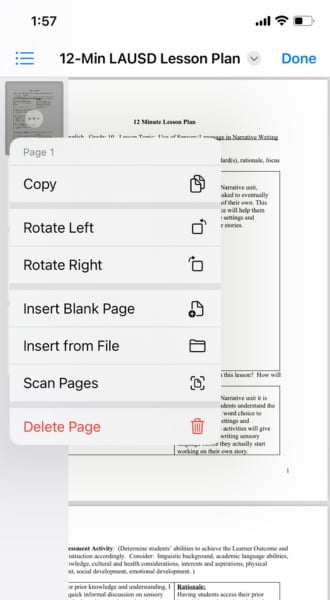
To rearrange, add, or upload pages, open the file, tap the page and select the menu icon in the upper left of the screen. To move pages, tap and hold down on the page you want to move and drag it in place. For all other functions, choose from the menu options.
Can I convert files to PDFs in the Files app?
While you can easily convert various image files to PDF files within the Files app, instructions for converting other files within the app differ widely based on their format. In our opinion, it is much easier to convert files, particularly Google Docs, to PDFs within the native apps themselves and then organize and edit them in your Files app.
Organize your files using folders and tags
Learning to use a new organizational app can take a beat or two, but the Files app is very user-friendly. You can organize your items into different folders, add tags for filtering and storing, and more.
Create a new folder
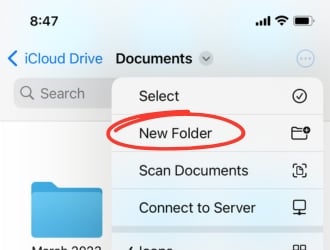
If you want to create a new folder, open the Files app, choose a location, and click the “More” button in the upper righthand corner. Click “New Folder” and then give it a name. Voila, you’re on your way to organizational glory.
Once you’ve created some folders and added files to them, you’ll want to know how to move files. Select and hold the file you want to move. A menu will pop up—choose “Move” and then the desired location.
Mark a folder as a favorite

For folders you frequently use, simply click and hold the folder until the drop-down menu appears, and select Favorite. Now it will be stored under Favorites in the main menu for you to access quickly and easily.
Tag your files
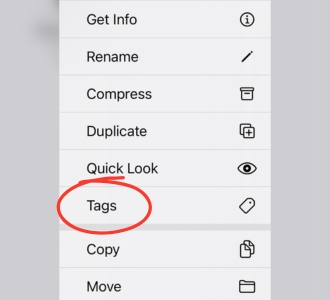
Tags are an awesome way to organize files from different storage services without moving them. If, for example, you are working on a project using both Google Drive and iCloud as well as several folders, you can tag your files to view them all in one place specific to your project.
To tag a file:
- Go into your Files app.
- Tap and hold the file you want to tag.
- Tap Tags from the menu, then Add New Tag.
- Name your tag and select a color.
Once you’ve set up your tags, you can then choose from your tag library when you enter the Tags menu next time. Note that you can always choose more than one tag for a file.
To find files by tag, use the view and sort functions outlined below.
Use the sort and view options
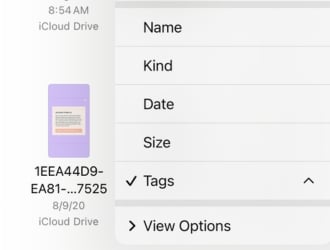
On the Files app, you can choose how you sort and view your folders and files. All you have to do is tap the “More” button to reveal a dropdown menu.
You’ll be able to choose how you sort your files, such as by tags, size, date, kind, or name. You can also choose if you’d like to view your files as a vertical list or as icons.
Marisa Crane
Staff Writer

Thousands of cell phone plans unpacked. All the facts. No surprises.





.png?w=280&h=280&usm=20&usmrad=0.8&fit=crop "The Best Cheap Phone Plans for 2026: We Tested Them All to Help You Save")


