
iCloud has long been a core service within Apple's ecosystem, and dedicated Apple users utilize it for all kinds of cloud-related tasks. At its core, iCloud is designed for storing your chosen data in the cloud, including photos, videos, files, messages, and contacts. It also syncs across all of your Apple devices, giving you access to those stored items wherever you’re signed in with your Apple ID. iCloud is baked into the latest version of iOS, so on a modern iPhone it's ready to go the moment you sign in.
iCloud is essential to keeping your data synced, safe, and secure, especially if you have several Apple devices. Here’s everything you need to know about how to access iCloud and which option may be best for you.
What is iCloud storage, and what does it do?
iCloud is a cloud storage service and synchronization tool. You can use iCloud to store your files, photos, messages, contacts, and other personal data, as well as backups of your iPhone. Anything you store in iCloud is accessible from any Apple device that you’ve signed into with your Apple ID. iCloud keychain also stores your passwords and syncs them across your devices.
You can enjoy the benefits of iCloud even without an iPhone. All you need is an Apple ID, which anyone can sign up for. (Jump down to skip ahead to the set-up process.)
iCloud includes 5GB of free storage for all Apple users who sign up. Depending on what you have on your iPhone, this could potentially be enough for a single backup of your device, to include your contacts, passwords, photos, and apps, plus a few other files you may wish to store.
If you need more storage (and most of us do), you can upgrade to an iCloud+ plan, which offers varying storage capacities and features.
iCloud+ plans and prices
| Storage | Features | Price |
|---|---|---|
| 50GB | HomeKit secure video—1 camera Family Sharing iCloud private relay Hide My Email Custom email domain |
$0.99/mo. |
| 200GB | HomeKit secure video—5 cameras Family Sharing iCloud private relay Hide My Email Custom email domain |
$2.99/mo. |
| 2TB | HomeKit secure video—Unlimited cameras Family Sharing iCloud private relay Hide My Email Custom email domain |
$9.99/mo. |
| 6TB | HomeKit secure video—Unlimited cameras Family Sharing iCloud private relay Hide My Email Custom email domain |
$29.99/mo. |
| 12TB | HomeKit secure video—Unlimited cameras Family Sharing iCloud private relay Hide My Email Custom email domain |
$59.99/mo. |
The 50GB of storage in the entry-level iCloud+ plan should be plenty for most average smartphone users. If you’re an avid photographer or videographer, the 200GB plan may be better to alleviate the worry of losing any of your photos and videos (or being forced to delete some to save room). The 2TB iCloud+ plan is likely more than a single user's needs, but if you have a shared Apple Family account, it could be great to split between multiple iPhone users.
The 6TB and 12TB plans are best suited for users who need to back up more than just their iPhone data. If you want to save a significant portion of your files and data from your computer in addition to your smartphone, these plans are a better fit.
What can you do with iCloud?
iCloud is more than a place to dump backups. It quietly powers a handful of features you probably use every day without thinking about it. Here are the big ones.
- iCloud Photos: This syncs your entire photo and video library across every device signed into your Apple ID. Snap a picture on your iPhone and it shows up on your iPad and Mac moments later, with full-resolution originals stored in the cloud and space-saving versions kept on your device.
- iCloud Keychain: This is Apple's built-in password manager. It stores your passwords, passkeys, and Wi-Fi credentials and syncs them securely across your devices, then autofills them when you need to log in. It also flags compromised logins, which you can dig into using the Passwords app's breach alerts. It's also where your saved network credentials live, so it's the first place to look if you ever need to find a saved Wi-Fi password.
- iCloud Drive: This is Apple's file storage and syncing service, similar to Google Drive or Dropbox. Any document you save here is available across your devices and at iCloud.com, so you can start a file on one device and pick it up on another.
- Find My iPhone: This uses iCloud to locate a lost or stolen device on a map, play a sound to help you find it, or remotely lock and erase it. If you ever get shut out of your device, our guide to being locked out of your iPhone walks through your options.
- iCloud Backup: This automatically saves a copy of your iPhone's data, including app data, settings, and messages, so you can restore everything if your phone is lost, damaged, or replaced. We cover this in detail below.
How to set up iCloud
Setting up iCloud is simple—as mentioned, you only need an Apple ID to get started. If you don’t yet have one, you’ll first create an Apple ID online.
If you do already have an Apple ID, you already have an iCloud account automatically.
How to set up iCloud on your iPhone
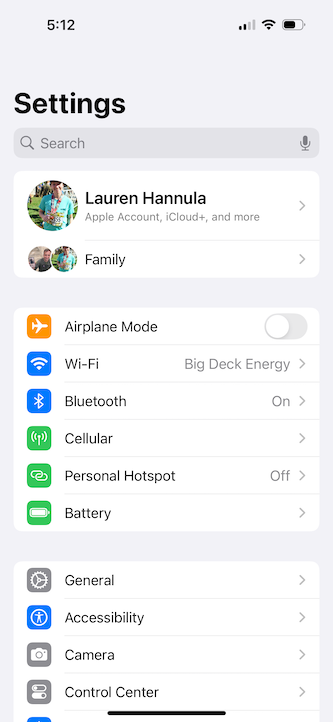
- Open Settings and tap your name and photo.
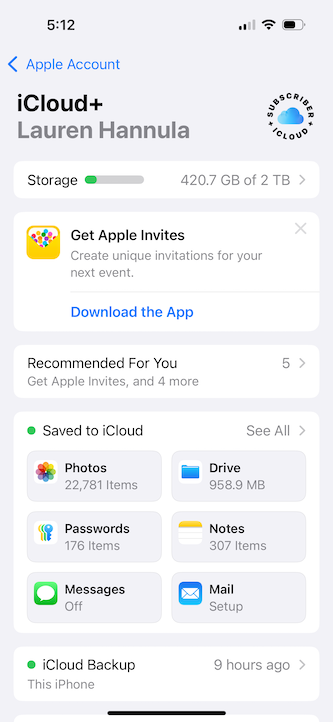
- Tap iCloud.
- If prompted, enter your Apple ID and password.
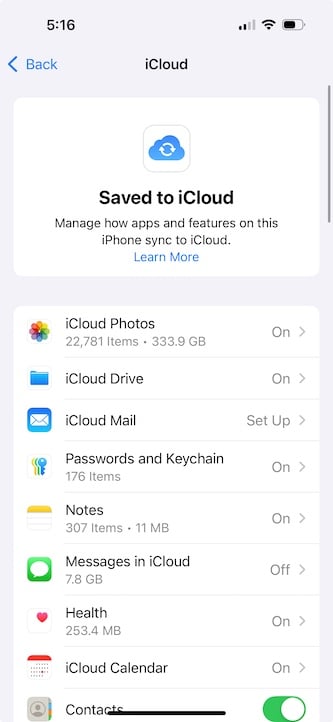
- Under Saved to iCloud, choose the features and apps you wish to back up to your iCloud storage.

How to set up iCloud on a Mac
- Open Settings and click on Sign in to iCloud in the top left-hand corner.
- Enter your Apple ID and password, or create a new Apple ID.
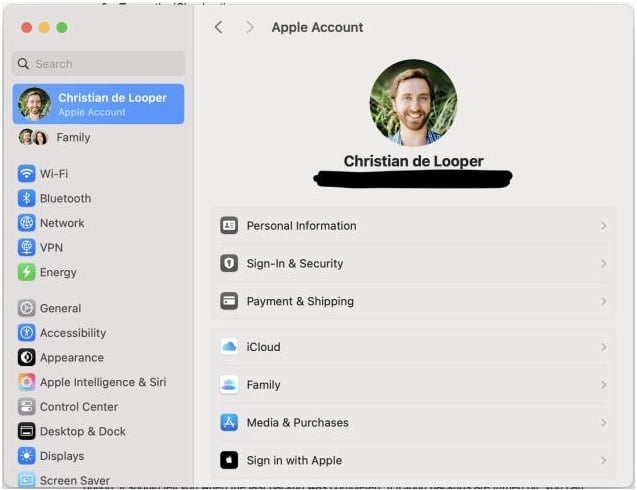
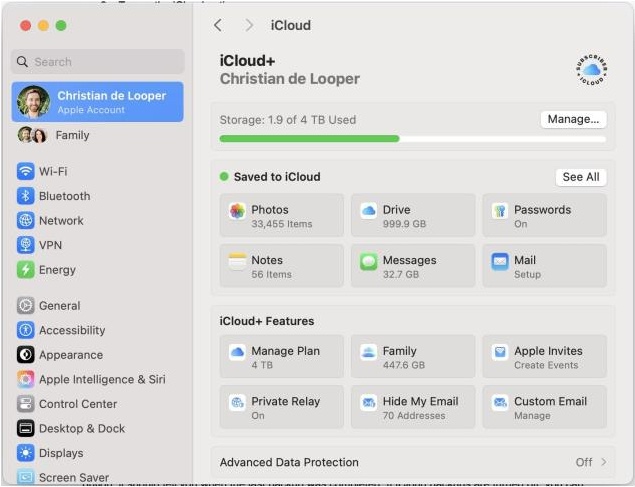
For either option, you can manage iCloud settings from here, such as backups, iCloud+ features, and more.
How to back up your iPhone to iCloud
One of the most basic and most helpful features of iCloud is the ability to automatically back up your iPhone. This can be helpful if your phone is lost or damaged, or whenever you switch to a new iPhone. You can enable iCloud backups to run automatically, allowing your iPhone to back up to iCloud on a regular basis.
Turn on automatic iCloud backups
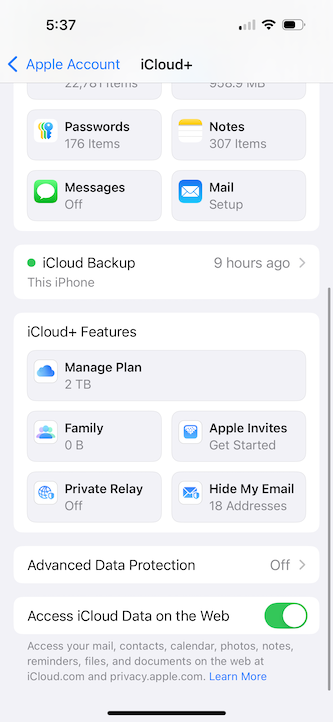
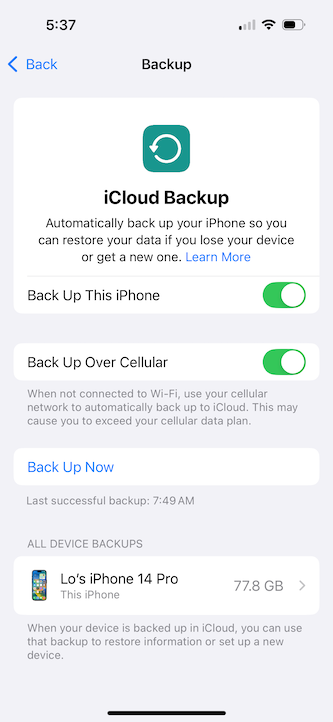
- Open Settings and tap your name.
- Tap iCloud > iPhone Backup.
- Toggle Back Up This iPhone to the “on” position.
- If desired, tap Back Up Now to start an iPhone backup immediately.
iCloud FAQ
How can I see what is in my iCloud storage?
To see what is in your iCloud storage, head to Settings and tap your Apple ID (your name and photo) > iCloud > Saved to iCloud. This will show all of the apps, features, and files you’re currently sharing to iCloud.
Note that you will not be able to access individual files from here. To do that, you'll need to head to the respective apps.
How do I know if my iPhone is backed up to iCloud?
To see if your iPhone is backed up to iCloud, head to Settings > Apple ID > iCloud > iCloud Backup. This should tell you when the last backup took place.
What happens if I run out of iCloud storage?
If you run out of iCloud storage, Apple will send a notification to your devices with the option to upgrade to a plan with more storage. If you don’t want to pay for additional gigabytes, you can try to delete files from your iCloud storage to free up space. If you find you continually run out of iCloud storage (and you don’t want a larger iCloud+ plan), consider purchasing a new iPhone with a higher storage capacity.
What’s the difference between iCloud and iCloud Drive?
iCloud is Apple's general cloud storage suite, which encompasses iCloud Photos, iCloud Backup, and iCloud Drive. iCloud Drive is a subset of iCloud that specifically handles file and document storage, much like Google Drive. You can upload and sync to iCloud Drive through your Mac or through the Files app on your iPhone.
Is iCloud free?
iCloud is free to use, and every Apple ID comes with 5GB of free storage. That free tier covers basic syncing and a light backup, but it fills up fast once you start backing up photos and videos. For more room and extra features, you can upgrade to a paid iCloud+ plan starting at $0.99 per month.
How does iCloud compare to Google Drive or Dropbox?
Like other native Apple services, iCloud is built for people in the Apple ecosystem, while Google Drive and Dropboxare better suited to mixed or cross-platform setups. iCloud syncs seamlessly across iPhone, iPad, and Mac and bundles in privacy features like Private Relay and Hide My Email, but its apps for Windows and Android are limited. Google Drive and Dropbox work well on just about any device, which makes them a stronger pick if you split your time between Apple and non-Apple gear. Pricing is roughly comparable at the storage tiers most people use.
How do I free up iCloud storage?
To free up iCloud storage, delete data you no longer need from Settings > Apple ID > iCloud > Manage Account Storage. The biggest space hogs are usually old device backups, large photo and video libraries, and files in iCloud Drive. Clearing out a backup from a phone you no longer own, or trimming your photo library, often recovers a surprising amount of room without spending a cent.
Christian de Looper
Contributing Writer

Thousands of cell phone plans unpacked. All the facts. No surprises.

Related Articles


Related Topics
iOSPopular Topics
Featured App Reviews iOS News Coverage Device Reviews Device Explainers Carrier Explainers App Roundups T-Mobile


Free iPhone 18 Pro, up to $1,200 off, with a trade-in in any condition or a line switch on Experience Beyond


.png?w=280&h=280&usm=20&usmrad=0.8&fit=crop "Best Cell Phone Deals for October 2026: Get the New iPhone 18 Pro for Free")




