
Image: Max McCaskill
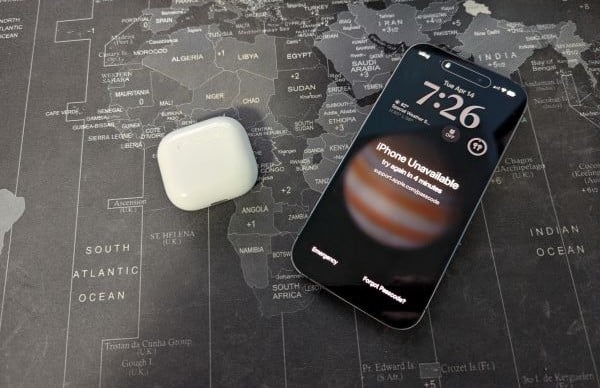
Locked out of your iPhone? Before you panic—or reach for a sketchy third-party app—take a breath. Apple has official methods that can help you unlock your phone without losing all your data.
The right fix depends on why you're locked out. In some cases, you may simply have to wait for a countdown timer to let you enter your code again. In others, you may have to completely reset your device and restore from a backup.
Here's what to do if you've locked yourself out of your iPhone, what causes it, and how you can prevent it from happening again.
iPhone lockout quick guide
| What you're seeing | What it means | Best fix |
|---|---|---|
| You've forgotten your passcode, but there's no lockout message yet | You still have attempts left | Try more passcode options |
| "iPhone Unavailable" or "Security Lockout" | Too many wrong passcode attempts | Wait for the countdown timer to end |
| "iPhone is disabled, connect to iTunes" | 10 failed passcode attempts | Recovery Mode via Mac or PC |
| Face ID keeps failing | Biometric login issue | Use your passcode and troubleshoot Face ID |
How did you lock out your iPhone?
Your iPhone automatically locks out all users when its passcode is entered incorrectly too many times in a row. This is a standard security feature that cannot be disabled if you use a passcode on your iPhone.
You may have tripped it by forgetting your passcode, or activated it accidentally in your pocket or bag. No matter how it happened, once your phone has locked you out, your options for fixing it are limited.
How many iPhone passcode attempts do you get?
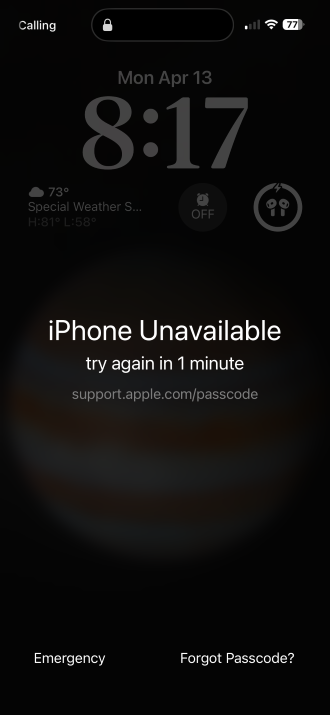
Image: Max McCaskill
While you have 10 passcode attempts in total, Apple increases the lockout penalty with each failed attempt. Here's the progression:
- 1–5 wrong attempts: No penalty
- 6 wrong attempts: Locked out for 1 minute
- 7 wrong attempts: Locked out for 5 minutes
- 8 wrong attempts: Locked out for 15 minutes
- 9 wrong attempts: Locked out for 60 minutes
- 10 wrong attempts: iPhone is disabled and must be reset
How to get back into your iPhone
Apple makes it possible to get back into your iPhone, no matter what kind of lockout you're facing. However, some methods will require you to know your Apple Account password to access previous backups. Make sure you know it before getting started.
You've forgotten your passcode, but there's no lockout message yet
You haven't been locked out of your iPhone yet, but it will happen soon if you don't enter the correct passcode.
Don't keep randomly guessing. Each mistake counts against you, and the timed penalties begin after six wrong attempts. If you get to 10 incorrect passcodes in a row, you're permanently locked out until the device is restored.
Your best bet is to try to remember the correct code. You may also be able to use your Face ID to get into the device until the fifth missed passcode attempt.
Your iPhone says "iPhone Unavailable" or "Security Lockout"
This means you've entered the wrong passcode enough times to trigger a temporary lockout. If a countdown timer is still visible, you're not fully locked out yet. Wait for it to expire, then try your passcode again.
If the timer has run out and you still can't get in, or if the screen is saying the device is disabled, you'll need to move on to the next section.
Your iPhone says, "iPhone is Disabled, Connect to iTunes"
This is a full lockout. You've entered 10 failed passcode attempts in a row, and your iPhone is now completely disabled. The only way back in is through Recovery Mode using a Mac or PC.
Before getting started, you'll need access to a Mac or PC, and a Lightning or USB-C cable (depending on your iPhone model). If using a PC, you'll also need to download iTunes or update it to its most recent version. Finally, you'll also need your Apple Account password to access earlier backups of your device.
If you don't have access to a computer, you'll likely need to visit an Apple Store or Apple Authorized Service Provider for help.
Step 1: Put your iPhone into Recovery Mode
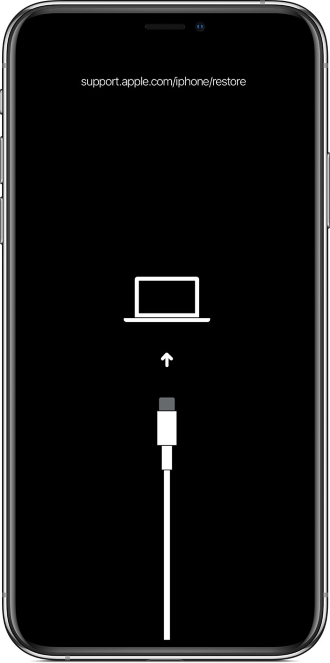
Image: Apple
To begin, you'll press a series of buttons on your device. The exact button sequence depends on your iPhone model:
- iPhone 8 or later (including all Face ID models): Press and quickly release Volume Up. Press and quickly release Volume Down. Press and hold the Side button.
- iPhone 7/7 Plus: Hold Volume Down + Side button simultaneously.
- iPhone 6s or earlier: Hold Home + Top (or Side) button simultaneously.
You'll know your device is in Recovery Mode when you see a cable pointing to a laptop icon on the screen.
Step 2: Connect to your computer
Plug the iPhone into your Mac or PC while it's in Recovery Mode. It should be recognized automatically in Finder on Mac. If using a PC, you'll need to open iTunes manually to connect to the phone.
Step 3: Choose Restore
A prompt will appear with two options: Update or Restore. Choose Restore. This resets the phone and installs the latest iOS.
Step 4: Set up from backup
After the restore completes, you'll have the option to restore from an iCloud or iTunes/Finder backup. If your backup is recent, you'll recover most of your data.
Face ID keeps failing
If your Face ID stops working, you aren't actually locked out. It just means the biometric system isn't working. Your passcode should still work if you can remember it.
If you've also forgotten your passcode, treat this as the situation above and follow the forgotten passcode steps before you burn through your remaining attempts.
Once you're back in, check out our Face ID troubleshooting guide to determine why it stopped recognizing you. Common causes include getting a new haircut, wearing sunglasses, or your device having a dirty camera.
Can I use third-party unlocking apps to get into my iPhone?
You may have seen ads for tools promising to unlock or bypass a disabled iPhone. Most of these are scams, so stick to Apple's official methods.
Apple's passcode lock mechanism completely encrypts your iPhone. No third-party software can bypass it without exploiting an unpatched vulnerability. Even worse, by attempting to use one of these services, you may inadvertently give away sensitive information, like your Apple Account details and credit card number.
Can you recover your disabled iPhone without losing data?
frequent new backups.
Image: Max McCaskill
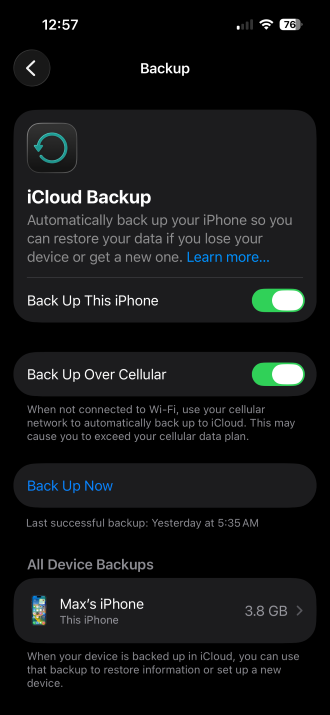
If you've enabled the iCloud backup feature on your iPhone, there's a good chance you can recover your iPhone without losing much data.
- Most iMessages, photos, and app data are synced to iCloud in real-time when connected to Wi-Fi.
- Larger files, videos, and high-quality photos sync to iCloud when your iPhone is connected to Wi-Fi and charging.
- Most social media and finance apps have an online component, so your information is not saved directly on your device in the first place.
If you're still relying on physical backups to iTunes or a Mac, you may lose a bit of data. It all depends on the last time you synced your phone. Unfortunately, the newest iPhones rarely require a computer anymore, so most users are not creating frequent backups.
We recommend that most users switch to iCloud and move away from physical backups. Remember, your computer is a device that can be damaged too. I learned this the hard way and lost four years' worth of my iPhone's data because the PC I was using to store my backups stopped working. I only realized I had no way to recover my device when my phone was broken a few months later. If you're not sure how iCloud backups work or how much storage you'll need, our guide to iCloud and how it works walks through setup and the plan options.
Finally, if you have no backup at all, the data on the phone is simply gone, and there's no way to recover it. Apple itself can't even break the encryption to let you back into your phone or recover your data.
How can I make sure I never get locked out of my iPhone again?
Once you're back in, here are some quick steps to take that will make it more difficult to get locked out of your phone:
- Set a passcode you'll actually remember: A strong passcode doesn't have to be difficult, just make sure it's not "123456" or your birthday.
- Use Face ID as your primary unlock: This allows you to skip using your passcode completely in most cases. Statistically, it's also just as secure as your passcode. If you're wary about biometrics, see our breakdown of Face ID vs. passcode security for more details.
- Enable iCloud Backup: This feature does automatic daily backups of your phone, meaning that if you do get locked out in the future, a restore brings almost everything back.
iPhone lockout and recovery: FAQ
How many wrong passcode attempts before iPhone is disabled?
Apple locks the phone entirely after the 10th failed attempt. Before that, you'll hit escalating time delays starting at the sixth attempt.
Can I unlock my iPhone without losing data?
You can only unlock your phone without losing data if the device isn't fully disabled yet. Once your iPhone is completely disabled and you need to restore it, the local data is erased. That said, if you have a recent iCloud or computer backup, you shouldn't lose much information.
What does "iPhone Unavailable" mean?
"iPhone Unavailable" means your iPhone has been disabled due to too many incorrect passcode attempts. Some users may see "Security Lockout" instead, but it means the same thing. If you see a timer, you can still attempt to enter the correct passcode. If not, the device is completely disabled, and you'll need to put it into Recovery Mode to get back in.
How do I unlock my iPhone without a computer?
To initiate Recovery Mode without a computer, you'll need to visit an Apple Store or Apple Authorized Service Provider for help. You can also use iCloud's Find My feature to remotely erase the device from a browser or another Apple device. Just note that both methods will erase the phone. There is no other way to unlock a disabled Apple device.
What is Stolen Device Protection and why is it blocking me?
Stolen Device Protection is a security feature that adds a one-hour delay before you can change critical account settings when you're away from a trusted location. It's designed to protect your Apple ID and data if someone steals your phone and also knows your passcode. This feature does not completely lock your iPhone. To bypass the delay, either wait the full hour or move to a trusted location like your home or work.
Max McCaskill
Sr. Staff Writer

Thousands of cell phone plans unpacked. All the facts. No surprises.





.png?w=280&h=280&usm=20&usmrad=0.8&fit=crop "The Best Cheap Phone Plans for 2026: We Tested Them All to Help You Save")


