
Apple Face ID on iPhone (and iPad) is a fast, secure way to unlock your phone, authorize payments, and log into apps. With iOS 18, you can even lock specific apps with Face ID for extra security.
Face ID works by scanning your face with the front-facing TrueDepth camera, using thousands of invisible dots and infrared light to compare against your stored face data. It’s fast and reliable—until it’s not.
If you don’t know why your iPhone’s Face ID isn’t working, don’t worry. A malfunctioning Face ID won't lock you out of your iPhone as an incorrect passcode will.
Whether it’s recognition issues or software glitches, we’ve got you covered. We’ll walk you through troubleshooting steps, starting with the quickest fixes, like checking for obstructions or cleaning your camera, and then work through updates and settings that might be causing issues.
1. Make sure your phone isn’t damaged
If you notice damage to your screen or camera, you’ll need to contact Apple support and explore your repair options. However, drops, bumps, and water exposure can cause internal damage, like a faulty camera or humidity-related short-circuiting, which might not be obvious at first.
Before jumping into costly repairs or replacements, it’s worth checking the rest of the list to see if something simple is preventing Face ID from working.
2. Position your phone and face correctly
Face ID is generally pretty quick at recognizing your face, but it still helps to stick to a consistent unlocking position for smooth, reliable results.
- For Face ID to work on iPhone 13 or later, you can hold your device in either portrait or landscape orientation. On older models, your phone must be in vertical (or portrait) orientation.
- Keep your phone about 10 to 20 inches (arm’s length) away from your face, facing straight on. Avoid holding it too close, placing it too far away, or at a weird angle.
3. Make sure your facial features aren’t obstructed
Face ID can adjust to sunglasses, makeup, or facial hair. But if it’s having trouble, it likely needs a clearer view of your eyes, nose, and mouth. Check regular glasses for smudges or glare that might mess with the camera; some sunglasses block infrared light and may interfere, too.
You may also have issues if you recently got a new haircut or shaved a heavy beard. While Face ID automatically adjusts to gradual shifts in your style, a rapid and dramatic change can prevent it from recognizing you.
It only takes a moment to remove some accessories, but if you’d rather not deal with this every time, you can tweak some settings to fix your Face ID long-term.
Can I add another face to my Face ID?
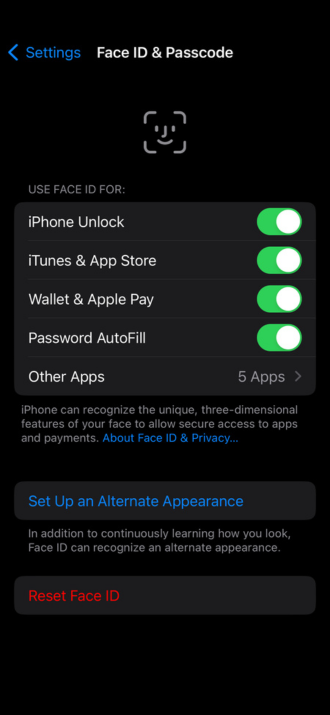
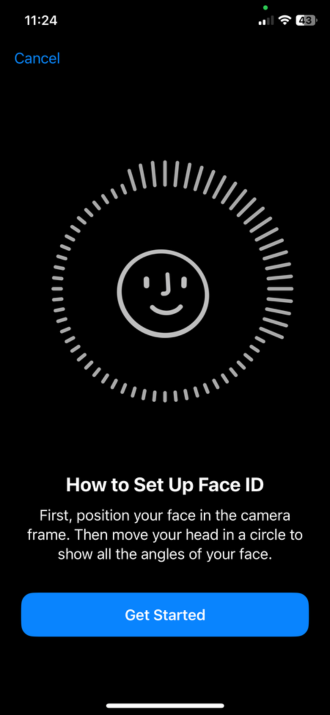
Yes, you can set up an alternate appearance for Face ID, which is handy if your looks change significantly or you want to add another person.
To do this:
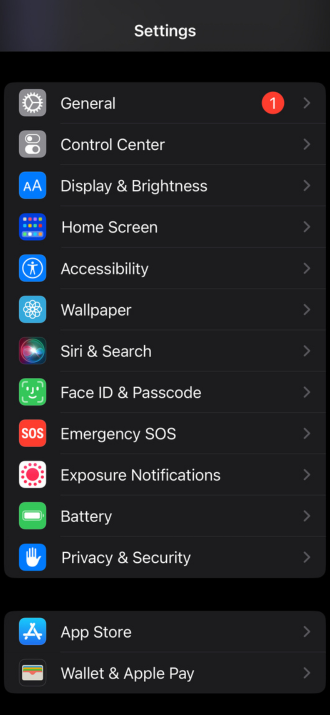
- Go to Settings.
- Tap Face ID & Passcode.
- Tap Set Up an Alternate Appearance.
- Follow the on-screen instructions to add your second look.
Can I use Face ID if I'm wearing a mask?
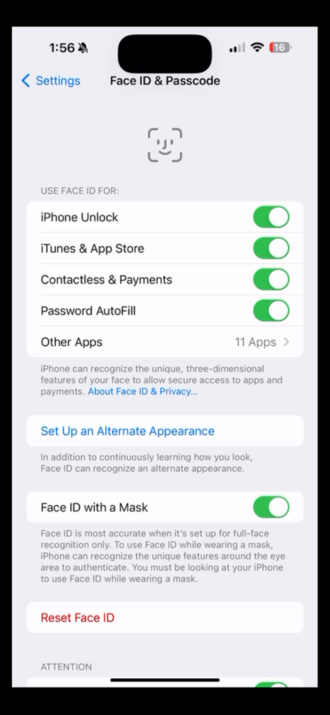
Masks can cause problems with Face ID, but you shouldn’t have to remove them if you’re using an iPhone 12 or later and iOS 15.4 or later.
You can set up Face ID to work with a mask by following these steps:
- Go to Settings.
- Tap Face ID & Passcode.
- Toggle on the option for Face ID with a mask.
However, if the mask covers too much of your face or sits too close to your eyes, your iPhone may still struggle to unlock. If you’re not removing your mask, try holding your iPhone a little higher to help Face ID recognize you.
4. Improve your lighting
Face ID works in pretty much any lighting, whether inside, outside, or even in the dark. But, if the camera and sensors are not quite picking up your portrait, a quick tweak to the lights or a change of scenery can help with face recognition.
On the other hand, Face ID can also struggle in bright sunlight since the infrared waves overwhelm the sensors. If you're outside and Face ID stops working, try unlocking your phone in the shade.
5. Clean the TrueDepth camera
Make sure the TrueDepth camera at the top of your screen is clean—dirt, dust, or smudges can mess with Face ID. A quick wipe with a microfiber cloth (or a soft, clean shirt) usually does the trick. If it’s really grimy, use a slightly damp cloth with mild soap or a 70% isopropyl alcohol wipe to clean it up.
If everything else external is in working order, your Face ID might need some help with updates or settings. Before you dive into those, you might try the good old trick of turning your phone off and on again.
6. Restart your iPhone
Sometimes, a simple reboot is all it takes to resolve Face ID issues. Restarting your iPhone can help clear up minor glitches and get Face ID functioning smoothly again. Power it off, wait a moment (some say 30 seconds, but waiting 10-15 seconds should be enough for a full shutdown), and then turn it back on to see if that does the trick.
7. Check for software updates
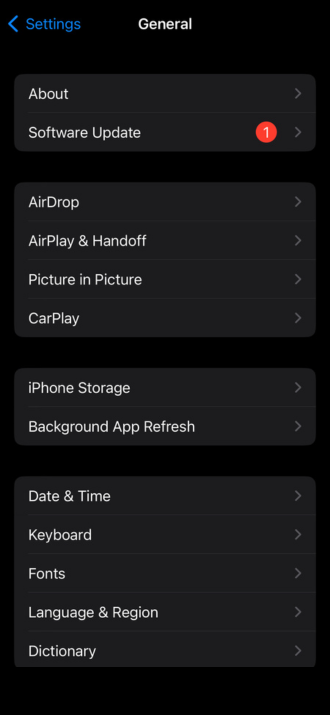
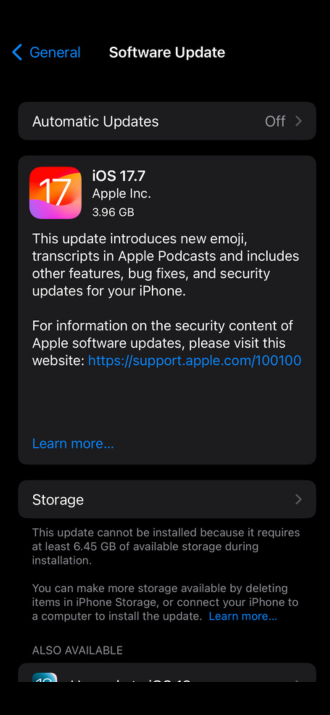
Software updates can have a significant impact on your device’s performance, including Face ID functionality. Even if it’s not directly causing your Face ID issues, that little red dot on your Settings icon means it’s time for an update. Having the current version of iOS is crucial to keeping your device safe and free of bugs.
Here’s how you update to the latest iOS:
- Open the Settings app on your iPhone.
- Scroll down and tap on General.
- Tap on Software Update.
- If an update is available, tap Download and Install
8. Check Face ID settings
Make sure Face ID is enabled for the features you want, like unlocking your phone, filling in passwords, or authorizing purchases with Apple Pay.
Where do I find Face ID settings?
- Go to Settings.
- Scroll down and tap on Face ID & Passcode.
- You’ll see the following options for Face ID use: iPhone Unlock, iTunes & App Store, Wallet & Apple Pay, Password AutoFill, Other Apps (individual apps with face ID unlocking permissions).
- Scroll down and tap Face ID & Passcode.
- Reset Face ID and set it up again.
Will resetting my TrueDepth camera on my iPhone fix Face ID?
If you’ve unsuccessfully tried resetting your Face ID, you can also try resetting all your settings. This won’t erase your data but it will reset your system preferences, which may resolve your facial recognition issue. There is no way to solely reset the camera.
10. Check for hardware problems
If you’ve tried all the previous steps and Face ID is still acting up, it’s time to reach out to Apple Support. You can perform remote diagnostics to pinpoint hardware issues, saving you a trip to the store.
Remember that physical damage or water exposure can disrupt Face ID functionality, often requiring repairs. Since Face ID relies on genuine Apple components, it’s best to have any repairs done through Apple-certified technicians to avoid potential issues down the line.
Note: If your iPhone says, “Face ID has been disabled,” it means Apple has detected an issue with the TrueDepth camera, which is used for Face ID, Animoji, and Memoji. This can happen due to a malfunction or physical damage, and the lasers may be disabled for safety reasons.
When to replace your iPhone
If all else has failed, it might be time to replace your iPhone. The iPhone 17 dropped in September 2025, which means you can either choose the latest and greatest version, or get previous models such as the iPhone 16 for cheaper.
If you’re really looking to save, the iPhone 14 still has a lot of the great features you need without breaking the bank.
Trevor Wheelwright

Thousands of cell phone plans unpacked. All the facts. No surprises.





.png?w=280&h=280&usm=20&usmrad=0.8&fit=crop "The Best Cheap Phone Plans for 2026: We Tested Them All to Help You Save")


