
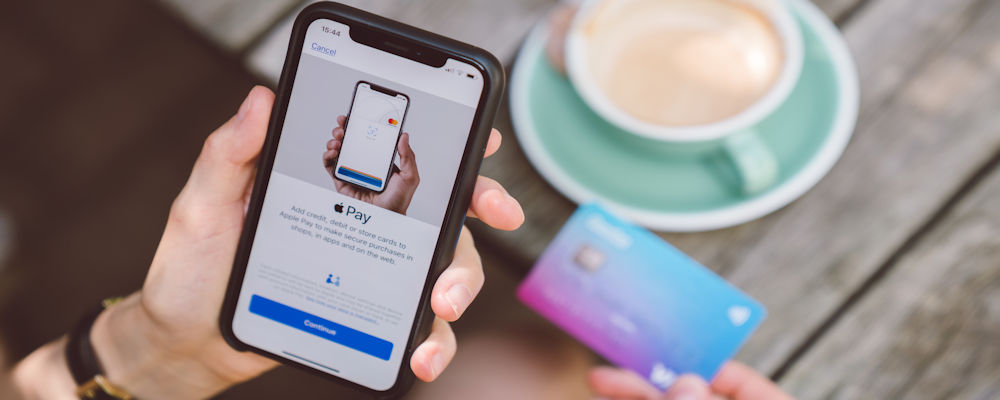
Apple Pay is one of the most convenient payment methods available. In many cases, as long as you have your iPhone, you no longer need to carry around all those different debit and credit cards in your wallet.
You can add Apple Pay to your iPhone, Apple Watch, and Mac, offering you an easy contactless payment option that securely encrypts your card information.
Setting up Apple Pay is as easy as adding your credit or debit card straight into your iPhone’s wallet app.
Let’s go through how to get Apple Pay up and running on your phone quickly and easily.
What is Apple Pay?
Apple Pay is a mobile payment system for Apple devices like iPhones, Apple Watches, and Macs. It offers a secure and contactless payment system for your debit and credit cards.
The system was released in 2014 with iOS 8. Since then, it has come to encompass a new way of contactless payment and card security. Apple Pay can be used in physical stores and when shopping online. It offers security by creating a unique Device Account Number (DAN) and transaction code with each of your transactions. Apple uses this DAN for your purchases instead of your actual card number, preventing your information from being skimmed. Additionally, Apple Pay requires authentication through Face ID, Touch ID, or your passcode.
Apple Pay works with all iPhones manufactured in the past decade. Any model from the iPhone 6 to the present has the feature built in.
How to Set Up Apple Pay on an iPhone
To add Apple Pay to your iPhone, you'll simply open the Wallet app and add your card's information. Note that you must have your card information to set up Apple Pay yourself. That said, some banks like Chase and Wells Fargo allow you to link your Wallet with their accounts to set up Apple Pay before mailing you a physical card.
Follow these steps to get Apple Pay up and running on your iPhone:
- Go to the Wallet app.
- Tap the Plus (+) button in the upper right corner. The app will ask what kind of card you want to add.
- Select Debit or Credit Card and press Continue.
- Scan the card with your phone’s camera or enter your details manually.
- Check with your bank/credit card company to verify your info and see whether you need to inform them or download their app to use their card on Apple Pay.
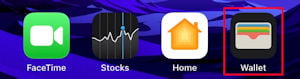

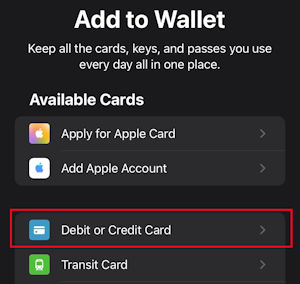
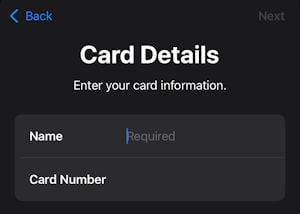
If your Apple Watch is currently connected to your iPhone, Wallet will ask if you want the card accessible there too. If you plan to use Apple Pay on your watch, go ahead and press yes. Now you don’t have to manually add the information and Apple Pay is set up on your iPhone and Apple Watch.
Replace your (real) wallet with Apple Wallet
Remember that you can put lots of different things in your Wallet. In addition to credit and debit cards, Wallet’s featured options also allow transit cards and even driver’s licenses for some states. You can also add event tickets, vaccine cards, gift cards, boarding passes, and digital keys for unlocking your car or home.
How to Set up Apple Pay on Apple Watch
There are two methods for setting up Apple Pay on your watch, and both will give you the same result. We recommend using your iPhone to set the system up because it’s the easier method. Follow the first set of steps below if that’s the route you want to take.
You can also type your information directly into your Apple Watch if you don’t have access to your iPhone at the moment. This method is more tedious, but it will still get Apple Pay up and running. Skip to the second set of instructions if that’s what you want to do.
To set up Apple Pay on your Apple Watch using an iPhone:
- Open the Watch app on your iPhone.
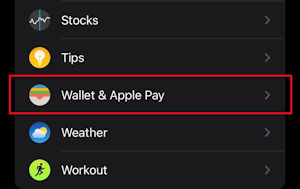
- Scroll down to Wallet & Apple Pay.
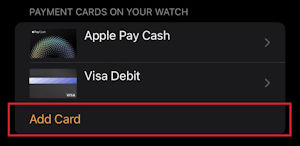
- Select Add Card. You must be wearing your watch or have it on and unlocked to proceed from this step.
- Select Debit or Credit Card.
- Press Continue.
- Use your camera or enter the card details manually.
- Check with your bank/credit card company to verify your info and see whether you need to inform them or download their app to use their card on Apple Pay.


To set up Apple Pay using your Apple Watch:
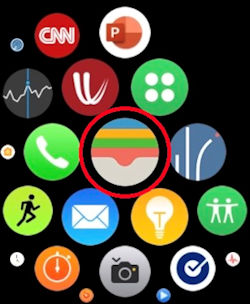
- Open the Wallet app on your Apple Watch.
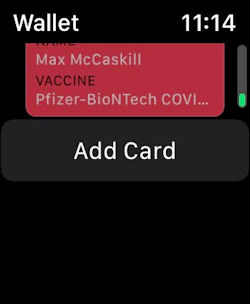
- Scroll down and select Add Card.
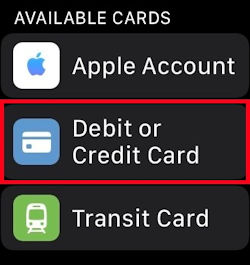
- Select Debit or Credit Card and press continue.
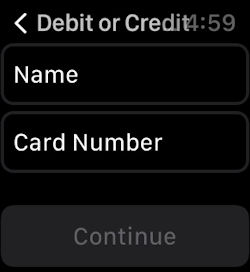
- Enter your name and the card number. This is the step that can be irritating on Apple Watch due to the small screen. Depending on your watch’s model, you may have to draw each letter individually or use a digital keyboard.
- Check with your bank/credit card company to verify your info and see whether you need to inform them or download their app to use their card on Apple Pay.
How to Set up Apple Cash
After your cards are uploaded into Apple Pay, you can easily enable Apple Cash. Read on to learn how to set up Apple Cash and upload money from your debit card.
To set up Apple Cash:
- Go to Settings.
- Tap Wallet & Apple Pay.
- Turn Apple Cash on.
- Tap the Apple Cash card under the Payment Cards section.
- Select your preferred debit card.
- Confirm that card’s information.
Apple Cash is now enabled and linked to a specific card. You can link it to as many of your eligible cards as you want. However, Apple Cash is still empty until you add money to it from one of those cards.
To upload cash to Apple Cash:
- Go to Wallet.
- Tap your Apple Cash card.
- Tap the more options button in the top right corner.
- Tap Add Money.
- Enter the amount you want to add. It must be a minimum of $10.
- Tap Add.
- Pick the linked card you want to use and confirm.
Once cash is uploaded you can use Apple Cash at any Apple Pay location.
What about Apple Pay on your Mac?
You can also set up Apple Pay on a Mac computer by going into Settings, selecting Wallet & Apple Pay, and following the same instructions as iPhone and Apple Watch. However, we don’t think it’s necessary to do that. Why? Apple Pay is optimized for iPhone. As long as your iPhone is connected to your Mac through your charging cord or Bluetooth, you can select Apple Pay as an online payment option and approve it through your phone without having to put your details onto the computer.
Pro tip: If you can’t get the Apple Pay approval to show up on your iPhone, make sure you’ve enabled Allow Payments on Mac in the Wallet & Apple Pay tab of your phone’s Settings. It is enabled by default whenever you add a card, but you may have disabled it by mistake.
How to use Apple Pay
Once you’ve got Apple Pay set up on your devices, it’s super easy to use. Follow these steps and you’ll be reaching for your phone instead of your cards in no time.
Use Apple Pay on iPhone
The process for using Apple Pay depends on the iPhone model you own.
- For iPhone X and newer, double-press the side button and select the card you want to use or Apple Cash. Then hold your phone near the contactless reader until the word “Done” and a check symbol appear on your screen.
- For iPhone 6–iPhone 8, double-press the home button. Select your card or Apple Cash and hold your phone near the contactless reader until the screen reads “Done” and a check symbol appears.
For iPhone 5s or earlier models, unfortunately, you can’t use Apple Pay, which means it’s likely time to upgrade your phone. Apple is constantly innovating new features for its devices. Older phones get left behind as their technology continues to improve and you miss out on some incredible features.
Get Apple Pay with the iPhone 16
- Display: 6.1"
- Cameras: Rear-48MP, 12MP; Front-12MP
- Battery: Up to 22 hours of video playback
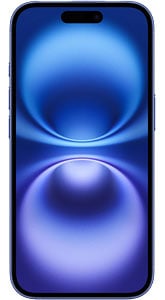
The iPhone 16 is one of Apple's newer models and is perfect to use with Apple Pay. It uses Face ID to keep your cards secure and allows you to send Apple Cash directly through iMessage.
As one of Apple's newest handsets, the iPhone 16 also offers a fantastic 48MP dual camera system and powerful photo editing features. You'll also find the latest Apple Intelligence features—like Genmoji and Image Playground—powered by the A18 processor.
View at AT&T View at T-Mobile View at VerizonCarriers know that iPhones are incredibly popular and are always pushing for people to upgrade. We’ve rounded up the most current best iPhone deals to help you save on your favorite model. You might get lucky and snag a brand new iPhone at a deep discount with the right trade-in and data plan! If a new iPhone is still too pricey for your budget, consider buying a refurbished iPhone for a great device that’s still new to you.
Use Apple Pay on Apple Watch
Using Apple Pay on Apple Watch is also really convenient—here’s how to do it.
- Double-press the side button of your watch to open Apple Pay.
- After you’ve pressed it, your default card will appear. If you want to use a different card or Apple Cash, simply scroll down using your digital crown.
- After you’ve selected the right card, hold the watch near the contactless reader.
- You’ll feel a tap from your watch and a hear beep that confirms when your payment has gone through.
Use Apple Pay online
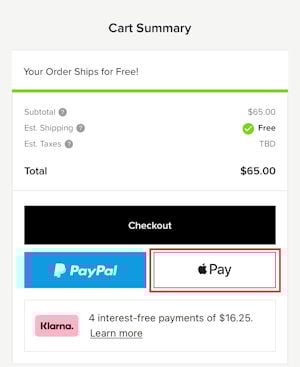
Once Apple Pay is set up, you can also use it for purchases made online and for certain apps. This feature is available on iPhones or Macs with Apple Pay set up. All you have to do is select the Apple Pay option when it appears in your checkout.
Payment options for Apple Pay
Apple Pay has two payment options: your credit or debit card and Apple Cash.
Credit or debit card
Apple Pay allows you to upload all your debit and credit cards to Wallet. You get to select which card you want to use when paying. These digitized cards can be used with both in-person contactless readers and online.
While Apple Pay allows almost all types of cards to be uploaded your iPhone, you might still have to contact your bank or download their app to use them. This is an added security feature that some banks and credit card companies require to prevent fraud.
Apple Cash
Apple Cash is a digital cash card that is located in Wallet. You can upload cash and use it at any location that takes Apple Pay. It also allows you to send money through iMessage to family and friends. Think of it as a form of Venmo or Cash App that is only available for Apple users.
The money you upload to your Apple Cash balance comes directly from your debit card or bank account. Apple does not charge any fees when using Apple Cash for payments.
You can also deposit your money from Apple Cash back into your bank account or debit card, which can take 1-3 days. If you need the money faster, you can do an “instant transfer” for a small fee, which deposits the money within 30 minutes.
What is Apple Pay Later?
Apple Pay Later is Apple’s entry into the “buy now, pay later” market. It allows buyers to purchase certain items on payment plans covered by Apple. The cost of these items is broken into four equal payments due over six weeks. Your first payment is due at the time of purchase, then each payment after that is due every two weeks until the item is paid off.
Apple is letting users do this with no additional fees or interest. You pay what the item costs. For now, Apple is limiting this feature to purchases made in apps or online. You can’t use it in physical stores.
Apple Pay Later uses the current cards you have on your account. You don’t have to have an Apple Card or use the Apple Card Monthly Installments program to take advantage of it. However, it is a feature of iOS 16. If you’re using an older device that can’t run that operating system, Apple Pay Later isn’t available to you.
Apple Pay vs. Apple Card
Apple Card is a physical credit card from Apple that’s issued by Goldman Sachs and operates on Mastercard’s payment network. Anywhere that accepts Mastercard will also take your Apple Card. Like any credit card, you must apply and undergo a credit check in order to receive an Apple Card.
Apple Pay, on the other hand, is a vehicle for contactless payment that uses your linked bank account or any designated credit or debit card—which could include an Apple Card, if you’ve applied and been approved for one. The digital version of your Apple card lives in Apple Wallet, but Apple will also mail you a physical card to use at stores that don’t offer contactless payment.
Benefits of an Apple Card
Apple Card has some nice perks with the biggest being that there are no fees— including annual and over-the-limit, as well as surcharges for foreign transactions or late payment penalties. You also enjoy cash-back rewards that are applied to your account the same day you make a purchase. Finally, you have access to the Apple Card Monthly Installments program, which allows you to purchase specific Apple products with your card and pay over time without incurring interest. Your payment period will be six to 24 months depending on the cost.
How to Set Up Apple Pay: FAQs
Is Apple Pay safe?
Yes, Apple claims that Apple Pay is safer than using a physical card. Because your card information never enters a physical scanner, there is no chance for it to be stolen by a card skimmer. Apple Pay also requires facial recognition, Touch ID, or your passcode to be used. Finally, your actual card numbers and information aren’t stored on your device or on Apple’s servers. Instead, the service relies on an encrypted token that replaces your card details. Apple uses that token number, not your actual card information, to communicate between retailers and banks. That same authentication requirement is what keeps your phone’s AI assistants from completing a payment on their own.
What devices use Apple Pay?
Most of Apple’s newest devices can use Apple Pay. Here are some guidelines for which devices can use it:
- iPhones: All iPhones with facial recognition or touch ID (except iPhone 5s).
- iPads: All iPad models with Touch ID or facial recognition.
- Apple Watch: All Apple Watches Series 1 and later.
- Mac Models: All Mac models with Touch ID. Any Mac made after 2012 or later can use it when connected to an Apple Pay-enabled iPhone or Apple Watch.
How do I know if a business accepts Apple Pay?
You can find out if a business accepts Apple Pay by looking for the Apple Pay or contactless payment logos, or by asking an employee if they accept Apple Pay.
What to do if Apple Pay set up fails?
Your Apple Pay set-up process may fail because of an error when typing in your information or a security flag from your bank. Recheck your card information to ensure it is correct. If it is, reach out to your bank to make sure there isn't a block on your card preventing it from being added to Apple Pay. If both of those methods fail to fix your error, contact Apple's customer support.
Does Apple Card impact my credit score?
Yes, Apple Card can impact your credit score, but not in all cases. According to Apple, submitting an application, being rejected, or declining Apple’s offer will have no impact on your credit score. It is only when you accept their card offer that a hard inquiry is made on your credit. That hard inquiry could impact your score.
Max McCaskill
Sr. Staff Writer

Thousands of cell phone plans unpacked. All the facts. No surprises.





.png?w=280&h=280&usm=20&usmrad=0.8&fit=crop "The Best Cheap Phone Plans for 2026: We Tested Them All to Help You Save")


