

Syncing an Apple Watch to an iOS device involves linking the two gadgets and following the on-screen instructions. An Apple Watch is one of the best iPhone accessories and provides access to Apple Pay and medical alerts on your wrist. But first, you'll need to connect the Apple Watch to your iPhone.
In fact, smartwatches such as the Apple Watch are great not only for adults but kids too, since there's a bit more parental control over apps and the internet than with a smartphone.
At a high level, to pair your Apple Watch and iPhone, press the side button to put it into pairing mode, then allow your iOS mobile device to sync with your Apple smartwatch. Read on for a more in-depth, step-by-step guide to pairing an Apple Watch to your iPhone.
How to pair an Apple Watch with an iPhone
When setup properly, your Apple Watch automatically syncs with your iPhone via Bluetooth. To enable Bluetooth, swipe up on your iPhone screen and tap the Bluetooth icon. Once connected, the Bluetooth icon will appear in your notification bar.
To pair and configure an Apple Watch running watchOS 9, you’ll need an iPhone 8 or later with iOS 16 installed. Here’s how to connect an Apple Watch to an iPhone:
- Long-press the side button on your Apple Watch until the Apple logo appears.
- Hold your iPhone beside your Apple Watch until the Apple Watch pairing screen shows up.
- Tap Continue on your iPhone screen (alternatively, launch the Apple Watch app on your iOS device and hit Pair New Watch).
- Press Set Up for Myself.
- Hold your iPhone so the Apple Watch is within the viewfinder to pair your devices.
- Select Set Up Apple Watch and follow the on-screen prompts on your Apple Watch and iPhone to complete the setup.
After that, your Apple Watch is synced to your iPhone and ready to use.
How to pair multiple Apple Watches with your iPhone
You may have two wrists (and two ankles) which is plenty of real estate for more than one Apple Watch. Or maybe you just like to switch up your style with different watch frames and bands. In either case, here’s how to sync several Apple Watches to an iPhone:
- Launch the Apple Watch app on your iPhone.
- Press My Watch and press All Watches.
- Tap Add Watch and follow the in-app instructions.
After that, you’ll have more than one Apple Watch connected to an iPhone. You can easily hop between different Apple Watches by putting on a new watch and raising your wrist. But you can also manually switch devices by heading to Apple Watch app > My Watch > All Watches and toggling off Auto Switch. Then, tap the Apple Watch you want to sync.
How to unpair an Apple Watch from your iPhone
After you pair a watch to your phone, you may wish to unpair it if you upgrade your iPhone, Apple Watch, or both. Here’s how to unpair an Apple Watch:
- Fire up the Apple Watch app on your iOS handset.
- Select My Watch and hit All Watches at the top of your screen.
- Press the i icon in the Apple Watch app beside the Apple Watch you wish to unpair.
- Tap Unpair Apple Watch.
This will unpair and reset your Apple Watch.
How to sync an Apple Watch and a new iPhone with iCloud
Here’s how to pair an existing Apple Watch with a new iPhone if you’ve upgraded handsets:
- Back up your old iPhone using iCloud.
- Tap restore from an iCloud backup on your new iPhone in the Apps & Data screen.
- Proceed with setting up your iPhone and pick your Apple Watch when the cue appears.
How to transfer your cellular service to a new Apple Watch
You can easily migrate a data plan from an Apple Watch with cellular to another Apple Watch:
- Launch the Apple Watch app on your phone with your Apple Watch on.
- Choose My Watch > Cellular, then tap the i icon next to your cellular plan in the Apple Watch app.
- Press Remove [Carrier name] Plan and confirm your decision.
- Switch from your old Apple Watch to your new Apple Watch.
- Hit My Watch and press Cellular.
Best iPhones for pairing with your Apple Watch
Our favorite iPhones include the iPhone 15 Pro Max, vanilla iPhone 15, and pocket-friendly iPhone SE 3rd gen (2022). We also like the last-gen iPhone 14 series, which is a great choice you might be able to find at a discount now that the iPhone 15 is out.
If you're looking for an Apple Watch, either your first-ever or an upgrade, we recommend the Apple Watch Series 9. It offers a great set of features that should satisfy most people who want to use apps on their wrist.
Outdoor adventurers and serious fitness enthusiasts (if you're thinking of hiking the Appalachian Trail, running a marathon, or scuba diving, this means you), the Apple Watch Ultra 2 keeps up with your lifestyle. On a budget, the Apple Watch SE (2nd generation) is a fantastic opiton for either Apple Watch newcomers, casual smartwatch users, or kiddos.
iPhone 16 128GB
- 6.1 inch display
- Rear Cameras: 48MP, 12MP
- Front Camera: 12MP
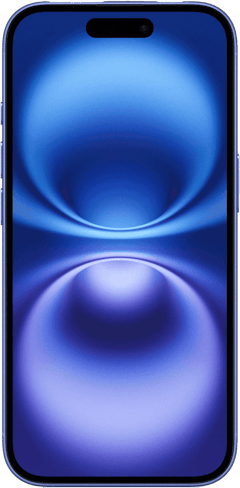
iPhone 18 Pro 256GB
- 6.3 inch display
- Rear Cameras: 48MP, 48MP, 48MP
- Front Camera: 18MP
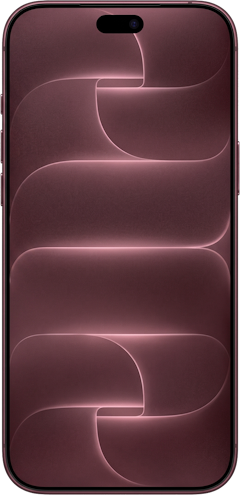
iPhone 18 Pro Max 256GB
- 6.9 inch display
- Rear Cameras: 48MP, 48MP, 48MP
- Front Camera: 18MP
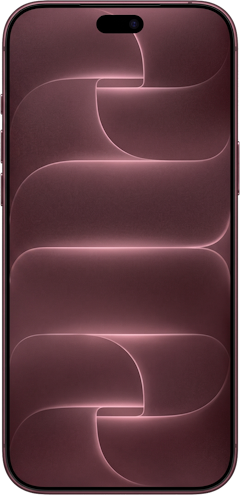
iPhone 18 Pro 512GB
- 6.3 inch display
- Rear Cameras: 48MP, 48MP, 48MP
- Front Camera: 18MP
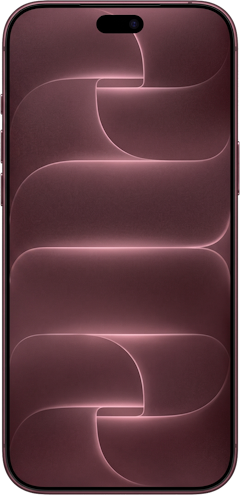
iPhone 18 Pro Max 512GB
- 6.9 inch display
- Rear Cameras: 48MP, 48MP, 48MP
- Front Camera: 18MP

How to Sync Apple Watch to iPhone: FAQs
How do I pair my Apple Watch with my iPhone?
To pair an Apple Watch to an iPhone, place your watch on your wrist, turn it on, put your iPhone nearby, then follow the on-screen prompts to complete the setup. Make sure to select Reset sync data to begin the process, and wait while all data (such as calendars, messages and health updates) is removed.
Can I use more than one Apple Watch with my iPhone?
Yes, you can use multiple Apple Watches with one iPhone and automatically or manually switch between wristwatches.
Why is my Apple Watch not pairing with my new phone?
Your Apple Watch might not pair properly if Bluetooth and Wi-Fi are not enabled or if you’re using AirPlane mode. Certain settings need to be on or or off for the pairing to work. Open the settings app, ensure Airplane mode is off, and connect to a stable Wi-Fi network to prevent connectivity issues. Make sure bluetooth is turned on, and check if pairing options appear for your Apple Watch.
Moe Long
Senior Writer

Thousands of cell phone plans unpacked. All the facts. No surprises.





.png?w=280&h=280&usm=20&usmrad=0.8&fit=crop "The Best Cheap Phone Plans for 2026: We Tested Them All to Help You Save")


