
Setting up a new iPhone is easy and usually takes less than an hour. If you're an existing iPhone user, you can use Apple's Quick Start to transfer all of your data and settings in a matter of minutes. If this is your first iPhone, you'll have to set up your new device manually, which might take longer.
We'll go over everything you need to know about setting up a new iPhone here, including activation, data transfer, security features, notifications, and, of course, accessorizing!
How to transfer data to your new iPhone
Before you start an iPhone data transfer, there are a few things you'll want to have on hand:
- Your current iPhone (or other device) and your new iPhone.
- Your SIM card or eSIM information.
- Access to a Wi-Fi network.
- Your Apple Account or Apple ID login information.
- If you don't have an Apple Account, you can set one up with your new iPhone.
Make sure your current phone is backed up and running the latest software, whether that's iOS or Android.
When you first turn on your new iPhone, you'll be met with a "Hello" screen with the Apple logo, and you'll be prompted to choose your language and region. Your iPhone will then ask you to choose if you want to do Quick Start or manual setup.
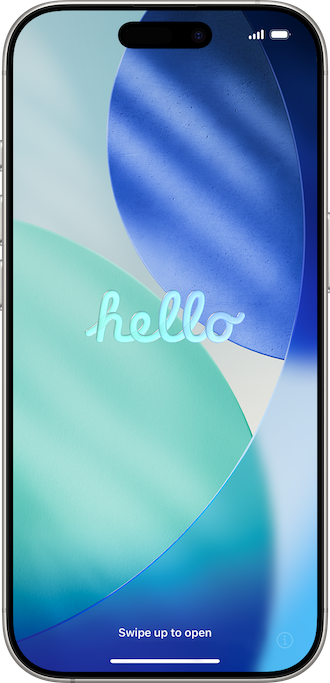
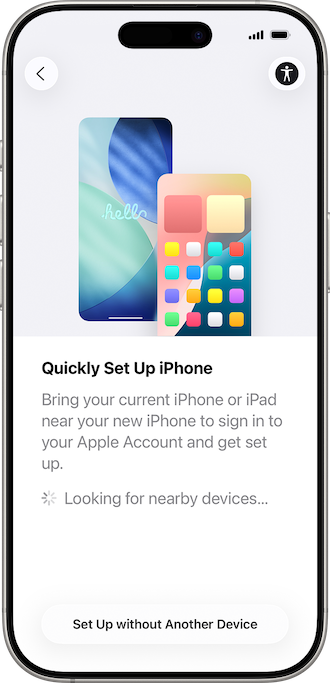
- If you want to transfer your data from another iPhone or from an iCloud backup, use the Quick Start feature.
- If this is your first iPhone, select "manual setup."
Using Quick Start with your new iPhone
Apple iPhone's Quick Start feature makes it simple to transfer data to your new iPhone, including all of your apps, photos, music, and even your iPhone settings.
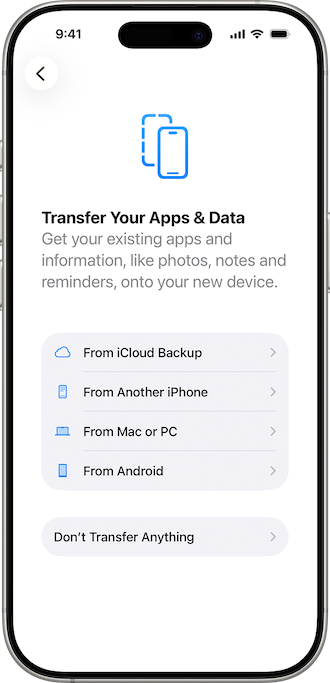
There are two ways to do the Quick Start data transfer to your new iPhone:
- You can restore your data and settings from an iCloud backup.
- You can do a direct phone-to-phone transfer using your old device.
If you use the iCloud backup method, you should be able to use your new iPhone as the data transfers. If you use the phone-to-phone method, you'll have to wait to use either device until the transfer is complete.
Now that everything is transferred from your old iPhone, remember to delete all of your personal information before you sell it, give it away, or recycle it!
Setting up your new iPhone manually
If this is your first iPhone and you don't have an iCloud backup, then you'll need to set up your device manually. Don't worry, your phone will walk you through all the steps and it won't take long.
Setting up a new iPhone manually includes the following steps:
- Setting up your Face ID or Touch ID (more on this below)
- Creating a passcode
- Signing in with an Apple Account (or creating one if you don't already have one)
- Transferring data from an Android device, PC, or other device
- Customizing your location services, security, and other settings (more on this below)
How to activate your new iPhone
Once you've turned on your iPhone and selected your initial settings, you'll want to activate your service. If you have an old SIM card from your previous device, and your plan hasn't changed with your carrier, you can insert it into the SIM card tray on the side of your phone. You should be able to connect to the cell phone network now.
If you're transferring an eSIM from your previous device, you can enter the QR code (if you have it) or transfer it directly from your old phone in the Cellular menu in your new phone's Settings.
If you have a brand-new SIM card or an eSIM, follow your carrier's instructions for activation. You may need to call to activate the SIM card before it connects to the network.
How to set up your new iPhone: Face ID, Apple ID, Apple Pay, and more
Part of setting up your iPhone includes configuring your Face ID, Apple ID, language, phone appearance, notifications, and other settings. Your new phone will prompt you to set these up and give you instructions along the way.
To learn more about how to configure these settings on your new iPhone, check out our in-depth guides:
- Creating an Apple ID
- How to set up iPhone notification center
- Activating your iPhone's safety features, like roadside assistance, medical ID, and stolen device protection
- Setting up Apple Pay
How to use iPhone features: widgets, wallpapers, and apps
If you use the Quick Start iPhone setup, then all of your widgets, wallpapers, and other organizational settings will automatically transfer to your new device. But it's not difficult to manually configure these, if needed.
We've written in-depth guides for setting up your phone to feel intuitive and streamlined, so you can focus on what's important, whether that's doing the Wordle, Facetiming your grandkids, or Zooming into a work call.
- How to organize the different apps on your phone, including setting up your Home screen, creating folders, and managing your app library
- How to add and edit widgets on your iPhone
- How to customize your wallpaper and lock screen
Getting accessories for your new iPhone
Now that you've transferred your data, activated your phone, and organized all your apps, it's time to trick out your new device!
Here are some of our favorite tried and true iPhone accessories:
OtterBox Commuter case
A rugged cell phone case with drop protection
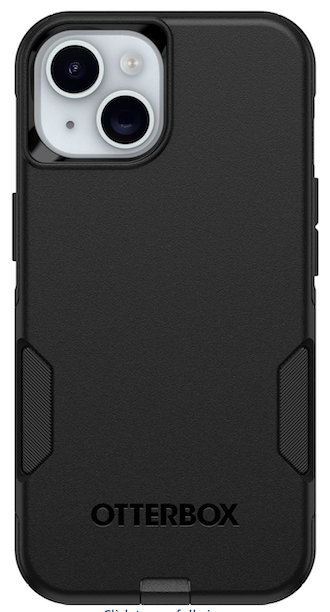
The OtterBox Commuter Series is built for people who want serious protection without carrying around a brick. Its dual-layer construction (a rigid outer shell paired with an internal rubber layer) exceeds military drop standards by 3X, and it's made from over 35% recycled plastic for anyone keeping an eye on their environmental footprint. The rubber-gripped edges give you a secure hold, the slim profile slides into your pocket without a fight, and it's fully wireless charging compatible, so you're not constantly yanking the case off just to top up your battery.
Spigen AluminaCore screen protector
Tempered glass protection against damage
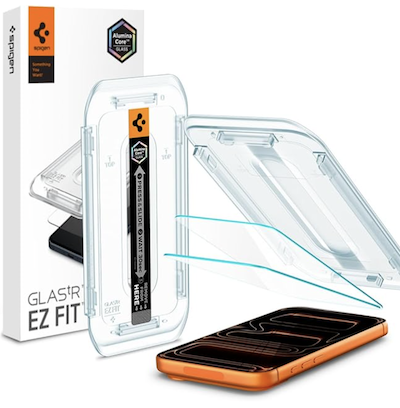
The Spigen AluminaCore tempered glass screen protector is one of the more serious options if you're tired of scratched screens or cracked glass from everyday drops. It's made from high-purity alumina-silicate glass that undergoes an ion-exchange strengthening process (TL;DR: the glass is chemically hardened at the molecular level for maximum impact resistance). You still get full touch sensitivity with zero lag and crystal-clear display clarity, so it genuinely feels like nothing is on your screen. The package includes 2 EZ Fit protectors and a guided installation kit, which takes most of the frustration out of getting it on straight the first time.
Bohuma magnetic wireless charging pad
A MagSafe charger to keep your new iPhone juiced up
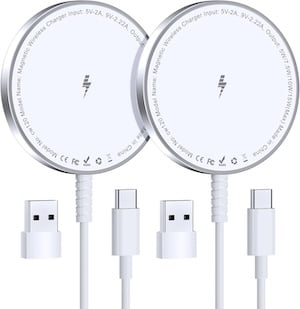
The Bohuma MagSafe charger snaps into place automatically, aligns with your iPhone's charging coil, and delivers up to 15 watts of wireless power without ever touching a port. It's compatible with the iPhone 12 through 17 series, works through your case (sensing distance of 5mm or less), and supports 360-degree charging orientation so you're never fumbling to get the angle right.
The aluminum alloy shell maintains efficient heat dissipation during long charges, and a built-in management chip automatically provides over-current, over-voltage, over-temperature, and short-circuit protection. At just 0.6cm thick and 45g, it's genuinely pocket-sized, and the package comes with 2 chargers, a 3.96-foot USB-C/USB-A cable, and a user manual (note: you'll need an 18W or 20W adapter, sold separately, to hit those fast-charging speeds).
PopSockets PopGrip
A pop-out phone holder to keep your handset handy
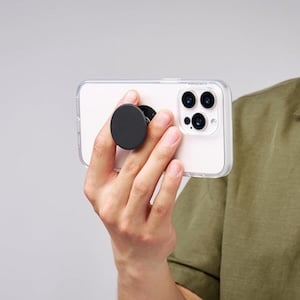
The PopSockets PopGrip is the small accessory that quietly solves one of the most common phone frustrations: the white-knuckle grip you use just to keep a big phone in one hand. It sticks to the back of your case with a repositionable adhesive (works best on smooth, hard plastic cases, and is not recommended for silicone, soft, or waterproof cases, or directly on a bare device), folds flat when you don't need it, and props your phone up hands-free when you do.
It's compatible with the full PopSockets ecosystem, including wallets, mounts, slides, and most third-party cases, and if you ever want a new look, you can swap just the top piece (called a PopTop) by pressing it flat, turning 90 degrees until it clicks, and snapping on a new one without replacing the whole grip.
Apple AirTags
Keep track of your keys (and literally everything else in your life)
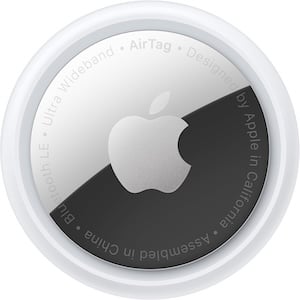
The Apple AirTag is the answer to every "Where did I put my wallet?" moment you've had, helping you keep track of valuables like bags, luggage, keys, and anything else you'd rather not lose. Setup takes a single tap to pair with your iPhone or iPad, and from there it plugs into the Find My network, giving you access to hundreds of millions of Apple devices that can silently help locate your stuff anonymously and encrypted.
No location history is ever stored on the AirTag itself. You can trigger a built-in speaker to help you zero in on a nearby item, or use Precision Finding with Ultra Wideband technology on select iPhones for turn-by-turn style guidance right to it. If something goes fully missing, Lost Mode notifies you automatically when it's detected, and you can even share its location with a third party (like an airline) to help recover it. The replaceable battery typically lasts over a year, too.
Lauren Hannula
Managing Editor

Thousands of cell phone plans unpacked. All the facts. No surprises.





.png?w=280&h=280&usm=20&usmrad=0.8&fit=crop "The Best Cheap Phone Plans for 2026: We Tested Them All to Help You Save")


