
In the age of constant connectivity, iPhones serve as the lifelines to the digital world, buzzing with updates, messages, and alerts that demand our attention. The Notification Center on your iPhone stands as a beacon of organization, offering a streamlined way to manage the relentless influx of information.
Understanding how to effectively use the Notification Center is key to enhancing your daily digital experience. We'll unravel the intricacies of the Notification Center, from basic navigation to advanced customization options, ensuring you can filter the noise and focus on what truly matters to you.
What is the Notification Center?
The Notification Center is a key feature of iOS, serving as a one-stop hub for all your iPhone notifications. It aggregates alerts from apps such as messages, emails, and app updates, allowing you to view and manage them from a single location.
This feature is designed for convenience, offering up quick interactions like tapping to open an app or swiping to dismiss notifications.
How to get to the Notification Center
There are two ways to get to your iPhone’s Notification Center:
- From the Lock Screen, simply swipe up from the bottom of the screen.
- From any other page on your iPhone, swipe down from the top center of your phone.
How to customize your Notification Center
You can customize your Notifications preferences when you first set up a new iPhone, but if skipped that part for expediency, it's easy to set up after the fact. Any customization of your iPhone’s Notification Center can be done by accessing your Notifications settings. To do so:
- Open your Settings app.
- Scroll down and tap on Notifications.
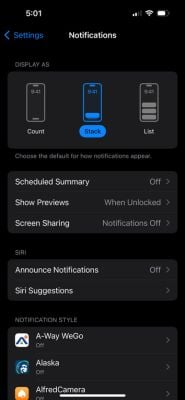
Change your notification layout
The first thing you can change in the Notifications settings is how your Notifications Center looks on your Look Screen.
You can select from the following options:
- Count—This will hide your notifications and instead show you a tally of how many notifications you have. To access the notifications, you’ll just swipe up from the count.
- Stack—This displays your most recent notification on top, followed by any others stacked behind it. These are grouped by app, so you’ll see multiple stacks grouping notifications from your messages, emails, etc. You can tap on a stack to break out and view each notification individually in a list format. To see all of your notifications, you’ll just swipe up from the notification on display. This is the best method if you have apps that throw out a lot of notifications at once, like news or sports apps.
- List—This shows all your notifications in a list, organized in consecutive order by when you received the notification.
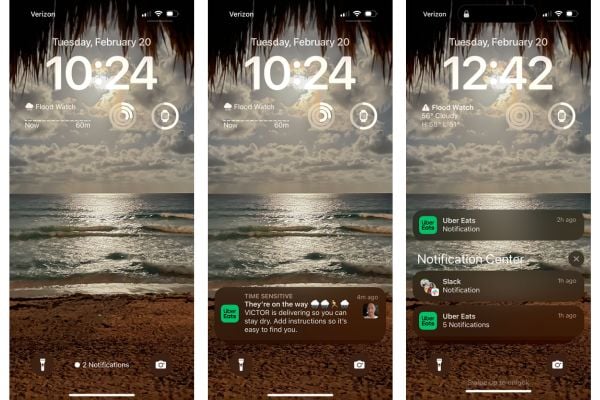
Image credit: Angelo Ilumba | WhistleOut
Change your notifications’ privacy settings
Your iPhone offers the ability to control whether your screen displays a preview of the notification’s contents or whether it hides them from prying eyes.
To update the general privacy settings for all of your apps, in the Notifications menu, tap on Show Preview to see a list of display options. You can choose between:
- Always—This will always show notification previews.
- When Unlocked—This will only show a preview when your phone is unlocked, for a medium level of privacy.
- Never—This will never display the notification preview, allowing for maximum privacy.
You can also change preview settings for an app individually—or even set whether it can notify you at all. From the Notifications menu, take these steps:
- Scroll down and tap on your desired app.
- Toggle Allow Notifications on or off.
- For those you’ve set to Allow, select Show Previews.
- Choose between Always, When Unlocked, or Never.
Let’s use your text messages as an example. A preview of your text or iMessage notification will show the full text of the message. If you have this preview set to “Always,” anyone can read your personal messages when you get notified, whether your phone is locked or not. This may be appealing for its convenience—you can simply glance over at your screen to read what someone has messaged you—but this could also pose privacy concerns if you leave your phone unattended.
If you set your previews to “When Unlocked,” you’ll see a notification from the Messages app, but the contents of the message are replaced by general copy (“You have a new message”). Only when you unlock your screen will the notification update and show the actual contents of the message.
If you set your previews to “Never,” your iPhone won’t show any notification preview on your Home Screen at all. You’ll only see whether you have a notification by the presence of a red numbered dot on the app icon or folder itself.
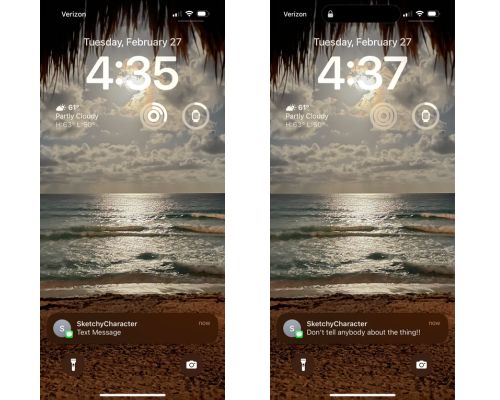
Image credit: Angelo Ilumba | WhistleOut
For privacy, we recommend keeping your notification preview settings to When Unlocked or Never.
Choose which apps show up in your Notification Center
One of the best ways to customize your Notification Center is to choose which app notifications can show up in it. This allows you to streamline your notifications by prioritizing the apps that are most important to you and reducing clutter from less critical ones.
To change whether or not an app shows up in your Notification Center, go to the Notification settings and:
- Scroll down and select your desired app.
- Toggle Allow Notifications off or on—toggling it off will disable all notifications from this app.
- For those apps toggled to “on,” scroll to Alerts and check or uncheck the three alert options: Lock Screen, Notification Center, and Banners.
- If you want to retain a temporary alert to a new notification, but don’t want it to persist in the Notifications Center, uncheck “Notification Center” but keep either or both of the other two options checked.
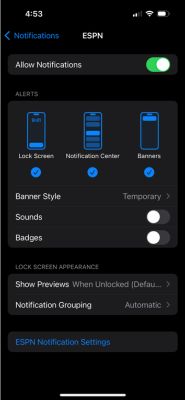
Image credit: Angelo Ilumba | WhistleOut
Grouping your notifications
Another way to organize your Notification Center is by grouping notifications. This can be done for each app, allowing you to keep your notifications tidy and manageable. To group notifications, find the app you want to group in the Notification settings page and take these steps:
- Select Notification Grouping.
- Choose a Grouping Option:
- Automatic—iOS will group notifications from this app based on its algorithm, usually by thread or topic.
- By App—All notifications from the app will be grouped together, reducing the overall number of notifications displayed.
- Off— Notifications from the app will appear individually, without any grouping
Scheduled notification summaries
iOS also offers a Scheduled Summary feature, which bundles notifications and delivers them at specific times that you choose. This helps you avoid being constantly disrupted by notifications and is especially helpful during periods like working hours, scheduled meetings, social functions, and even bedtime. (You can also set different Focus Times to delay notifications as well.)
To schedule notification summaries::
- In the Notifications settings, tap on Scheduled Summary.
- Toggle Scheduled Summary to “on.”
- Follow the guided tool to make your notification schedule.
How to clear iPhone notifications
Getting rid of notifications in your Notifications Center couldn’t be easier. All you have to do is:
- Bring up the Notification Center (pop back up to the top of this page if you need a reminder on how).
- Swipe left on the notification you want to clear.
- Keep swiping all the way left or tap Clear or Clear All (when there are multiple notifications in a group.)

If you want to clear all of your active notifications at once, you can do the following:
- Go to the Notification Center.
- Long-press on the X at the upper right corner.
- Select Clear All Notifications.
Angelo Ilumba
Senior Writer

Thousands of cell phone plans unpacked. All the facts. No surprises.





.png?w=280&h=280&usm=20&usmrad=0.8&fit=crop "The Best Cheap Phone Plans for 2026: We Tested Them All to Help You Save")


