
Widgets are icons that give instant information about your favorite iPhone apps and connected Apple products. With the release of iOS 17, there are more widgets available than ever before. They can show your current battery status, top news stories, live weather reports, and more.
You can easily add, interact with, and customize widgets on your iPhone’s home screen, lock screen, and Today View by holding down on the screen and pressing the add symbol. Read on to learn how to add widgets to your iPhone and how to edit them to better fit your needs and match your iPhone aesthetic.
How to add widgets to your iPhone
Adding widgets to your iPhone is an easy way to keep up with your most important apps without opening them.
Add widgets to the home screen
You can customize your home screen when you first set up a new iPhone, or at any point when you feel like refreshing your experience. Follow these steps to add widgets to your home screen.
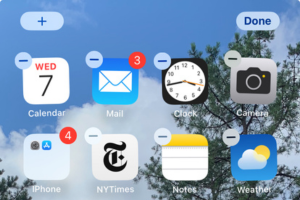
- Long-press on your screen until the apps start to shake.

- Press the (+) button in the top left corner.

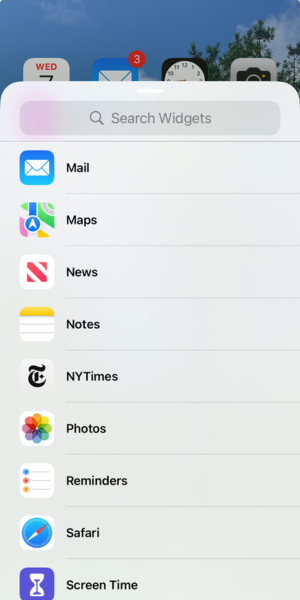
- Type in the widget you want to add or scroll down to see all the options.

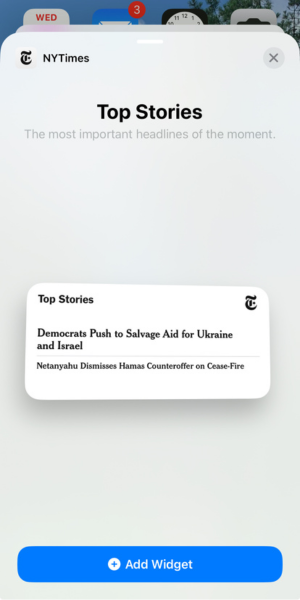
- Select the widget you want and press Add Widget.
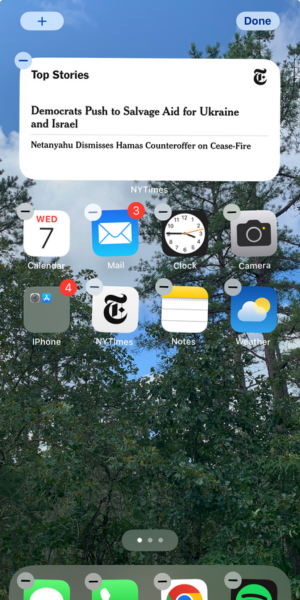
Your widget should now be in the top left corner of your home screen.
Interactive widgets with iOS 17
Add widgets to the lock screen
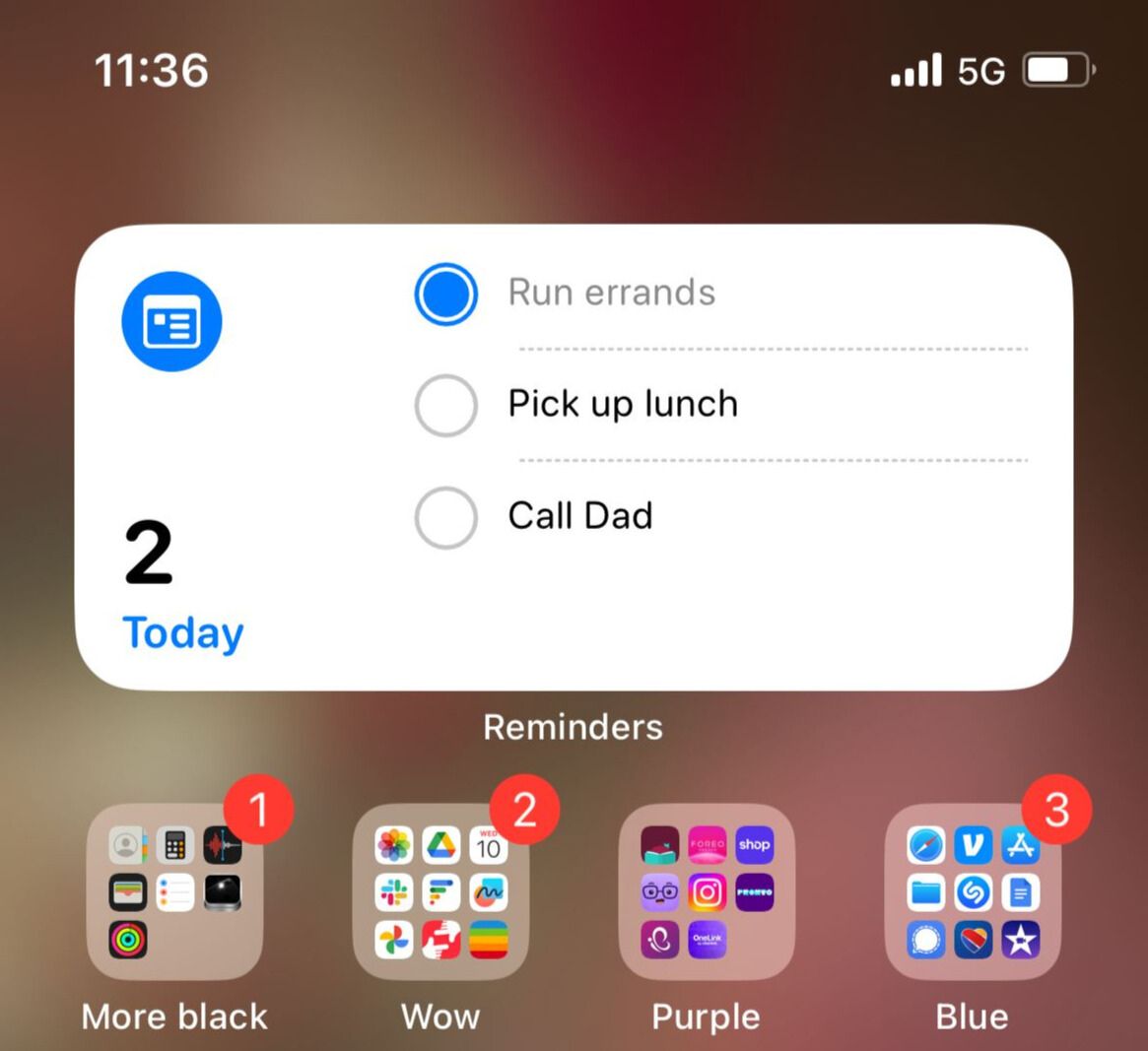
Adding widgets to your iPhone lock screen is incredibly convenient because you don’t have to unlock your device to see them.
There is an important distinction between the home screen and lock screen widgets. You can place as many home screen widgets as you want, and they can be of any size. However, lock screen widgets must be smaller and you are limited to four or fewer, depending on which widgets you choose.
To add widgets to your lock screen:
- Unlock your phone but do not leave the lock screen.

- Press and hold the screen until the lock screen customization area comes up.
- Press Customize.

- Select the lock screen.
- Press the widgets area just underneath the clock.

- Add your desired widgets.
- Press Done in the upper right corner.
Remember that you are limited to four icon spaces in the widgets section of the lock screen, but that doesn’t mean all widgets are the same size. Some—like the weather widget—can take up two or more spots. This means you’ll have to be selective about which widgets you want to use.
Add widgets to the Today View
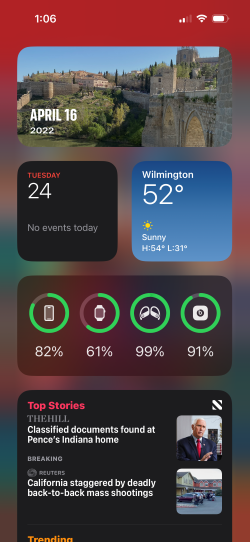
The Today View on your phone is a screen made up almost entirely of widgets that show up-to-date information about your top apps. Swipe right on your home screen to get to your Today View.
To add new widgets to the Today View:
- Scroll to the bottom of your Today View screen.
- Press Edit.
- Press the (+) symbol in the upper left corner of the screen.
- Select any widgets you want to add to the screen.
How to edit widgets on your iPhone
Most widgets can be further customized to meet your needs. They can also be moved around to other areas on your iPhone, just like any other app icon.
Edit widgets on the home screen
To edit a widget on your home screen:
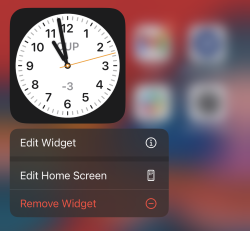
- Press and hold the widget till the widget menu comes up.
- Press Edit Widget and select your preferred settings.
To move a widget on your home screen:
- Press and hold the screen until the app icons start to shake.
- Drag the widget to your preferred location.
Edit widgets on the lock screen
You can’t move widgets on the lock screen. They can only be placed in the widget window and will be placed in a specific order. However, many of them still offer customization options.
To edit your lock screen widgets:
- Follow steps 1-6 from the adding widgets instructions above. Do not press Done yet.
- When the widgets are added to the screen, tap them to see any additional customization options.
- Press Done in the upper right corner when finished.
Note that not all lock screen widgets can be customized. That’s because these widgets are visible even when the phone is locked, so they are designed to show very basic information.
Edit widgets on the Today View
The Today View offers the best options for editing the settings of your widgets and moving them since it is a view specifically created for them.
To edit your Today View widgets:
- Scroll to the bottom of the Today View screen.
- Press Edit.
- Tap on any widgets you want to edit.
- Apply new settings.
- Press Done in the upper right corner when finished.
To move your Today View widgets:
- Scroll to the bottom of the Today View screen.
- Press Edit.
- Drag your widgets to their new location.
- Press Done when complete.
How to turn an app into a widget
Widgets aren't limited to the iPhone's native apps. You can create a widget for your favorite app so that its best features will live on your home or lock screen. Here's how it's done:
- Long press on your screen until the apps start to shake.
- Press the (+) button in the top left corner.
- Scroll down until you reach the list of apps. Select one.
- You'll see what the app offers for widgets. If you find something you like, press Add Widget.
- You'll see a preview of the app's widget on your home screen. You can drag it to where you'd like it or delete it by tapping the (-) button. If you like what you see, press Done in the upper right-hand corner.
Best apps for customizable widgets
Since the release of widgets for iPhones, tons of third-party apps have released their own widgets on the app store. Some of these are simple and might allow you to read messages. Others can give your widgets a distinctive aesthetic and take advantage of other iPhone features.
We mention some of our favorite customizable widgets below, but remember that these are third-party apps. Some of them may cost money and need access to your data to work correctly.
Widgetsmith allows you to customize your lock and home screen widgets. It expands the available options and offers different graphics and colors than the standard Apple widgets. You can also set widgets to appear at certain times of day, such as a weather forecast widget in the morning or a calendar when you get to work.
ScreenKit is specially designed for your lock screen. It provides the tools to completely customize your lock screen and any widgets you’d like to place on it. It includes hundreds of new custom widgets, custom app icons, and wallpapers to perfectly match your style.
Want to see more? Check out our guide to the Best Interactive Widgets for iOS 17. If you wound up here by accident and actually have an Android device, you can check out our guide to adding and resizing widgets on Android.
iPhone widgets: Pros and cons
Pros:
- Convenience
- Customization
- Live look at important info
Cons:
- Drains battery
- Clutters screen
Widgets are convenient ways of getting up-to-date information from your most important apps and offer a ton of customization opportunities to develop the perfect aesthetic. However, they can also rapidly drain your battery and clutter up your screen.
Remember widgets provide a live look at your phone. That requires a constant connection to your apps. The battery issue is especially true if you have an iPhone with the always-on feature, like the iPhone 15. Some widgets are also just too big and push apps you need easy access to onto secondary screens.
Max McCaskill
Sr. Staff Writer

Thousands of cell phone plans unpacked. All the facts. No surprises.





.png?w=280&h=280&usm=20&usmrad=0.8&fit=crop "The Best Cheap Phone Plans for 2026: We Tested Them All to Help You Save")


