
Customizing your iPhone’s aesthetic allows you to express your individuality and create a device that truly reflects who you are. Every detail contributes to your phone's overall look and feel, from organizing your apps to selecting the perfect wallpaper.
This guide will walk you through the top features to customize your iPhone aesthetic, helping you transform your device into a visually pleasing and uniquely personal masterpiece. Whether you prefer a minimalist approach or a vibrant, colorful theme, these tips and tricks will ensure your iPhone stands out from the crowd.
1. Organize your apps
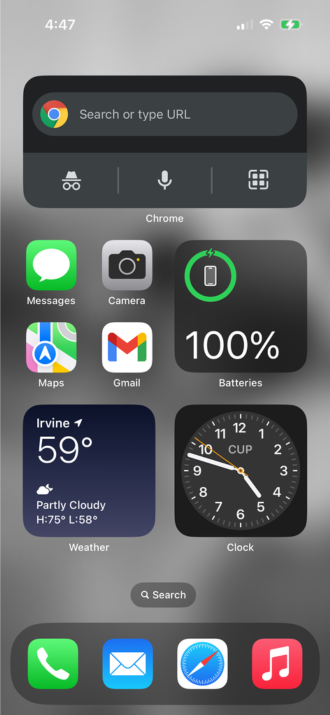
Image: Angelo Ilumba
The foundation of a visually appealing iPhone aesthetic starts with how you organize your apps. By thoughtfully arranging your apps, you can create a clean and cohesive look that enhances both functionality and style. Begin by grouping similar apps together, reducing clutter, and creating a more streamlined appearance.
We suggest keeping the apps on your Home Screen to a minimum, displaying only the small handful of apps you use the most. Then, you can leverage your iPhone's automatically organized App Library to store and easily find all your other apps.
Check out our full guide to organizing your iPhone apps for more detailed steps on keeping your Home Screen streamlined and organized.
2. Customize your wallpaper
After organizing your apps, the next step in customizing your iPhone aesthetic is choosing the perfect wallpaper. Your wallpaper sets the tone for your entire home screen and can significantly impact your device's overall look and feel.
Start by deciding on a theme or mood you want to convey. Whether you prefer a minimalist, vibrant, or nature-inspired look, your wallpaper should reflect your personal style. High-resolution images, whether personal photos or curated backgrounds, ensure a crisp and clear display.
You can pair your Lock Screen and Home Screen wallpapers or select different images for each. You can even simply have the Lock Screen wallpaper setting blur the Home Screen if you prefer that the image doesn't take focus away from your Home Screen apps.
On the flip side, with the release of iOS 18 later this fall, you'll have a significant way to showcase your wallpaper on the Home Screen. The iOS update will allow you to move your apps anywhere there is open space on the screen rather than only in open spots in a grid. This means you can arrange apps around your wallpaper image to ensure you see the best of the image.
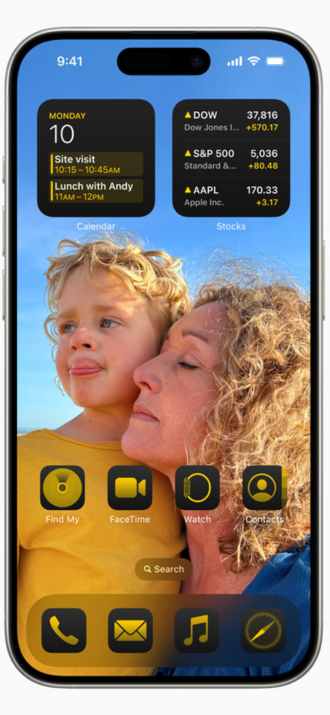
Image: Apple
3. Customize your Lock Screen
Customizing your lock screen is another essential step in creating a unique and aesthetically pleasing iPhone experience. The lock screen is the first thing you see when you pick up your phone—and making it visually appealing can enhance your overall interaction with your device.
With iOS 14 and later, you can add widgets to your lock screen. These provide quick access to information like weather updates, calendar events, or activity stats without having to unlock your phone. This enhances functionality and adds a dynamic element to your lock screen.
Consider customizing the clock style and font. While Apple offers limited customization options in this area, you can still adjust the display settings to suit your aesthetic preferences. For example, you can opt for a bold font if you want a more modern look. If you're looking for something more elegant, you can choose a softer font.
4. Create custom app icons
Creating custom app icons is one of the most impactful ways to personalize your iPhone's aesthetic. Custom icons can completely transform the look of your home screen, allowing you to express your individual style and creativity.
First, decide on a theme or style for your custom icons. Whether you prefer a minimalist design, a vibrant and colorful look, or a vintage aesthetic, having a consistent theme will ensure a cohesive appearance. You can find custom icon packs online or create your own using design tools like Canva or Photoshop.
Once you have your custom icons ready, follow these steps to apply them using the Shortcuts app:
- Open Shortcuts.
- Tap the plus (+) button in the top right corner to create a new shortcut.
- Tap Add Action and select Open App.
- Choose the app you want to create a custom icon for.
- Open the options menu at the top of the screen and select Add to Home Screen.
- Choose from pre-made icons or from images in your photo library.
Repeat these steps for each app you want to customize. Once you’ve set up all your shortcuts, you can rearrange them on your home screen, just like regular apps.
For a polished look, hide the original apps you’ve customized. You can do this by moving them to the App Library or placing them in a folder and moving it to a secondary page.
By creating and applying custom app icons, you can give your iPhone a truly unique and personalized look that reflects your style and makes your home screen stand out.
5. Customize widgets with third-party apps
Customizing widgets with third-party apps is a fantastic way to enhance your iPhone's functionality and aesthetic appeal. Widgets allow you to access key information at a glance, and third-party apps offer a wide range of widget designs and capabilities to suit your personal style. Here’s how you can customize widgets with third-party apps to create a unique and visually appealing home screen:
Several popular third-party apps—including Widgetsmith, Color Widgets, and Widgeridoo—provide extensive customization options for widgets.
Widgetsmith is a versatile app to create custom widgets in various sizes. You can choose from a range of styles, fonts, colors, and information types, such as calendar events, weather updates, reminders, and more. This app is particularly known for its flexibility, enabling you to tailor each widget to match your home screen's theme.
Color Widgets offers a variety of pre-designed widget templates that you can customize by changing background colors, fonts, and styles. You can also add your own photos to these widgets, making them highly personalized. Color Widgets is user-friendly and perfect for those who want a quick and easy way to enhance their home screen.
Widgeridoo allows you to create highly modular widgets by combining different types of information, such as text, images, calendar events, and health data, into a single widget. This app is ideal for users who want to create complex and information-rich widgets that are also visually appealing.
By using these third-party apps to customize your widgets, you can create a home screen that is functional and tailored to your personal style. Experiment with different designs and configurations until you find the perfect setup that enhances your iPhone's look and usability.
Angelo Ilumba
Senior Writer

Thousands of cell phone plans unpacked. All the facts. No surprises.





.png?w=280&h=280&usm=20&usmrad=0.8&fit=crop "The Best Cheap Phone Plans for 2026: We Tested Them All to Help You Save")


