
Apps are a great way to turn your iPhone into a personalized hub of endless possibilities, tailor-made to fit your lifestyle, interests, and needs. However, as the number of apps on our iPhones continues to grow, finding the ones we need at the moment we need them can start to feel like searching for a needle in a digital haystack.
Organizing your apps can help streamline your phone's Home Screen and help make it easier to find the apps you need when you need them. And the good news is that your phone can do the heavy lifting for you if you're ready to utilize the App Library. Keep reading to learn how you can organize your iPhone apps.
Let your iPhone organize for you
When it comes to organizing your iPhone apps, we really think the best thing you can do is simply let your phone do the work for you. This is one of the advantages of having a smartphone with an operating system like iOS; certain tasks can be automated for you.
We suggest you keep your Home Screen minimal with only your absolute favorite apps/widgets represented and otherwise rely on the App Library to house your other apps.
Save your apps to the App Library
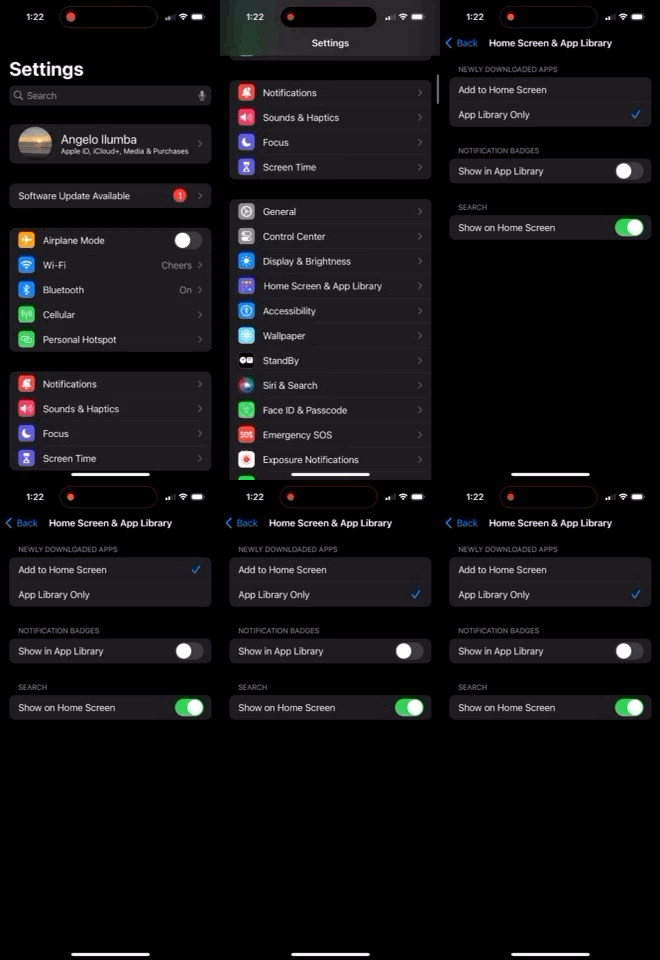
One of the first things you should do to keep your iPhone organized is to set your apps to save directly in the App Library. This feature automatically sorts your new apps into appropriate folders within the Library, keeping your Home Screen free of clutter. You can find the App Library by swiping left from your Home Screen.
Take these steps to set your apps to save to the App Library:
- Go to Settings.
- Tap Home Screen & App Library.
- Select App Library Only.
Now when you download an app, it'll be sorted into an appropriate folder in the App Library.
Tip: Find apps fast with Search
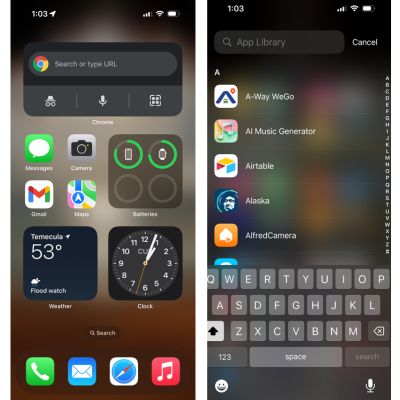
Why dig through all your apps in the App Library when you can quickly find what you're looking for by using your phone's Search function? You have the option to search at the bottom of the Home Screen and at the top of the App Library.
Organize your iPhone Home Screen
Using the iPhone App Library is a great way to keep your apps automatically organized. It also allows you to keep your Home Screen clean with only the select few apps you want easy access to. Here's how you can clean up the Home Screen on your iPhone.
Remove apps from Home Screen

It's time to declutter that Home Screen. You can easily move apps from the Home Screen and keep them in the App Library by taking these steps:
- Press down and hold on the app you want to remove.
- When the options pop up, select Remove App.
- On the next pop-up, choose Remove from Home Screen.
Move apps from App Library to the Home Screen
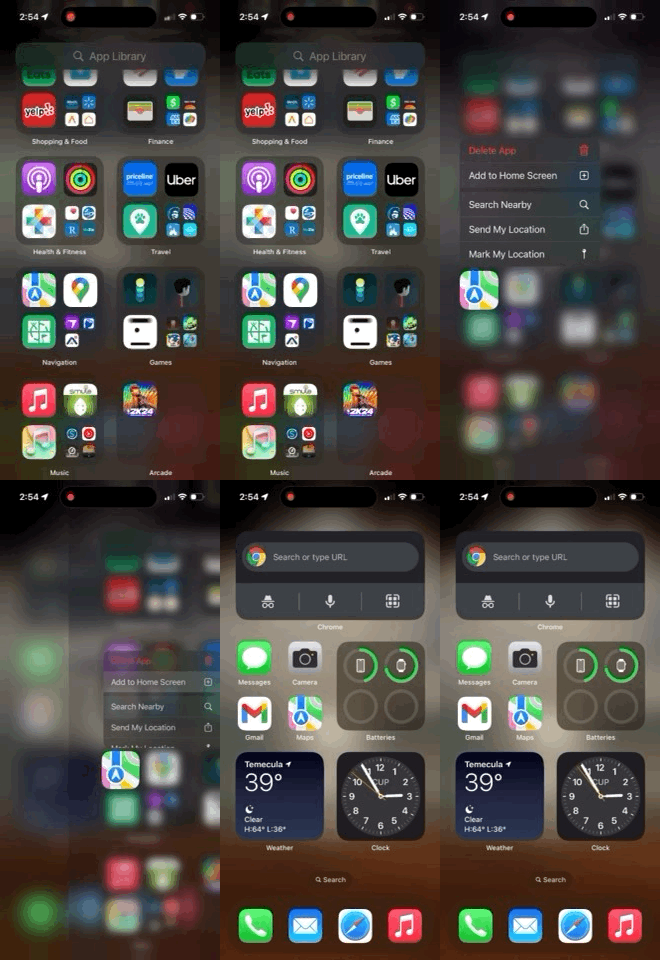
To add apps from the library to the Home Screen you can take these steps:
- Find the app in your library or use Search to find it.
- Press down on the app's icon.
- After the options pop up, select Add App to Home Screen.
You can also simply just press down on the icon and drag it over to the Home Page.
Arrange apps on Home Screen
Now that you have only the apps you want on your Home Screen, you can start moving them around. You might want to put your favorite app in a position on the Home Screen that is easiest for your thumb to reach while you are browning through your phone. You may even want to gather some travel apps together in a folder in preparation of a big trip you’re about to take.
To move apps around in the Home Screen take these steps:
- Tap and hold down any app icon
- Wait for the app to shake and an options menu to pop up
- Drag the app to your desired location
Adding folders to your Home Screen
You can also group apps together into a folder. This lets you save space and keep like apps together for easier organization.
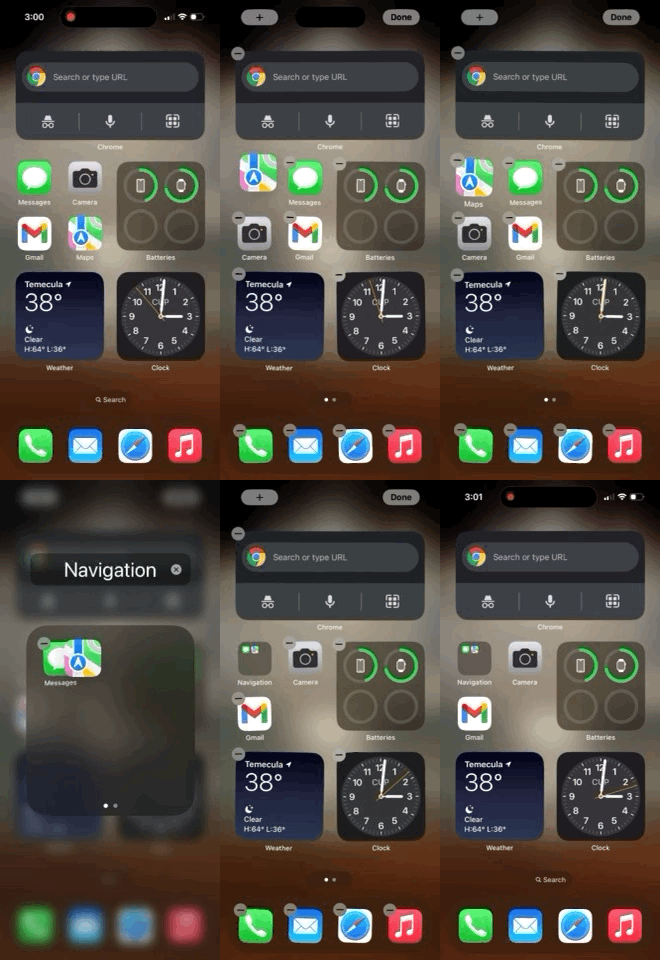
To create a folder for multiple apps:
- Long-press on the app icon you want to move. All apps on your home screen should start shaking.
- Drag the app over another app you want to group it with. A container will materialize and surround both apps (this is your new folder).
- Lift your finger to drop the app into the new folder. Both apps should now appear within a single icon.
- Name the folder (e.g., “Fitness,” “Music,” “Photography,” etc.).
You can now drag and drop any other apps into the folder. You can add as many apps as you like; the folder will only display the first nine icons, but once you tap into the folder, you can swipe within it to see multiple pages of apps. You can also drag and drop between these pages to organize the apps however you want.
Adding pages to your Home Screen
If one page isn’t enough to hold your favorite apps, you have the option of adding more Home Screen pages. This is a great opportunity to group apps together by page, or to move lesser-used apps out of the way without deleting them altogether.
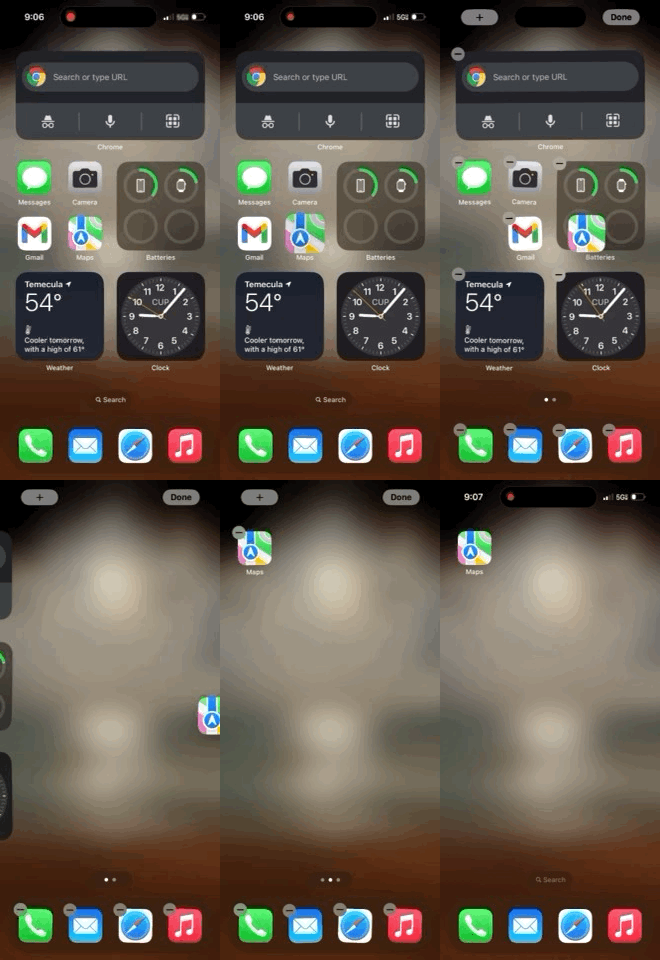
To add Home Screen pages:
- Tap and hold the app or folder on your Home Screen.
- Tap Edit Home Screen.
- Drag the app/folder to the far right side of the screen. Your iPhone should then open up a new Home Screen.
- Drop the app/folder into the new Home Screen.
With multiple pages in your Home Screen, you have the option of hiding select pages. This could be helpful if you created a page to house Apps you don’t always need easy access to. To hide a page in your home screen:
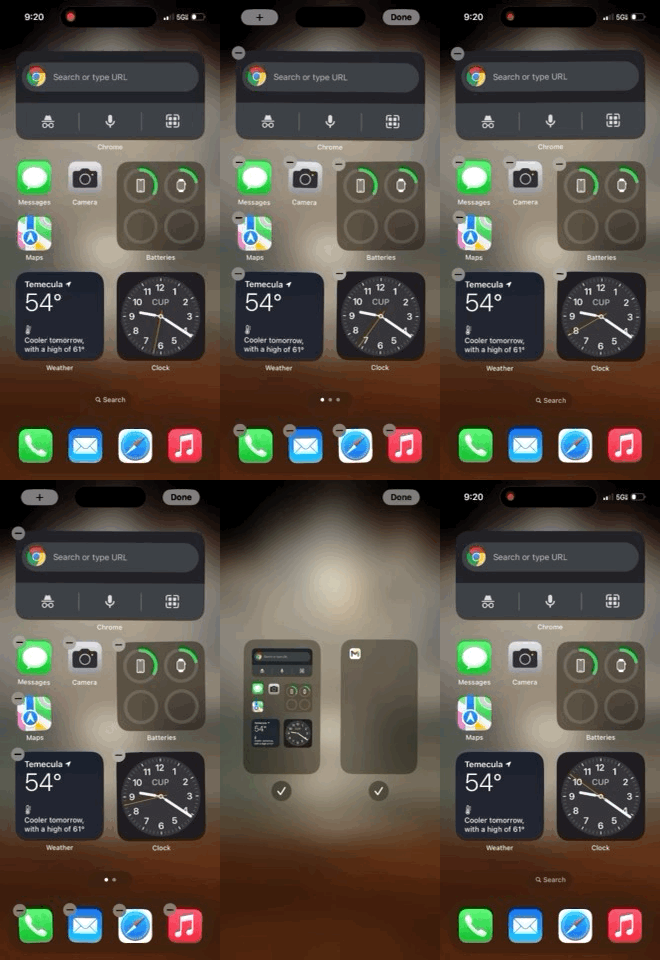
- Tap and hold anywhere on the Home Screen. The Search bar at the bottom of the screen will turn into a series of dots (depending on how many Home Screens you have).
- Press on the dots to bring up a view of all of your Home Screens.
- Tap to uncheck the circle below the page(s) you want to hide or check to show any hidden pages.
Tip: Add widgets to your Home Screen
Home Screens should be the home to your favorite and most used apps, but you’re not limited to a simple app icon. If you really love an app, try adding a widget that can give you glimpse into your favorite app. Widgets can even be interactive, allowing you to use features right from your Home Screen without having to tap fully into the app itself.
Take a look at our guide to adding and editing widgets on your iPhone.
Angelo Ilumba
Senior Writer

Thousands of cell phone plans unpacked. All the facts. No surprises.





.png?w=280&h=280&usm=20&usmrad=0.8&fit=crop "The Best Cheap Phone Plans for 2026: We Tested Them All to Help You Save")


