
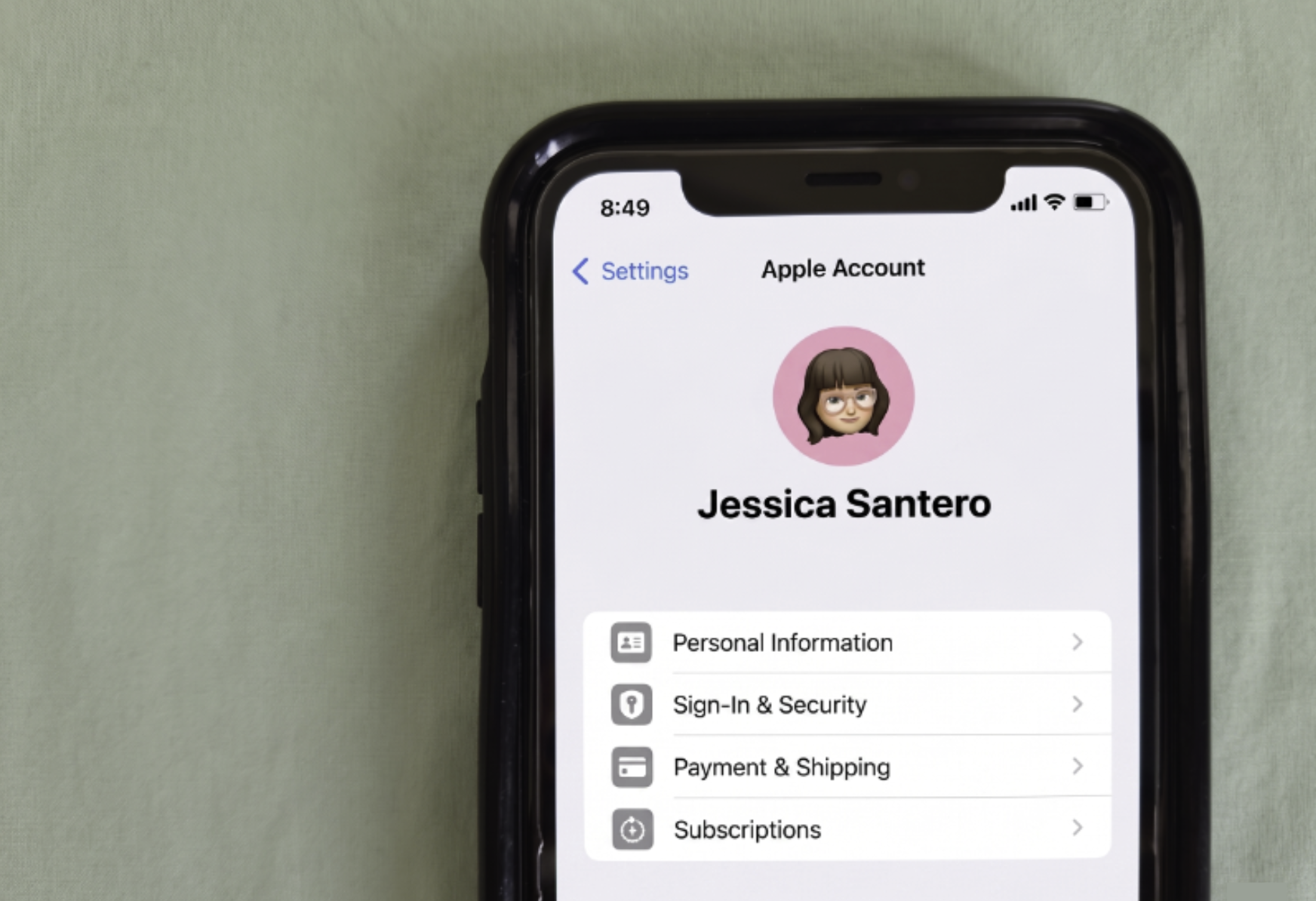
It's surprisingly easy to lose track of what you're actually paying for every month, especially those sneaky phone subscriptions that automatically renew. I found out just how easy it is to forget to cancel when I was charged the full annual price for an app I never use. One charge like that makes you want to audit every subscription you've ever agreed to.
But do you know how many subscriptions you're paying for? Depending on the phone you use, some are tied to your Apple ID or Google Play account. Take the time to follow these steps and see what subscriptions still linger on your phone. Don't want to do it by hand? Check out our guide to the best subscription tracking apps.
Read on to learn how to find (and cancel) subscriptions on iPhones and Android devices.
How to cancel your subscriptions on iPhone
Your iPhone keeps a running list of every active subscription you signed up for through the App Store. Plus, it keeps a record of every subscription you've ever had, just in case you wanted to renew or avoid certain services.
To see and cancel the subscriptions on your iPhone, follow these steps:
- Open Settings.
- Tap your Apple ID with your name and image.
- Tap Subscriptions.
- Here you can see your Active, Inactive, and Options for current, past, and potential subscriptions.
- Select the subscription you want to cancel and tap Cancel.
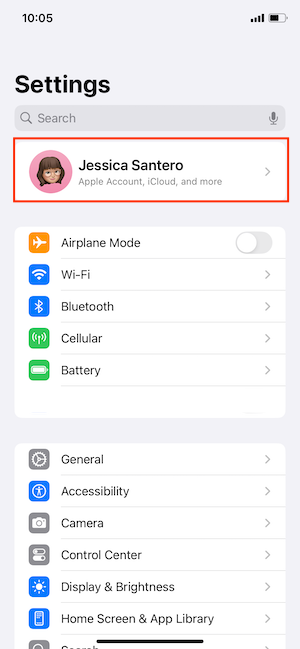
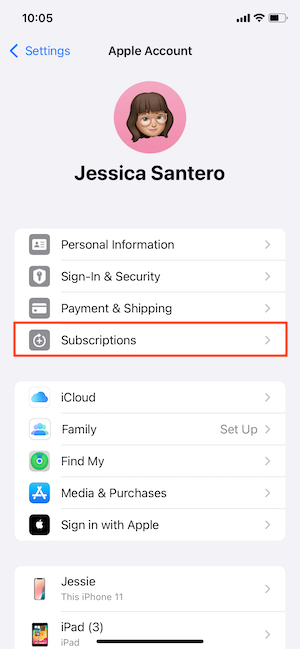
Image: Jessica Santero | WhistleOut
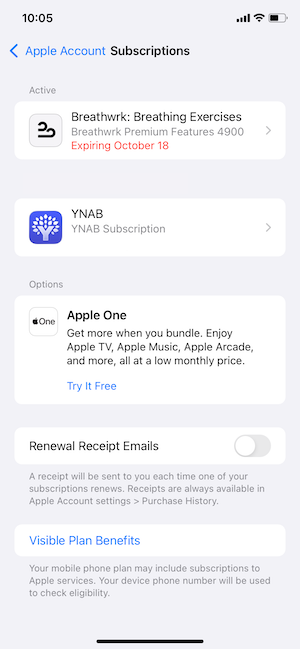
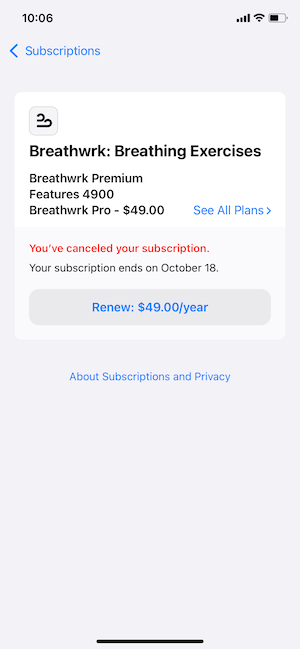
Image: Jessica Santero | WhistleOut
Alternatively, you can find your subscriptions directly in the App Store by tapping your profile picture in the top right corner and selecting Subscriptions.
You'll see two or three different sections, depending on whether you have subscription history. The categories available are your active subscriptions, past or canceled subscriptions, and suggestions from Apple. The Active list shows everything currently charging you, including the price and next billing date. If something looks unfamiliar or you haven't used it in months, you can tap it to review or cancel it right there.
Just know that this list only shows subscriptions billed through Apple, like an app subscription you downloaded from the App Store or your iCloud storage. That said, if you signed up for a service directly through the provider's website and entered your own card number, it won't show up here.
Stop overpaying for your phone plan, too.
Subscriptions aren't the only thing quietly draining your wallet. If you haven't checked your phone plan lately, there's a good chance you're paying more than you need to.
Here are some of the most affordable unlimited data plans available right now:
|
Visible

$25 Visible Plan
$25.00/mo
Taxes & Fees included
|
|
Mint Mobile

Unlimited Data Plan
$10.00/mo
$60 for 6 months of service
|
|
Verizon

Simplicity Plan
$30.00/mo
+ Taxes & Fees. Price includes AutoPay & Bring a Number discount
|
How to cancel your subscriptions on Android
Your Android device keeps a record of every subscription you signed up for through the Play Store, and finding them takes just a few taps.
Follow these steps to find all the subscriptions on your Android device:
- Open the Google Play app and tap your profile image.
- Tap Payments and Subscriptions.
- Select Subscriptions.
- Choose which subscriptions to review, renew, or cancel.
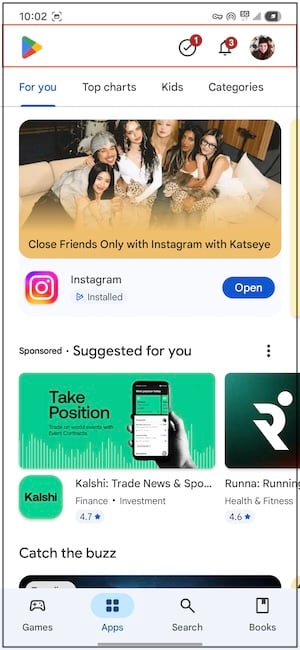
Image: Jessica Santero | WhistleOut
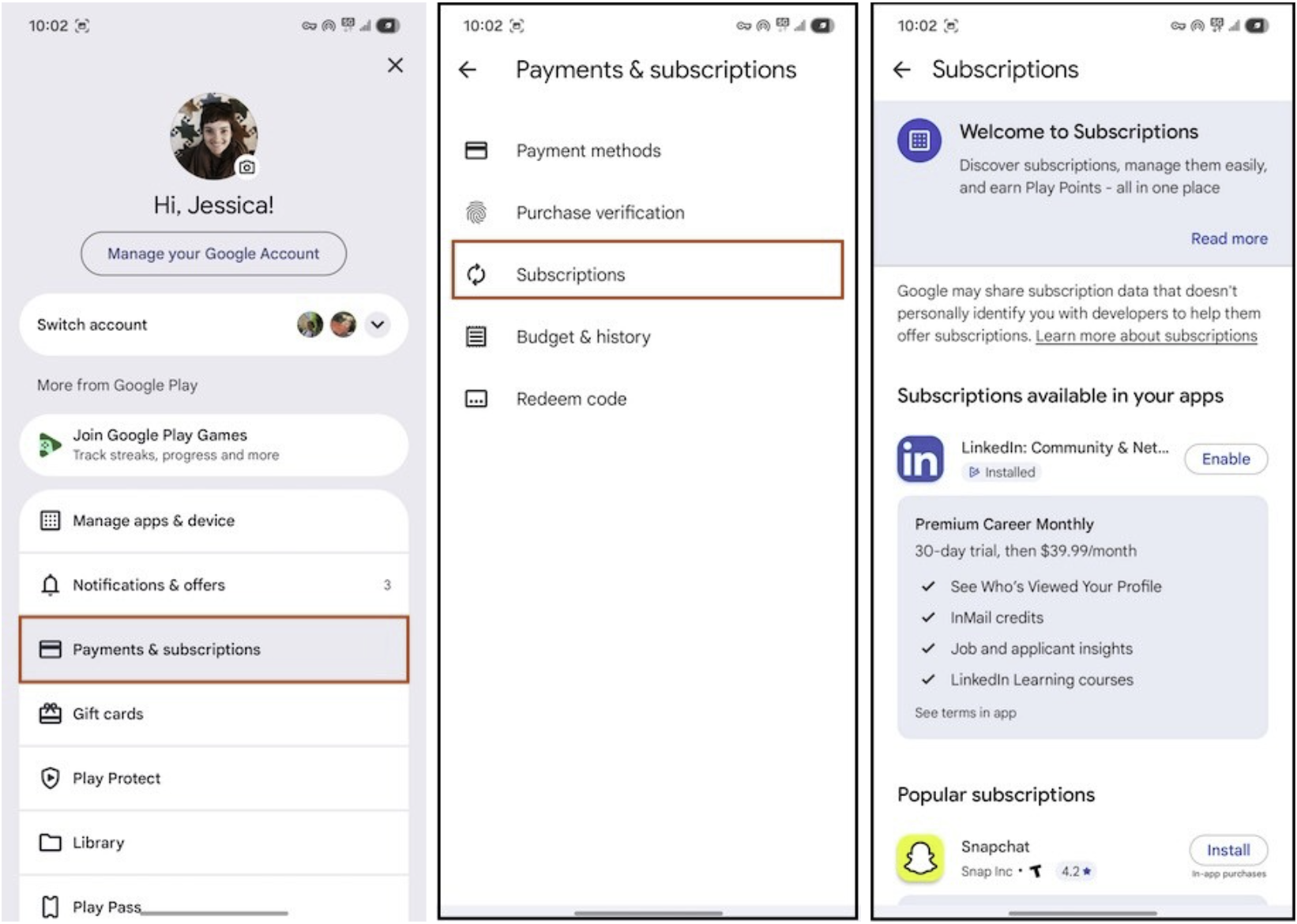
Image: Jessica Santero | WhistleOut
Before you start, make sure you're signed into the correct Google account. If you've ever used more than one Google account on your device, your subscriptions may be split across both, so check each one separately.
How to find subscriptions that don't show up on either list
Not every subscription you might have runs through the App Store or Google Play. If you signed up for a service directly through its provider's website (like a VPN, fitness platform, or news outlet), it won't appear in your App Store or Google Play Store history.
Check your accounts manually
Start by opening your bank app and looking at your recurring charges or subscription management section. Many major banks now flag these automatically, so you might already have a list waiting for you. It's also a good idea to check directly inside the account settings for any streaming or subscription service you use regularly.
Not sure how to cancel your streaming services? Check out our guides on canceling your Netflix, HBO Max, and Hulu subscriptions.
Let an app cancel subscriptions for you
Rocket Money is a budgeting app that comes with extra perks to help you cut down on spending. It automatically connects to your bank and credit card accounts and identifies every recurring charge. That means repeat transactions (whether they came through the App Store, Google Play, or directly from a website) are flagged for your review.
The subscription-finding feature is free and works well for a monthly audit. You can even upgrade for the canceling subscriptions feature that calls and cancels your subscription services on your behalf.
Subscriptions on your phone: FAQ
How do I completely cancel subscriptions on my iPhone?
You can completely cancel a subscription on your iPhone by opening Settings, tapping Subscriptions, and selecting Cancel on each active subscription you want to stop.
How do I cancel unwanted subscriptions on Android?
You can cancel a subscription on your Android by opening the Google Play app, tapping your profile, and selecting Payments & subscriptions. Just select the subscription you want to cancel, and tap Cancel.
Where can I find my subscriptions on Android?
You can find all of your active Google Play subscriptions under your profile in the Google Play app.
Jessica Santero
Staff Writer

Thousands of cell phone plans unpacked. All the facts. No surprises.





.png?w=280&h=280&usm=20&usmrad=0.8&fit=crop "The Best Cheap Phone Plans for 2026: We Tested Them All to Help You Save")


