
The clock on your lock screen is the first thing you see every time you pick up your phone. It's also one of the most constrained elements in Samsung's default One UI. With just a short list of preset styles and a handful of color options, the customization path ends there. For something you look at a hundred times a day, the customization options are surprisingly thin.
ClockFace fixes that in a way that goes considerably further than just adding more presets.
It's part of Samsung's Good Lock suite, and it's a full clock design editor rather than a selection menu. Which means, you don't pick from what Samsung made—you get to build what you want.
What is ClockFace?
ClockFace is a free Good Lock module that gives you a full editor for designing your lock screen and Always-On Display (AOD) clock, with a choice of clock types with independently adjustable font, color, size, and hand styles. It even supports custom text, image overlays, and animated GIFs layered over the clock design.
What you can actually design in ClockFace
The starting point is the clock type. ClockFace supports analog, digital, word clock (time spelled out in text), and additional styles that Samsung's stock clock selector doesn't include. From there, every element of the chosen type is independently adjustable.
For a digital clock, you can change things like font face, font weight, font size, color, and whether to show seconds. For an analog clock, you get hand shape, hand color, dial design, numeral style, and scale. What I like the most about these is that they're individual element controls, so you can combine a specific font with a specific color and a specific layout that doesn't exist as any preset.
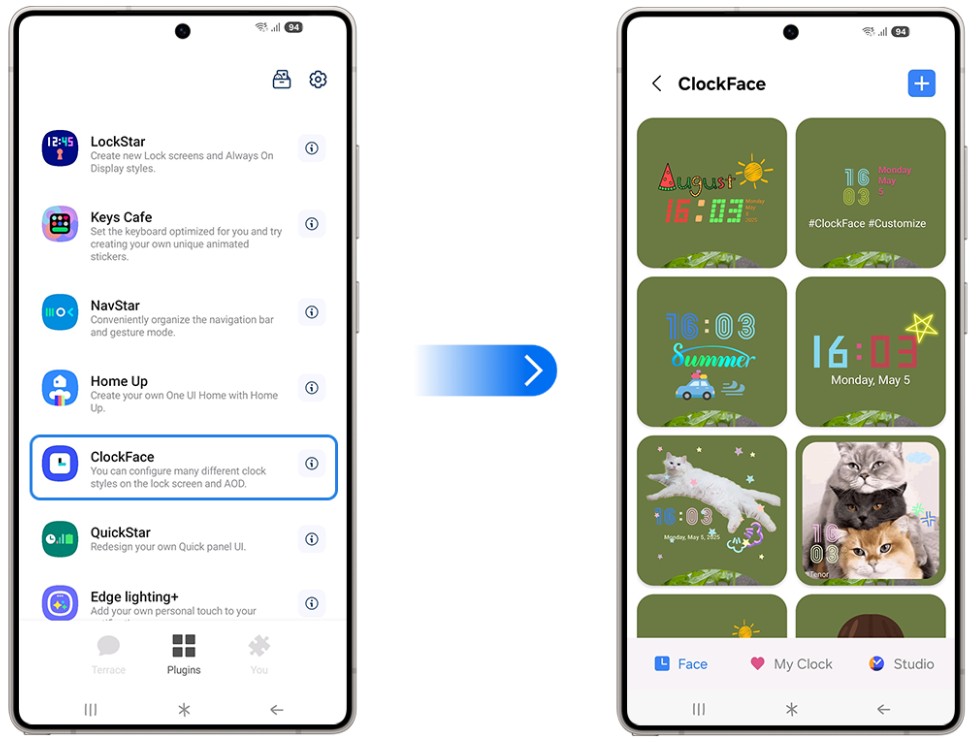
Image: Samsung
The custom text and image layers are where ClockFace separates from simple clock customizers. You can add text overlays with any content—a name, a phrase, a date—positioned anywhere on the clock face. Images and animated GIFs can be layered over the design as well, so the clock exists as one element within a broader lock screen composition rather than as the only thing ClockFace controls.
The clock on your phone can look exactly how you want. Your phone plan can, too.
ClockFace puts you in charge of your clock's design. MVNOs do the same for your carrier relationship. Same network coverage, lower monthly cost. For an in-depth look at our favorite MVNOs, take a look at our guide to the best MVNOs of 2026.
|
Visible

$25 Visible Plan
$25.00/mo
Taxes & Fees included
|
|
Mint Mobile

Unlimited Data Plan
$10.00/mo
$60 for 6 months of service
|
|
US Mobile

Unlimited Starter Plan
$15.00/mo
|
|
Cricket

Supreme Unlimited Plan
$55.00/mo
with AutoPay; $60 for the first month.
+ $9.99 Upfront
|
|
Spectrum Mobile®

Unlimited
$30.00/mo
+ $20 Upfront
|
Sync your phone's display and lock screen or design them separately
ClockFace designs the Always-On Display clock and the lock screen clock independently. This matters because the two features have different contexts—the AOD is a low-power display visible when the screen is technically off, showing a dimmer version of your clock, while the lock screen activates at full brightness when you pick up or tap the phone.
You can design them to match—same font, same proportions, just adjusted for the AOD's contrast constraints—or design them differently if the AOD warrants a more minimal treatment than the full lock screen. The ability to sync or diverge is the key flexibility that Samsung's default clock settings lack.
Get Galaxy Watch clock faces on your phone's display
Starting with One UI 4.1 and later, ClockFace added the ability to apply Galaxy Watch-style clock face designs directly to the phone's Always-On Display. This is a specific feature for Samsung ecosystem users who wear a Galaxy Watch and want the visual language of their wrist to carry over to their phone's lock screen.
Galaxy Watch clock faces are designed specifically for small, low-power displays with bold legibility—which makes them well-suited for the AOD context in ways that some phone-native clock styles aren't. If you already like the watch face on your Galaxy Watch, having the same design on your phone's AOD creates a genuine visual cohesion across devices.
How to get ClockFace
- Cost: Free
- Available on: Samsung Galaxy devices via Galaxy Store or Google Play
- Requires: Good Lock main app installed first
- Galaxy Watch face support: One UI 4.1 and above
ClockFace: FAQ
Can ClockFace use third-party fonts?
ClockFace works within Samsung's font system—fonts installed on the device via Good Lock's font features or the Galaxy Store are available in ClockFace's text editor.
Does ClockFace affect battery life on the Always-On Display?
Complex designs with animated GIFs use more power on the AOD than a simple digital clock. Samsung's AOD power management still applies, but more graphically intensive ClockFace designs will draw slightly more from the battery than minimal ones.
Can I use ClockFace and LockStar together?
ClockFace focuses specifically on the clock design, while LockStar handles the overall lock screen layout, widget placement, and element positioning. They complement each other, but you'll use ClockFace for the clock itself, LockStar for where it sits and what surrounds it.
Do animated GIFs in ClockFace run continuously on the lock screen?
GIF animations play when the lock screen is active and displayed. They pause when the screen goes to AOD mode or turns off, limiting their power consumption to periods when the lock screen is actually visible.
Does ClockFace require a Galaxy Watch to use the watch face designs?
The Galaxy Watch clock face designs available in ClockFace can be applied to the phone's AOD without owning a Galaxy Watch. The watch faces are available as design options in the ClockFace module itself.
Scott Houghton
Jr. Staff Writer

Thousands of cell phone plans unpacked. All the facts. No surprises.

Related Articles


Related Topics
AndroidPopular Topics
Featured App Reviews iOS News Coverage Device Reviews Device Explainers Carrier Explainers App Roundups T-Mobile


Free iPhone 18 Pro, up to $1,200 off, with a trade-in in any condition or a line switch on Experience Beyond


.png?w=280&h=280&usm=20&usmrad=0.8&fit=crop "Best Cell Phone Deals for October 2026: Get the New iPhone 18 Pro for Free")




