
I've been a Samsung guy for over a decade, and I only found out about Good Lock a few years ago when I stumbled across it in a tech forum, where someone mentioned it as if it were the obvious first thing to do with a new Galaxy. Turns out, I had a lot of catching up to do.
I quickly learned that with Samsung Good Lock, my phone could do a lot more than I was letting it. At the time, my lock screen was stock, my notification panel was a disaster, and my home screen layout was whatever Samsung decided it should be out of the box, and I'd never questioned any of it. But with Good Lock, I could change all of that and more, which made me pretty excited.
Samsung's Good Lock is the most powerful way to customize your Samsung Galaxy phone, unlocking over 20 tools that One UI keeps buried by default. Lock screen, home screen layout, notification panel, keyboard, navigation gestures, camera controls, and so much more.
Here's the full breakdown of the best Good Lock customizations and where to start.
Looking for a new Galaxy to customize?
Good Lock works across the entire Galaxy lineup, but it shines brightest on Samsung's latest hardware. The new Galaxy S26 series, the Z Fold 7, and the Z Flip 7 all have solid deals available right now. Check out our roundup of the best Samsung Galaxy deals to find the right phone at the right price.
What is Samsung Good Lock?
Samsung Good Lock is a free, official Samsung app that serves as a hub for downloadable customization modules and individual plugins, each modifying a specific part of your phone's interface or behavior. Together, they give you more Samsung One UI customization options than anything else Samsung officially offers.
The app goes back to the Galaxy S7 era, when it existed for exactly one purpose: fixing the lock screen on Samsung's old TouchWiz interface. Samsung has since turned it into one of the most powerful customization tools available on a Galaxy phone.
Good Lock doesn't require root access or sideloading anything sketchy. Good Lock runs inside Samsung's own framework, which means it's stable, supported, and built by the same people who made your phone. And as of late 2025, it's available globally through both the Samsung Galaxy Store and Google Play.
Finally, Good Lock is exclusive to Samsung Galaxy phones. If you're still deciding whether a Galaxy is the right phone for you, our best Android phone guide can help you decide.
How to download Samsung Good Lock
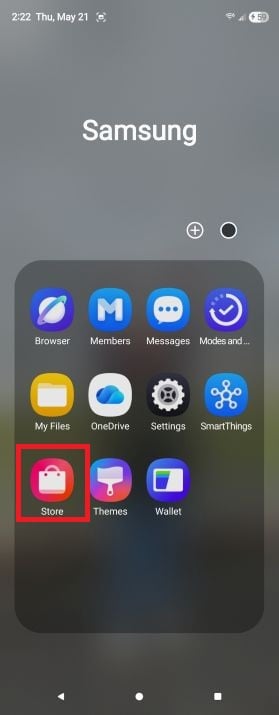
Image: Scott Houghton | WhistleOut
The Samsung Galaxy Store app comes pre-installed on every Galaxy phone. You'll find it inside your Samsung apps folder. Tap it to open, then search for "Good Lock."
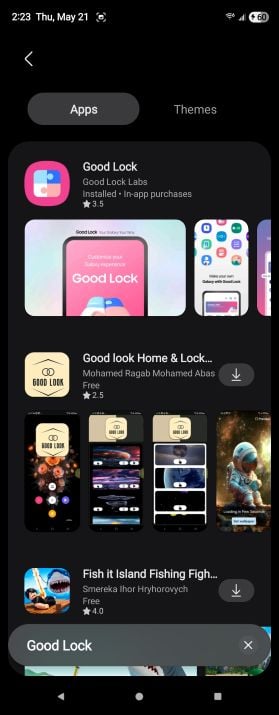
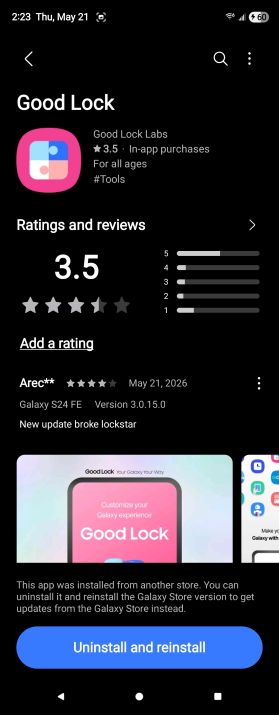
Search for "Good Lock" in the Galaxy Store, download it, and open the app once the download completes.
Image: Scott Houghton | WhistleOut
Open the Galaxy Store and search for "Good Lock." You'll see it listed under Good Lock Labs as a free download with optional in-app purchases for individual module add-ons. Tap the download icon on the right and wait for the installation to finish.
You can also grab it from Google Play if you prefer—the experience is the same.
The first time you open Good Lock, you'll land on a welcome screen and be prompted to agree to Samsung's Terms of Service. Read through it, then tap "Agree and continue" to get in.
The Good Lock home screen, explained: What you'll see when you open it
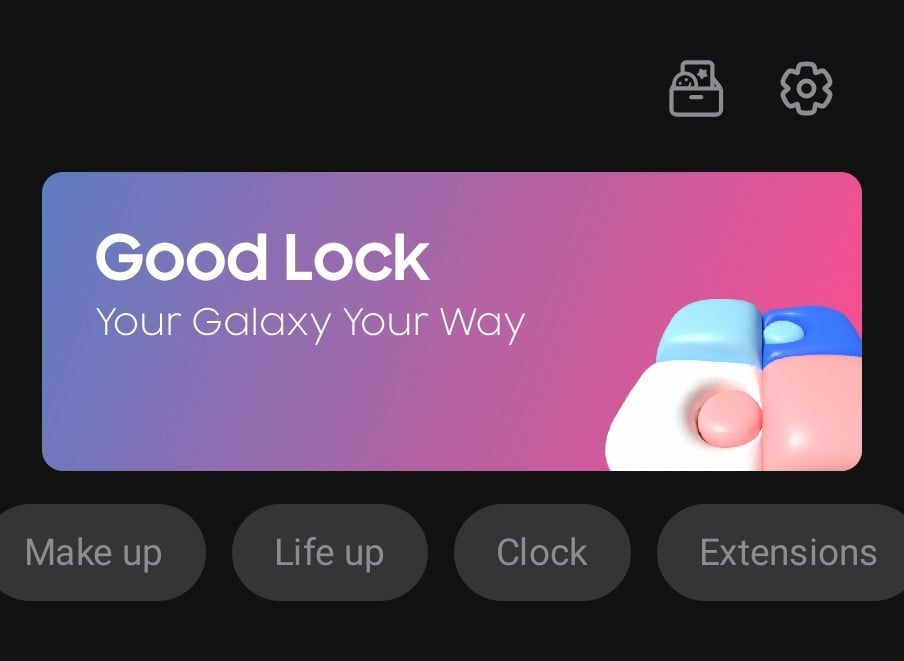
Image: Scott Houghton | WhistleOut
Inside Good Lock, you'll see four tabs across the top: Make up, Life up, Clock, and Extensions.
Make up handles visual customization, such as lock screens, home screen layouts, and themes. Life up is where productivity and workflow modules live. Clock focuses specifically on the lock screen and AOD (Always On Display) clock tools. And Extensions cover more specialized add-ons, including S Pen behavior and cover screen features on Galaxy Z Flip models.
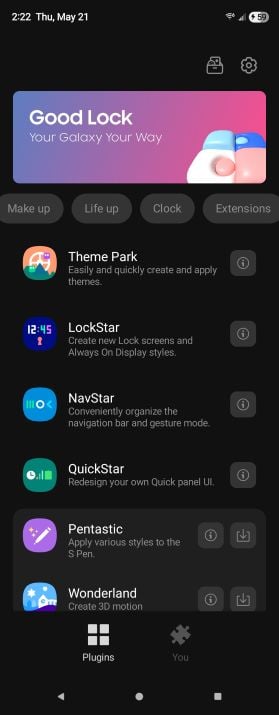
Image: Scott Houghton | WhistleOut
Below the tabs, each available module shows a short description and either an install icon or an update icon (if you have downloaded it previously) on the right side. Tap to install, and the Galaxy Store handles the rest.
Pro tip: Toggle features off without uninstalling them
You can toggle any installed Good Lock module on or off without uninstalling it. If something doesn't behave the way you expected, just turn it off, and your phone reverts to standard One UI behavior immediately.
Make up: The visual customization modules
These are the best modules to change how your phone looks. Most people start here.
LockStar is a drag-and-drop editor for your lock screen and Always On Display. You can move the clock to any pixel on the screen, swap out the default app shortcuts at the bottom corners (replace Camera with Google Wallet, for instance), and add widgets for weather, battery, calendar, or music controls. If you've ever chosen a wallpaper with a subject right in the center, only to cover it with a clock and notification text, LockStar fixes that.
Home Up is one of the most powerful modules in this tab. It breaks the Samsung home screen out of its rigid grid, letting you place app icons wherever you want. It also overhauled the recent apps switcher with the One UI 7 and One UI 8 updates. If you've been using a third-party launcher just to get a more flexible home screen, Home Up makes it so much easier.
Theme Park builds full custom themes from a source image or your wallpaper. It extracts the dominant colors and applies them across the entire interface. It's more precise than Samsung's built-in theme options, and the results don't cost anything.
Wonderland generates animated 3D motion wallpapers with various effects applied. More of a novelty than an essential, but some of the results are genuinely impressive if live wallpapers are your thing.
Life up: The productivity and functionality modules
These are the best modules to change what your phone does and how it functions.
QuickStar redesigns your quick settings panel. You can rebuild the layout, change colors to match your wallpaper, customize what appears in your status bar, and clean up the notification pane.
NotiStar archives your notification history so you can find dismissed alerts later. Search by app, by keyword, or by date. This is the module I wish I'd known about before when I'd lose a tracking number accidentally. Set it to retain notifications for 30 days, a year, or indefinitely.
MultiStar enhances Samsung's split-screen and floating window multitasking. On a standard phone, it adds useful improvements to how multi-window launches and behaves. On a foldable like the Galaxy Z Fold series, you can force multi-window mode in apps that don't normally support it and control how apps behave when you fold and unfold the device.
One Hand Operation+ adds gesture handles to both edges of your screen so you can reach controls more easily with one hand. Each handle supports multiple swipe directions, and each direction maps to a customizable action. This is particularly useful on a large device like the Galaxy S25+ or S25 Ultra.
RegiStar brings back-tap gestures to Samsung—something the hardware supports but One UI doesn't expose by default. Double-tap or triple-tap the back of your phone to take a screenshot, open an app, pull down your notification panel, or trigger any number of other actions. You can also use RegiStar to reorder the Settings menu, so your most-used options show up at the top instead of being buried four scrolls down.
NavStar customizes the navigation bar and gesture controls. Swap out navigation button icons, adjust the spacing, or modify gesture swipe behavior.
Clock: The lock screen and AOD clock module
The Clock tab is mainly home to one module: ClockFace.
ClockFace replaces your lock screen and Always On Display clock with 39+ alternative designs. Analog, digital, minimalist, graphic, and creative options are all there, with precise control over colors, fonts, layouts, and time format. You can also embed photos, GIFs, or stickers into your clock design.
If you have a Galaxy Watch, ClockFace also includes a Watch Face Studio section for creating matching watch faces.
Extensions: S Pen, camera, and cover screen tools
You'll find even more customization choices in Extensions. Here is my favorite extension module.
Pentastic is for Galaxy devices with S Pen compatibility, such as the Galaxy S25 Ultra or the Galaxy Z Fold series. It lets you customize pointer styles, trail effects, and cursor behaviors when you use the pen.
Where to start with Good Lock
Good Lock can feel overwhelming if you open it cold and see twenty modules staring back at you. My advice is to start with what's already bothering you about your phone.
If your lock screen feels generic, install LockStar. If you keep losing dismissed notifications, install NotiStar. If your home screen feels like it's fighting you, install Home Up. If you've been annoyed that Samsung doesn't have back-tap gestures, install RegiStar.
Looking for more customization options?
Good Lock gives you deep control over how your Galaxy looks and behaves, but it's only part of the picture. Samsung has also been rolling out Galaxy AI features across its latest devices and operating system, promising smarter photography, real-time translation, and a range of tools built around generative AI. Some of it is genuinely useful. Some of it is harder to justify. If you want to know which features are worth your time and which ones are mostly marketing, take a look at our breakdown of the new features.
You don't need every module. Install the ones that match a real friction point and ignore the rest until you see real utility for them.
And if you're shopping for a new Galaxy to run all of this on, here are the best options available right now.
Galaxy A26 5G
- 6.7 inch display
- Rear Cameras: 50MP, 8MP, 2MP
- Front Camera: 13MP
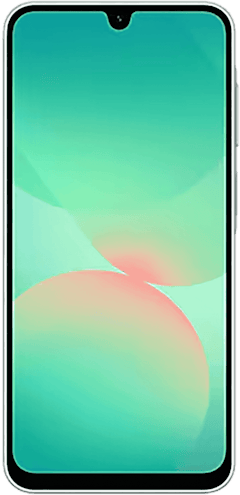
Galaxy A27 5G 128GB
- 6.7 inch display
- Rear Cameras: 50MP, 5MP, 2MP
- Front Camera: 12MP
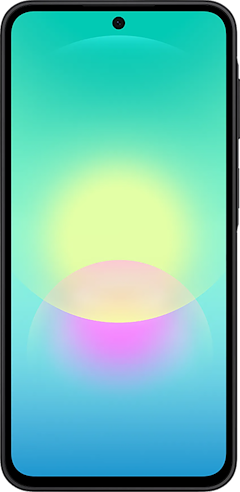
Galaxy A37 5G 128GB
- 6.7 inch display
- Rear Cameras: 50MP, 8MP, 5MP
- Front Camera: 12MP
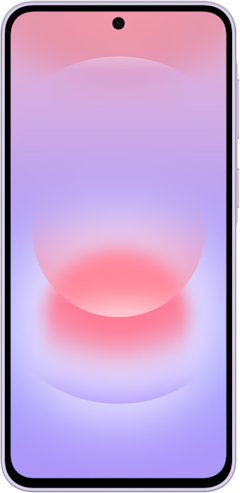
Galaxy A57 5G 128GB
- 6.7 inch display
- Rear Cameras: 50MP, 12MP, 5MP
- Front Camera: 12MP
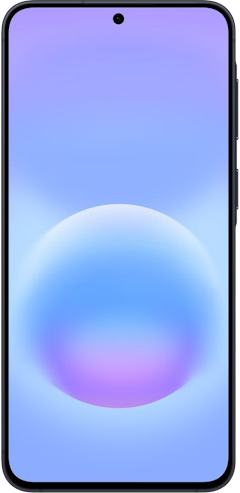
Galaxy S26 5G 256GB
- 6.3 inch display
- Rear Cameras: 50MP, 10MP, 12MP
- Front Camera: 12MP
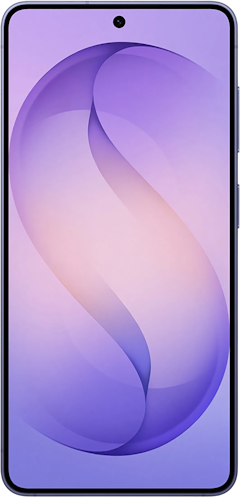
Galaxy S26 5G 512GB
- 6.3 inch display
- Rear Cameras: 50MP, 10MP, 12MP
- Front Camera: 12MP
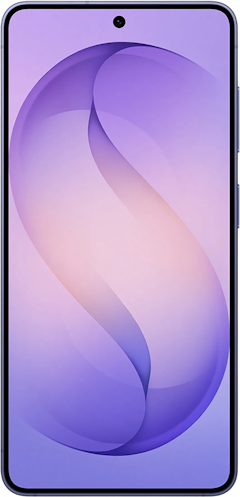
Galaxy S26+ 5G 256GB
- 6.7 inch display
- Rear Cameras: 50MP, 10MP, 12MP
- Front Camera: 12MP
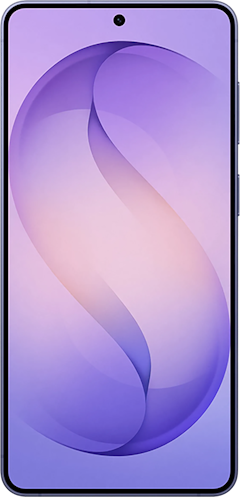
Galaxy Z Flip8 5G 256GB
- 6.9 inch display
- Rear Cameras: 12MP, 50MP
- Front Camera: 10MP
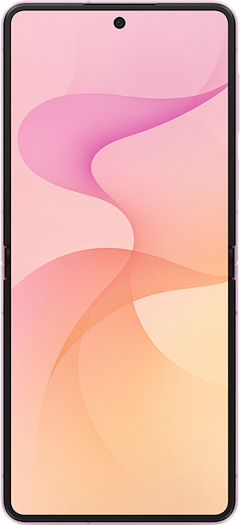
Galaxy S26 Ultra 5G 256GB
- 6.9 inch display
- Rear Cameras: 200MP, 10MP, 50MP, 50MP
- Front Camera: 12MP
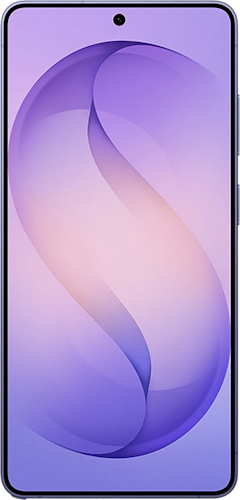
Galaxy S26+ 5G 512GB
- 6.7 inch display
- Rear Cameras: 50MP, 10MP, 12MP
- Front Camera: 12MP

Samsung Good Lock: Frequently asked questions
Is Samsung Good Lock free?
Good Lock is free to download, and the core functionality of every module is free. Some individual modules may offer optional in-app purchases for premium clock designs or additional themes, but nothing you need for the main features costs anything.
Where do I download Samsung Good Lock?
You can download Good Lock from the Samsung Galaxy Store, which comes pre-installed on all Galaxy phones. And as of late 2025, it's also available on the Google Play Store globally.
Can I use Good Lock without a Samsung account?
You can download the Good Lock app itself from Google Play without a Samsung account. However, individual modules are installed from the Samsung Galaxy Store, which typically requires a Samsung account. Creating one is free, only takes a couple of minutes, and is something you probably already did when you set up your phone.
Is Samsung Good Lock safe?
Good Lock is an official Samsung application built and maintained by Samsung's own team. The modules run within the standard One UI framework, don't require root access, and don't request unusual device permissions. As long as you're downloading from the official Galaxy Store or Google Play, you're fine.
Does Good Lock collect data?
Like all Samsung apps, Good Lock is subject to Samsung's standard privacy policy. Samsung may collect basic diagnostic and usage data to improve the product. You can review Samsung's current privacy policy at samsung.com/us/account/privacy-policy and check Good Lock's specific permissions at any time under Settings > Apps > Good Lock.
Is Samsung Good Lock available in my country?
As of late 2025, Good Lock is available globally. Samsung expanded availability significantly with the One UI 8 rollout, and the app can now be downloaded from either the Samsung Galaxy Store or Google Play in most regions where Samsung operates. If the Galaxy Store isn't showing Good Lock in your country, try searching for it directly on Google Play as an alternative.
Scott Houghton
Jr. Staff Writer

Thousands of cell phone plans unpacked. All the facts. No surprises.





.png?w=280&h=280&usm=20&usmrad=0.8&fit=crop "The Best Cheap Phone Plans for 2026: We Tested Them All to Help You Save")


