Your flashlight app doesn't need your contacts. Here's how to find out what else you've handed over, and take it back.
App permissions determine what every app on your phone is allowed to see and do, and most people grant far more permissions than they realize. Does this sound like you? You tap Allow three times during setup because you want to use the app, not read a legal negotiation, and two years later, a puzzle game still knows where you sleep.
I'm not judging. I did this exact audit on my own Galaxy Z Fold5 and found a photo editor I hadn't opened since 2024 with full location access. The good news is that Android gives you two built-in tools that make cleanup genuinely fast, and neither requires downloading anything.
Get the full security checklist
This guide covers one of the five settings from our complete Android Privacy and Security Guide. The full checklist takes about an afternoon and handles the rest of your phone's weak spots, including: your Google account, app permissions, hidden apps, public Wi-Fi habits, and lost-phone protection. None of it requires downloading a thing, and most fixes take a minute or two each.
Permission Manager vs. Privacy Dashboard
Permission Manager is the master list that sorts everything by permission type, so you can tap Camera and see every single app allowed to use it, then revoke access one by one. Privacy Dashboard is the activity log that shows you a timeline of which apps actually used your camera, microphone, and location, and exactly when.
Both live under Settings > Security & privacy > Privacy on most Android phones.
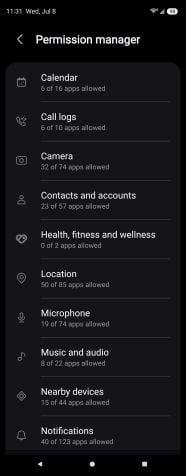
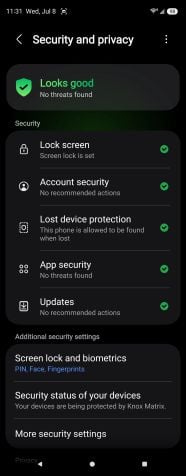
Android tucks your privacy controls into a couple of menus. The Permission manager shows exactly which apps can access your camera, location, and microphone, and the Security and privacy page gives you a quick health check.
Image: Scott Houghton | WhistleOut
The dashboard used to show only the last 24 hours, but newer versions of Android let you flip to a full 7-day history from a dropdown at the top, so you can see the full picture.
While you're in there, remember the indicator dot. Any time an app uses your camera or microphone, Android puts a green dot in the top corner of your screen. If you see it when you're not actively using the camera or mic, tap it to see which app is responsible.
5 permission settings worth changing
While you're working through your permission audit, you'll run into a handful of settings that go beyond simple allow-or-deny choices. These five give you more control over how and when apps get access. None of them takes more than a tap or two.
- Ask every time: Forces untrusted apps to request sensitive access on each use instead of keeping a permanent pass.
- Approximate location: Hands apps your general area instead of your exact spot, which is plenty for weather and most other apps.
- Selected photos only: Newer Android versions let you share a handful of specific photos instead of your entire gallery. Use it for anything that isn't a dedicated photo app.
- Auto-remove unused permissions: Strips access from apps you haven't opened in months. It's on by default, so leave it.
- Accessibility and device admin access: Legitimate apps rarely need either one. Revoke accessibility access from anything you don't recognize, and treat any device admin entry that isn't Find Hub or a work profile as a red flag.
For everyday permissions like location, camera, and microphone, set "Allow only while using the app" for almost everything. The app works when it's open and goes blind when it's not.
Finish the audit with a Google Play Protect scan under Settings > Security & privacy > App security. It won't catch everything, but it flags known bad actors, and it's free.
When to upgrade your phone
Updating privacy permissions is only half the battle. If your phone is too old to get security updates, you might want to consider a new phone. These newer models will continue to receive security updates. Here are some of our favorite Android phones right now:
Galaxy A26 5G
- 6.7 inch display
- Rear Cameras: 50MP, 8MP, 2MP
- Front Camera: 13MP
Galaxy A27 5G 128GB
- 6.7 inch display
- Rear Cameras: 50MP, 5MP, 2MP
- Front Camera: 12MP
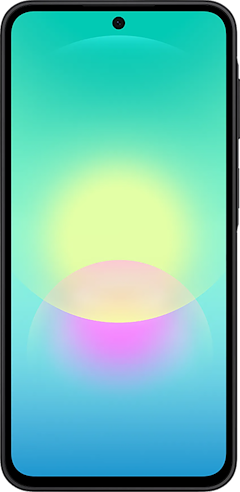
Galaxy A37 5G 128GB
- 6.7 inch display
- Rear Cameras: 50MP, 8MP, 5MP
- Front Camera: 12MP
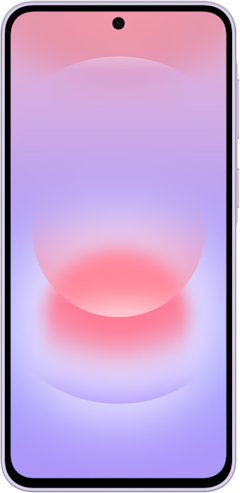
Galaxy A57 5G 128GB
- 6.7 inch display
- Rear Cameras: 50MP, 12MP, 5MP
- Front Camera: 12MP
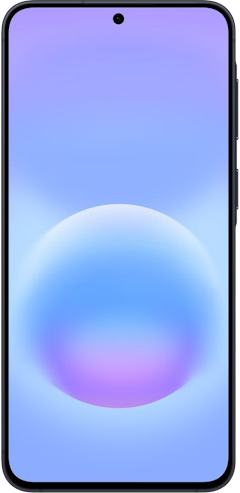
Pixel 10a 128GB
- 6.3 inch display
- Rear Cameras: 48MP, 13MP
- Front Camera: 13MP
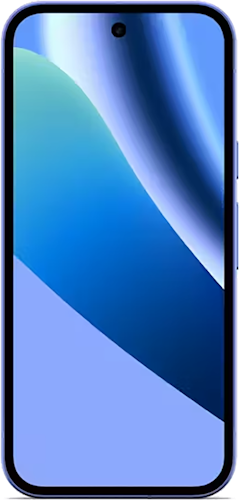
Pixel 10 128GB
- 6.3 inch display
- Rear Cameras: 48MP, 10.8MP, 13MP
- Front Camera: 10.5MP
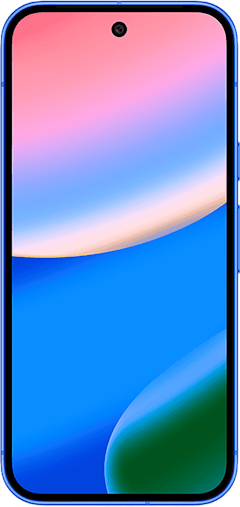
Pixel 11 256GB
- 6.3 inch display
- Rear Cameras: 48MP, 13MP, 10.8MP
- Front Camera: 10.5MP
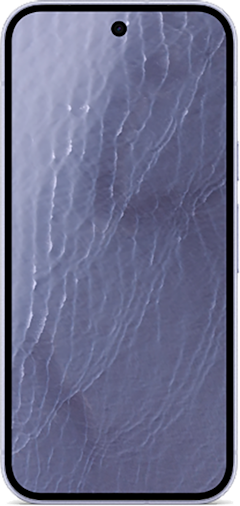
Galaxy S26 5G 256GB
- 6.3 inch display
- Rear Cameras: 50MP, 10MP, 12MP
- Front Camera: 12MP
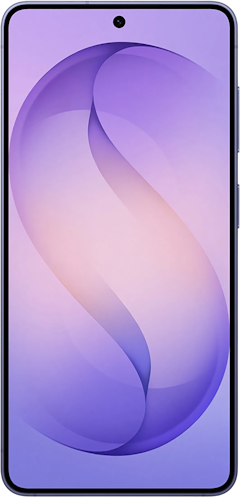
Pixel 11 512GB
- 6.3 inch display
- Rear Cameras: 48MP, 13MP, 10.8MP
- Front Camera: 10.5MP
Pixel 11 Pro 256GB
- 6.3 inch display
- Rear Cameras: 50MP, 48MP, 48MP
- Front Camera: 42MP
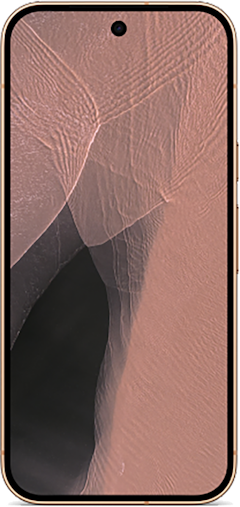

These phones go on sale often, so be sure to check our Google Pixel and Samsung deals pages, which we update weekly with the best deals on these phones.
Android app permission: FAQ
What's the difference between Permission Manager and Privacy Dashboard?
Permission Manager shows which apps are allowed to use each permission, while Privacy Dashboard shows which apps actually used the permissions and when. Use the dashboard to spot suspicious behavior, then jump to Permission Manager to revoke access.
Should any app have location access all the time?
Almost no app needs location access all the time. "Allow all the time" only makes sense for things that work in the background by design, like a family-tracking app or Find Hub. Everything else, including maps and weather, works fine with "Allow only while using the app."
What does the green dot on my Android screen mean?
The green dot in the top corner of your screen means an app is currently using your camera or microphone. It's a live indicator, so if it appears when you're not on a call or taking a photo, swipe down and tap it to see exactly which app is listening or watching.
Scott Houghton
Jr. Staff Writer

Thousands of cell phone plans unpacked. All the facts. No surprises.





.png?w=280&h=280&usm=20&usmrad=0.8&fit=crop "The Best Cheap Phone Plans for 2026: We Tested Them All to Help You Save")