
Navigation is the interaction you repeat more than almost anything else on a smartphone. Back, Home, Recents—or the gesture equivalents—happen hundreds of times a day. Samsung ships every Galaxy with the same navigation bar: same icon designs, same layout, same pill-shaped gesture handle sitting at the bottom of the screen. You can swap between button and gesture navigation in the settings menu. That's where the options end.
NavStar puts you in control of what your navigation bar looks like.
It's part of Samsung's Good Lock suite, and it covers both navigation modes—button and gesture—with separate customization options for each. The changes sound cosmetic until you realize how much visual real estate and daily friction the navigation area actually controls.
What is NavStar?
NavStar is a free Good Lock module that lets you replace the default Back, Home, and Recents icons with custom stickers or designs, add extra function buttons to the navigation bar, change the bar's background color, customize gesture handle thickness and color, and hide the gesture handle background entirely for a fully immersive display.
How NavStar customizes Samsung's button navigation bar
If you use button navigation—the traditional three-button bar at the bottom—NavStar opens up the icon layer completely. The Back, Home, and Recents buttons can be replaced with any sticker or custom icon design from NavStar's library, or with your own images. The background color of the navigation bar is separately adjustable, which matters for anyone who's spent time coordinating a theme across their phone and then hit the navigation bar as a fixed element that won't match anything.
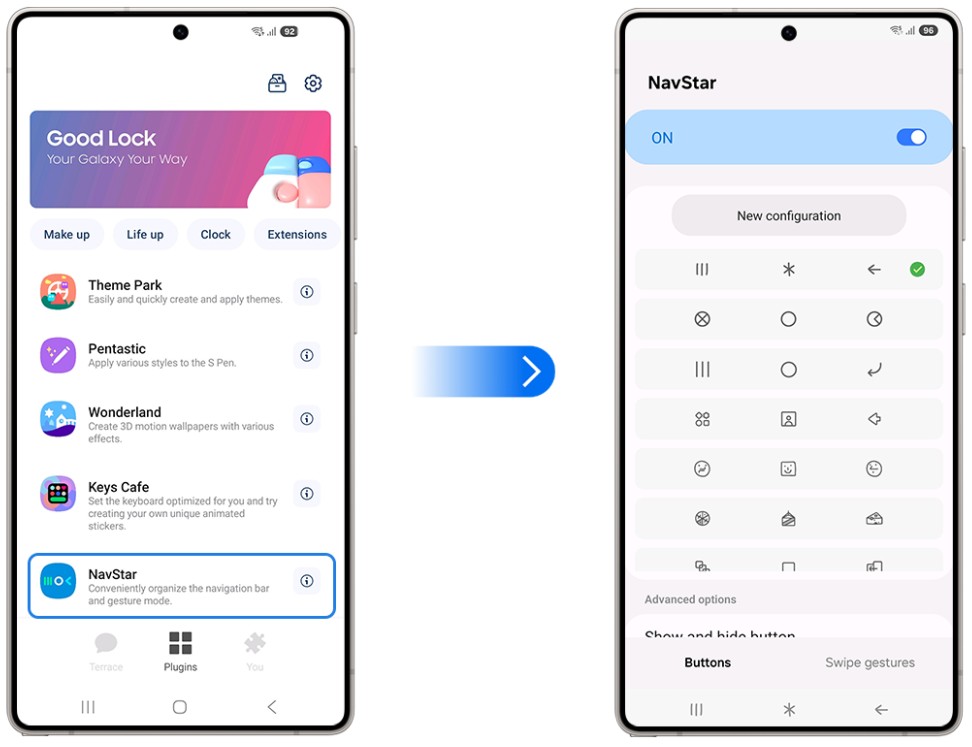
Image: Samsung
The extra function buttons are the less obvious but genuinely useful addition. NavStar lets you add buttons beyond the standard three, like a notification shade toggle, a screen lock shortcut, or other system functions, directly in the navigation bar. If there's an action you find yourself reaching for constantly, having it one tap away in the navigation bar removes a step every single time.
You can also hide the navigation bar entirely when not in use, which reclaims the screen space and gives the display a full-bleed look that Samsung's launcher, One UI, doesn't offer by default.
NavStar gesture navigation: How to resize, recolor, or hide the gesture handle
Gesture navigation users get a different set of controls, focused on the gesture handle—the small pill at the bottom of the screen that indicates where to swipe. NavStar lets you adjust the handle's length, thickness, and color. These subtle changes have a surprisingly significant effect on how the phone looks while you stream videos, where that small pill is the only UI element visible on an otherwise full-screen display.
The most striking option is hiding the handle background entirely. With the background removed, the gesture area is completely invisible—the bottom of the screen is clean edge-to-edge, with no visual indicator that a navigation zone exists, but the swipe gesture still works exactly the same.
The tradeoff is that new users or anyone handing the phone to someone unfamiliar with gesture navigation may not know where to swipe. But, for personal daily use, it's a clean solution with no real downside.
The NavStar feature that makes the Galaxy Z Fold even better
Galaxy Z Fold users get one specific NavStar feature that addresses a real workflow gap. NavStar adds a "Show Recently Activated Apps" shortcut within the gesture navigation zone, which allows fast-switching between recent apps without triggering the full app switcher. On a device where multitasking is a primary use case, having a dedicated fast-switch shortcut in the navigation gesture area is a meaningful productivity improvement over the standard long-swipe-to-recents behavior.
Thinking of buying a foldable phone?
MultiStar makes a strong case for going foldable. But foldables come with quirks worth knowing before you buy. Our foldable phone guide covers everything you need to know.
If you're already sold, here are the most popular foldable phones right now:
Pixel 11 Pro Fold 5G 256GB
- 8 inch display
- Rear Cameras: 48MP, 10.5MP, 10.8MP
- Front Cameras: 10MP, 10MP
Galaxy Z Fold8 5G 256GB
- 7.6 inch display
- Rear Cameras: 50MP, 50MP
- Front Cameras: 10MP, 10MP
Galaxy Z Fold7 5G 256GB
- 8 inch display
- Rear Cameras: 200MP, 10MP, 12MP
- Front Camera: 10MP
Pixel 11 Pro Fold 5G 512GB
- 8 inch display
- Rear Cameras: 48MP, 10.5MP, 10.8MP
- Front Cameras: 10MP, 10MP
Galaxy Z Fold8 5G 512GB
- 7.6 inch display
- Rear Cameras: 50MP, 50MP
- Front Cameras: 10MP, 10MP

How to get NavStar
- Cost: Free
- Available on: Samsung Galaxy devices via Galaxy Store or Google Play
- Requires: Good Lock main app installed first
- One UI compatibility: One UI 4.0 and above
NavStar only works on Galaxy phones. Here are the best phones to run it on.
NavStar only works on Samsung Galaxy devices, so if you're not already in the ecosystem, here are the most popular Galaxy phones worth considering:
Moto G 5G (2026) 128GB
- 6.7 inch display
- Rear Cameras: 50MP, 2MP
- Front Camera: 32MP
Galaxy A26 5G
- 6.7 inch display
- Rear Cameras: 50MP, 8MP, 2MP
- Front Camera: 13MP
Galaxy A27 5G 128GB
- 6.7 inch display
- Rear Cameras: 50MP, 5MP, 2MP
- Front Camera: 12MP
Galaxy A37 5G 128GB
- 6.7 inch display
- Rear Cameras: 50MP, 8MP, 5MP
- Front Camera: 12MP
Edge (2026) 128GB
- 6.3 inch display
- Rear Cameras: 50MP, 50MP, 10MP
- Front Camera: 50MP
NavStar: FAQ
Can NavStar change the navigation bar on both button and gesture navigation?
Yes, NavStar has separate settings for both modes—button navigation covers icon replacement, extra buttons, and bar background, while gesture navigation covers handle size, color, and background visibility.
If I hide the gesture handle background, can I still navigate normally?
Yes, hiding the gesture handle background leaves the swipe gesture fully functional. The navigation zone doesn't move; only its visual indicator is removed.
Can NavStar add a notification shortcut to the navigation bar?
Yes, NavStar can add extra function buttons—including a notification shade toggle—directly to the navigation bar in button navigation mode, accessible with a single tap from anywhere in the system.
Does NavStar work alongside One Hand Operation+?
Yes, NavStar and One Hand Operation+ can run simultaneously without conflict. NavStar handles the navigation bar and gesture handle appearance, while One Hand Operation+ adds an independent edge gesture system.
Does hiding the navigation bar affect how apps are displayed?
When NavStar hides the navigation bar, apps use the reclaimed space and the display extends to the bottom edge—most apps handle this cleanly, though older apps with fixed layouts may not fill the space as intended.
Scott Houghton
Jr. Staff Writer

Thousands of cell phone plans unpacked. All the facts. No surprises.
Related Articles


Related Topics
AndroidPopular Topics
Featured App Reviews iOS News Coverage Device Reviews Device Explainers Carrier Explainers App Roundups T-Mobile


Free iPhone 18 Pro, up to $1,200 off, with a trade-in in any condition or a line switch on Experience Beyond


.png?w=280&h=280&usm=20&usmrad=0.8&fit=crop "Best Cell Phone Deals for October 2026: Get the New iPhone 18 Pro for Free")




