
Count how many times you pull down the Quick Settings panel in a day. Wi-Fi, Bluetooth, brightness, Do Not Disturb, flashlight, hotspot—these are controls you reach for constantly, and Samsung's default panel gives you a 4x3 grid of large buttons that requires scrolling to access anything past the first page.
If you have more than twelve toggles you use with any regularity, Samsung's default layout makes you scroll every time. QuickStar fixes that. It's a module in Samsung's Good Lock suite and it handles the two surfaces you interact with most at the top of the phone: the status bar and the Quick Settings panel.
What is QuickStar?
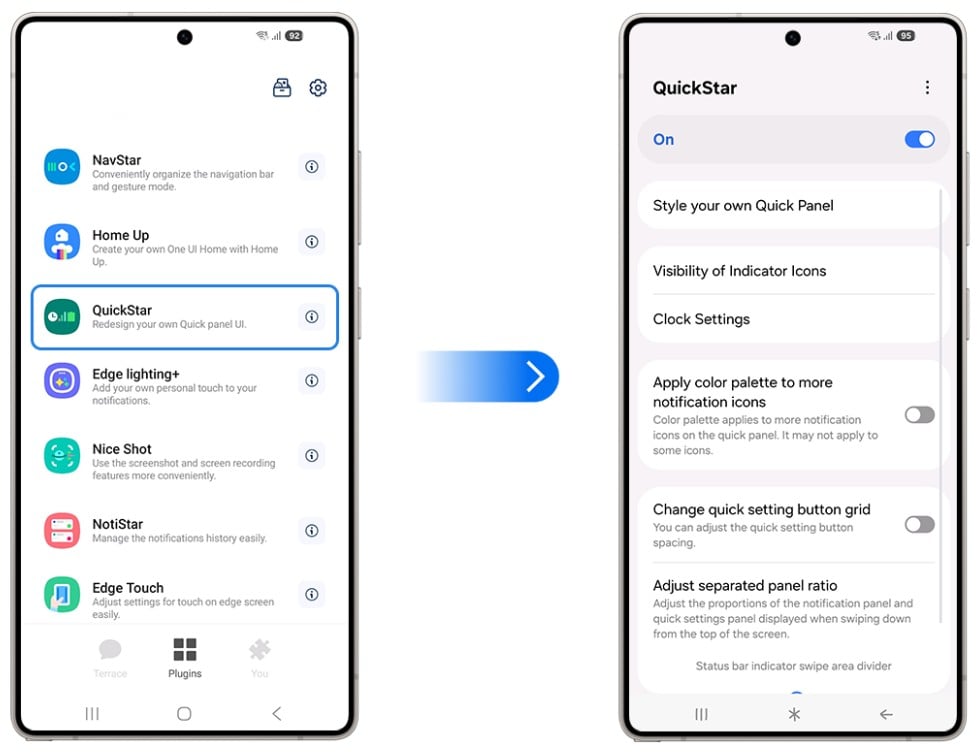
Image: Samsung
QuickStar is a free Good Lock module that lets you hide specific icons from the status bar, change the Quick Settings panel's visual theme and button grid density, and split the panel into two independent sides, each accessible via separate swipe gestures from the left and right edges of the status bar.
Status bar cleanup: removing what you don't need to see
The status bar at the top of the screen accumulates icons over time—clock, battery, signal strength, Wi-Fi, Bluetooth indicator, NFC, notification dots, and more. Most of this is informative. Some of it, for a given user, is redundant clutter.
QuickStar lets you hide any individual icon you don't need. If you always know whether Bluetooth is on because you have earbuds in, remove the icon. If you've switched to a battery percentage number and don't need the graphic, hide the graphic. The status bar is narrow enough that removing two or three icons creates a meaningfully cleaner visual without losing information you actually use.
Quick Settings panel
The button grid density option is the most immediately practical change QuickStar makes. Increasing the number of buttons per row means more toggles visible on the first page of Quick Settings without scrolling—going from 4 buttons per row to 5 or 6 means potentially 50% more controls accessible at a glance.
The panel theming covers background color, button shapes, button colors, and the transparency of the panel. On devices that are heavily customized with Theme Park or a Galaxy Store theme, matching the Quick Settings panel to the overall aesthetic requires QuickStar's styling options—the built-in panel theming in One UI is limited.
The split-panel feature: Two swipe zones, two sets of controls
The split-panel mode divides the status bar into two independent swipe targets: Swiping down from the left side opens one Quick Settings panel, and swiping from the right opens a separate one.
Each panel holds a different set of controls. For a practical setup, put connectivity controls (Wi-Fi, Bluetooth, hotspot, NFC, airplane mode) on one side and media and display controls (brightness, Do Not Disturb, screen mode, volume) on the other. You know exactly which swipe to use without looking at what's on the panel.
It takes a few days to build the muscle memory, but once you have it, it's faster than scrolling through a single unified panel to find what you're looking for every time.
How to get QuickStar
- Cost: Free
- Available on: Samsung Galaxy devices via Galaxy Store and Google Play
- Requires: Good Lock main app installed first
- One UI compatibility: One UI 4.0 and above
QuickStar only works on Galaxy phones. Here are the best phones to run it on.
QuickStar only works on Samsung Galaxy devices, so if you're not already in the ecosystem, here are the most popular Galaxy phones worth considering:
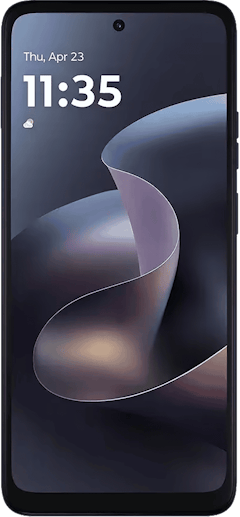
Moto G 5G (2026) 128GB
- 6.7 inch display
- Rear Cameras: 50MP, 2MP
- Front Camera: 32MP
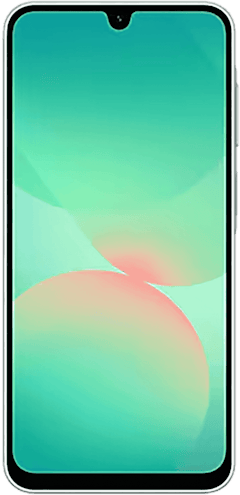
Galaxy A26 5G
- 6.7 inch display
- Rear Cameras: 50MP, 8MP, 2MP
- Front Camera: 13MP
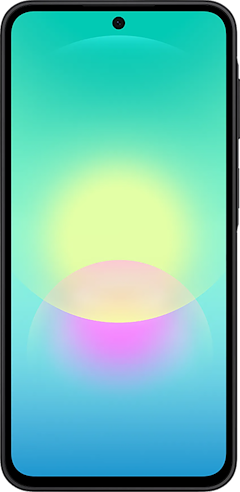
Galaxy A27 5G 128GB
- 6.7 inch display
- Rear Cameras: 50MP, 5MP, 2MP
- Front Camera: 12MP
Galaxy A37 5G 128GB
- 6.7 inch display
- Rear Cameras: 50MP, 8MP, 5MP
- Front Camera: 12MP
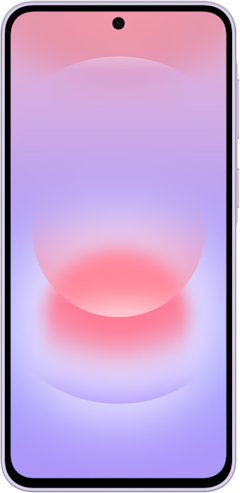
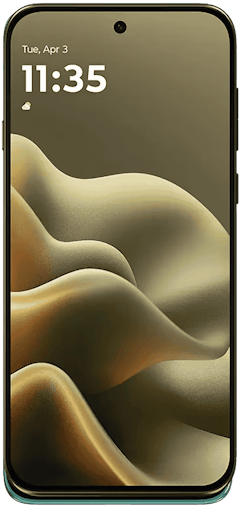
Edge (2026) 128GB
- 6.3 inch display
- Rear Cameras: 50MP, 50MP, 10MP
- Front Camera: 50MP

QuickStar: FAQ
Can QuickStar add new buttons to Quick Settings that aren't available by default?
No, QuickStar controls the layout, density, and appearance of Quick Settings. The available buttons themselves are determined by One UI, and QuickStar doesn't add entirely new toggle types beyond what Samsung's system supports.
Does the split-panel mode work in landscape orientation?
While it does exist in landscape mode, the split-panel feature is primarily designed for portrait use. In landscape, the status bar orientation changes and the split behavior may not function as expected on all devices.
Can I use QuickStar alongside Theme Park for a fully coordinated look?
Yes, QuickStar and Theme Park complement each other and you can use both simultaneously—Theme Park themes the Quick Settings panel as part of its overall system theme, while QuickStar adds layout and density controls on top.
Will hiding status bar icons affect functionality?
Hiding an icon in QuickStar removes it from the visual display only—the underlying feature (Bluetooth, NFC, etc.) continues to function normally regardless of whether its icon is visible in the status bar.
Is there a limit to how dense the Quick Settings grid can be?
The Quick Settings grid maxes out at eight buttons per row, which is the densest layout QuickStar allows. But something to keep in mind is that pushing it that far shrinks the toggles considerably, so users who want larger, easier-to-tap targets may prefer to dial the density back a step or two.
Scott Houghton
Jr. Staff Writer

Thousands of cell phone plans unpacked. All the facts. No surprises.
Related Articles


Related Topics
AndroidPopular Topics
Featured App Reviews iOS News Coverage Device Reviews Device Explainers Carrier Explainers App Roundups T-Mobile


Free iPhone 18 Pro, up to $1,200 off, with a trade-in in any condition or a line switch on Experience Beyond


.png?w=280&h=280&usm=20&usmrad=0.8&fit=crop "Best Cell Phone Deals for October 2026: Get the New iPhone 18 Pro for Free")




