
Samsung's default One UI launcher is fine. It works, it's stable, and most people never think about it. But if you've ever tried to set a custom icon grid, rearrange the app drawer in a way that isn't just alphabetical, or change how folders expand when you tap them, you've hit the wall. One UI Home gives you a handful of options and stops there.
Home Up tears that wall down.
It's part of Samsung's Good Lock suite—a collection of official Samsung modules that unlock customization options beyond the main settings menu. Home Up is the one specifically built for your phone's home screen and launcher, and it's the module I'd recommend to anyone who's ever felt like One UI was treating them like a toddler who can't handle choices.
What is Home Up?
Home Up is a free Samsung Good Lock module that replaces the limited customization options in One UI Home with a full DIY editing environment. It lets you change grid sizes, redesign the app drawer, restyle folders, customize the app switcher, and add gesture animations that play when you swipe between home screens. It also gives you control over Edge Panels and the Share Via menu.
Installing it takes about 90 seconds. Open the Galaxy Store or Google Play, search Good Lock, install the main app, then find Home Up inside it. The module downloads separately and appears as its own section within Good Lock.
DIY Home: How to set up a custom grid size on your Samsung home screen
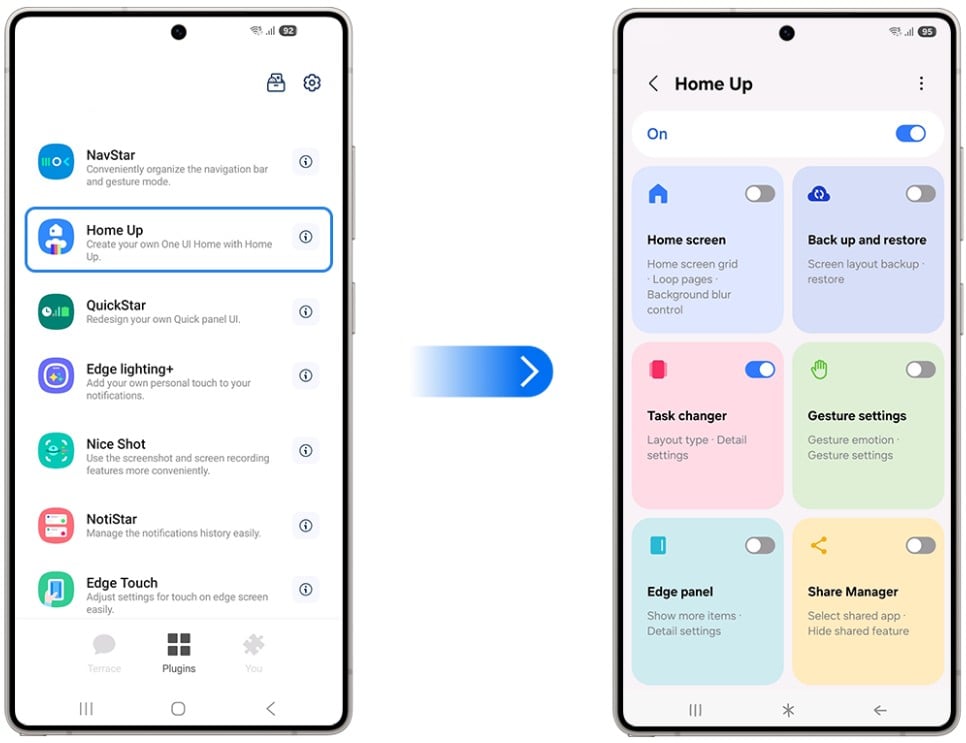
Image: WhistleOut
The centerpiece of Home Up is DIY Home, which lets you redesign the home screen layout from scratch. Custom grid sizes mean you're not stuck choosing between the four or five presets Samsung offers—you can set the exact number of rows and columns you want. Icon arrangements that One UI's standard launcher physically won't allow become possible here.
It's worth being specific about why this matters. On a large-screen device like the Galaxy S26 Ultra or a Z Fold7, the default grid options waste a significant amount of screen real estate. A denser, custom grid means more apps visible without scrolling, which sounds minor until you've actually set it up and realized you've been scrolling unnecessarily for years.
Home Up goes deeper than the home screen
Gesture animations let you set custom transition effects when swiping between home screen pages or opening the app drawer. These animations make the phone feel faster and more responsive, even if nothing in the hardware has changed.
App drawer layout options go beyond the standard grid or list toggle Samsung provides. You can control category grouping, header styles, and how apps sort when you add new ones. Folder customization is similarly thorough—the pop-up style (how a folder expands when you tap it), the grid inside the folder, and the label position are all adjustable.
Recent apps window customization is one of the quieter wins. Samsung's app switcher is functional but dated-looking, and Home Up lets you change its layout and behavior in ways that make multitasking feel cleaner.
Two more things worth calling out: Edge Panel editing gives you real control over the pull-out sidebar panels, including which ones appear and in what order. And the Share Via menu editor is something I didn't know I needed until I used it. Every time you share something on Android, you get that long list of apps, and Home Up lets you reorder it. You can remove the ones you never use, and pin the ones you do. It's a small change with a surprisingly big daily payoff.
Home Up also includes a layout restore feature, which means if you spend an hour setting up a configuration and something breaks—or you just want to try a completely different layout without losing your current one—you can save and restore previous states. It's a safety net that makes experimenting with aggressive customization much less risky.
Who actually needs Home Up
If Samsung's default home screen options feel sufficient to you, you don't need this. Plenty of people customize nothing and stay perfectly happy.
But if you've ever looked at your home screen and thought, "I wish I could just move that there" or "why can't I make this grid smaller," Home Up is the direct answer to that frustration. It's also genuinely useful if you're coming from a heavily customized Android background or lock screen and find One UI's defaults restrictive after years of launchers like Nova.
Galaxy Z Fold owners in particular should have this installed. The larger inner screen makes default grid options feel genuinely wasteful, and Home Up turns that extra real estate into something that actually serves you.
For more information about what to expect with a foldable phone, take a look at our guide to foldables to learn about the biggest quirks of foldable devices.
How to get Home Up
- Cost: Free
- Available on: Samsung Galaxy devices
- Requires: Good Lock main app installed first
- One UI compatibility: One UI 4.0 and above recommended
Home Up only works on Galaxy phones. Here are the best phones to run it on.
Home Up only works on Samsung Galaxy devices, so if you're not already in the ecosystem, here are the most popular Galaxy phones worth considering:
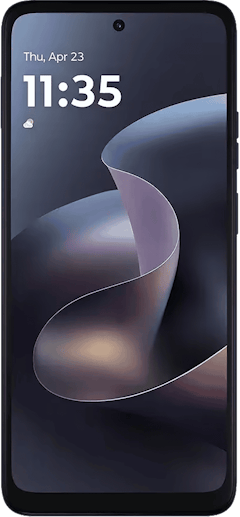
Moto G 5G (2026) 128GB
- 6.7 inch display
- Rear Cameras: 50MP, 2MP
- Front Camera: 32MP
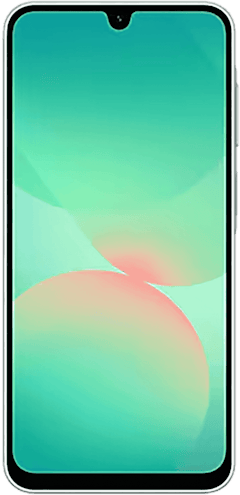
Galaxy A26 5G
- 6.7 inch display
- Rear Cameras: 50MP, 8MP, 2MP
- Front Camera: 13MP
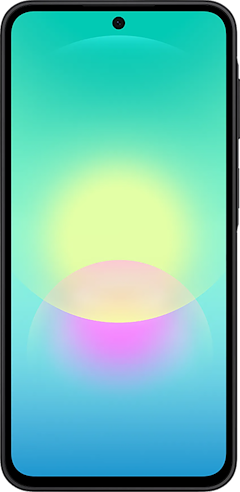
Galaxy A27 5G 128GB
- 6.7 inch display
- Rear Cameras: 50MP, 5MP, 2MP
- Front Camera: 12MP
Galaxy A37 5G 128GB
- 6.7 inch display
- Rear Cameras: 50MP, 8MP, 5MP
- Front Camera: 12MP
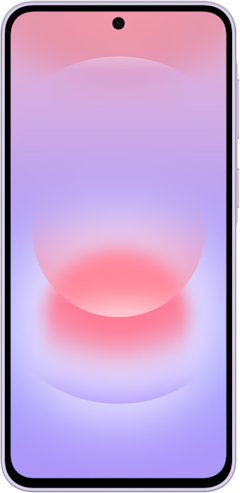
Edge (2026) 128GB
- 6.3 inch display
- Rear Cameras: 50MP, 50MP, 10MP
- Front Camera: 50MP

Home Up: FAQ
Is Home Up safe to use on my Samsung phone?
Yes, Home Up is a safe app developed by Samsung and distributed through the Galaxy Store and Google Play. It's not a third-party launcher or root modification, so there's no risk to your warranty or device stability.
Does Home Up replace Samsung's One UI Home launcher?
Home Up doesn't replace One UI Home launcher—it works alongside One UI Home, adding options and unlocking features that the default settings menu doesn't expose. You don't need to switch launchers.
Will Home Up slow down my phone?
Home Up will not slow down your phone. It is lightweight and built by Samsung specifically for One UI, so the performance impact is minimal. Gesture animations add no meaningful overhead on any recent Galaxy device.
Does Home Up work on Galaxy Z Fold and Z Flip devices?
Yes, and it's particularly useful on the Z Fold because the larger inner display makes the default grid options feel especially limited. DIY Home lets you set a grid that actually uses the screen properly.
Scott Houghton
Jr. Staff Writer

Thousands of cell phone plans unpacked. All the facts. No surprises.
Related Articles


Related Topics
AndroidPopular Topics
Featured App Reviews iOS News Coverage Device Reviews Device Explainers Carrier Explainers App Roundups T-Mobile


Free iPhone 18 Pro, up to $1,200 off, with a trade-in in any condition or a line switch on Experience Beyond


.png?w=280&h=280&usm=20&usmrad=0.8&fit=crop "Best Cell Phone Deals for October 2026: Get the New iPhone 18 Pro for Free")




