

Your iPhone might be quietly working against you the moment it connects to a foreign cell network while you're traveling. That's not a scare tactic. It's just how automatic downloads work.
Your phone is designed to download new apps and app updates in the background so they're always secure and working correctly. The problem is that your device may be set to complete these downloads when you're connected to an international network.
While automatic app downloads and updates can save you time at home, they can quickly burn through your data allowance and cost you international roaming fees when traveling abroad.
We can help you turn off your iPhone's automatic downloads before you travel, making sure you have international data when you need it and don't overspend on your trip.
What automatic downloads actually do
When automatic downloads are enabled, your iPhone installs app content on its own in the background.
Automatic updates typically happen when you plug your iPhone in to charge while it has an active internet connection. Depending on your settings, your iPhone will either use Wi-Fi or mobile data to complete these downloads.
iPhone automatic downloads can include:
- Apps purchased on your other Apple devices
- New app updates
- In-app content (such as pre-loaded mobile game content)
The good news is that your iPhone restricts automatic downloads to Wi-Fi by default. That said, if you've ever adjusted your App Store settings, you may have accidentally enabled it. We recommend checking before traveling, no matter what.
Why manual control matters when you're roaming
The main issue with automatic downloads is that app updates aren't always small. A few apps updating simultaneously can chew through a meaningful chunk of your international phone plan. Plus, because it all happens in the background, you may not notice until you get an overage alert or when you check your bill after the trip.
Disabling automatic downloads puts you back in charge of when and where updates happen. That gives you the option to batch your updates over a Wi-Fi network rather than letting your phone scatter them across whatever connection happens to be available.
Remember that when traveling abroad, the Wi-Fi network at your hotel, the airport, or a coffee shop will almost always be cheaper—and faster—than the local wireless network. You don't want to waste your expensive roaming data on something minor like app updates.
How to turn off automatic downloads on iPhone
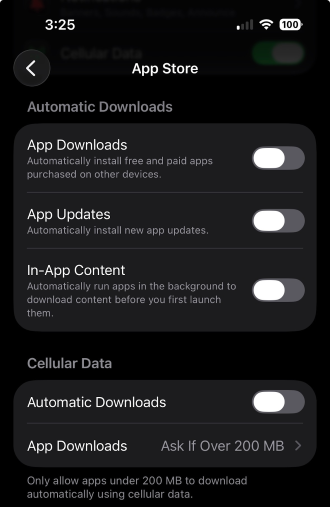
Image: Max McCaskill
Turning off automatic downloads is easy, and we consider it one of the most important iPhone travel settings to adjust just before your flight.
To disable automatic downloads on your iPhone
- Open Settings
- Scroll down to Apps
- Tap App Store
- Scroll down to Automatic Downloads
- Toggle off App Downloads, App Updates, and In-App Content
- Scroll down to Cellular Data
- Toggle off Automatic Downloads
The most important feature to disable is the Automatic Downloads setting under the Cellular Data section. With that turned off, you can technically leave automatic updates turned on during your trip, as the setting should now be limited to Wi-Fi. That said, if you're not confident in your ability to adjust your iPhone's settings, the safest option is to turn them all off.
Max McCaskill
Sr. Staff Writer

Thousands of cell phone plans unpacked. All the facts. No surprises.

Related Articles


Related Topics
iOSPopular Topics
Featured App Reviews iOS News Coverage Device Reviews Device Explainers Carrier Explainers App Roundups T-Mobile


Free iPhone 18 Pro, up to $1,200 off, with a trade-in in any condition or a line switch on Experience Beyond


.png?w=280&h=280&usm=20&usmrad=0.8&fit=crop "Best Cell Phone Deals for October 2026: Get the New iPhone 18 Pro for Free")




