
APN (Access Point Name) settings determine how your phone communicates with your provider's network to access the internet, send messages, and use other data-dependent services. In tech terms, APN settings are your phone’s network configuration parameters that allow your mobile device to connect to your carrier's cellular data network.
While most modern smartphones automatically configure APN info when you insert a SIM card or activate an eSIM, you may occasionally need to manually enter or modify it if you experience data connectivity issues or have recently switched carriers and brought your own phone to Google Fi. You need correct APN settings to access the internet via data on your phone.
Read on for device-specific instructions to view or change your phone’s Google Fi Wireless APN settings.
How to view and edit Google Fi's APN settings on Android
Note: These instructions are based on a Pixel 6 running Android 15 and above. Steps may vary for your particular device or if you’re using an older version of the Android operating system.
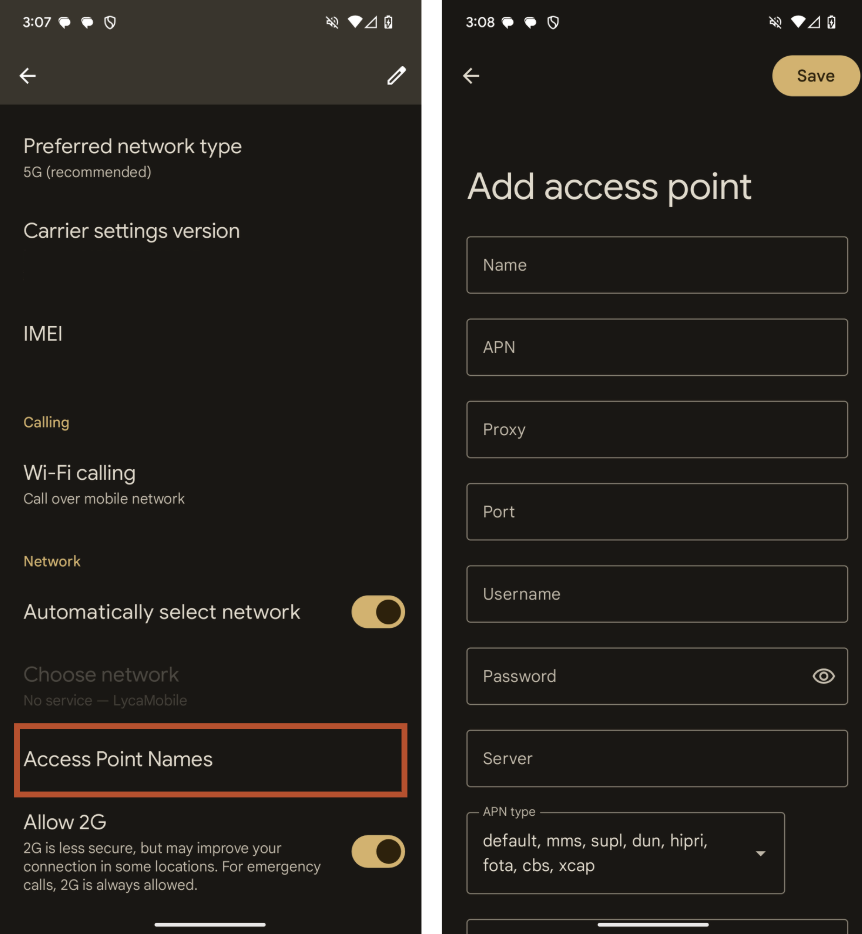
Follow these steps to modify your APN settings on an Android device:
- Open Settings on your phone and tap Network and Internet or Connections.
- Select Mobile Networks or SIMs.
- For Androids that show SIMs as an option, tap and select your SIM two times. Otherwise, continue to the next step.
- Tap Access Point Names to view your APN settings.
- Edit your phone's APN configuration by entering Google Fi Wireless' APN settings:
- Restart your phone.
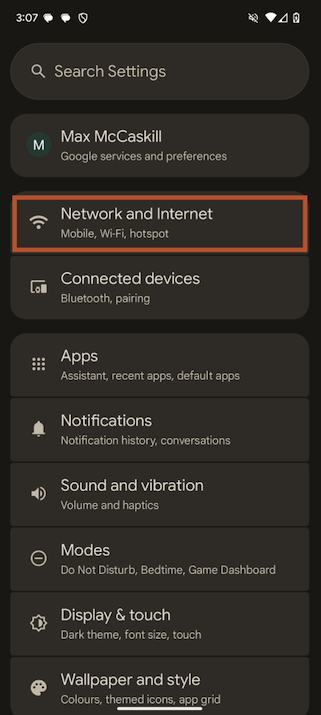
Image: Max McCaskill | WhistleOut
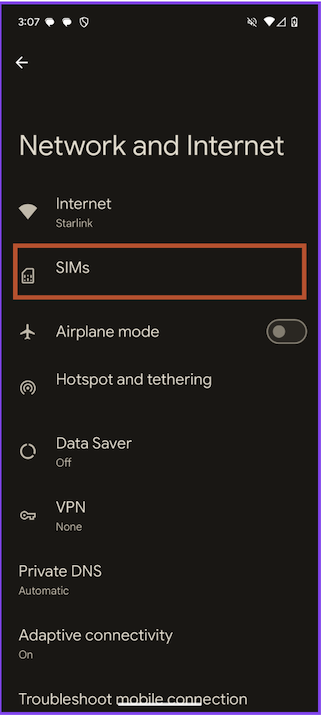
Image: Max McCaskill | WhistleOut
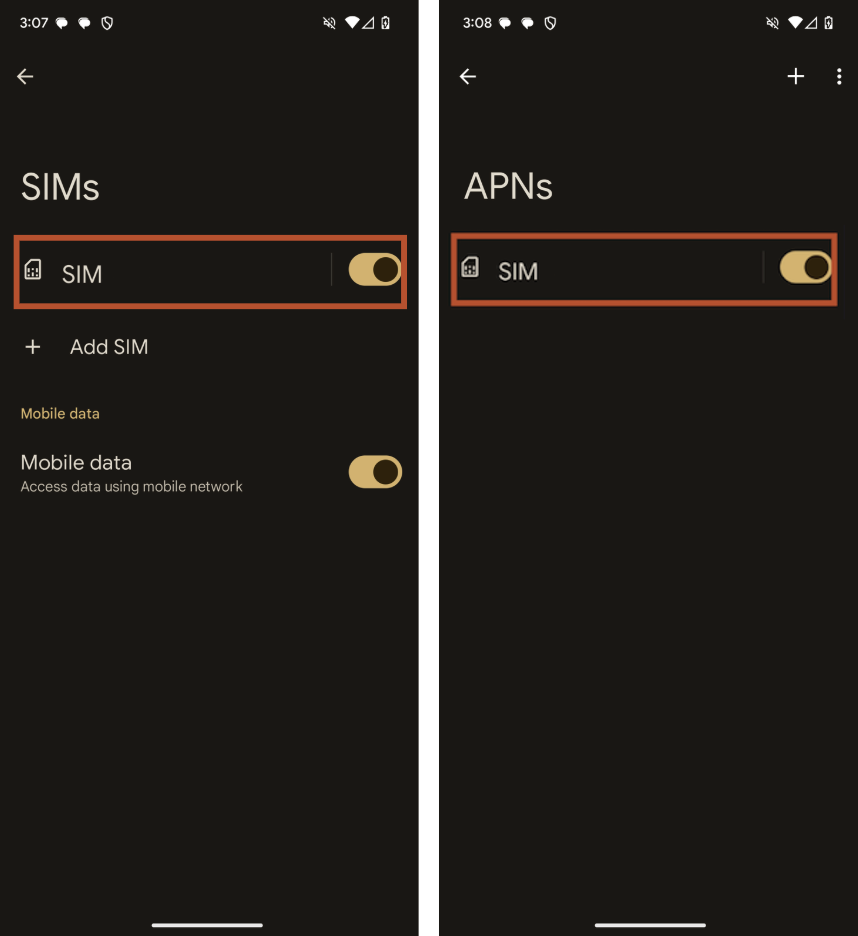
Images: Max McCaskill | WhistleOut
Images: Max McCaskill | WhistleOut
Google Fi Wireless APN settings
| APN name | Google Fi APN |
| APN | h2g2 |
| MMSC (MMS Center) | http://m.fi.goog/mms/wapenc |
| MCC (Mobile Country Code) | 310 |
| MNC (Mobile Network Code) | 260 |
| APN protocol | IPv4/IPv6 |
| APN roaming protocol | IPv4/IPv6 |
| Proxy | Leave blank |
| Port | Leave blank |
| Username | Leave blank |
| Password | Leave blank |
| Server | Leave blank |
| MMS proxy | Leave blank |
| MMS Port | Leave blank |
| Authentication type | Leave blank |
| APN type | Leave blank |
| Bearer | Leave blank |
| MVNO type | Leave blank |
If your SIM setup is successful, you’ll see Google Fi or your network carrier’s name at the top of your screen.
Get better home internet near you
APNs connect your phone to mobile internet—but how's your home internet doing? If you’re tweaking phone settings to get online, it might be time to check your home connection too. Enter your zip code to compare the best internet plans in your area.
How to view and edit Google Fi's APN settings on iPhone
Note: These instructions are based on the iPhone 15 running iOS version 18 and above. Steps may vary for your particular device or iOS version.
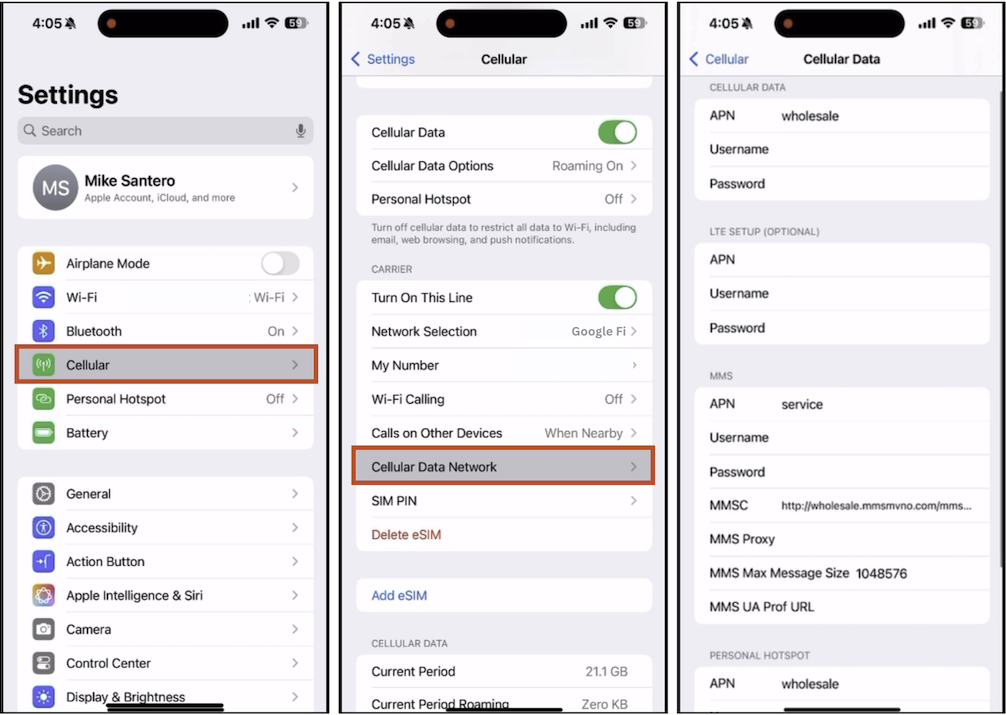
Follow these steps to view and modify your APN settings on an iPhone:
- In your phone’s Settings, tap Cellular or Mobile Service.
- Tap Cellular Data, Cellular Data Network, or Mobile Data Network.
- Enter Google Fi Wireless' APN settings:
- Restart your phone.
Images: Michael Santero | WhistleOut
Google Fi Wireless APN settings
| APN name | Google Fi APN |
| APN | h2g2 |
| MMSC (MMS Center) | http://m.fi.goog/mms/wapenc |
| MCC (Mobile Country Code) | 310 |
| MNC (Mobile Network Code) | 260 |
| APN protocol | IPv4/IPv6 |
| APN roaming protocol | IPv4/IPv6 |
| Proxy | Leave blank |
| Port | Leave blank |
| Username | Leave blank |
| Password | Leave blank |
| Server | Leave blank |
| MMS proxy | Leave blank |
| MMS Port | Leave blank |
| Authentication type | Leave blank |
| APN type | Leave blank |
| Bearer | Leave blank |
| MVNO type | Leave blank |
If your SIM setup is successful, you’ll see Google Fi or the name of your mobile carrier at the top of your device’s home screen.
When should you update your APN settings?
You should update your APN settings if you can’t access the internet on your phone or recently switched carriers. But first, go through our data connection troubleshooting guide to make sure your mobile data is set up correctly before touching your APN settings.
Many carriers, including Google Fi, require specific APN configurations for their network to function properly, otherwise you may have issues with mobile data access and very slow speeds. While most smartphones automatically configure APNs, you'll need to enter them manually if your data service isn't working despite having an active plan.
Always use the exact APN details for your carrier and restart your device after making changes. Incorrect APN edits can disrupt your service, so only modify these settings when you know your phone is unlocked and is Google Fi compatible.
Jessica Santero
Staff Writer

Thousands of cell phone plans unpacked. All the facts. No surprises.





.png?w=280&h=280&usm=20&usmrad=0.8&fit=crop "The Best Cheap Phone Plans for 2026: We Tested Them All to Help You Save")


