

Perhaps you’ve come to Google Fi for its low-cost family plans, affordable international coverage, or access to T-Mobile's expansive 5G network. Whatever the reason, Google Fi is sure to have a plan that meets your needs and budget. Whether you have an iOS or Android device, you can switch to Google Fi and bring your own phone.
To switch to Google Fi with your current phone, you will need to check that your phone is compatible and unlocked, pick a Google Fi plan, and activate your service. Let’s walk you through each step.
Check your phone’s compatibility
Before making the switch to Google Fi, you’ll first want to ensure that your phone works on Fi’s network if you’re planning on bringing it with you rather than getting a new one. Most iPhones and Androids are compatible with Google Fi, as the carrier runs on T-Mobile’s 4G and 5G networks.
Head to Google Fi to check your phone’s compatibility.
Apple users: Is your iPhone compatible?
Google Fi for iPhones is still in beta development, but don’t worry—you can still access nearly all of Fi’s features via the Google Fi app. The downside: you’ll need to regularly keep an eye out for software updates, so you don’t miss out on new features or find your calls and texts not coming through.
Need a new phone instead?
If your phone isn’t compatible with Google Fi, or you’re in the market for a new device, you can take advantage of deals on free and discounted Pixel phones when choosing a plan. Jump down below for more info on trading in your phone for a new one.
Make sure your phone is unlocked
As well as confirming your phone’s compatibility, you’ll also need to make sure it’s unlocked before you can bring it to Google Fi’s network. Most carriers lock the devices on their network to keep their customers from joining another carrier's network before an allotted time. Be sure to review your contract with your current cell phone carrier and resolve any pending balances on your account before joining Google Fi.
While all carriers have their own unlocking guidelines, you will likely need your:
- Account number and information, including the owner's name and PIN
- Social Security number
- Device IMEI number
Find your carrier below for help with specific unlocking requirements:
- AT&T unlock guide
- Verizon unlock guide
- Straight Talk unlock guide
- Boost unlock guide
- Metro by T-Mobile unlock guide
- Cricket unlock guide
Choose a Google Fi plan
Now that your phone is unlocked, it’s time to sign up for Google Fi and pick a new plan.
Google Fi keeps it simple with three straightforward options. The Unlimited Standard plan is a great option for the average data user interested in Fi’s international perks or for any family interested in adding multiple lines. The plan includes unlimited talk, text, and data, with 50GB of high-speed premium data and unlimited roaming in Canada and Mexico. The additional 25GB of hotspot data and free texts/affordable calls to over 200 destinations means you can stay connected while on the go, no matter where you are.
Google Fi Wireless Unlimited Standard for 1

| Carrier | Google Fi Wireless |
|---|---|
| Data | Unlimited Data |
| Type | No Contract |
| Current Deal | Get 50% off this plan for 12 months when you bring a Google Pixel phone and activate a new line on Unlimited Standard plan |
| Total Price |
$25 per month
|
| View Plan |

If you are looking for a cheap phone plan and have reliable access to Wi-Fi, it's hard to beat Google Fi’s Flexible plan, which starts at $20/month. With this plan, you get unlimited calls and texts within the U.S., Mexico, and Canada, as well as free texting in over 200 destinations. International coverage doesn’t end there; whether you are using data in your hometown or abroad (within Fi’s 200 destinations), you will only ever pay for the data you use ($10/GB). Lastly, while you can use a mobile hotspot, it will count toward your monthly data usage.
Google Fi Wireless Flexible + 1GB data
| Carrier | Google Fi Wireless |
|---|---|
| Data | 1GB Data |
| Type | No Contract |
| Total Price |
$30 per month
(base cost + data cost)
|
| View Plan |
For those looking for the best that Fi has to offer, look no further than Unlimited Premium. With a whopping 100GB of premium high-speed data, 50GB of premium hotspot data, and extras like YouTube Premium and Google One cloud storage, this plan packs a ton of value into a relatively affordable $65/month. Plus, globe-trotters will enjoy unlimited talk, text, and data in over 200 countries. Got friends and family abroad? You can call for free (or very nearly) to over 50 locations.
Google Fi Wireless Unlimited Premium for 1
| Carrier | Google Fi Wireless |
|---|---|
| Data | Unlimited Data |
| Type | No Contract |
| Current Deal | Get 50% off this plan for 12 months when you bring a Google Pixel phone and activate a new line on Unlimited Premium plan |
| Total Price |
$32.50 per month
|
| View Plan |
Keeping your phone number vs. getting a new one
When you initially pick a plan and begin setting up your Google Fi account, you will have the choice to join with a new number or keep your own. If you choose to keep your number, simply enter it when prompted. Google Fi will check to make sure your carrier allows you to bring your number over when you switch.
Do not cancel your current service until after you have activated your Google Fi account. Your number will still work with your current carrier until your new SIM is activated.If you are unable to keep your number or you prefer to get a new one, choose “Get a new number.” Google Fi will prompt you to pick an area code, and a new number will be assigned to your SIM card.
Activate your phone with Google Fi
After picking a plan and keeping or changing your number, it is time to download the Google Fi app. Make sure your phone is plugged in or fully charged during setup.
Depending on your operating system and device model, you may be able to activate your phone via eSIM or a physical SIM card. If your phone is not compatible with eSIM activation, you will be prompted to pick a new device or order a physical SIM card for your phone when you purchase your Google Fi plan.
Activating an Apple device
There are two ways to activate your Fi plan on an iPhone: via the phone’s built-in eSIM, or a physical SIM card that Fi will send to you.
Newer iPhones (iPhone 13 and newer) only come equipped with eSIM technology. If you have an older phone, check your device hardware for the method to use (you might even have your pick!).
For either option, you'll first want to download the Google Fi iOS app. Then follow your method below.
To activate via eSIM:
- Verify your device for compatibility, if you haven't already. Google Fi will double-check during this phase of setup.
- Follow the instructions for activating an eSIM. Be sure to have another device available, as you will need to scan a QR code.
If you don’t have another device, don’t worry. Simply sign in to your Google Fi app on the device you want to activate, select Don’t have a computer? and follow the instructions.
To activate via a physical SIM card:
- Make sure your phone is off and remove your previous carrier’s SIM card from your device.
- Insert the SIM card you received from Google Fi.
- Hold down the power button for three seconds to restart your phone.
Complete the application setup as prompted in your Google Fi app.
Activating an Android device
eSIM compatibility varies among Android devices. Check your model for either eSIM or physical SIM activation. Anything older than a Pixel 2 will need a physical SIM.
Before you start, download the Google Fi Android app. Then simply:
- Log in to your Google Fi app.
- If you're using eSIM, follow the instructions for downloading it and activating your plan.
- For a physical SIM card, insert it and follow the set-up prompts on your device.
Trade in for a new phone
Switching carriers is also a great time to consider snagging a new device, especially if yours is a few years (and critical updates!) old. When you trade in your old phone, you can often take advantage of trade-in deals that take a pretty penny off the price of that new device. You can estimate your phone’s trade-in value on Google Fi’s website.
Some of the top-notch devices you can find from Google Fi include the Pixel 8 and 8 Pro and the Samsung Galaxy S23 series. Check out some of the most popular phones below currently available through Google Fi.
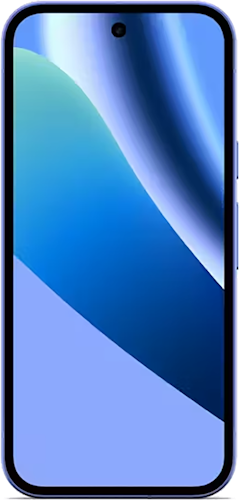
Pixel 10a 128GB
- 6.3 inch display
- Rear Cameras: 48MP, 13MP
- Front Camera: 13MP
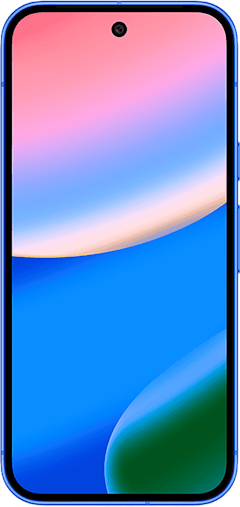
Pixel 10 128GB
- 6.3 inch display
- Rear Cameras: 48MP, 10.8MP, 13MP
- Front Camera: 10.5MP
Pixel 11 256GB
- 6.3 inch display
- Rear Cameras: 48MP, 13MP, 10.8MP
- Front Camera: 10.5MP

Pixel 11 512GB
- 6.3 inch display
- Rear Cameras: 48MP, 13MP, 10.8MP
- Front Camera: 10.5MP

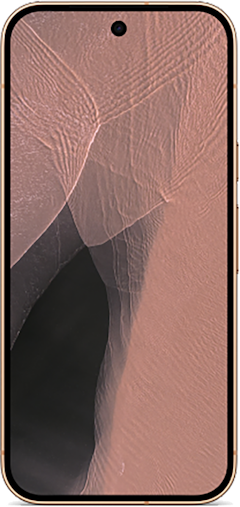
Pixel 11 Pro 256GB
- 6.3 inch display
- Rear Cameras: 50MP, 48MP, 48MP
- Front Camera: 42MP

Alissa Bird
Staff Writer

Thousands of cell phone plans unpacked. All the facts. No surprises.


.png?w=160&h=160&usm=20&usmrad=0.8&fit=crop "How to Switch Phone Carriers and Keep Your Phone and Number")





.png?w=280&h=280&usm=20&usmrad=0.8&fit=crop "The Best Cheap Phone Plans for 2026: We Tested Them All to Help You Save")


