
Losing access to your cellular data can be a nightmare. When this happens, your phone loses its ability to connect to the internet and you miss out on important notifications and messages.
Luckily, reconnecting your cellular data usually fixes the problem. In most cases, you can fix your cellular data by adjusting your mobile data settings, disabling your Wi-Fi, or restarting your device. More difficult fixes might require contacting your carrier, visiting a physical store, or resetting your phone.
Read on to learn these methods and more to get your cellular data working again.
How to Fix Cellular Data When It's Not Working on iPhone or Android
During connection loss, if you have an iPhone, you'll see "Searching" or "No Service" in the status bar, indicating you don't have a cellular connection. However, if you see "SOS" in the status bar, you can make emergency calls.
Android devices behave very similarly; they will show no signal bars in the top section of the phone, and in emergencies, the Pixel 9 series can contact 911 via satellite messaging.
That said, there are plenty of ways to troubleshoot your mobile data when you see a "No Service" status on your phone. Here are the top methods you should try:
- Turn on mobile data
- Turn off Wi-Fi
- Turn off Airplane Mode
- Enable data roaming
- Restart phone
- Carrier settings update
- Adjust SIM card
- Reset network settings
- Contact carrier
- Backup and reset phone
1. Turn on mobile data
The first thing you should do when your cellular data stops working is make sure the ability to receive mobile data is turned on. This option is found in the settings app of most devices—including Apple and Android phones—and is usually called “Mobile Data” or “Cellular Data.”

This setting is sometimes accidentally disabled, like when searching for Airplane Mode or trying to turn on your Wi-Fi. If it is turned off, your phone cannot connect to the mobile network at all and your cellular data will stop working.
Your phone may be having trouble connecting to a 5G network due to limited coverage in your area, so you can turn off 5G and use 4G LTE.
2. Turn off Wi-Fi
Your phone doesn’t use cellular data when it’s also connected to Wi-Fi. That’s a good thing because it saves data on your phone plan. However, it can also create problems when your phone fails to switch back to the cellular data connection after you’ve left the Wi-Fi network.
This is typically a problem after you’ve gotten just out of distance from a Wi-Fi network’s range. Your phone might still detect the Wi-Fi signal so it doesn’t switch to cellular, but the signal is too weak to connect to the internet. All you need to do to solve this problem is disable your Wi-Fi. This is another option found in the settings of most phones.
Once you turn Wi-Fi off, your phone should reconnect to the cellular network. Don’t forget to turn your Wi-Fi back on later when the Wi-Fi signal is strong again.
Learn more about the differences between Wi-Fi and cellular data.
3. Turn off Airplane Mode

If your phone isn’t connecting to your cellular network or Wi-Fi, there’s a good chance Airplane Mode is enabled. Airplane Mode prevents your phone from connecting to any kind of network. It’s also in the quick settings panel of most devices, so it’s easy to toggle for travelers. However, that convenient access can also easily turn on when it shouldn’t.
If Airplane Mode is enabled, turning it off should fix your cellular data.
Airplane Mode: The catch-all solution
While you might think of Airplane Mode as simply a feature to use when traveling, it’s actually one of the best troubleshooting settings on your phone. Airplane Mode instantly force closes all your connections. That includes voice calling, texting, cellular data, and Wi-Fi. If you’re having trouble with any of those services, turning Airplane Mode on and off will soft restart them without needing to turn off your phone. It's one of the best tactics if you're having connectivity issues outdoors.
4. Enable data roaming
Data roaming is when your phone leaves your primary carrier’s network and connects to a different one so you don’t lose service. No network covers the entire nation, so the Big Three carriers (AT&T, Verizon, and T-Mobile) formed roaming agreements that allow their customers to use each other’s networks.
Data roaming is usually enabled on your device automatically because it’s a free service from most carriers. However, if roaming is turned off, your phone won’t connect to cellular data if you lose signal to your carrier’s network. Check the cellular options in your settings to make sure it’s turned on.
5. Restart your phone
When all else fails, sometimes your phone just needs a restart. This will force close all connections to your cellular network and re-establish your settings. This method works well if it’s a temporary software hiccup that’s causing your cellular data not to work.
6. Update your carrier settings
Just like cell phone companies, carriers also perform updates on their technology. These new carrier updates allow networks to run fast and keep their data secure. While missing one of these updates typically won’t cause your cellular data to stop working, there are exceptions to the rule if the update is mandatory.
Carrier setting updates usually automatically pop up and install on your phone, but there are times when they fail. This could be because you have background updates disabled on your device, you ignored the notification, or you may not have been connected to the network when the updates went live.
You should see the carrier update almost immediately when you go into your phone’s settings. If not, turning off and on your cellular data should make the phone find it. If you’ve missed one of these updates, installing it might fix your connectivity problems.
7. Reseat the SIM card
SIM cards are the technology that allows your mobile device to connect to its network. While some networks and newer devices use eSIM technology that digitally changes networks, many phones still use the physical card.
If you’ve recently installed a new SIM card because you changed networks or are traveling abroad, it’s possible it wasn’t installed correctly or became dislodged. Removing the card and reseating it could be all it takes to get your cellular data working.
Reseating a SIM card is not a solution that will help everyone. If you’ve never changed carriers, there’s a good chance your SIM card isn’t the problem. This is also true if your phone only uses eSIM technology–like the iPhone 14 series.
8. Reset your network settings
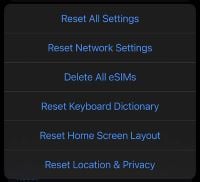
Resetting your network settings should be one of the last steps you try because it disconnects you from all networks and erases your connection history. After it’s complete, your mobile device will connect to the cellular network automatically, but all Wi-Fi networks, Bluetooth pairings, and VPN information will be erased.
The reset network settings option is in the settings of your phone.
This method will probably solve your cellular data problem, but make sure you know your Wi-Fi passwords before you attempt it.
9. Contact your carrier
If none of the previous steps have worked, you should contact your carrier directly for troubleshooting. There could be a network outage or, depending on your plan, you may have run up against a data cap. Verizon, AT&T, and T-Mobile make it easy to determine if their network is down. You can sign up for outage alerts, check outage maps in their management apps, or contact customer support.
10. Back up and factory reset your phone
This is the nuclear option for phone troubleshooting, but it might be what your device needs. We recommend it only after you have tried all other methods.
Resetting your phone should clear out any faulty settings and reestablish all your files to get the cellular data working again. However, it will come at the expense of completely wiping your device. Make sure to back up all your data before you attempt this. Once the phone is factory reset, everything that was on it is gone.
The factory reset option is buried deep within your settings. You’ll probably have to work through several menus and input your password to complete it. Check out our guides on resetting your iPhone, Samsung, or other Android device for help.
Need a New Data Plan?
If the reason your cellular data isn’t working is that you’ve blown past your data limit, it’s probably time for a new phone plan. Unlimited plans are the best way to ensure your data never completely stops, and they’re the best option for customers with high data usage. These plans are offered by almost every carrier, and they’re often more affordable than you think.
The "Big Three" unlimited plans
The Big Three carriers—Verizon, AT&T, and T-Mobile—offer the best unlimited plans. They include plenty of perks, mobile hotspots, and plenty of high-speed data. Of course, with all those perks also comes a high price tag. Unlimited plans from the Big Three are some of the most expensive options out there, but they’ll also provide you with the best experience. Check out the most popular unlimited plans from the Big Three right now:
|
#1
|
Verizon

Simplicity Plan
$30.00/mo
+ Taxes & Fees. Price includes AutoPay & Bring a Number discount
|
|
#2
|
Verizon
Unlimited Welcome
$65.00/mo
+ Taxes & Fees. Price includes AutoPay & Paperless discount.
+ $40 Upfront
|
|
#3
|
T-Mobile

Experience Beyond 2.0
$100.00/mo
with Auto-Pay + Taxes and fees
|
|
#4
|
T-Mobile
Essentials Saver 2.0
$50.00/mo
with Auto-Pay - Taxes & Fees NOT included
|
|
#5
|
Verizon
Unlimited Ultimate
$95.00/mo
+ Taxes & Fees. Price includes AutoPay & Paperless discount.
+ $40 Upfront
|
MVNO unlimited plans
If you’re looking for a cheaper unlimited plan, there are smaller carriers called MVNOs that can help. These carriers use the Big Three networks but offer plans at a fraction of the price. How do they do it? Many of them offer limited perks, some have speed caps, and others can be deprioritized at any time. However, they still offer unlimited data plans at a great price.
Mint Mobile’s Unlimited plan offers access to T-Mobile’s 5G network—which is the largest in the nation—for just $15/month for the first 3 months. After the introductory period, the price jumps up to $30/month unless you opt for a 12-month plan. Customers looking to access Verizon’s massive 4G LTE network can snag an unlimited plan for just $25/month from Visible. Check out the most popular MVNO unlimited plans below:
|
#1
|
Visible

$25 Visible Plan
$25.00/mo
Taxes & Fees included
|
|
#2
|
Mint Mobile

Unlimited Data Plan
$10.00/mo
$60 for 6 months of service
|
|
#3
|
US Mobile

Unlimited Starter Plan
$25.00/mo
|
|
#4
|
Spectrum Mobile®

Unlimited Plus
$40.00/mo
+ $20 Upfront
|
|
#5
|
Cricket

Supreme Unlimited Plan
$55.00/mo
with AutoPay; $60 for the first month.
+ $9.99 Upfront
|
Max McCaskill
Sr. Staff Writer

Thousands of cell phone plans unpacked. All the facts. No surprises.





.png?w=280&h=280&usm=20&usmrad=0.8&fit=crop "The Best Cheap Phone Plans for 2026: We Tested Them All to Help You Save")


