
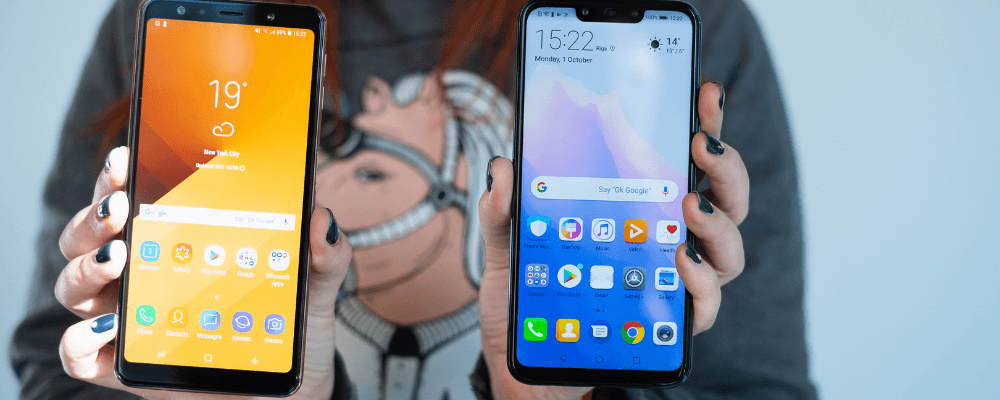
Resetting your Samsung phone is an effective way to speed up your handset or remove unwanted apps. The restore process takes you back to factory settings and completely wipes your storage, so it’s best to run a backup first.
Resetting your Android device involves heading into your settings menu, finding the reset button, and following the prompts. Learn how to reset your Samsung phone to start from scratch with your device.
How to reset a Samsung Phone
Since a full factory reset deletes your storage, we recommend heeding the advice of hip hop artist Juvenile to back that thing (phone) up. After that, you can restore to factory defaults using your system settings on the Android Recovery screen.
How to back up your Samsung phone
You can preserve your files using several methods, including Samsung Cloud, Google Drive, or a microSD card.
Here’s how to save files from your Samsung phone:
- With Google Drive: Head to Settings > Accounts and backup > Back up data (under Google Drive) and tap Back up now.
- For Samsung Cloud: Go to Settings > [Your name] > Samsung Cloud, pick the data you’d like to save, and hit Back up.

While Samsung Cloud and Google Drive are convenient backup solutions, you can also use another platform like Dropbox or Microsoft OneDrive. Offline storage such as microSD cards and flash drives work too.
Restore factory defaults on your Samsung phone
With your important files saved, now it’s time to restore factory settings on your Samsung phone:
- Navigate to Settings > General Management.
- Tap Reset.
- Pick Factory Data Reset.
- Choose Reset again, then wait for the process to complete.


How to perform a hard reset on a Samsung phone
If your phone is frozen, a hard reset lets you restore it to factory settings using the Android Recovery menu:
- Hold the power button for 10 seconds to begin a hard reset and turn off your phone.
- Press and hold the volume up, power, and Bixby buttons (if applicable)until the Samsung logo pops up.
- Hit the volume down button until you highlight the Wipe data/factory reset menu item.
- Tap the power button, then press volume down to choose the Yes option.
- Hit the power button, then wait several seconds for the Android Recovery screen to pop up with a Reboot System Now choice.
- Press the power button to reboot your Samsung phone.
Restore a data backup on a Samsung phone
You might wish to restore a previous backup, depending on why you decided to factory reset your phone. For instance, if you wiped your handset because it slowed down, then you probably plan to continue using it. But you can skip this step if you deleted your phone’s storage since you’re selling, donating, or recycling the device.
Here’s how to restore a backup on your Samsung handset:
- With Samsung Cloud:
- Head to Settings > [Your Name] > Samsung Cloud > Restore data.
- Pick your device, hit Restore, and choose Install.
- Press Done when complete.
- On Google Drive:
- If available, navigate to Settings > Accounts and backup > Back up data and toggle on Automatic restore.
Best Samsung Galaxy phones
Our favorite Samsung handsets include the premium Samsung Galaxy S22 Ultra, multitasking machine Galaxy Z Fold4, and affordable Galaxy A53. We also recommend the excellent Samsung Galaxy S22+, modestly-priced S22, and pocket-friendly Samsung Galaxy Z Flip4.
Galaxy A26 5G
- 6.7 inch display
- Rear Cameras: 50MP, 8MP, 2MP
- Front Camera: 13MP
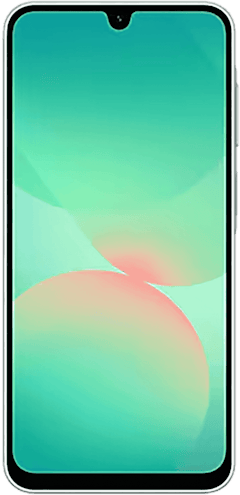
Galaxy A27 5G 128GB
- 6.7 inch display
- Rear Cameras: 50MP, 5MP, 2MP
- Front Camera: 12MP
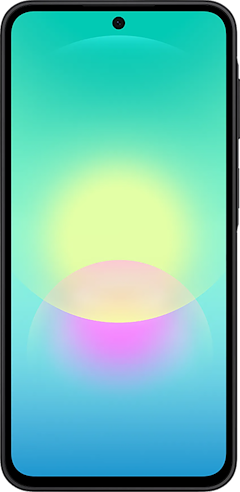
Galaxy A37 5G 128GB
- 6.7 inch display
- Rear Cameras: 50MP, 8MP, 5MP
- Front Camera: 12MP
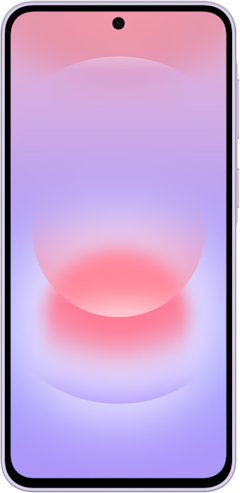
Galaxy A57 5G 128GB
- 6.7 inch display
- Rear Cameras: 50MP, 12MP, 5MP
- Front Camera: 12MP
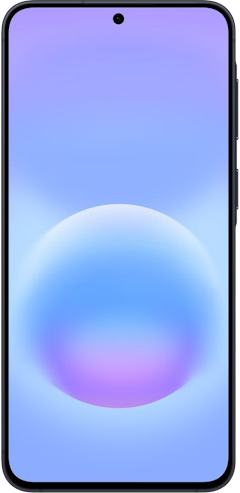
Galaxy S26 5G 256GB
- 6.3 inch display
- Rear Cameras: 50MP, 10MP, 12MP
- Front Camera: 12MP

How to reset a Samsung phone: FAQs
How do you factory reset a Samsung phone?
You can reset a Samsung phone under the settings menu by heading to Settings > General Management > Reset > Factory Data Reset > Reset.
Can you factory reset a phone if it's locked?
Yes, you can factory reset your phone if it's locked. Follow the steps above to perform a hard reset on your device.
Why should you reset your Samsung phone?
A factory reset lets you completely wipe your handset's storage which is a great choice for security when gifting, selling, or recycling an old phone. Alternatively, restoring to factory settings helps speed up a slow handset and is often recommended after an operating system upgrade.
Moe Long
Senior Writer

Thousands of cell phone plans unpacked. All the facts. No surprises.





.png?w=280&h=280&usm=20&usmrad=0.8&fit=crop "The Best Cheap Phone Plans for 2026: We Tested Them All to Help You Save")


