
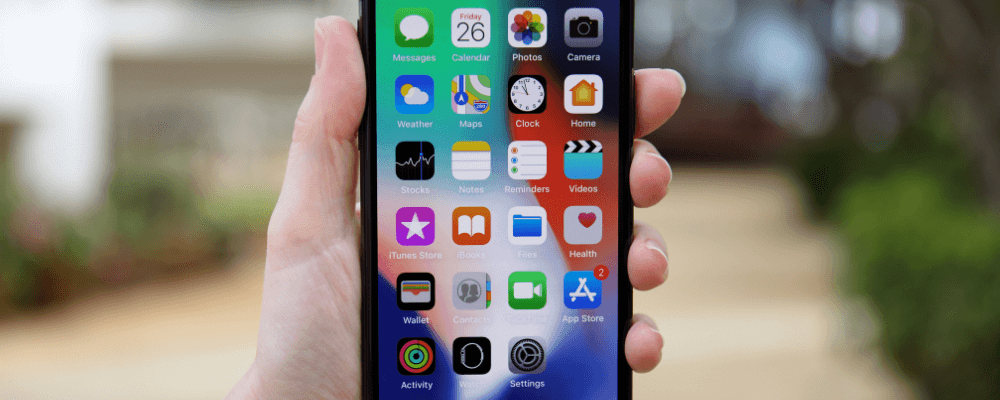
Resetting your iPhone is fairly straightforward—back up your data to iCloud, then wipe your phone from the settings menu. Erasing your iPhone is a must when selling or trading in an old iOS device. And a factory reset can breathe new life into an iPhone that’s clogged up with old apps or photos.
Learn how to factory reset an iPhone, back up your data, wipe your phone, and restore from an iCloud backup.
How to Reset Your iPhone
You can perform two types of resets on your iPhone: a factory reset and a hard reset. A hard reset simply reboots your iPhone, whereas a factory reset wipes your data and restores factory settings. Regardless of whether you’re trading in your old iPhone 14 for a shiny new iPhone 16 and need to transfer data or freeing up space on an iPhone SE, we recommend first backing up your data. That way, you won’t lose your precious food pictures or those videos of your kid’s soccer game.
How to perform an iCloud backup
iCloud, Apple’s cloud storage solution, keeps your data backed up and secure so that you can restore it after a reset. Here’s how to perform an iCloud backup:
- Navigate to Settings and hit your name/Apple ID.
- Tap iCloud under the Apple ID menu.
- Locate the iCloud Backup section.
- Toggle iCloud Back up to on and pick Back Up Now to save your iOS data manually.
Now, with your data backed up, you can quickly transfer it to a new iPhone, restore backed-up data to that same device, or migrate it to an Android phone if you’re switching operating systems (OSes).
How to factory reset an iPhone
With your iCloud backup synced, you can safely erase data from your device:
- Head to Settings and tap your name/Apple ID.
- Select General > Reset > and tap Erase All Content and Settings.
- Enter your iPhone’s PIN, then your Apple ID password.
- Watch your iPhone screen go blank, and then the Apple logo will appear with the text “Hello” in several different languages.
Your iPhone will be fully reset with all data erased after these steps.
How to restore an iPhone from a backup
Whether you’ve just upgraded to a new iPhone or are using the same phone after a factory reset, here’s how to use iCloud for data recovery:
- Power your device on.
- Follow the onscreen prompts. Once you get to the Apps & Data menu, tap Restore from iCloud Backup.
- Sign in to iCloud using your Apple ID and password.
- Select the correct backup you’d like to restore based on the date and saved data size.
- Sign in with your Apple ID when prompted to restore purchases and apps.
- Wait for the Restore from iCloud progress bar to complete loading.
A complete data download could take anywhere from a couple of minutes to over an hour to finish—it depends on how much data you’ve got backed up.
Some downloads such as photos, music, and apps might continue to restore in the background over a few hours or even days. Remaining connected to Wi-Fi as much as possible helps expedite the process of restoring an iCloud backup.
Why You Should Erase Your iPhone
There are several reasons why you might want to factory reset your iPhone. The most obvious situation is that you’re selling or trading in an old handset. Perhaps you’re switching carriers and upgrading phones in the process. In this case, you’ll want to fully erase your iPhone data.
However, you may want to keep your iPhone after a factory reset in some instances. Over time, your phone will become bloated with apps, games, music, photos, videos, and other files, which can slow down your iPhone. Rather than individually removing files, you could simply wipe your phone and start fresh. With an iCloud backup, you can even restore all or select content.
Ready to Upgrade? Our Favorite iPhones
Which iPhone model you should get depends on your needs. The best iPhone for most people is the iPhone 16 series. It includes the best features Apple has to offer, from software to hardware.
Looking to upgrade and save? Check out the best iPhone deals available now!
iPhone 16 128GB
- 6.1 inch display
- Rear Cameras: 48MP, 12MP
- Front Camera: 12MP
iPhone 18 Pro 256GB
- 6.3 inch display
- Rear Cameras: 48MP, 48MP, 48MP
- Front Camera: 18MP
iPhone 18 Pro Max 256GB
- 6.9 inch display
- Rear Cameras: 48MP, 48MP, 48MP
- Front Camera: 18MP
iPhone 18 Pro 512GB
- 6.3 inch display
- Rear Cameras: 48MP, 48MP, 48MP
- Front Camera: 18MP
iPhone 18 Pro Max 512GB
- 6.9 inch display
- Rear Cameras: 48MP, 48MP, 48MP
- Front Camera: 18MP

How to Restore Your iPhone to Factory Settings FAQs
What is the difference between a factory reset and a hard reset?
A factory reset wipes all data from your iPhone and applies default factory settings. On the other hand, a hard reboot will force restart your iPhone.
Does a factory reset delete everything on an iPhone?
A factory reset erases all iPhone data. However, you can backup your content using iCloud and avoid losing apps, pictures, videos, music, and other files.
How do I factory reset my iPhone?
You can factory reset your iPhone by heading to Settings then tapping your name/Apple ID. Then, pick General > Reset > Erase All Content and Settings. Enter your iPhone PIN and Apple ID password. Your Apple iPhone’s screen will go blank, and the Apple logo should appear with the text “Hello” in various languages.
Is there a soft reset on iPhone?
To perform a soft reset, press and release the volume up button, then press and release the volume down button. Finally, press and hold the side button until the Apple logo appears, then release. A soft reset on an iPhone will restart the device's OS without deleting any data or settings.
Moe Long
Senior Writer

Thousands of cell phone plans unpacked. All the facts. No surprises.





.png?w=280&h=280&usm=20&usmrad=0.8&fit=crop "The Best Cheap Phone Plans for 2026: We Tested Them All to Help You Save")


