
They say a picture is worth a thousand words. It’s true, even if the picture is only a handful of pixels tall and wide. Emojis are the funny faces and characters we add to emails, SMS messages, and iMessages. However, finding them on your phone can be a little tricky until you know how.
It used to be that you would have to download third-party Emoji packs to add to your phone, but these days all of the cute faces you could ever need are (likely) part of the phone you are already using. Read on to find out where your emoji keyboard is located on your iPhone and Android device.
How to find and use iPhone emojis

If you don't see the emoji icon on the keyboard (as pictured below), you'll need to enable emoji from the keyboard settings in the iPhone iOS:
- Tap Settings > General > Keyboard.
- Tap Keyboards.
- Tap Add New Keyboard.
- Locate and tap Emoji.

Otherwise, the emoji button should be visible by default; tap it to access all the icons, then tap the ABC button to return to the regular keyboard. If you speak other languages and have extra keyboards, you'll long tap the Globe icon instead. From there you'll cycle through all your keyboards and select the Emoji option.
Once you have turned it on, go to your Messages app to test it out. Simply swipe through the emoji options and press them like you would your regular keyboard.
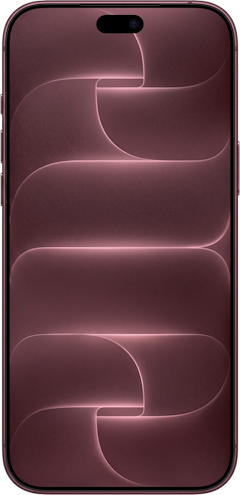
Most popular iPhonesiPhone 16 128GB
- 6.1 inch display
- Rear Cameras: 48MP, 12MP
- Front Camera: 12MP
iPhone 18 Pro 256GB
- 6.3 inch display
- Rear Cameras: 48MP, 48MP, 48MP
- Front Camera: 18MP
iPhone 18 Pro Max 256GB
- 6.9 inch display
- Rear Cameras: 48MP, 48MP, 48MP
- Front Camera: 18MP
iPhone 18 Pro 512GB
- 6.3 inch display
- Rear Cameras: 48MP, 48MP, 48MP
- Front Camera: 18MP
iPhone 18 Pro Max 512GB
- 6.9 inch display
- Rear Cameras: 48MP, 48MP, 48MP
- Front Camera: 18MP

How to find and use Android emojis
Finding Emoji on your Android phone will depend a lot on which model you’re using, and which keyboard you have installed. The easiest way to be sure you have Emoji characters is to download and install the Google Keyboard (Play Store link).

Firstly, make sure you are using the correct keyboard. Go to your messaging app (we’re using Google's default messaging app) and start a new message to bring up the keyboard. If you only just installed the Google keyboard, follow our “How to change Android keyboards” article to set it as default.
With Google Keyboard you don’t need to change anything — the Emoji button is already front and center. Simply press on one of the smiley faces to find a tabbed grid of characters, and swipe across to reveal even more.
Samsung Keyboard
Given the popularity of Samsung phones, there is a good chance that you are using the pre-installed Samsung Keyboard, which includes the same Emoji characters as the Google Keyboard, but hides them a little deeper in the menu.
- Open the keyboard in a messaging app
- Press and hold on the Settings ‘cog’ icon, next to the Space Bar
- Tap the Smiley Face
- Enjoy Emoji!
Most popular Androids
Moto G 5G (2026) 128GB
- 6.7 inch display
- Rear Cameras: 50MP, 2MP
- Front Camera: 32MP
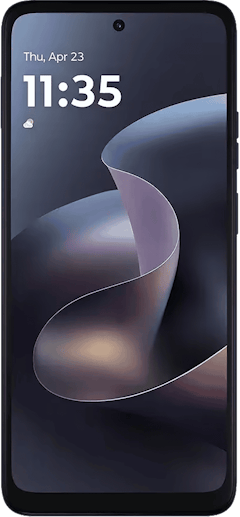
Galaxy A27 5G 128GB
- 6.7 inch display
- Rear Cameras: 50MP, 5MP, 2MP
- Front Camera: 12MP
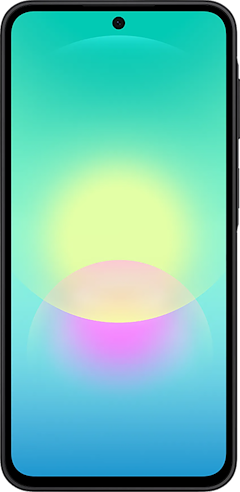
Galaxy A37 5G 128GB
- 6.7 inch display
- Rear Cameras: 50MP, 8MP, 5MP
- Front Camera: 12MP
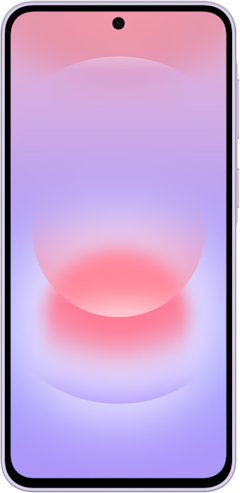
Edge (2026) 128GB
- 6.3 inch display
- Rear Cameras: 50MP, 50MP, 10MP
- Front Camera: 50MP
Moto G Stylus 5G (2026) 128GB
- 6.7 inch display
- Rear Cameras: 50MP, 13MP
- Front Camera: 32MP
iPhone and Android emojis: FAQs
Joseph Hanlon
Contributing Editor

Thousands of cell phone plans unpacked. All the facts. No surprises.





.png?w=280&h=280&usm=20&usmrad=0.8&fit=crop "The Best Cheap Phone Plans for 2026: We Tested Them All to Help You Save")


