

As you open apps and surf the web, your phone will save data in a cache so that you can reopen those same websites and apps more quickly. Over time, your iOS device gets stuffed with so much cache data that it slows everything down. Clearing the cache on your iPhone can give you better performance and faster speeds. Think of it like taking out your trash, except you don’t even have to get up to clear the cache on your iPhone.
Read on to learn how to clear the cache in both your Safari web browser and for your apps. It’ll only take a few seconds to clear your iPhone's cache if you follow the steps below.
What is a cache?
A cache is the temporary storage of helpful data on your device. It might be details of recent websites you've visited or your last settings in a particular app. Your iPhone saves this data to let websites and apps load faster.
Over time, this helpful data can accumulate from websites and apps you don't frequently use. When that happens, it can slow down your phone instead of speeding it up. That's why it's helpful to clear your cache.
How to clear the cache on Safari
If you use Safari as your main app for browsing the web, here’s how to clear the cache for all your Safari data:
- Open the Settings menu on your iPhone.

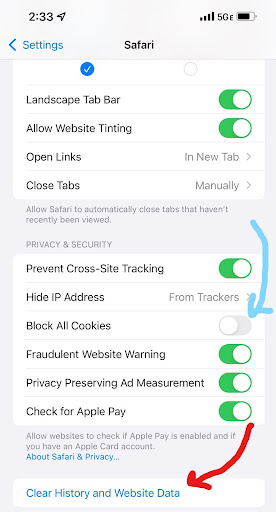
Scroll down and tap on Safari.

Tap Clear History and Data to remove your history, cookies, and cache of browsing data.
How to clear the iPhone cache for apps
Clearing the cache on an iPhone app requires offloading it. Basically, this means that the app is temporarily removed from your phone to save storage space, but all of your documents and data are still available. You can download the app again, and all of your saved information should resume where it left off. Here are the steps to delete cached data and offload third-party apps on your iPhone:
- Open the Settings app.

Tap General and then select iPhone Storage.
Find the third-party app you want to delete cache files for, and select it.
Tap Offload App. This process will technically remove the app from your phone, keeping documents and data stored. Once you redownload the app, you should have all of your data available.

Why should I delete my iPhone Safari cache and app cache?
Clearing cached data frees up space on your phone. Cached data builds up over time as you use new apps and browse new websites. Eventually, you’ll have cached data for apps that you used years ago or websites you don’t regularly visit, taking up space on your phone. After all, do you really need to keep your browsing history from last year?
For example, I haven’t played Clash Royale in years, yet I have cached data for it. And when I deleted the cache data for the YouTube Kids app on my phone (I have a hyper two-year-old, sue me), I saved 4GB of storage space in doing so. Deleting all this cached data should open up storage on your phone without losing any vital information or data.
Use your iCloud storage to save more data
Another smart way to save space on your phone is by taking advantage of your iCloud storage. You may even have free cloud storage with your cell phone plan that you’re not using! Many of the most popular unlimited plans from the big carriers include cloud data as a perk or an optional add on. AT&T offers the AT&T Personal Cloud that starts at $4.99/month for 500GB of storage space. Verizon offers 2TB of cloud storage as a $10/month add-on. T-Mobile offers access to Google One and 500GB of cloud storage for as low as $5/month. Check out the top unlimited plans below:
|
#1
|
Verizon

Simplicity Plan
$30.00/mo
+ Taxes & Fees. Price includes AutoPay & Bring a Number discount
|
|
#2
|
AT&T

Premium 2.0℠
$90.00/mo
+ $35 Upfront
|
|
#3
|
T-Mobile

Experience Beyond 2.0
$100.00/mo
with Auto-Pay + Taxes and fees
|
How to clear the cache on iPhone: FAQs
How do you clear cookies on your iPhone?
Cookies are files saved on your device when you visit and log in to a website. For example, if you notice that you automatically log in to different websites you visit on your browser, that’s because of the cookie files. The idea behind cookies is to make your browsing experience smoother by saving account information and browser history.
For the Safari app, it’s the same process listed above. When you select Clear History and Website Data, you remove both your cached data and cookies. You can also block cookies altogether in that same settings window.
Should I clear my cookies and cache on my iPhone?
Deleting your cache and cookie data from your device can help free up storage and improve functionality on your phone.
What happens when I clear the cache and cookies on my iPhone?
After you clear your cache data, you may notice that opening your favorite websites or apps will take slightly longer than usual—but that should only last through the first time you revisit the site. In the future, your phone will save cached data for that website so you can open it more quickly.
As for deleting your cookies, you’ll notice that it removes your browsing history and saved account information. You’ll need to re-login to accounts on the websites you visit.
What is the difference between clearing my cache and clearing data?
Clearing your cached data means deleting saved data from websites you visit and apps you use. When you delete your cached data, you’re not deleting any essential information. If you clear your data, however, everything directly downloaded on your phone will be deleted.
For example, you can clear your cache on your Safari app to delete information from websites you've visited. Deleting your data from your phone would remove pictures, messages, contacts, and everything else not backed up or saved to your iCloud.
Does clearing my cache delete my photos?
Nope! Your saved photos are not cached data, so clearing your cache will not affect your photos at all.
How often should I clear my cache?
It’s a good habit to clear your cache every six months to get the best results. Deleting your cache every day won’t have a noticeable effect, but you definitely don’t want your cached data to build up for over a year before clearing.
Does clearing the system cache delete everything?
Nope! Clearing your system cache only deletes temporary data saved on your phone. Your photos, contacts, messages, apps, and other data will not be affected by clearing your cache.
Are cookies and your cache the same thing?
No, cookies and cache are not the same thing. Cookies are digital tags used to track specific a specific user and they browse different websites. They are why you see ads targeted to products you've recently been browsing. Cache data is used by your specific device to load websites or apps faster.
Does clearing my Safari cache erase all my web browsing history?
Yes, but only if you use Safar to browse the web. However, if you use other browsers, like Google Chrome, you'll need to go into those apps individually to erase your history.
Tyler Abbott
Contributing Writer

Thousands of cell phone plans unpacked. All the facts. No surprises.





.png?w=280&h=280&usm=20&usmrad=0.8&fit=crop "The Best Cheap Phone Plans for 2026: We Tested Them All to Help You Save")


