
Cached data, or stored data on your phone, reduces loading time, preventing your device from constantly reloading the same data over and over.
However, this data takes up space on your device’s memory that you may need for other things, such as your photos or apps. Once your cache is full, it could also slow your phone’s performance. You may also experience bugs or errors due to a cached file that is holding onto outdated information. Clearing your cache occasionally can help solve these issues.
Let’s walk through what cached data is, why your phone uses it, and how you can clear it if you need to.
What is cached data?
Cached data is information from a website or an app, such as images, files, and text, that your phone downloads and stores in your phone’s local memory for faster future access.
When you browse the web or use an app on your smartphone, your device automatically downloads select images and files before they’re displayed. This helps speed up the time it takes for the webpage to load, as well as how fast the page displays if you leave and revisit it later. By storing information in your phone’s local cache, it skips the step of having to retrieve it all over again.
In some cases, devices will automatically delete cached data when storage is low or when you delete an app, but much of that data is kept on your phone in an effort to speed up load times and prevent the need to constantly download files every time you visit a website.
What will clearing cached data do?
Clearing your cached data can help free up memory space, speed up a sluggish phone, and correct bugs or errors you’re experiencing.
Depending on your smartphone habits, including the number of apps you have on it, you can accumulate a significant amount of cached data over time. Eventually, it may take up too much of your phone’s memory, preventing you from caching more data and thereby slowing down your phone’s performance on new websites and apps as it becomes increasingly bloated.
Clearing cached data may also free up a fair bit of storage on your device’s internal memory. Many apps store cached music, videos, and photos on your phone’s internal storage, taking up space you may want to have available for your own photos, videos, games, and more.
Clearing your phone cache can also function as a mini “reset” if an app or webpage is acting strangely. If an app consistently crashes, there may be a corrupted file in your cache that simply needs clearing out.
Constantly running out of storage space?
If you find yourself consistently needing to delete old photos to make room for new ones, the problem likely isn’t your cache—you probably need a larger storage capacity on your phone.
As apps and multimedia become more sophisticated, they take up more space on your device. Assess your habits to figure out how much phone storage you actually need.
Should you clear cached data?
If your phone is running perfectly fine and you have plenty of storage space, there's no reason to clear cached data. Having data stored locally on your phone helps speed up your browsing experience, making photos, videos, and apps load more quickly.
You should clear your cached data if you find your phone data is running more slowly; a completely full cache can contribute to your phone loading sites and apps sluggishly. If you’re running out of local storage space, preventing you from downloading new things to your device, clearing your cache could also help free up that space.
Clearing your cache can also help fix glitches in specific apps, such as if one continually crashes or returns an error. First, check to see if the app needs updating, but if it’s up to date, clearing the cached data can function as a soft reset for that app and clear out any corruptions.
How often should I clear my cache?
You should really only have to clear your cache when you find your phone's performance lagging. Most people rarely need to clear their phone's cache.
How to clear cached data
Clearing cached data from an iPhone
There are two methods to clear your iPhone cache: through your Settings app, and through the Safari app.
To clear cached data on an iPhone through your Settings app:
- In your Settings, select Apps > Safari.
- Tap Clear History and Website Data.
- Choose whether you want to clear data from the past hour, the past day, the past two days, or your entire history.
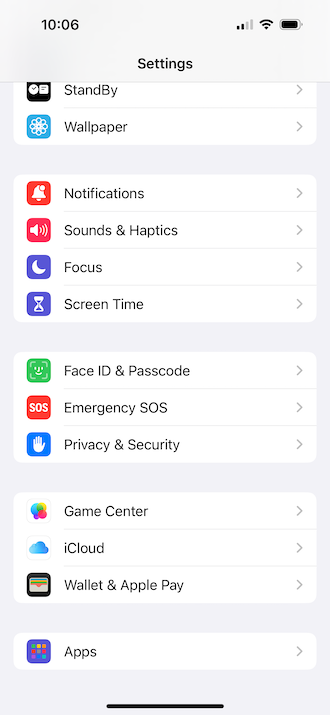
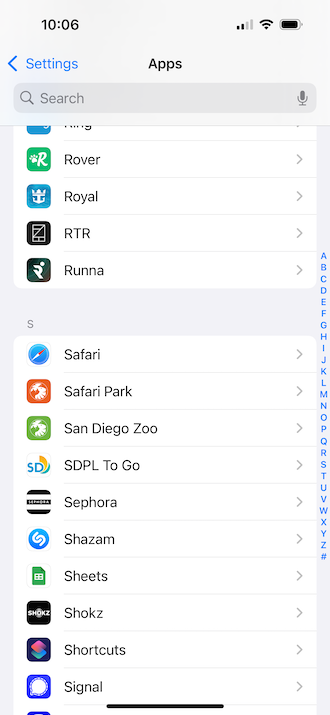


To clear your cache through Safari:
- Open your Safari app.
- At the bottom of your browser, tap the Pages symbol.
- Tap the Clock symbol to bring up History, then tap Clear.
- Choose whether you want to clear data from the past hour, the past day, the past two days, or your entire history.
What about clearing an individual app cache on an iPhone?
You don't have many options for clearing cached data from individual apps on an iPhone, although some, such as the Google Chrome browser, may allow you to do so. You may need to visit the app’s specific settings in the main iPhone Settings menu, or you may be able to do so within the app itself.
You can also offload an app, which essentially removes the app from your phone while keeping any data or documents you might need in the future, so that you can pick up where you left off when you download the app again.
To offload an app:
- Go to Settings > General.
- Tap iPhone Storage.
- Select the app to offload and press Offload App.
The app icon will still be visible on your home screen or in your app library, and when you tap on it, the app will download again.
iPhone still lagging?
If clearing your cache didn’t help a sluggish iPhone, there may be other issues at play. Try out our additional fixes that can help your iPhone run faster.
Clearing cached data from an Android phone
The process for clearing cached data from an Android phone varies depending on your phone model (i.e., a Samsung Galaxy may differ slightly from a Google Pixel).
But generally, to clear an Android phone's cache:
- Open the Settings app and tap Apps or Applications.
- Select All Apps and find the one you want to clear data for.
- Tap on the app, then look for an option like Storage & Cache or similar.
- Tap Clear Storage or Clear Cache.
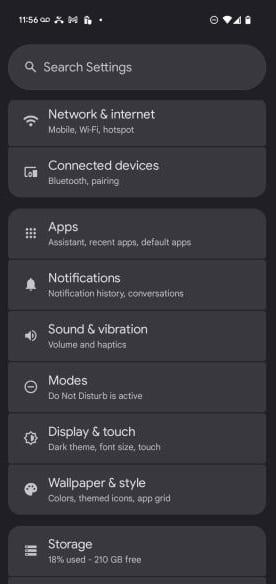
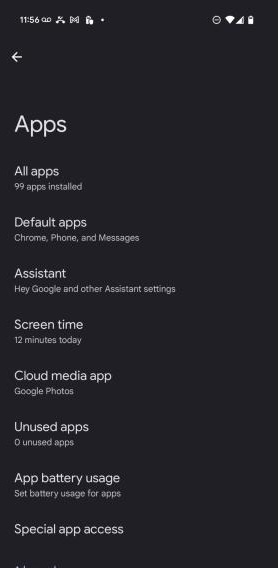
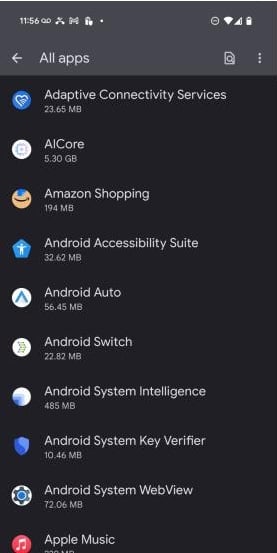
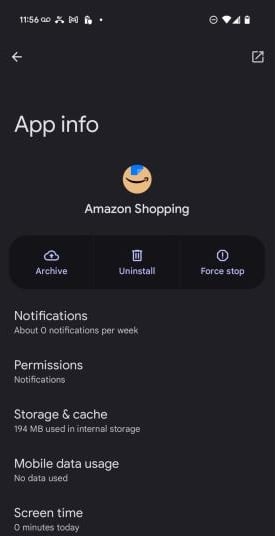
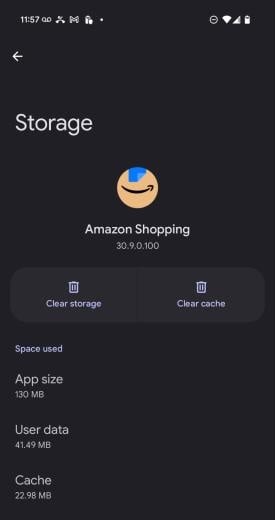
In most cases, you'll want to clear the cache instead of clearing storage. Clearing the cache removes temporary files, such as images, but doesn't impact any personal data like login information or settings. This is useful for freeing up storage space and resolving glitches or bugs.
Clearing storage essentially resets the app completely, as if you had just downloaded it from the Google Play Store. Any saved logins, files, or settings will be reset to their original state.
Still struggling? More tips to fix a slow Android
If you’re still experiencing lag while browsing on your Android phone, you may need to tweak your network settings or possibly remove some hidden widgets on your device. Check out our additional tips for troubleshooting a slow Android.
Cached data: FAQs
What happens when you delete cached data?
When you delete cached data, temporary files stored on your device, like images and text from a website, are removed. This can free up storage; however, it also means that those files will need to be downloaded again the next time you visit that site or app.
Will I lose any data if I clear my cache?
Technically, you will lose data if you clear your cache, but it's not essential data, like personal information. Rather, clearing your cache only removes temporary data files that can be downloaded again as needed.
Will clearing my cache delete my passwords?
Clearing your cache should not delete your passwords. Passwords are saved in other locations outside of your cache; the files stored in your cache are generally only temporary files that you can download again later.
What is the difference between cache and data?
The difference between your cache and your data is that data is the actual information stored on your device, and your cache is the location where that data is temporarily stored.
What is the difference between cache and cookies?
Your cache is the place on your device where data is temporarily stored. Cookies are a specific type of data that use tracking mechanisms to temporarily remember you and how you interact with a website.
Christian de Looper
Contributing Writer

Thousands of cell phone plans unpacked. All the facts. No surprises.





.png?w=280&h=280&usm=20&usmrad=0.8&fit=crop "The Best Cheap Phone Plans for 2026: We Tested Them All to Help You Save")


