

Wondering why your iPhone is so slow? There’s nothing more frustrating than a slow smartphone. iPhones may begin to slow down because you've run out of storage or the device needs a software update. Luckily, there are plenty of ways to fix your slow iPhone, such as opening up storage space, purchasing additional iCloud storage, ending background tasks, or even resetting your device if no other solutions work.
Read on to find out the most common reasons your iPhone is slow and step-by-step methods to fix them.
How to fix a slow iPhone
If your iPhone is slowing down, you should:
- Clear storage space in your iPhone
- Update your iPhone
- End your iPhone’s background tasks
- Declutter your iPhone’s Home Screen
- Monitor your iPhone’s battery health
- Empty your Safari cache
- Fix external problems impacting your iPhone
- Dial back your iPhone’s graphics
- Turn off Low Power Mode
- Reset your iPhone
1. Clear storage space in your iPhone
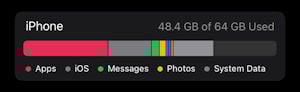
The most common reason your iPhone is lagging is because it’s out of storage space. When your iPhone is almost full, iOS slows down your phone because it’s running out of space to work properly.
To check your storage space:
- Go to your Settings app
- Tap General
- Then tap iPhone Storage
If you have less than 2GB of empty space, this is probably the reason why your phone is running slow.
The easiest way to clear up space on your phone is deleting things you don’t need. This could be apps you don’t use, pictures you’ve backed up somewhere else, or even old notes and voice memos.
You can also set up iCloud to take pressure off your device’s storage. Saving pictures to iCloud keeps full-sized versions of images and videos in the cloud for download, while smaller-sized versions live on your phone.
2. Update your iPhone
Another common reason that iPhones run slow is because they need an iOS update. If you are trying to run apps built for the newest iOS on an older version of the software, you could see some serious slowdowns.
To check if your iPhone needs an update:
- Tap Settings
- Go to General
- Then tap Software Update
Your phone will automatically search for an update. You can also enable Automatic Updates and never worry about this issue again.
Check out our iOS updating guide for step-by-step instructions and additional tips for keeping your iPhone running at its best.
It's also important to keep your iPhone apps updated through the App Store. If it's a single app that is running slow, updating it will probably fix it.
3. End your iPhone’s background tasks
iPhones do a lot of tasks in the background. These tasks are constantly running and can slow down your phone. The two biggest culprits are Background App Refresh and Fetch Mail.
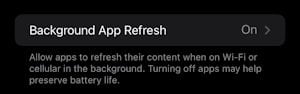
Background app refresh
Background App Refresh allows your apps to constantly check for new notifications and content, even when the app is closed. Not only can this slow down your phone by sucking away its processing power, but it can also drain your battery.
To see what apps are currently running in the background of your phone:
- Go to Settings
- Tap General
- Tap Background App Refresh
You can turn off Background App Refresh entirely, but we recommend going through the listed apps and turning the unwanted ones off individually. There are likely some apps you will still want up-to-date info from, like messaging apps or news services. If you disable background refresh for those apps, you won’t get new messages until you manually open them.
Fetch mail
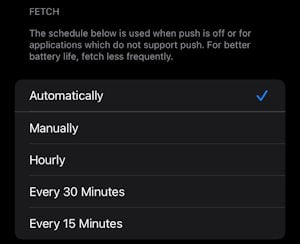
Fetch mail allows your iPhone to constantly connect with your email’s server and alerts you when there’s a new message.
This is a setting you might be nervous about adjusting because getting emails quickly is important. However, you can change how often your phone fetches mail from the server. Instead of a constant connection, your iPhone can fetch messages every 15 minutes or every hour.
To adjust how frequently your email fetches new messages:
- Go to Settings
- Tap Mail
- Tap Accounts
- Tap Fetch New Data.
4. Declutter your iPhone’s Home screen

One of the best features of the iPhone’s Home screen can also be a potential sandtrap for slow performance: its ability to keep multiple apps open and running in the background at the same time. If you open an app, then hop into a different one without physically swiping to close the first one, your iPhone keeps the initial app open as an “app card” that’s essentially hiding behind your Home screen.
To check what apps you have running behind your home screen and close them:
- iPhone X and later models: Drag upwards from the bottom of your screen till you reach the middle of your phone. Select the app preview you want to close and swipe up.
- iPhone 8 and previous models: Double click the home button. Swipe up on the app previews you wish to close.
The other Home Screen issue is too many widgets. These can include your battery status, the current weather, Apple News updates, and more. These widgets can slow your device down by constantly updating if you have too many of them on your various Home screens.
To remove some of the widgets you don’t need, press and hold them. When your app options come up, select Remove Widget.
5. Monitor your iPhone’s battery health
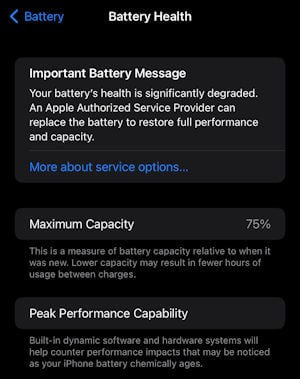
As iPhones naturally age, two things happen: newer iOS versions need more processing power to work correctly, and your battery begins to degrade. These two issues wreak havoc on your phone’s performance.
To combat this, Apple developed technology that measures your battery health and uses that data to influence the phone’s performance. The goal is to prevent your iPhone from unexpectedly crashing and losing data. If your battery is going bad, iOS takes a little longer to open apps or reduces your framerate.
This system is integrated into iOS, so there’s not much you can do other than replace your iPhone's battery once it is significantly degraded.
To check your battery health:
- Go to Settings
- Tap Battery
- Tap Battery Health
The metrics will tell you if your phone’s performance is suffering.
6. Empty your Safari cache
Unless you browse in Private, Safari collects cookies and browser history for every site you visit. Not only will that history slow down the Safari app, but it will also take up space in your phone’s storage.
To empty all that bloat, all you have to do is clear Safari’s cache:
- Go to Settings
- Tap Safari
- Select Clear History and Website Data
This will give Safari a fresh start and clear out some room in your storage. It will not delete your bookmarks or any passwords you’ve saved.
7. Fix external problems impacting your iPhone
It’s not always your iPhone's fault that it’s running slow. Sometimes the environment around your iPhone can play a major role.
The most common external issue is slow Wi-Fi. That will cause any app on your phone that uses the internet to run slower. Run a speed test to figure out if your Wi-Fi isn’t meeting your current needs. If your internet connection is slower than usual, fixing whatever is slowing it down could help speed up your phone.
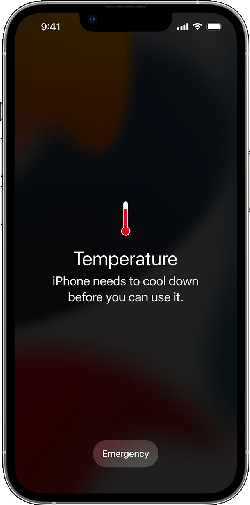
The other external problem that might be slowing down your phone is its temperature. iPhones don’t like extreme heat or cold. As your phone approaches extreme temperatures, it will start to slow down before shutting itself off and showing a temperature warning.
To get the warning to go away and return the iPhone to its normal speed, all you need to do is let it return to a normal temperature.
If you leave your phone in extreme temperatures too long, it is possible it won’t turn back on. If that happens, you’ll need to take the device to a repair shop or Apple Store.
8. Dial back your iPhone’s graphics
iPhones don’t have a ton of graphics options. However, there are small steps you can take in your iPhone settings to lessen the load on your processor. Two of the easiest are reducing transparency and reducing motion.
Transparency is the setting that blurs your phone’s background when changing between apps or opening your Control Center.
To turn off Transparency:
- Go to Settings
- Tap Accessibility
- Tap Display & Text Size
- Enable Reduce Transparency
Motion settings on your iPhone give the perception of depth and help everything look smooth.
To turn Motion off:
- Go to Settings
- Tap Accessibility
- Tap Motion
- Enable Reduce Motion
9. Turn off Low Power Mode
Some people always have Low Power Mode enabled. While this might let you get a little more use out of your phone before it needs a charge, it comes at a cost. Low Power Mode is an emergency feature for when your phone’s battery is about to die. It essentially throttles your phone’s speed and reduces anything that isn’t essential.
To turn off Low Power Mode:
- Go to Settings
- Tap Battery
- Turn off Low Power Mode
Tips for saving your iPhone’s battery
There are plenty of things you can do other than enabling Low Power Mode to save your battery throughout the day. Some of the easiest are:
- Dimming your screen
- Turning off push notifications
- Closing background apps
- Buying a battery case
- Deleting unwanted widgets
These tips can keep your phone limping along until your next upgrade. If you want to keep your iPhone for a while longer after it’s eligible for an upgrade, it’s probably best to just buy a new battery.
10. Reset your iPhone
iPhones aren’t perfect, and sometimes they develop software hiccups that slow your phone down. Usually, all you need to do is perform a soft reset on your phone by turning it off and back on again. That will typically reestablish your files and clean out any issues.
If none of the previous methods worked and your iPhone is still slow, it might be time to factory reset your iPhone. This will wipe out all the settings on your phone and reestablish the iOS. It’s a drastic step, but it might speed up your phone.
Make sure you back up your device because the factory reset will erase all your data.
Replace your slow iPhone
You’ve probably noticed that many of the causes for slow iPhones have to do with the device’s age. As phones age, they slow down. You can make tweaks and adjust settings, but eventually, it’s time for a new iPhone. Many of the top unlimited plans include free or discounted iPhones.
Check out some of the options below to save on your plan or a new device:
If you want the newest iOS device, you must snag the iPhone 16. It includes an A18 Bionic processor, a 12MP dual-camera array, and some of the newest features available in an iPhone. Plus, photographers will love Apple’s camera innovations allowing you to take your craft to the next level with its ultra-wide lenses and Cinematic Mode features.
If you want a flagship iPhone but don't want to shell out for the newest model, the iPhone 15 is a great way to get an iOS device on a budget. It includes the A16 Bionic processor and it includes a 12MP dual-camera array. If you upgrade to the iPhone 15 from a slow device with an older processor, the new speeds will blow you away.
Of course, the iPhone 16 and 15 are far from the only iPhones on the market. Other models, like the iPhone 14, offer many of the same great features at a lower price. The iPhone 14 uses the A15 Bionic Processor and features a rear-facing dual-camera system with 12MP wide and 12MP ultrawide shooters.
Fixing a slow iPhone: FAQs
Why is my iPhone suddenly so slow?
Your iPhone is probably suddenly slow because of something you recently downloaded that took up all your storage space. This could be a large app or the newest version of iOS.
How do you fix a slow iPhone?
You can fix a slow iPhone in several different ways. One of the easiest methods is deleting unwanted apps and pictures to free up storage space. You can also end background tasks and close open apps.
Does my iPhone have a virus?
Your iPhone probably does not have a virus if it’s just slow. However, slow speeds can be a sign of viruses if you’ve jailbroken your phone and they appear along with other issues. Those issues can include random apps appearing on your phone and your phone getting hot for no apparent reason.
Why is my iPhone slow after an iOS update?
Your phone is probably slow after an iOS update because the update used most of the free space in your phone’s storage. Consider deleting apps or unwanted pictures to free up space and speed your phone back up.
Does iPhone get slower over time?
Yes, iPhones get slower over time. As new iOS versions come out on old devices, it is harder for the old devices to keep up. Plus, components like your battery will wear down, causing your performance to suffer.
How do I speed up my iPhone after downloading iOS 17?
You can speed up your phone after downloading iOS 17, or any other iOS, by deleting unused apps and photos.
Can slow internet make my iPhone slow?
Yes, slow internet speeds can make your iPhone slow. Any apps that use Wi-Fi will run slower if your internet speed is bad.
Why is my iPhone glitchy?
Your iPhone might be glitchy because it needs an iOS update or it is hung up on a background task. Try updating your device or restarting it to fix the problem. If it is still glitchy, you may need to take your iPhone to an Apple store.
Max McCaskill
Sr. Staff Writer

Thousands of cell phone plans unpacked. All the facts. No surprises.





.png?w=280&h=280&usm=20&usmrad=0.8&fit=crop "The Best Cheap Phone Plans for 2026: We Tested Them All to Help You Save")


