
Are you tired of getting the dreaded "Storage Almost Full" pop-up on your iPhone, then painstakingly deleting a bunch of images… just for the warning to pop right back up again? You're not alone, but the good news is that it's a pretty easy fix.
Whether you're trying to learn how to free up space in your iPhone or you just want to learn how to clean up your device, read on for 6 quick tips on getting the most out of your iPhone's storage.
How to check the storage on your iPhone
Just like your garage, your iPhone only has so much storage space. While you might have a good idea of what's taking up the most room, there's an easy way to find out.
To view your iPhone's storage, go to Settings > General > iPhone Storage. Here, you'll see a color-coded storage bar that shows how much space each media type or file type uses and how much space you have left.
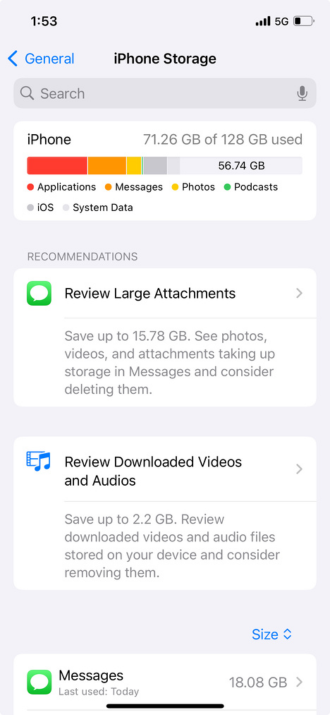
Image: Alissa Bird
Apple will lend a hand by recommending storage-saving tips, like reviewing large attachments or downloaded videos (we will get into these later). For a more detailed picture of your storage usage, scroll down to view your apps by storage size, with the largest types appearing first.
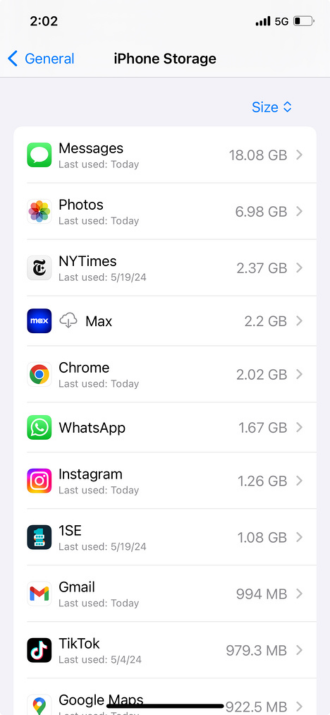
Image: Alissa Bird
It may not surprise you that photos, videos, and messaging apps take up the most storage space. But before you go deleting your Europe pics from 2018, check out our 6 best tips for managing and clearing your iPhone storage.
Tip #1: Adjust camera and photo settings to save space
As mentioned earlier, photos and videos will swallow up your storage quicker than other media might. Thankfully, by adjusting a few camera and photo settings, you can lower your photo storage footprint.
First, reduce the file size of your photos and videos. To do this:
- Go to Settings > Camera.
- Select Formats.
- Enable High Efficiency.
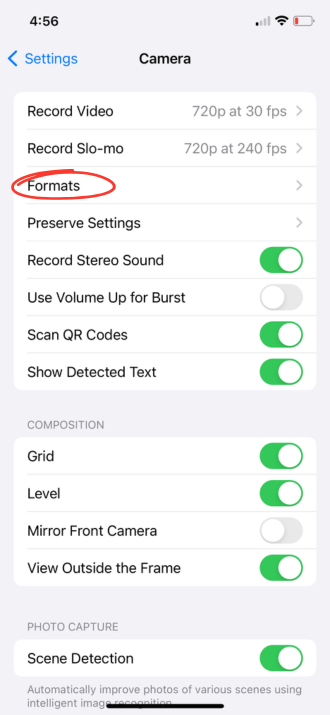
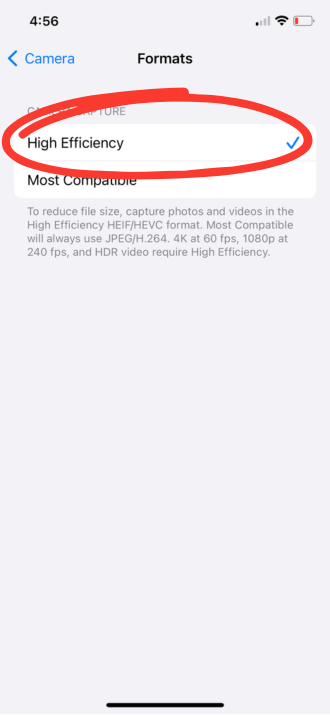
Image: Alissa Bird
Second, optimize your photo storage by reducing the size of full-resolution photos and videos when your phone is low on space. Your full-resolution photos will still be saved in iCloud (more on this later). To start optimizing:
- Go to Settings and then Photos.
- Check the option Optimize iPhone Storage.
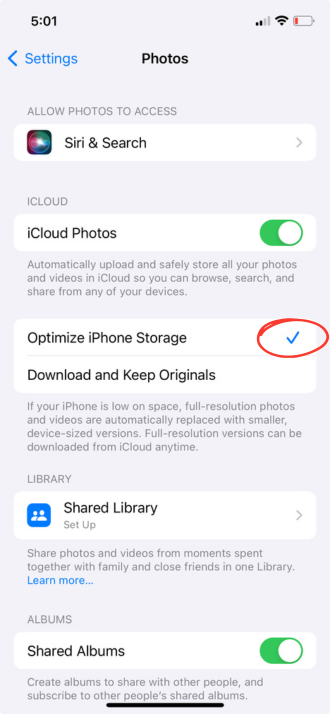
Image: Alissa Bird
Adjusting these settings will make your photos take up less space in your overall storage.
Tip #2: Store your photos in the Cloud
Cloud storage apps can help you save valuable space on your phone. As stated earlier, photos take up a lot of storage space. While deleting photos you no longer need is an effective way to free up space, a more efficient (and less time-intensive) method is to save your photos to a third-party Cloud storage service.
Cloud storage saves your data off-site, meaning not on your phone. You can then access this data from virtually any internet-connected device, keeping your photos, videos, and other data safe were something to happen to your phone.
When it comes to third-party cloud storage services, we recommend Google Photos, Dropbox, or Amazon Drive. Here is a breakdown of what each service offers for free, with more storage available for purchase:
Cloud storage service comparison
| Cloud storage service | Free subscription includes: |
|---|---|
| Google Photos | 15GB (to be shared across your Gmail, Google Drive, and photos) |
| Dropbox | 2GB of cloud storage (about 1,000 photos) |
| Amazon Drive | 5GB of cloud storage (photo and video only) *Unlimited photo storage for Prime members with 5GB of video storage. |
Once your photos are successfully uploaded to a third-party cloud storage service, you can safely delete them from your phone without losing them forever.
Can't I just store my photos in iCloud?
iCloud is Apple's cloud-based storage service, accessible to anyone with an Apple ID. Uploading your photos to iCloud is a great way to view and manipulate your photos and videos on another device. However, deleting your photos and videos from your iPhone will also delete them from iCloud.
That said, you can save space on your phone by saving full-resolution images in iCloud and smaller image files on your phone when your storage is getting full. (For more on this, see above.)
Tip #3: Delete and offload apps you seldom use
We love our apps, but they take up a lot of space on our iPhones—some more than others. The best line of defense is to delete or offload those you no longer need. Deleting an app will remove the app and all of its data entirely while offloading an app allows you to uninstall an app without losing your documents and data. Offloading is great for apps you seldom use but aren't ready to part with.
To delete or offload an app:
- Go to Settings > General > iPhone Storage.
- Scroll down to view all your apps.
- Tap on the app you want to delete or offload and swipe to the left.
- Tap either Offload or Delete.
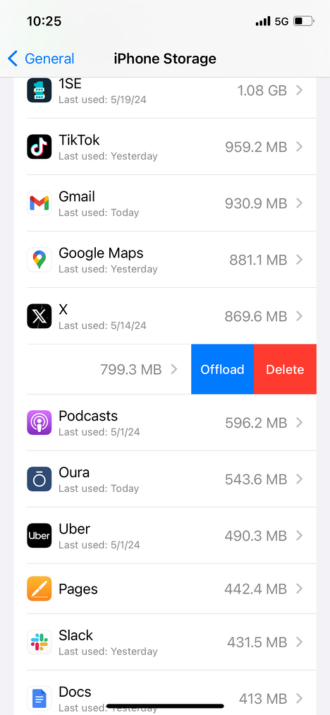
Image: Alissa Bird
When you offload the app, it will still appear on your home screen with a small cloud (download button) next to it. To reinstall, simply tap on the app and watch it come back to life.
In addition, enable offloading in settings, and your phone will automatically offload unused apps while keeping the important data safe and sound. To do this:
- Go to Settings > App Store.
- Scroll down to the bottom.
- Toggle on Offload Unused Apps.
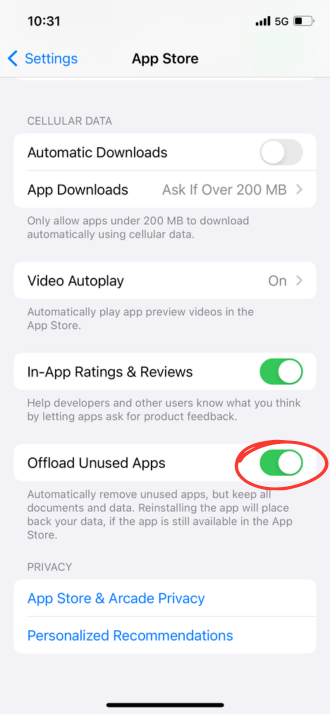
Image: Alissa Bird
Tip #4: Delete large message attachments
Sharing files, photos, and videos over text message is a great way to stay connected, but left unchecked, can clog up your phone storage. The simplest way to delete large message attachments is to:
- Go to Settings > General > iPhone Storage > Messages.
- Under the Recommendations section, select Review Large Attachments. Here, you will see attachments dated and listed by size.

Large attachments can take up valuable space on your iPhone.
Image: Alissa Bird - To delete attachments, tap the file and swipe left, or tap Edit in the top right corner to delete multiple files at once.
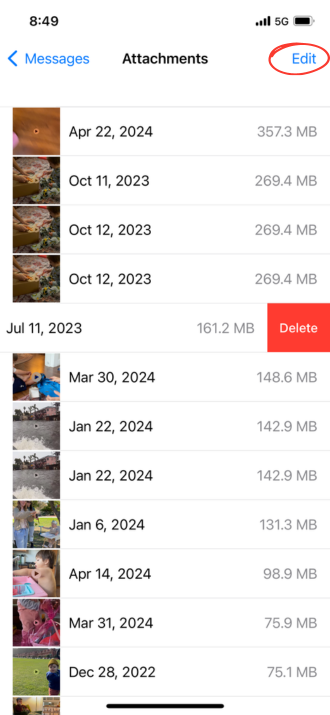
Swipe left to delete a file or tap Edit to delete multiple files at once.
Image: Alissa Bird - Return to your Messages screen, then tap Documents.
- Follow steps 1-4 to delete all other attachments by type.
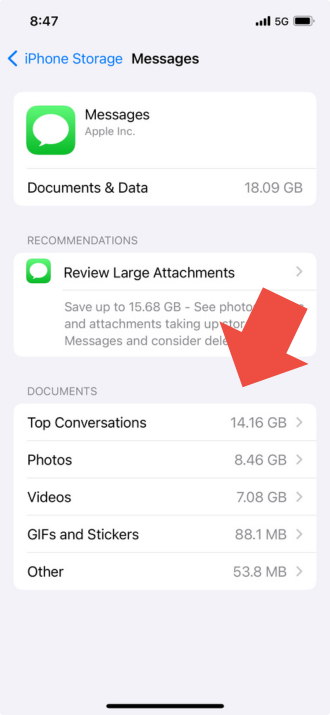
Image: Alissa Bird
Tip #5: Auto-delete old text messages
No one wants to go through the annals of history in their messaging app. Thankfully, there's another, more preventative method for keeping old text messages from stacking up and sucking up storage space. Here's how:
- Go to Settings > Messages.
- Scroll to the section labeled Message History.
- Pick to save your messages for 30 Days, 1 Year, or Forever.
Your phone will permanently delete messages that time out of your specified window.
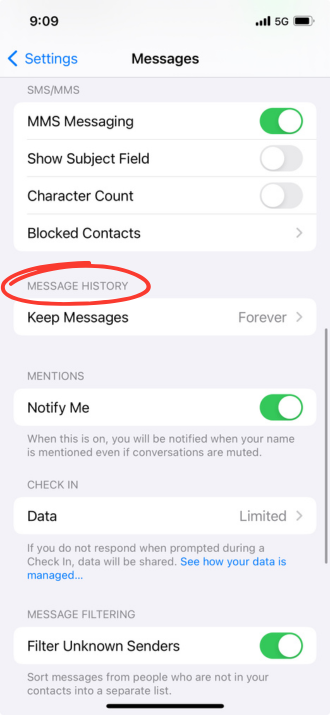
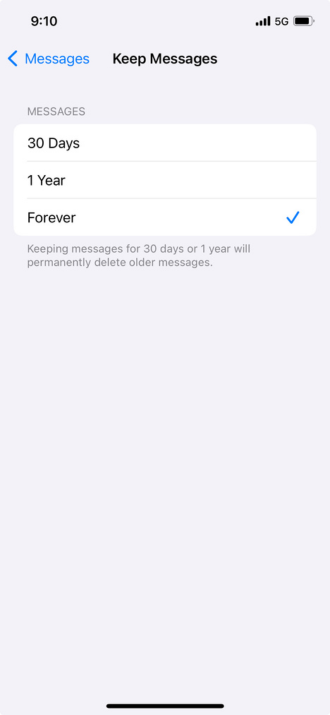
Image: Alissa Bird
Tip #6: Clear your cache
Whenever you browse the web, your phone temporarily stores data to save on future load times. This storage is called a cache, and it can quickly become cluttered. Although it's not as effective as deleting apps and large files, clearing your cache can free up some extra storage space. Just know that clearing your cache will sign you out of websites. Make sure you have those logins handy!
To clear Safari cache:
- Go to Settings.
- Select Safari.
- Scroll until you see Clear History and Website Data.
- Select the time frame you want to clear from.
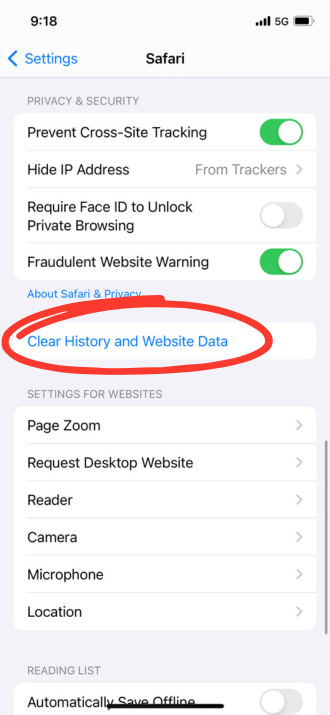
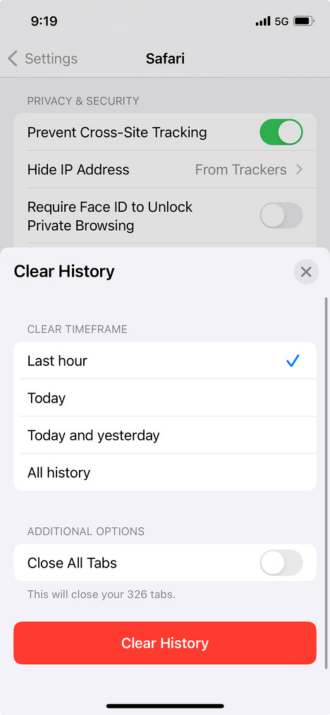
Image: Alissa Bird
- Go a step further and toggle on Close All Tabs to save additional space.
To clear Google Chrome cache:
- Open Chrome on your iPhone.
- Tap your profile icon in the top right corner to access your Settings.
- Select Privacy and Security.
- Tap Clear Browsing Data.
- Select a Time Range and the type of cache you want to clear.
- Select Clear Browsing Data at the bottom of the screen.
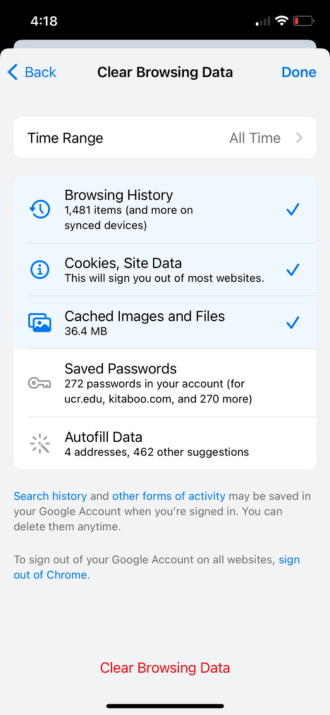
Image: Alissa Bird
For more details on this process, check out our guides for clearing the cache from your iPhone and Android.
How to buy more storage on iPhone
If you find yourself still needing more storage space, no shame. There are several options for buying more phone storage, including upgrading to iCloud+ or buying a phone with a larger storage capacity. Let's get into each option.
Upgrade your iCloud subscription
As mentioned earlier, you can store your photos, files, and more at a higher resolution in iCloud and a lower resolution on your phone, thereby saving more storage space on your device. While you can't change your phone's storage capacity, you can upgrade your iCloud.
All iPhone users will get 5GB of iCloud storage for free, but that's seldom enough. Thankfully, you can subscribe to iCloud+ for up to 12TB of storage. Here's how the upgrade options price out:
- 50GB for $0.99/month
- 200GB for $2.99/month
- 2TB for $9.99/month
- 6TB for $29.99/month
- 12TB for $59.99/month
To upgrade your iCloud storage from your phone, do the following:
- Open your Settings.
- Tap your name at the top.
- Select iCloud.
- Under Share with Family, select Manage Your Plan.
- From here, you can choose to upgrade or downgrade your plan. This plan will auto-renew each month, but you can cancel at any time.
Just remember that deleting photos and other media from your phone will also delete them from iCloud. If you're looking to back up your photos so you can delete them from your phone, you will need a third-party Cloud storage service.
Buy a new phone with a larger storage capacity
Last but not least, you can always snag a new phone with a larger storage capacity. For context, iPhones range between 128GB and 1TB of internal storage capacity. But how do you know how much storage you need? The average user checking in on social media using a few daily apps and engaging in basic browsing will do well with 128GB of storage.
How much is a gigabyte (GB) anyway?
Understanding what a gigabyte is can help you decipher how much storage you actually need. For context, 1GB is:
- 1,024 megabytes (MB)
- 1 billion bytes of data
- About 250 MP3 files
- 50+ high-quality photos
- About 5 hours of web browsing or video streaming
For a larger picture, 1,000GB equals a terabyte (TB) of storage space. It goes without saying that devices with more GB or TB have more storage capacity.
Consider, too, going with an older iPhone model, which will be cheaper now that the iPhone 17 series is out. The iPhone 16 Pro is basically the same as a brand-new iPhone 17, which means you can get all the tech you want for far less out of your wallet.
Here are some of the most popular iPhones currently for sale.
iPhone 16 128GB
- 6.1 inch display
- Rear Cameras: 48MP, 12MP
- Front Camera: 12MP
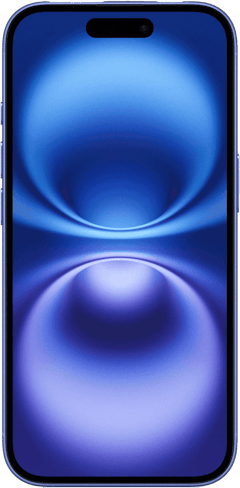
iPhone 18 Pro 256GB
- 6.3 inch display
- Rear Cameras: 48MP, 48MP, 48MP
- Front Camera: 18MP
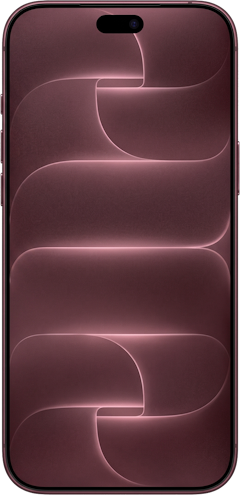
iPhone 18 Pro Max 256GB
- 6.9 inch display
- Rear Cameras: 48MP, 48MP, 48MP
- Front Camera: 18MP
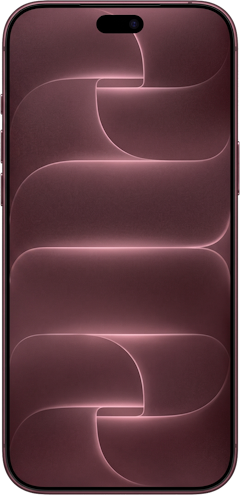
iPhone 18 Pro 512GB
- 6.3 inch display
- Rear Cameras: 48MP, 48MP, 48MP
- Front Camera: 18MP
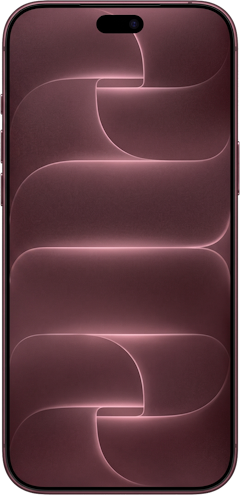
iPhone 18 Pro Max 512GB
- 6.9 inch display
- Rear Cameras: 48MP, 48MP, 48MP
- Front Camera: 18MP

Alissa Bird
Staff Writer

Thousands of cell phone plans unpacked. All the facts. No surprises.





.png?w=280&h=280&usm=20&usmrad=0.8&fit=crop "The Best Cheap Phone Plans for 2026: We Tested Them All to Help You Save")


