
Updating your iPhone's apps is one of the most important actions you can take to keep your device running smoothly. After all, apart from texting and making phone calls, apps are what make your iPhone the useful device that it is.
iPhone app updates can introduce new features, patch security vulnerabilities, and even fix bugs. For these reasons, it's essential to keep your apps up to date.
Read on to learn how to manually and automatically update your iPhone apps.
How to manually update iPhone apps
Manually updating your iPhone apps gives you the most control over when an update is completed. It's the best option if you want to read the update's patch notes or ensure the download doesn't accidentally use your mobile data.
As of iOS 26 and iOS 27, the App Store now has a dedicated updates tab. This is a slight change from previous iOS versions that simply placed app updates under your profile in the App Store.
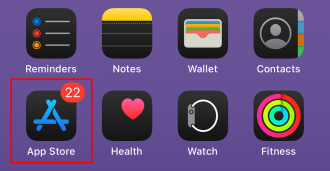
To update apps manually on iPhone:
- Open the App Store.
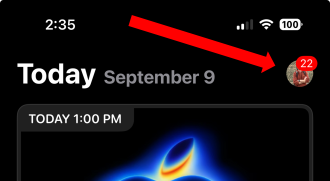
- Tap your Profile icon in the top right corner.
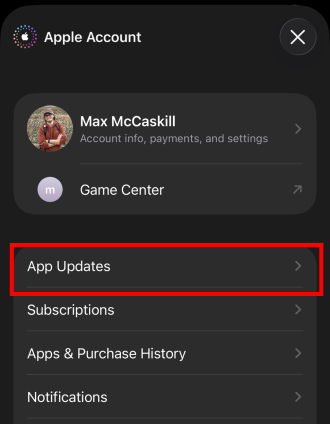
- Select App Updates.
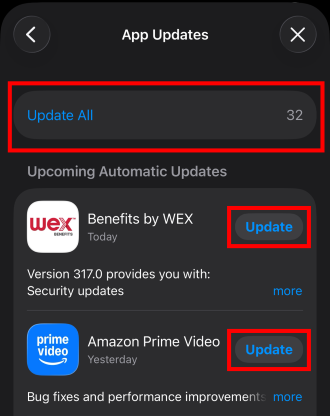
- Pull down to refresh the list.
- Update apps individually or select "Update All."
How to automatically update iPhone apps
Automatic updates are the easiest way to ensure your apps are always up to date. That said, keep in mind your iPhone will need to be charging, connected to Wi-Fi, and not in Low Power Mode for the automatic process to begin.
Here's how to turn on automatic app updates for iPhone:
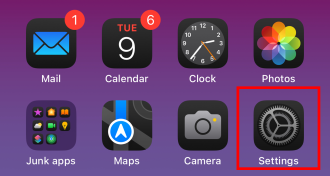
- Go to the Settings app.
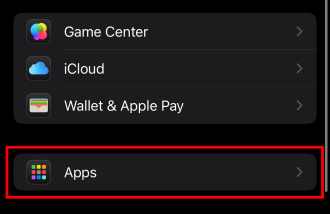
- Scroll down to Apps.
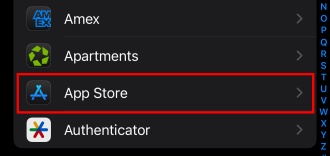
- Select App Store.
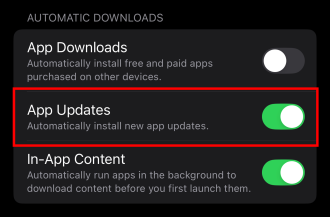
- Enable App Updates.
Why is updating iPhone apps important?
Updating iPhone apps is important because it keeps them running smoothly and ensures their security features are up to date.
Developers constantly create new features for apps, fix bugs, and fight security threats that seek to steal your data. Remember that apps are not simply games and social media websites. You likely also have apps connected to your bank accounts, credit cards, vehicles, smart home cameras, and more. Protecting that information is incredibly important, and updating your apps is the only way to keep them secure.
When do new iPhone app updates come out?
Updates can come at any time, and the most popular apps may even receive weekly updates. However, you'll typically see large batches of updates surrounding new iOS updates and Apple device launches when developers take advantage of new features.
Troubleshooting iPhone app updates
If your iPhone app update is not working or the device is freezing, there are several potential issues that could be impacting your devices. Here are some of the most common fixes associated with downloading app updates.
Restart your device
If multiple app updates are failing, try restarting your device. This is the easy first step for fixing iPhone issues. It will restart the system, force close any problematic apps, and fix any glitches impacting your iOS. It can also fix problems like your iPhone running slowly or apps frequently crashing.
Check your Wi-Fi connection
An unstable or extremely slow Wi-Fi connection can cause app updates to fail or freeze. You may need to wait until you have a stronger signal to complete your updates.
Check your iPhone storage
Apps require storage space, both for the download process and to simply exist on your iPhone. If your device has no storage available, the App Store cannot begin an update. Consider deleting duplicate photos, deleting unused apps, and even storing media on iCloud or other cloud-storage systems to free up space.
Verify your Apple ID
If you've used two different Apple IDs on one iPhone, you may not be using the correct account to update your app. To solve this issue, you must either sign back into your other account to start the update, or delete the app and redownload it using your current Apple account.
Updating iPhone apps: FAQs
Why won't my iPhone apps update?
Common reasons your iPhone apps may not update are because your device's storage is full, you have a bad Wi-Fi connection, or you may need to restart your iPhone.
Do I need Wi-Fi to update iPhone apps?
No, you don't need Wi-Fi to update iPhone apps if you use mobile data. That said, using your mobile data may be expensive if you use up most of your wireless plan's data allotment. We still recommend using Wi-Fi for most app updates if you don't monitor your data closely.
Can I update all my apps at once?
Yes, to update all your iPhone apps at once, simply press "Update All" in the updates section of the App Store. Again, we recommend using Wi-Fi to download these updates to save on your monthly mobile data.
How do I check all my apps are updated?
To check if your iPhone's apps are updated, go to the App Store and look at the updates section in your Profile. Pull down on the top of the screen to refresh your updates. If no updates appear, all of your apps are up to date.
Max McCaskill
Sr. Staff Writer

Thousands of cell phone plans unpacked. All the facts. No surprises.





.png?w=280&h=280&usm=20&usmrad=0.8&fit=crop "The Best Cheap Phone Plans for 2026: We Tested Them All to Help You Save")


