
A default app is the app your phone automatically uses for a specific task, like the browser that opens when you tap a link, the app that sends your texts, or the player that handles your music. You set them once (sometimes without realizing it) and your phone uses them every time until you change them.
Customizing or organizing your phone with third-party apps sounds great on paper. But sometimes, you change your default browser or messaging app a little too quickly and find yourself stuck with a cheap gimmick. (Maybe it’s too easy to swap default apps.) What’s worse is it’s often difficult to see how to change or reset your default apps when you don’t want to completely delete any of them. Luckily, the process is still easy—once you know what to do.
Let’s dive in.
How to change a default app on Android
Swapping out a default app for another takes just a few steps. The exact menu name differs a little depending on your phone, so here's how it works on the two most common Android brands. The steps below also vary slightly by Android version, so it helps to be on the latest Android OS.
How to change default apps on a Google Pixel
Google Pixel phones run stock Android, so the path is direct.
- Open the Settings app.
- Tap Apps, then Default apps.
- Tap the default you want to change, like Browser app or SMS app.
- Choose the app you want as your new default.
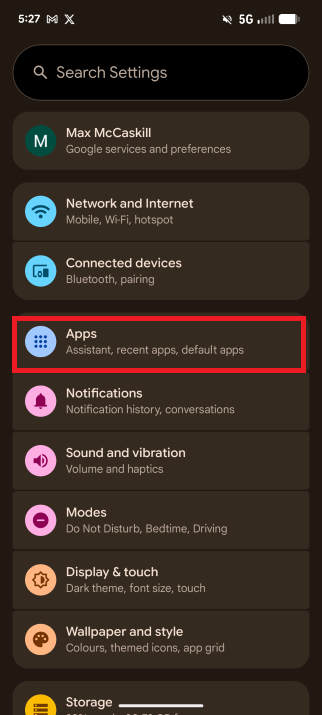
Image: Max McCaskill | WhistleOut
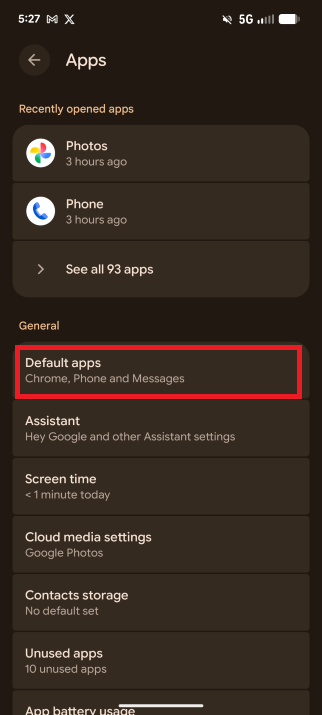
Image: Max McCaskill | WhistleOut
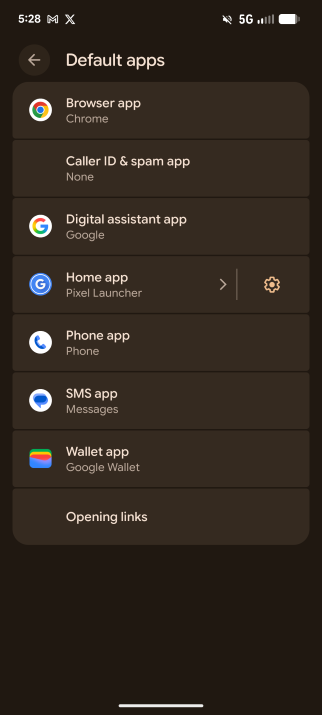
Image: Max McCaskill | WhistleOut
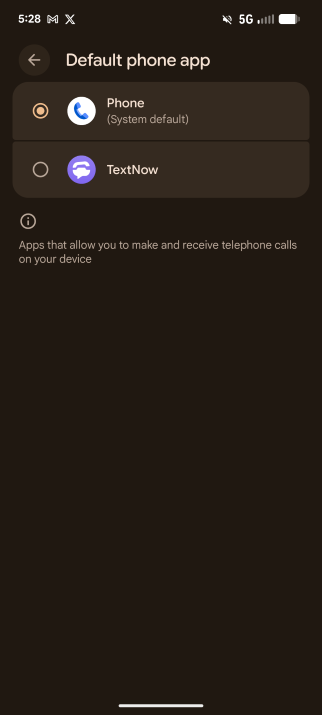
Image: Max McCaskill | WhistleOut
Next time you perform that task, like tapping a link from outside your browser, your Pixel will use the app you just set.
How to change default apps on a Samsung Galaxy
Samsung's One UI labels things a little differently, so the menu name isn't quite the same as on a Pixel.
- Open the Settings app.
- Tap Apps, then Choose default apps.
- Select the category you want to change, such as Browser app or Digital assistant app.
- Pick your preferred app from the list.
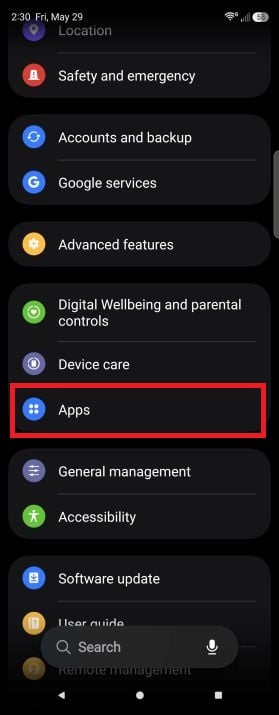
Image: Scott Houghton | WhistleOut
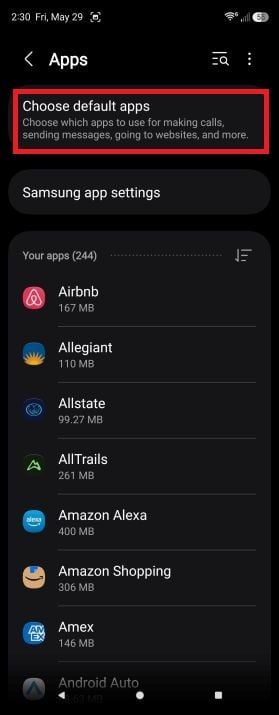
Image: Scott Houghton | WhistleOut
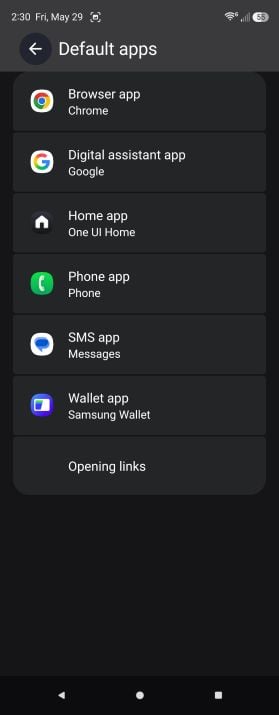
Image: Scott Houghton | WhistleOut
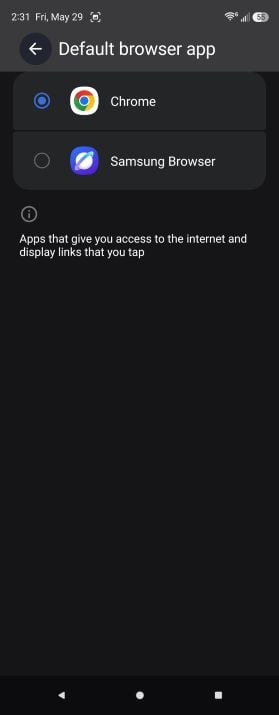
Image: Scott Houghton | WhistleOut
To change your default browser on a Samsung Galaxy specifically, tap Browser app and select your choice, like Chrome or Firefox. Any links you open from other apps will then load in that browser. Note that an app has to be installed before it shows up as an option.
How to reset or clear a default app on Android
Resetting or clearing default apps on Android is slightly different than I outlined above, but it’s just as simple once you find the setting.
- First, open your Settings app.
- Tap Apps.
- Find the app you no longer want as a default. (Tap See all apps if it doesn’t show up right away).
- Select the app and then tap Open by default.
- Now switch off Open supported links.
- Repeat for any other default apps you want to clear.
Once you’ve reset your default apps, your device will prompt you to choose an app the next time it opens a related link or file. This prompt lets you choose between setting a new app as default or selecting an app for a one-time use.
If you don’t select a new default app, your phone will ask you this again each time. So if you want a choice every time, you can have that too. Commitment can’t tie you down!
Afterward, your phone should automatically start using the new settings. If it doesn’t, try resetting your phone as an extra refresh step.
Common default apps to change
Some defaults are worth swapping more than others. These are the ones most people end up changing:
- Browser: The app that opens web links. Common swaps include Chrome, Firefox, and Brave.
- Messaging: Your default texting app, like Google Messages or a third-party SMS app.
- Email: The app that opens when you tap an email address, such as Gmail or Outlook.
- Music: Your go-to player, like Spotify, YouTube Music, or Apple Music.
- Maps: The navigation app for addresses and directions, like Google Maps or Waze.
- Phone: The dialer that handles calls, which Samsung users often switch from Samsung Phone to Google Phone.
- Digital assistant: The assistant that responds to your commands, like Google Gemini.
Not sure what to replace them with? Check out our guide to the best new apps for our favorite Android picks worth setting as your new defaults.
How to change default apps on Android FAQ
Can I change my default messaging app on Android?
You can change your default messaging app on Android through your device settings. Open Settings, tap Apps, then Default apps (or Choose default apps on Samsung). Select the messaging default and pick the app you want. Your texts will route through that app from then on.
Can I remove all default apps on Android?
Default apps can be cleared, but you'll have to do it one at a time. Through your app settings, you can switch off each default app function or select a different app as the default. There's no single button to wipe them all at once.
Do I need to restart my Android device after changing default apps?
Restarting isn't usually necessary, since your phone applies the new default right away. If the change doesn't seem to take effect, restarting your device is a quick fix. An outdated app can also misbehave, so it's worth making sure you've updated your apps too.
How do I change the default launcher on Android?
The default launcher is changed the same way as other defaults. Open Settings, tap Apps, then Default apps (or Choose default apps on Samsung), and select the Home app option. Pick your preferred launcher, like Nova Launcher, from the list. You'll need to have it installed first.
Why can't I change certain default apps on Android?
Some default apps can't be changed because Android locks core system functions to specific apps, or because no alternative app is installed to take over the task. If the category you want doesn't appear, or your choice is greyed out, it's usually because there's no compatible app installed, so download one first and try again.
What are the default apps on Android?
The default apps on Android are the preset apps your phone uses for common tasks, including the browser, phone dialer, SMS messaging, digital assistant, and home app (launcher). Manufacturers set these out of the box, which is why a new Samsung Galaxy defaults to Samsung apps and a Pixel defaults to Google apps.
Joseph Hanlon
Contributing Editor

Thousands of cell phone plans unpacked. All the facts. No surprises.





.png?w=280&h=280&usm=20&usmrad=0.8&fit=crop "The Best Cheap Phone Plans for 2026: We Tested Them All to Help You Save")


