
Updating your Android’s apps is one of the most important actions you can take to keep your device working correctly. After all, apps are an essential part of your smartphone, whether you’re playing games, sending messages, or scrolling through social media.
Android app updates from the Google Play Store introduce new features, patch security vulnerabilities, and even fix bugs. For these reasons, it’s essential to always keep your apps up to date.
Read on to learn how to manually and automatically update your Android apps. For the most part, you can follow these instructions whether you have a Google Pixel, Samsung Galaxy, or other newer-model Android device.
How to update Android apps manually
Manually updating your Android apps gives you the most control over when an update is completed. It’s the best option for users who want to read the update’s patch notes or ensure the download doesn’t use big chunks of your mobile data.
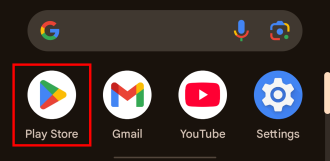
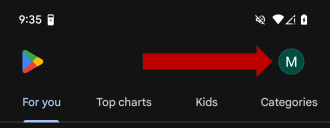
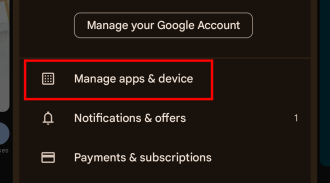
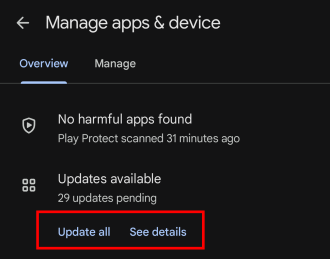
To update apps manually on an Android:
- Open the Google Play Store app.
- Tap your Profile icon in the top right corner.
- Go to Manage apps & device.
- Update apps individually or select “Update all.”
How to turn on automatic app updates for Android
Automatic updates are the easiest way to ensure your apps are always up to date. That said, keep in mind your Android will need to be charging for the automatic process to begin.
Here’s how to turn on automatic app updates for Androids:
- Open the Google Play Store app.
- Tap your Profile icon in the top right corner.
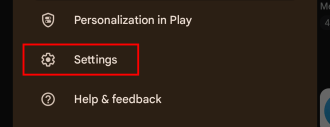
- Go to Settings.
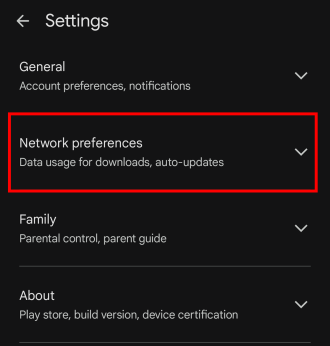
- Tap the Network preferences dropdown box.
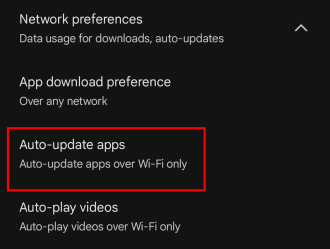
- Tap Auto-update apps.
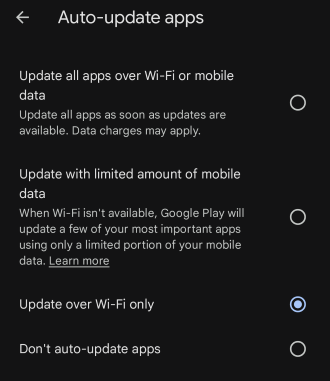
- Enable Auto-update by your preferred connectivity type.
Why it's important to update Android apps
Updating Android apps is important because it keeps them working well and ensures their security features stay up to date.
Developers constantly create new features for apps, squash bugs, and fight security threats that hunt after your data. Remember that your most important apps are not games and social media websites. You likely also have apps connected to your bank accounts, credit cards, vehicles, smart home cameras, and more. Protecting that information is incredibly important, and keeping your apps updated and secure is your first line of defence.
Android apps not working? Here’s how to troubleshoot
If your Android app updates aren’t working, the typical culprits are issues with your Wi-Fi connection or with your device itself. Here are some of the most common troubleshooting steps when downloading Android app updates.
Restart your device
If your app updates fail, try restarting your device. This step restarts the system, forces frozen apps to close, and can fix any glitches impacting your Android OS.
Check your Wi-Fi connection
An unstable or extremely slow Wi-Fi connection can cause app updates to fail or freeze. You may need to wait until you have a stronger Wi-Fi or mobile signal to complete your updates.
Check your device storage
Apps require storage space on your device. If your storage is full, the Google Play Store will not allow you to update your apps. Delete duplicate photos, clear out your Android’s cache, and save your files to Google’s cloud storage to free up space. You should also organize your Android apps to find ones you no longer use. These can be deleted to free up even more valuable space for your most essential apps.
Update your Android OS
If none of the above methods work, the issue may be with the Google Play Store app itself. You should always keep your device updated with the latest version of Android. If you’re running an out-of-date Android OS, the Google Play Store may not work correctly.
Delete problematic apps
Sometimes you just download a bad app. Developers aren’t perfect, and scammy apps can oversell their abilities. This is especially true of apps that seek to replace default apps on your phone, like messaging or browser apps.
When this happens, your phone’s privacy features may be actively fighting the app, meaning it won’t work correctly no matter how many updates it receives. We generally recommend avoiding or deleting these replacement apps and sticking to the native apps that came with your phone.
Updating Android apps: FAQs
How do I turn on automatic updates on Android?
You can turn on automatic updates for Android apps in the Settings menu of the Google Play Store app. Open Network preferences, then select what kind of connection automatic updates should use.
Why won't my Android apps update?
Common reasons your Android apps aren't updating are that your device's storage is full, you may have a bad Wi-Fi connection, need to restart your device, or update your Android OS to the latest version.
Can I update all my apps at once?
Yes, to update all your Android apps at once, simply tap "Update all" in the Manage apps & device section of the Google Play Store.
Do I need Wi-Fi to update Android apps?
No, you don't need Wi-Fi to update Android apps if you use mobile data. That said, using your mobile data can be expensive and may use up large chunks of your phone plan's premium data allotment, depending on the size of the updates. We recommend using Wi-Fi for all app updates instead.
Max McCaskill
Sr. Staff Writer

Thousands of cell phone plans unpacked. All the facts. No surprises.





.png?w=280&h=280&usm=20&usmrad=0.8&fit=crop "The Best Cheap Phone Plans for 2026: We Tested Them All to Help You Save")


