
Is your Android home screen a cluttered mess? The easiest way to organize apps on Android is to group them into folders, but folders are just the start. You can also use widgets, sort your app drawer, hide apps you rarely open, and spread everything across multiple home screen tabs.
The average American has around 57 apps on their smartphone, and some of us have many more. With that many apps tucked into every corner of your device, finding the one you want gets harder, especially if you haven't set it as one of your default apps.
The good news is the Android operating system, much like Apple's iOS, makes organizing your apps simple. There are subtle differences between devices, but you can generally find these features on any Android phone, including the Samsung Galaxy S26 and Google Pixel 10.
Read on to learn the best ways to organize your Android apps.
Create Android folders
Folders are the easiest way to organize apps on your Android device. These are specific groups of apps that you create and customize within your home screen.
For example, you can have different folders for games, social media apps, entertainment apps, and banking apps. If you organize your device this way, the next time you want to stream Netflix, you don't have to scroll through several screens looking for the app. Instead, you can open your entertainment folder and quickly find it.
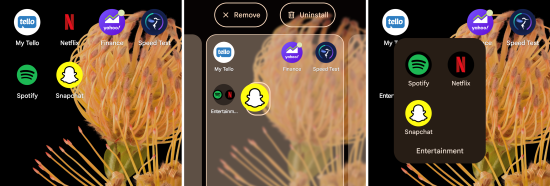
How to create an Android app folder
- Long-press your app of choice until you feel a small vibration and the screen-editing options appear.
- Drag one app onto another app you want in the same folder.
- Release the app to make the folder.
- Add any other apps you want in the folder.
- Rename the app folder title to the purpose of the folder.
Once your folder is created, all you have to do is tap to open it and access the apps inside.
Tip: Use your Android's search function to quickly find apps
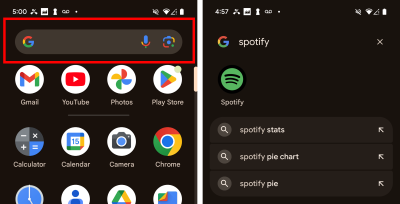
All Android devices have a search function built into their operating system. For Samsung Galaxy and Google Pixel phones, you simply swipe up on your home screen. This will bring up a list of all your apps and a search bar. Type the name of the app you're looking for into the search bar and Android will bring it to the top of your screen.
Use Android widgets
If you don't want to spend time making folders for all your apps, widgets are an excellent alternative. Widgets are active icons found on your device's home screen that show live activity from inside a specific app. By utilizing widgets, you don't have to open an app to know what's going on inside of it. Instead, the app operates in the background while the widget shows important information right on your home screen.
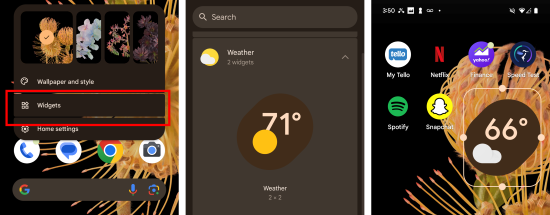
How to add a widget to your home screen
- Long-press your home screen until the screen editing options appear.
- Select Widgets.
- Select a widget for the app you want.
- Drag the widget to the desired location.
- Resize the widget if needed.
Home screen organization tips
If you aren't a fan of folders or widgets, there are still other methods you can use directly on your home screen to organize your apps.
Uninstall unused apps
Uninstalling your unused apps is one of the best things you can do for your device. Not only will it help unclutter your Android home screen, but it can also free up storage space and save mobile data if the app runs in the background of your phone. If your phone is constantly full, it's worth checking how much storage you actually need before your next upgrade. This action may even speed up your phone as full storage and constant background tasks are common reasons devices slow down.
To delete your Android apps, simply go through your phone and delete apps you haven't used in the past several months. These may be games you no longer play or maybe streaming services you no longer watch.
Note: Make sure you've ended any subscriptions associated with the apps you're deleting. Apps can still charge your credit card even if they've been deleted from your device.
Hide apps from your home screen and app drawer
Not every app needs to live on your home screen, and you don't have to delete an app to get it out of sight. Hiding apps is a quick way to remove unwanted apps from view while keeping them installed and ready when you need them.
On Samsung Galaxy phones, open the app drawer, tap the three-dot menu, choose Settings, and select Hide apps. Pick the apps you want tucked away and they'll disappear from both your home screen and your app drawer. They stay installed, so you can still find them through search.
Stock Android phones like the Google Pixel don't have a built-in hide feature, but you can get the same result by removing an app's icon from the home screen (long-press and select Remove, which leaves it in the app drawer) or by installing a third-party launcher like Nova Launcher that supports hiding apps outright.
This kind of app drawer organization keeps your most-used apps front and center while everything else stays out of the way. If you're coming from an iPhone, think of it as Android's answer to tucking apps into the App Library.
Sort your apps alphabetically
For an outside-of-the-box organization method, some Android users opt to sort their apps alphabetically. While apps are automatically in alphabetical order in your overall app list, they appear in their downloaded order on your home screen.
Some Android devices, like Samsungs, allow you to automatically sort apps in alphabetical order. Unfortunately, if you have a device like a Google Pixel, you'll need to manually drag your apps into the correct order.
Create new home screen tabs
Another potential option for organizing your apps is to create new home screen tabs. Android devices allow you to create as many tabs as you want.
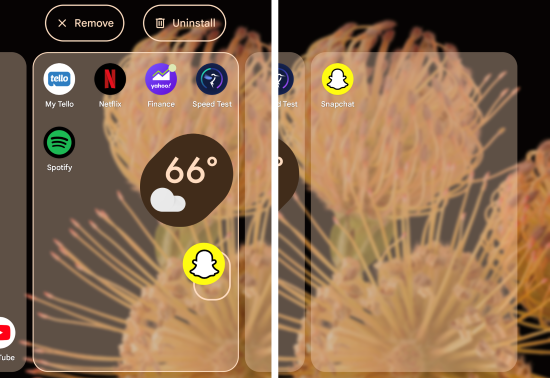
How to create a new home screen tab
- Long-press an app you want on a new home screen tab.
- Drag the app to the side of the screen until the device creates your new tab.
- Place the app where you want it on your new tab.
Now you can simply swipe between home screen tabs to see your apps.
Create a folder for rarely used apps
One of the final ways to organize your Android apps is to declutter your screen by hiding rarely used apps in a single folder. Everyone has apps that they need but don't use very frequently. A great example of this kind of app would be a two-factor authentication app. You likely won't use that app every day, but you'll still need access to it in case you get signed out of something.
To do this, simply create a folder using the instructions above, then drag your rarely-used apps into it. Now, your home screen should be decluttered and filled with apps you use daily, but you'll still have access to the infrequently used apps if you need them.
How to organize apps on Android FAQ
What is the easiest way to organize apps on Android?
The easiest way to organize apps on Android is to group related apps into folders on your home screen. Long-press one app, drag it onto another, and Android creates a folder you can name and fill with similar apps. From there, widgets and app drawer sorting can take your organization further.
Is there a way to automatically arrange apps on Android?
Automatic arrangement for your apps is available, but it depends on your device. Samsung Galaxy phones can auto-arrange home screen icons and sort the app drawer alphabetically through the app drawer's three-dot menu. Stock Android phones like the Google Pixel keep the app drawer in alphabetical order automatically but require manual dragging to arrange the home screen, unless you install a third-party launcher.
Can I hide apps on Android without deleting them?
You can hide apps on Android without uninstalling them. Samsung Galaxy phones have a built-in Hide apps setting in the app drawer, while Pixel and other stock Android phones rely on removing the icon from the home screen or using a launcher like Nova Launcher. The app stays installed either way, so you can still reach it through search.
Do widgets slow down Android phones?
Widgets use a small amount of battery and resources, but for most phones the impact is negligible. The exception is widgets that constantly refresh in the background, like live weather or news feeds, which can use more power. If you notice a drain, removing or limiting frequently updating widgets usually fixes it.
Max McCaskill
Sr. Staff Writer

Thousands of cell phone plans unpacked. All the facts. No surprises.





.png?w=280&h=280&usm=20&usmrad=0.8&fit=crop "The Best Cheap Phone Plans for 2026: We Tested Them All to Help You Save")


