

Uninstalling apps on Android lets you free up precious storage space. Maybe you want more space for music and dog pics. Or perhaps you’ve finally met that perfect someone (or are frustrated) and are ready to purge your device of dating apps. As a hidden benefit, removing applications and widgets might even speed up the internet on your phone.
Whatever your motivations, there are plenty of reasons to audit your applications. Here’s how to delete apps on an Android phone and regain your valuable storage space.
How to Delete Apps on an Android Phone
The fastest method for uninstalling Android apps is via the app icon. From one of your home screens:
- Find an app you want to remove.
- Long-press the app icon.
- Tap Uninstall when the pop-up menu appears.
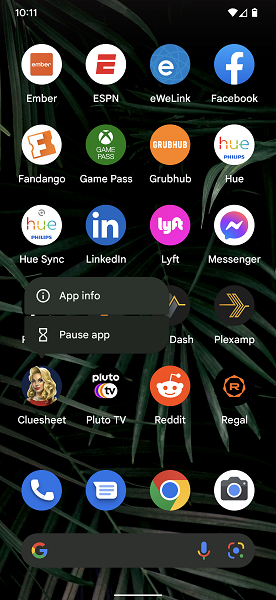
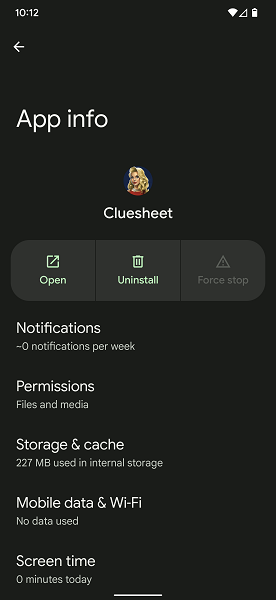
Note that long-pressing varies a bit by Android device. On my Samsung Galaxy S9+, an app shortcut long-press presented an Uninstall option immediately. However, with some handsets, such as my Google Pixel 6 Pro, there’s an additional step required by hitting App Info > Uninstall.
Delete apps on Android via Google Play
Most modern Android phones rely on the Google Play Store to download apps. While you can sideload applications or use third-party app stores such as Aptiode, most app installs will happen through Google Play. Here’s how to use the Google Play Store to delete apps:
- Fire up the Google Play Store app.
- Tap your profile icon in the top right-hand corner.
- Select Manage apps & device > Manage.
- Tap an app you want to delete.
- Choose Uninstall.
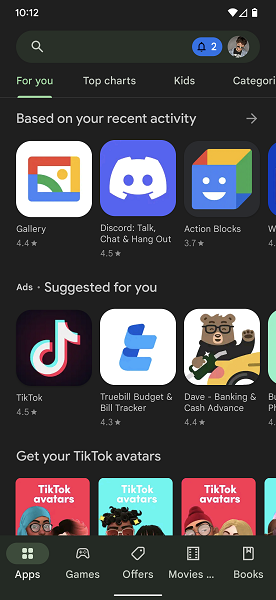
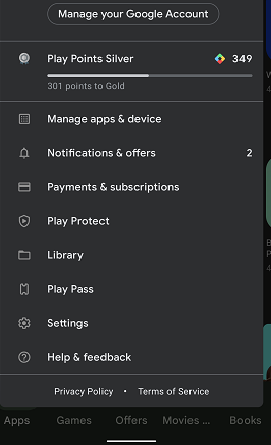
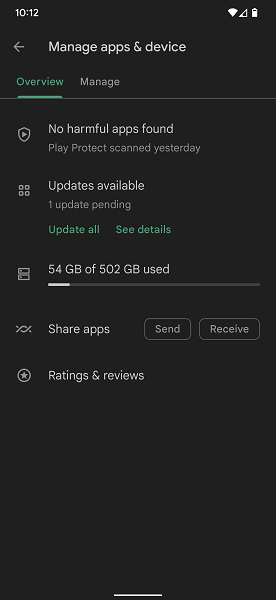
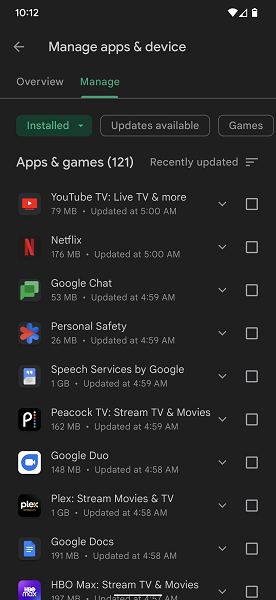
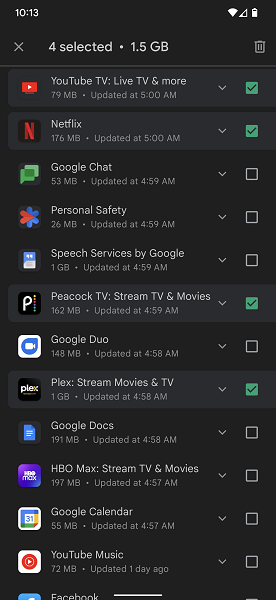
You can tick boxes next to multiple apps for bulk deletion. Looking to learn more about Android? Here’s how to take a screenshot on your phone.
Uninstall Android apps via Settings
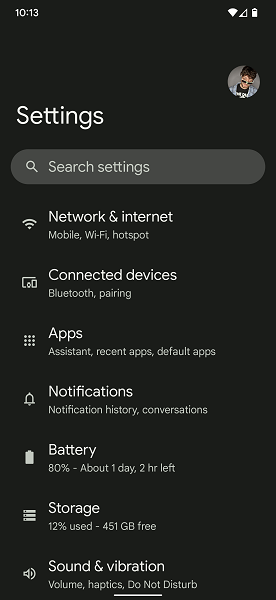
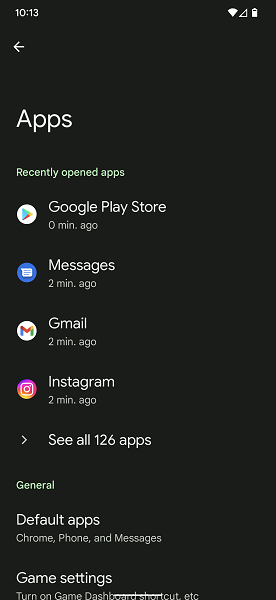
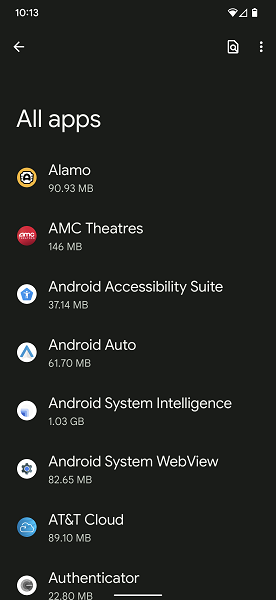
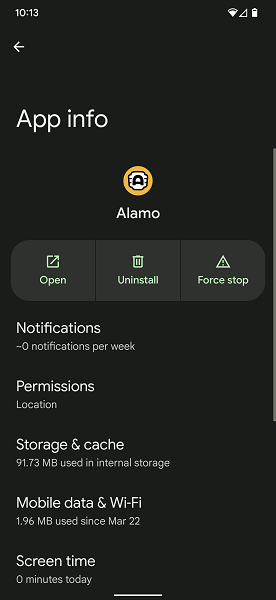
You can easily delete Android apps from the Settings menu of your phone by following these steps:
- Launch Settings.
- Hit Apps.
- Locate the app you wish to remove and tap it.
- Select Uninstall.
- Choose Ok.
Remove Android apps via the app drawer
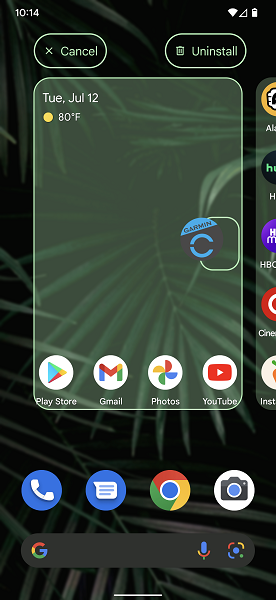
For a comprehensive purge, try removing apps using the app drawer:
- Open your app drawer (the area where all your downloaded apps are listed).
- Drag the desired app to the Uninstall button on the screen.
- Select Ok when prompted.
Uninstalling vs. Disabling Android Apps
Certain system apps come preloaded on Android phones that you can’t delete. However, you may still be able to disable select preinstalled apps. These disabled apps remain on your phone but won't appear in the list of installed apps. Additionally, any downloaded app updates also get removed, freeing up storage space.
Here’s how to disable apps on Android:
- Navigate to Settings > Apps.
- Tap an app you want to disable.
- Hit Disable.
For more Android fun, find out how to block a number to avoid unwanted calls. Lose your phone? Here's how to locate it with Find My Android. Annoyed with your messaging app? Swap out your Android's default messaging app.
Best Android Phones
Whether you’re a current Android user or switching from Apple to Android, a new phone may be in order. The best Android phones include the Google Pixel 8 and Samsung Galaxy S23. Even if you abandon iPhones, you can still FaceTime on Android and transfer contacts between iOS and Android. For more Android fun, learn how to take a screenshot on Samsung phones.
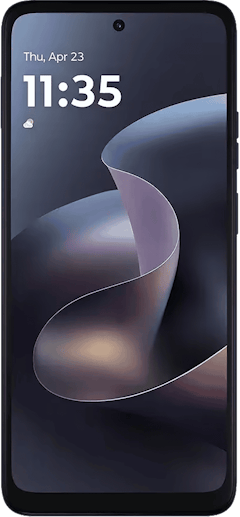
Moto G 5G (2026) 128GB
- 6.7 inch display
- Rear Cameras: 50MP, 2MP
- Front Camera: 32MP
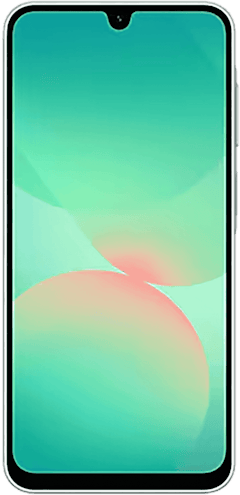
Galaxy A26 5G
- 6.7 inch display
- Rear Cameras: 50MP, 8MP, 2MP
- Front Camera: 13MP
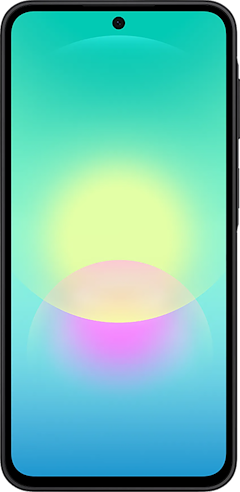
Galaxy A27 5G 128GB
- 6.7 inch display
- Rear Cameras: 50MP, 5MP, 2MP
- Front Camera: 12MP
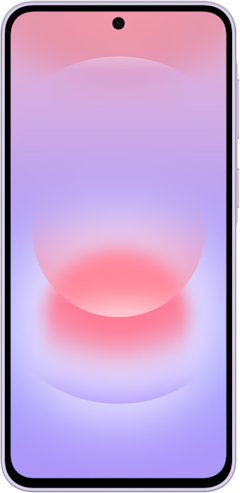
Galaxy A37 5G 128GB
- 6.7 inch display
- Rear Cameras: 50MP, 8MP, 5MP
- Front Camera: 12MP
Edge (2026) 128GB
- 6.3 inch display
- Rear Cameras: 50MP, 50MP, 10MP
- Front Camera: 50MP

How to Delete Apps on an Android Phone: FAQs
How do I completely remove an app from my Android phone?
You can completely remove an app from your Android phone using several methods like your phone’s Settings menu, the app drawer, or an app icon long-press. The simplest method involves heading to Settings > Apps > finding the app > hitting Uninstall.
Why can't I delete some apps on Android?
Some phones feature system apps that you can’t delete. However, you can usually disable these tricky apps, which removes updates and reclaims phone storage space.
Is deleting an app the same as uninstalling it?
Yes! Deleting a mobile app on Android uninstalls that software from your device.
Does disabling apps free up space?
Yes! Although disabling an Android app doesn’t completely remove a program, it deletes updates and frees up storage space. Clearing your cache also clears up internal storage.
What happens after I delete an app?
After deleting an app on Android, that program and its data get removed from your phone. So if you want to use that application again, you’ll need to re-download it.
Should I uninstall apps I don't use?
Maybe. Uninstalling unused apps is a great way to free up valuable storage space. However, you’ll also remove any associated app data like logins or in-game progress, so consider potential future application use before deletion.
Moe Long
Senior Writer

Thousands of cell phone plans unpacked. All the facts. No surprises.





.png?w=280&h=280&usm=20&usmrad=0.8&fit=crop "The Best Cheap Phone Plans for 2026: We Tested Them All to Help You Save")


